Table

Contents
The Table node is used to select and store the data that you will do further analysis in the Output node. This is a sample workflow with two types of tables for different usage:

▪Device Data Table (DDT) is exported from parsed variables in a Device or Command node. It only stores data for devices in the current loop and can only be referenced inside the Canvas node. The following table type is also a Device Data Table:
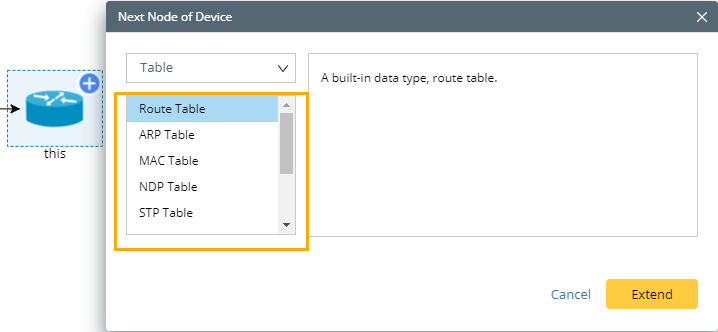
oSystem Data Table — built-in data types (including Route Table, ARP Table, MAC Table, NDP Table, STP Table, NCT Table), and only can be extended from a Command node. See Configuring system data table for more reference.
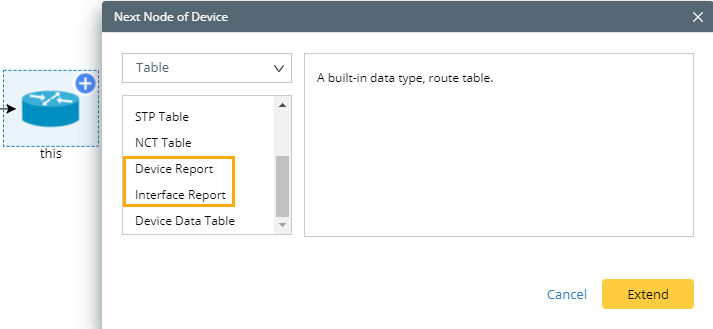
oDevice/Interface Report — used to store the device or interface attributes, and can be only extended from a Device node.
▪Global Data Table (GDT) is converted from a Device Data Table by the Convert Operator. It stores the data for all devices in the Device Queue. The variables in a GDT can be referenced by all Canvas nodes within a Qapp.
Configuring Device Data Table
1.Extend a Device Data Table node after a Command node. For how to extend nodes, see Extending a node for reference.
2.Click the  icon between the Command node and the Table node to specify which variables will be included in the table.
For interface-level variables (multi-instance variables) such as interface MTU, duplex and input/output errors, click Table>> to add them to the table. For device-level variables (single-instance variables) such as CPU usage, version, and memory size, click Attribute>> to add them to the attribute table.
3.Click the Table node to configure more table attributes if necessary.
▪Enter the table name and description.
▪In the table area, click New Column to create a new column. There are the following two types of columns:

Static Variable is used to create a variable manually. The variable can be called in any sub nodes within the Canvas node. 1)Rename the column name, which is also the table header. 2)Specify the column type (string by default). 3)Enter the initial value of the column and click OK. You can repeat the steps to add more columns to the table. |
Variable by Formula is used to generate a new variable based on existing variables in a device data table via a calculation formula. The calculation formula supports Python expression syntax, such as operators (+, -, * and /) and parentheses. The generated variables by formula can be called in any sub nodes within the Canvas node. Configure its property as follows: 1)Rename the column name, which is also the table header. 2)Specify the column type (string by default). 3)Enter the initial value of the column. 4)Enter the formula script, such as $cell = $column1 + $column2. $cell is a built-in variable dedicated for the Variable by formula function, which represents the cell value of the generated variable column. 5)Click OK. |
Tip: The attribute table pane on the right displays the built-in system attributes as long as you retrieve the live data via CLI in the Command node. When you convert the table to a Global Data Table by using the Convert Operator, the table attribute $_device will be added as a new column in the Global Data Table.
Configuring System Data Table
Note: The following instructions take a Route Table for example. You can also follow the steps to configure other types of System tables.
1.Extend a Route Table node from a Device node. For how to extend nodes, see Extending a node for reference.
2.Click the Route Table node to configure more attributes based on your needs.
1)Modify the node name if necessary.
2)Enter a description of the node in the Description field.
3)Select a branch to apply if multiple branches are created in the Device node.
4)Click Retrieve, select a device to retrieve route tables with live data.
5)For other settings, see Table settings for reference.
Next node: