Viewing Nodes and Node Maps of an ACI Fabric

Contents
After your ACI network data is discovered in your domain, the data model is managed and organized in the Network pane.
To view the details and its context maps of a node, proceed with the following steps:
1.Click Network on the taskbar.
2.Select Cisco ACI from the Category list, and then select Network Centric View > Fabric POD View from the View list.
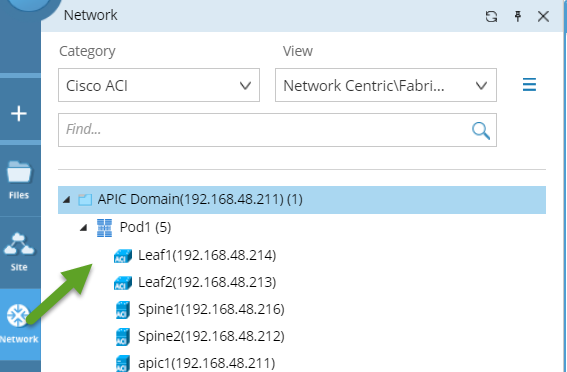
Tip: The network-centric view allows you to see what devices are part of the ACI fabric and how they connect to the rest of the network.
3.Click a Pod node to view all physical devices managed by the node. The devices include Spine switches, Leaf switches, and APIC servers. The number next to the Pod node indicates the sum of the number of its child nodes.
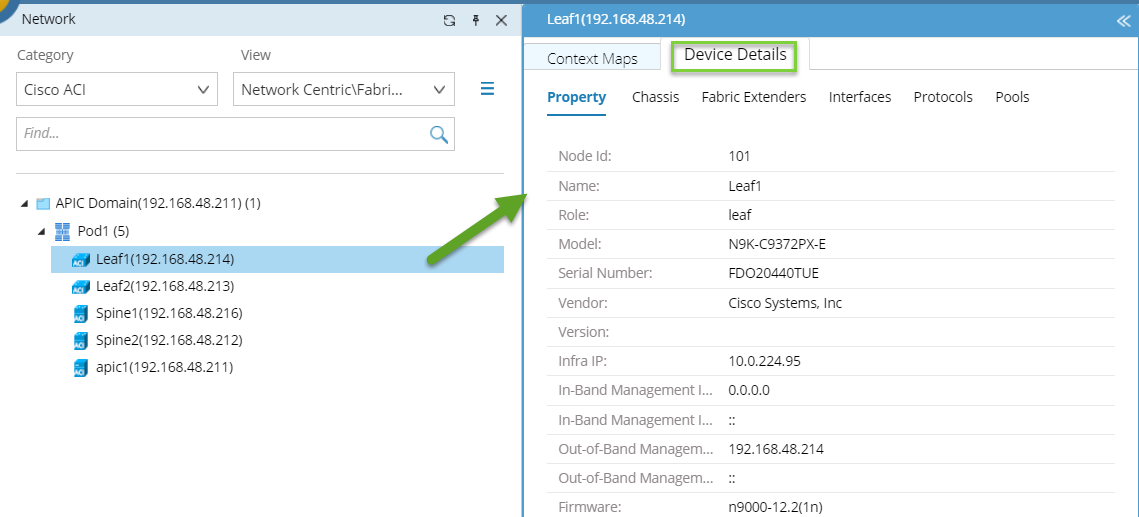
4.Click a device node and select the Node Details tab to view its details. For a property with a lot of details, you can use search to quickly locate the information.
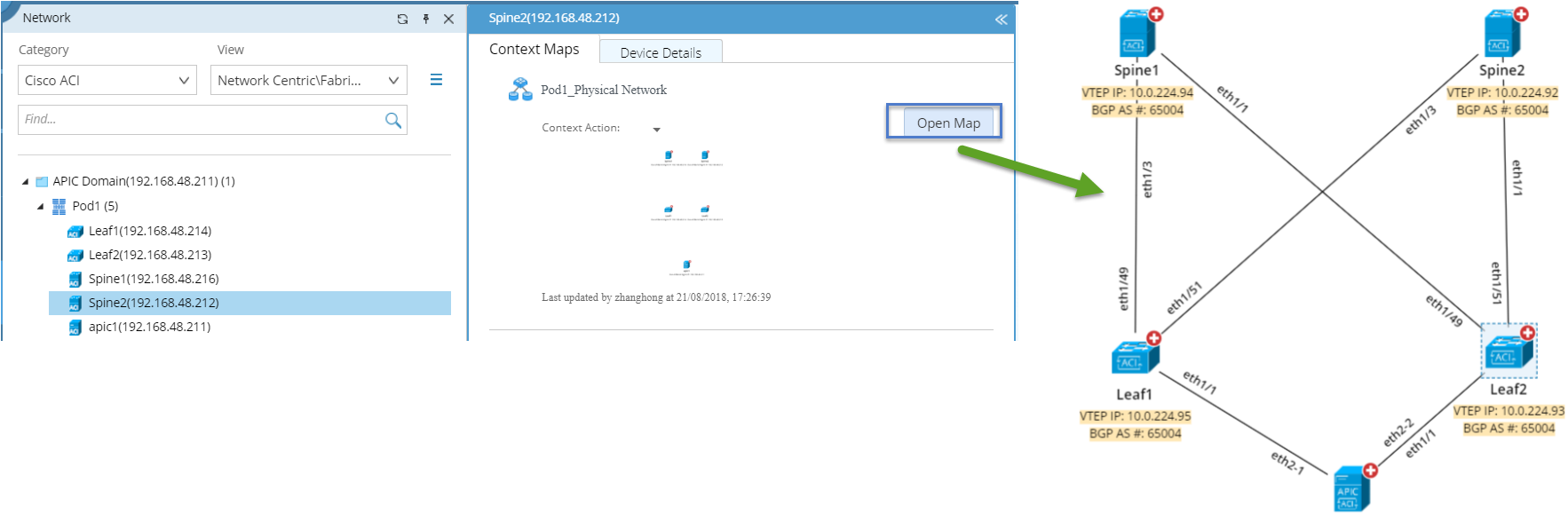
5.Select a Pod or device node and select Context Maps tab to view its context maps. The context map displays the physical topology of the selected Pod. You can open the context map and run Qapps or apply a data view to understand the detailed design.
Further Operations:

You can retrieve live data of SDN devices by using CLI commands. For details, refer to retrieving live data. |
Proceed with the following steps to view the system data table, such as Route Table, MAC Table, NDP Table, of an SDN device: 1.Map the target the device. 2.Right-click the device, select Data Tables > Route Table/ARP Table/MAC Table. |