Discovering Checkpoint Firewall R80

Contents
You can discover Checkpoint Firewall R80 and visualize the devices on dynamic maps. This guide introduces the way of discovering Checkpoint Firewall R80 to your NetworkBrain domain.
Supported Firewall Modes
The system can discover Checkpoint Firewall R80 in the following deployment modes:
▪Physical Mode
▪Cluster Mode
▪VSX
▪VSX Cluster
Note: NetworkBrain does not support the firewalls in the Bridge mode.
Discovery Flow
The pseudo-code below describes a high-level flow to discover Checkpoint Firewall R80, including configurations at both Checkpoint Manager side and NetworkBrain side.
1. Checkpoint Manager Side:
1.1 Set account permission.
1.2 Enable and set API access permission.
2. NetBrain Side:
2.1 Configure API Server Manager for Checkpoint Firewall R80.
3. Discover Checkpoint Firewall R80
4. Run a benchmark for Checkpoint Firewall R80
1.Configurations at Checkpoint Manager Side
Before discovering Checkpoint Firewall R80, you need to set up an account and API access permission in your Checkpoint Manager so that your NetworkBrain system has access to the Checkpoint Management Domain. The configurations for a single domain and multi-domain are somewhat different. Select the configuration steps based on your actual domain scenario.
Single Domain Configurations
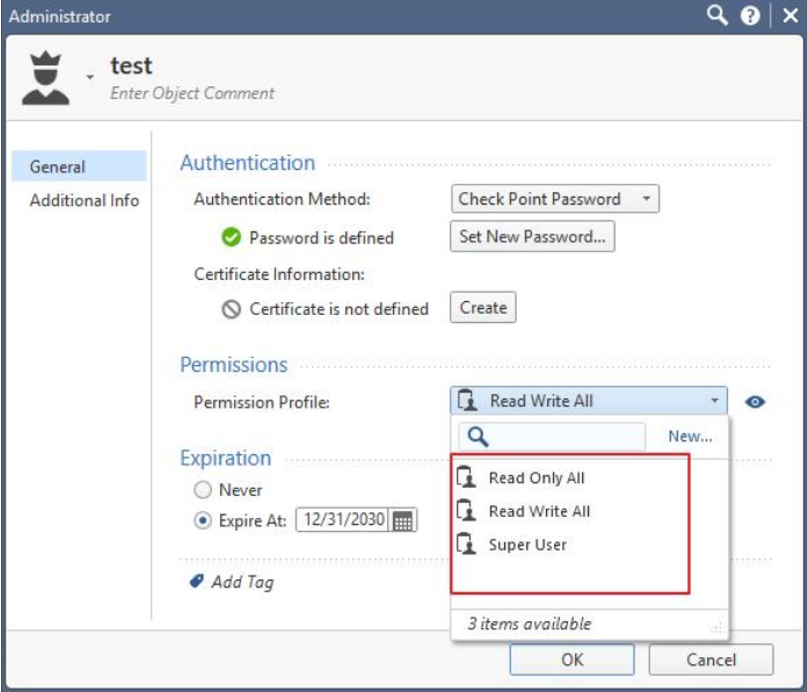
1.Assign permissions to the account that you use for your NetworkBrain system to access the Checkpoint data. You can select any of the three permissions shown in the figure below.
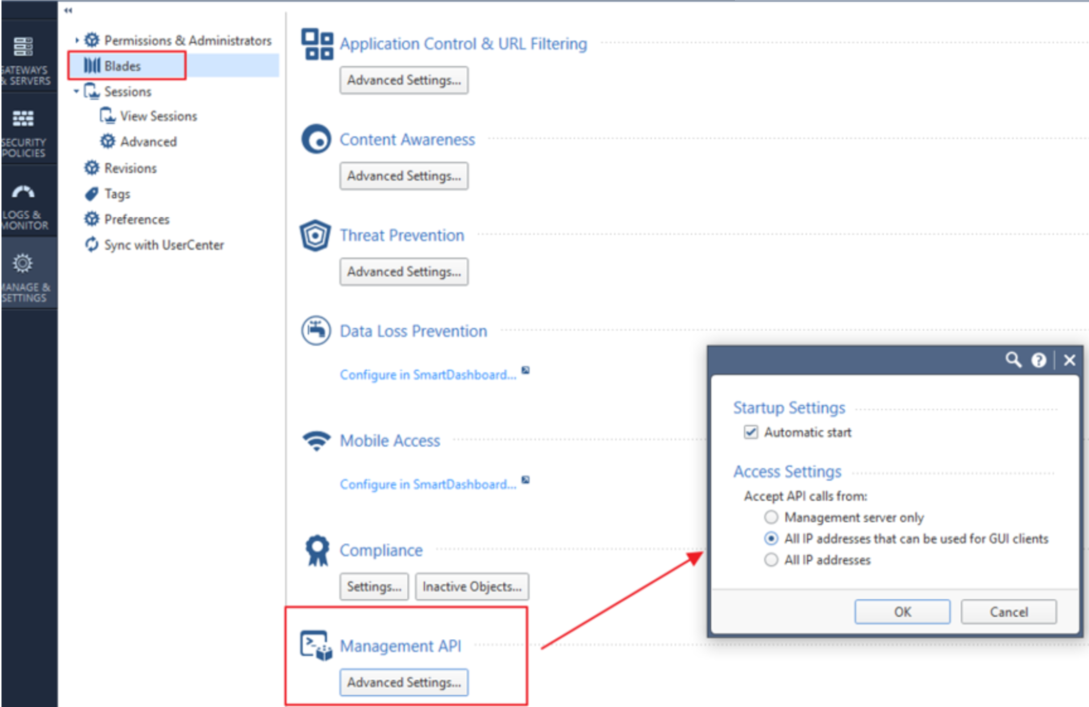
2.Enable API access to accept API calls from your NetworkBrain Front Server. Select the All IP addresses or All IP addresses that can be used for GUI clients option.
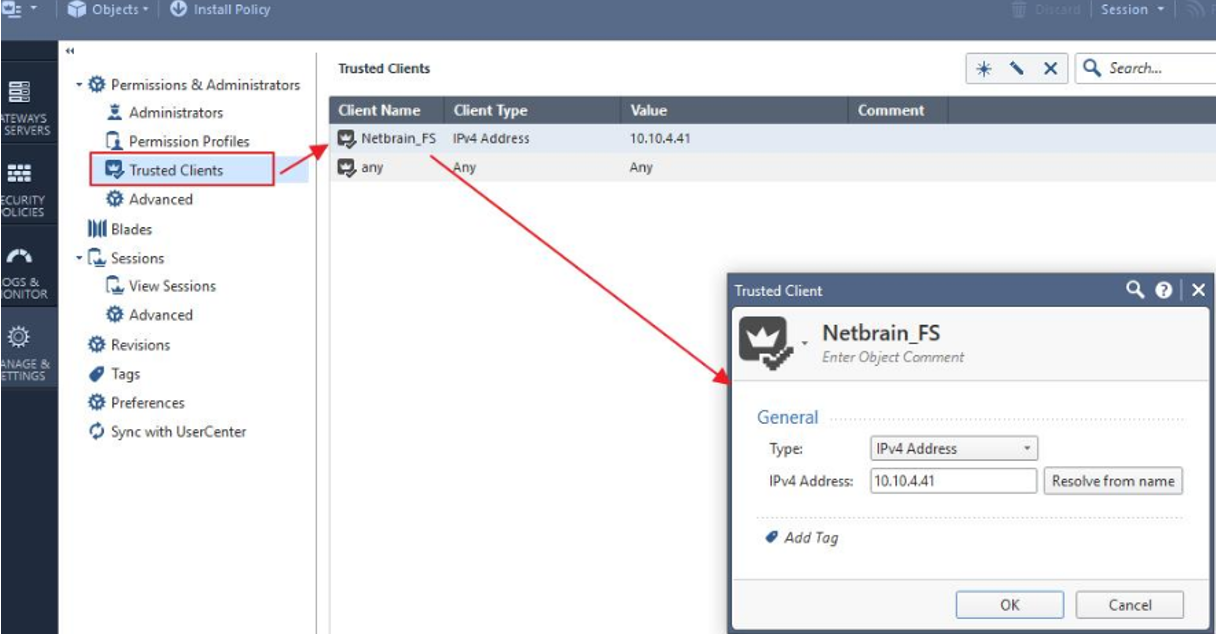
Note: If you select the All IP address that can be used for GUI clients option, add the IP address of NetworkBrain front server to the Trusted Clients so that it has the GUI permission.
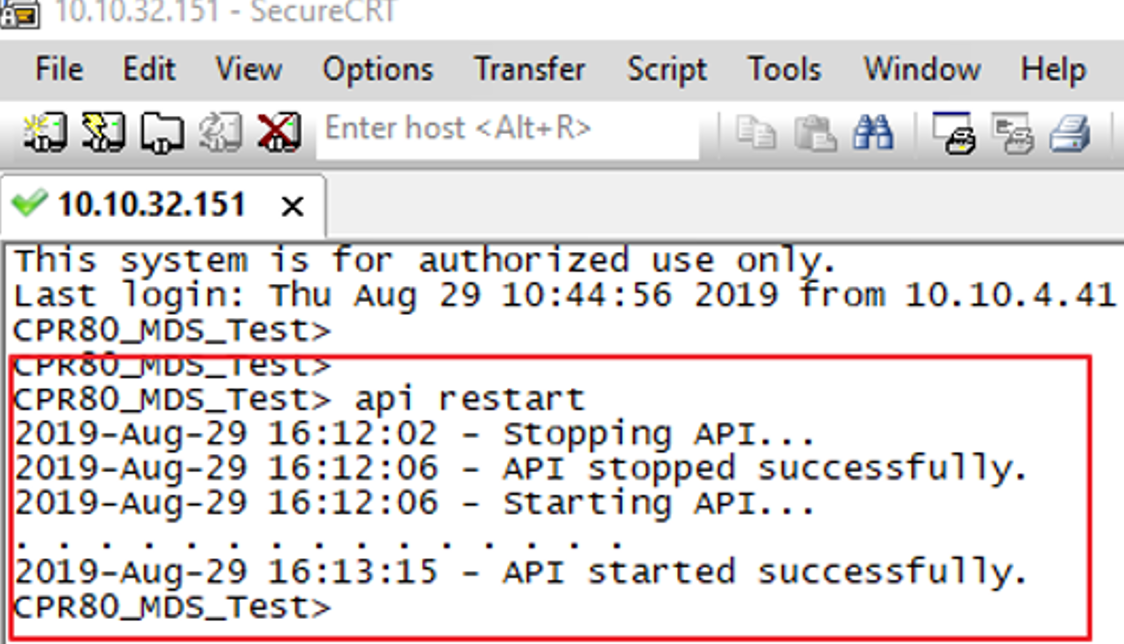
3.Log in to Smart Dashboard via SSH with an SSH/Telnet tool and execute the API start command to make API access permission take effect.
Multi-Domain Configurations
1.Assign permissions to the account that you use for your NetworkBrain system to access the Checkpoint data. One of the following permissions is required:
▪Domain Manager
▪Global Manager
▪Domain Super User
▪Multi-Domain Super User
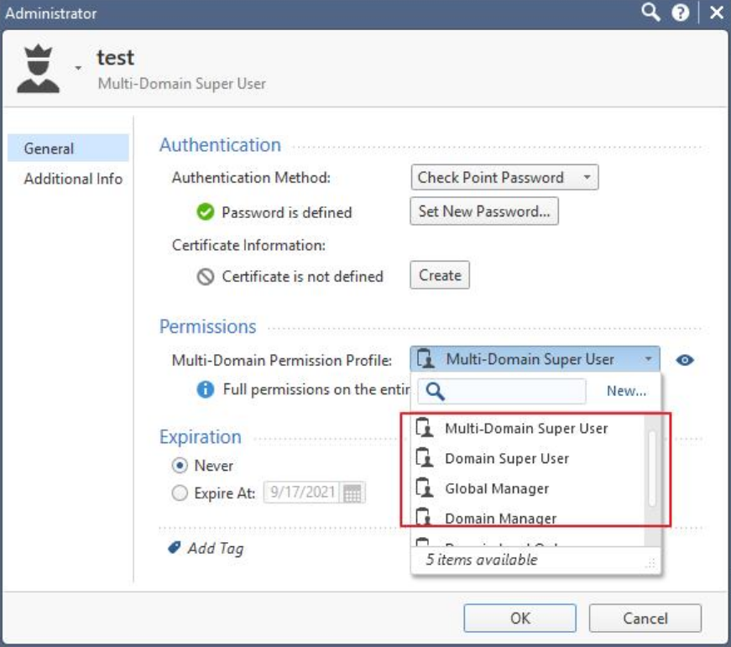
Note: If you cannot discover the devices or retrieve data with permission, promote the permission to give a try.
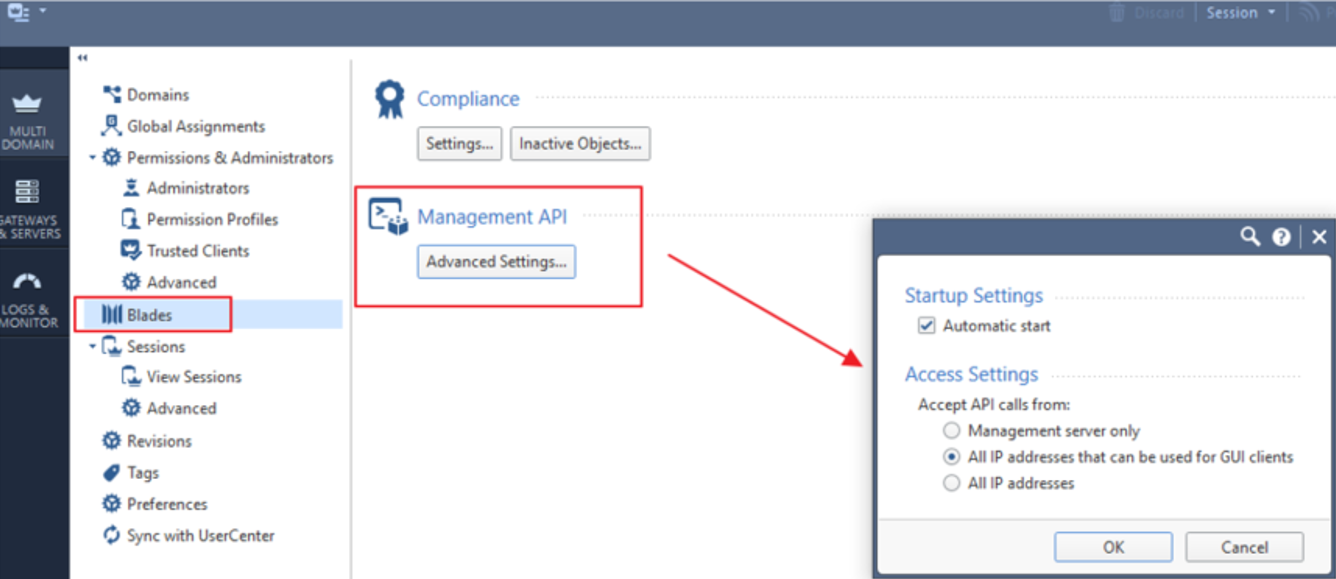
2.Enable API access to accept API calls from your NetworkBrain Front Server. Select the All IP addresses or All IP addresses that can be used for GUI clients option.
Note: you select the All IP address that can be used for GUI clients option, add the IP address of NetworkBrain front server to the Trusted Clients so that it has the GUI permission.
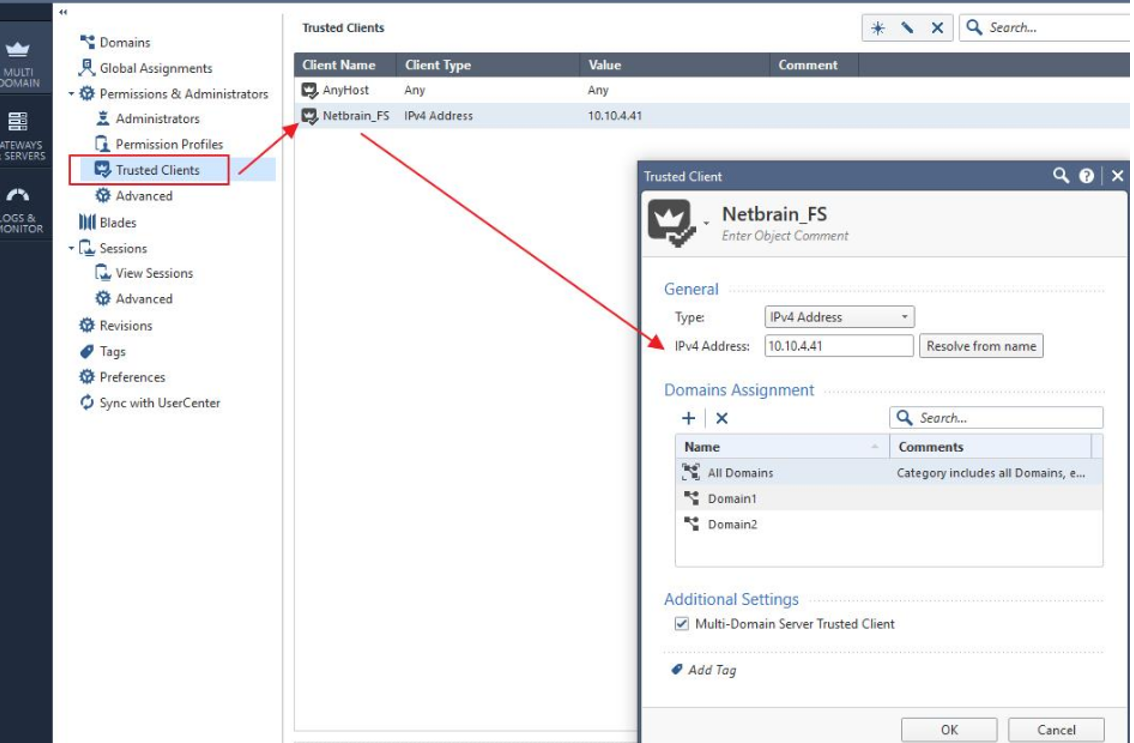
3.Log in to Smart Dashboard via SSH with an SSH/Telnet tool and execute the api restart command to make API access permission take effect.
2.Configurations at NetworkBrain Side
NetworkBrain discovers Checkpoint Firewall R80 using both Checkpoint Manager APIs and CLI/SNMP. After completing configurations at Checkpoint Manager side, you need to configure Network Settings and an API Server Manager for Checkpoint Firewall R80 in NetworkBrain.
Configure Network Settings
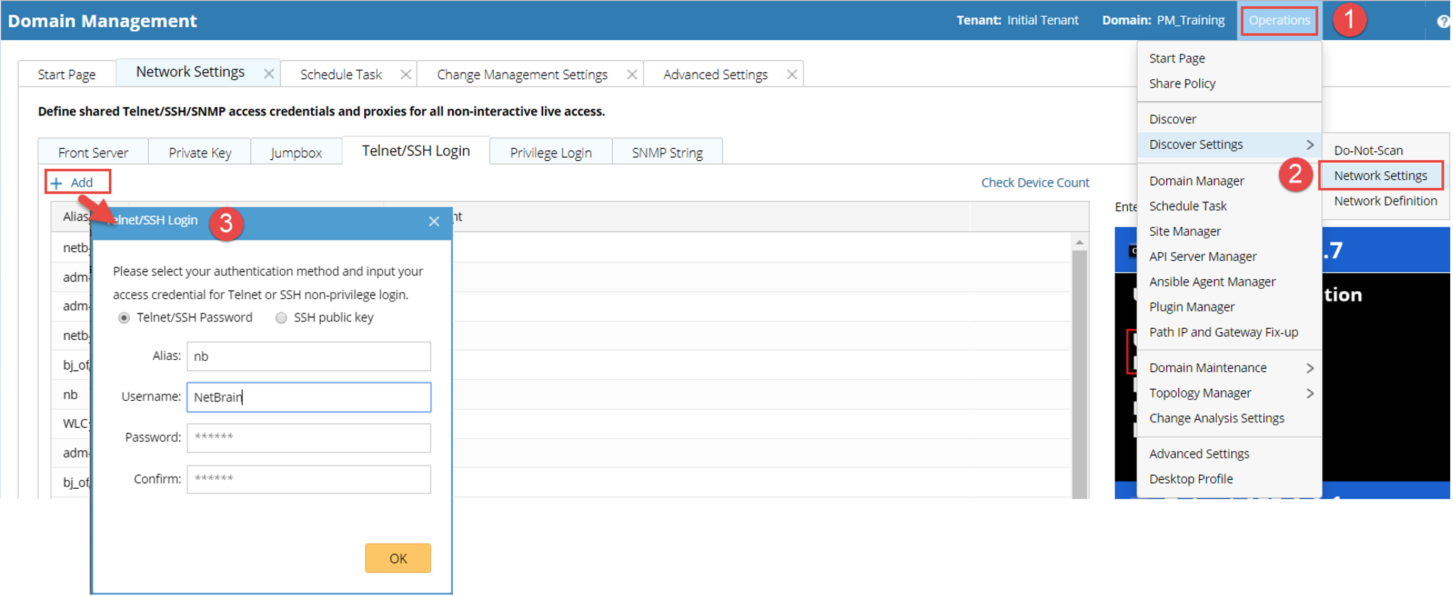
Configure network settings, such as SSH/Telnet Login, Privilege Login, and SNMP String credentials, for Checkpoint Firewall R80.
Configure API Server Manager
The API Server Manager contains the endpoints and credentials to access Checkpoint Management Domain during the discovery.
Follow the steps below to configure the API Server Manager:
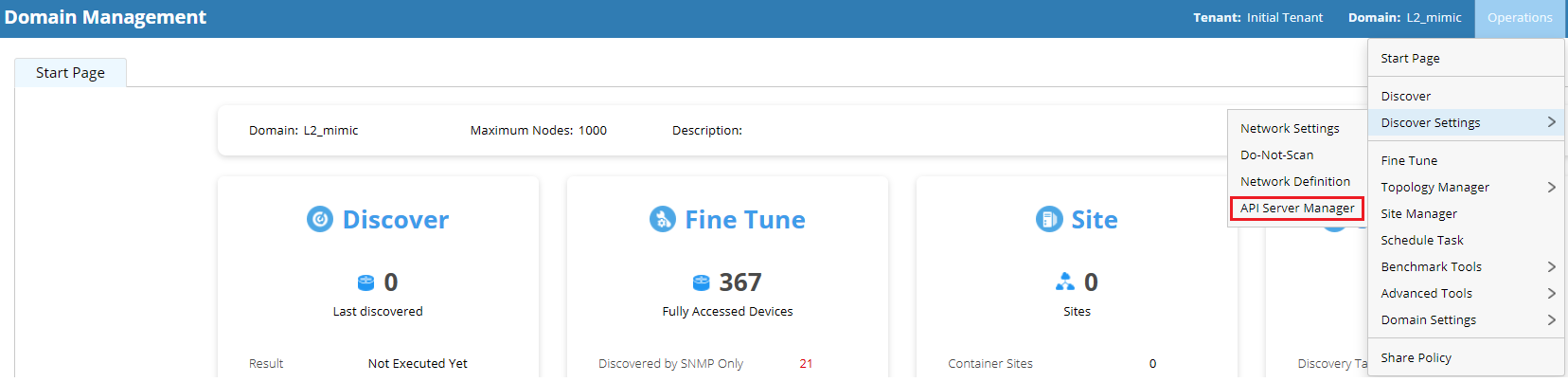
1.In the Domain Management page, select Operations > API Server Manager from the quick access toolbar.
2.Click Add on the API Server Manager tab. The Add External API Server dialog opens.
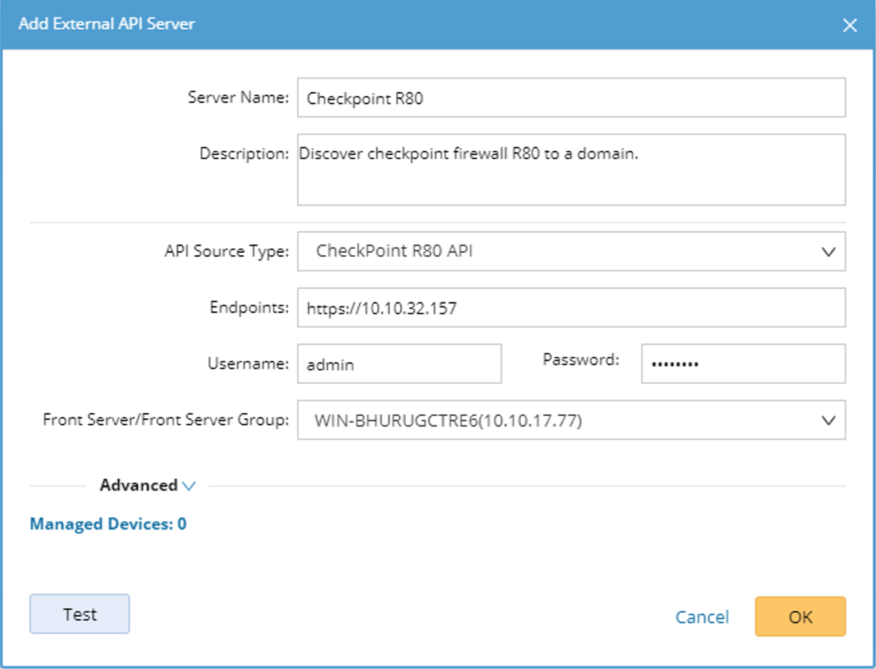
1)Enter a unique name in the Server Name field.
2)Enter a description about the API server.
3)Select CheckPoint R80 API from the API Source Type drop-down menu.
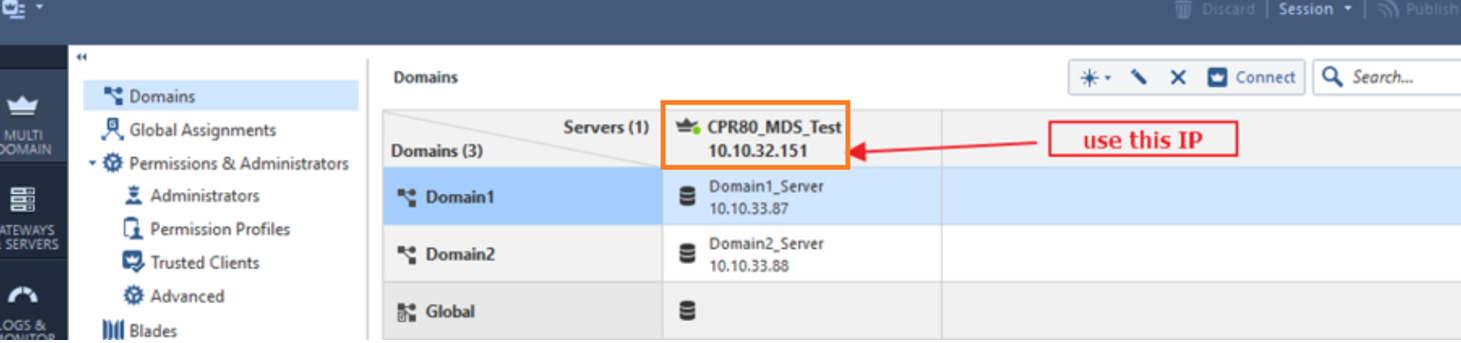
4)In the Endpoints field, enter the address of the Checkpoint Management Domain. The format is https://IP. Note that use the multi-domain server IP address upon checkpoint multiple domains.
5)In the Username and Password fields, enter the username and password of the account that you have configured in the Checkpoint Manager.
6)Select a Front Server that can connect to the Checkpoint Manager from the Front Server drop-down menu.
7)Click Test to check connectivity between your NetworkBrain Front Server and Checkpoint Management Domain.
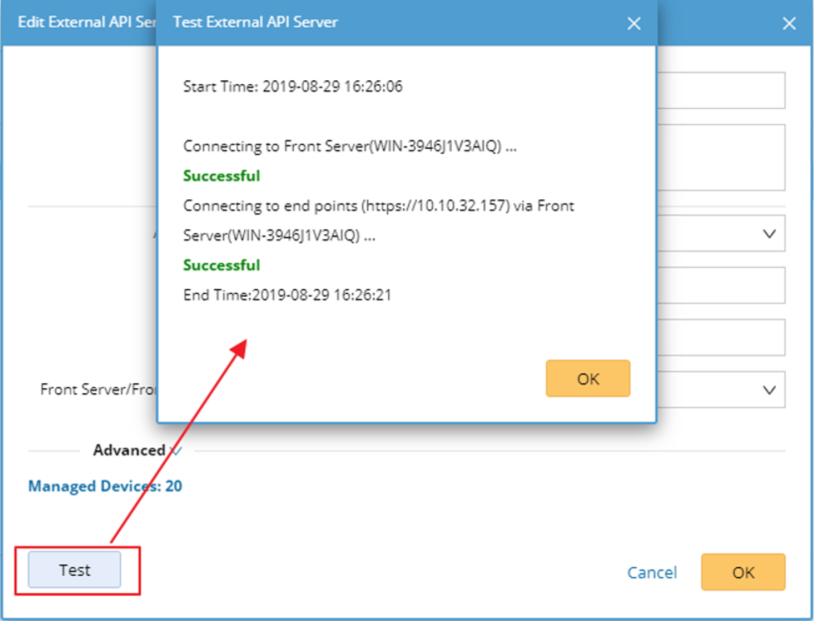
8)Click OK.
Discovering Checkpoint Firewall R80 in NetworkBrain
After finishing configurations at Checkpoint Manager side and NetworkBrain side, you can get started to discover Checkpoint Firewall R80 to one of your NetworkBrain domains.
Note: To ensure that all CheckPoint Firewall R80 can be correctly discovered to your NetworkBrain domain, execute the discovery via CLI/SNMP first and then re-run a discovery via API after the CLI/SNMP discovery is complete.
1.Discover Checkpoint Firewall R80 VIA SNMP/CLI in NetworkBrain:
1)In the Domain Management page, select Operations > Discover from the quick access toolbar.
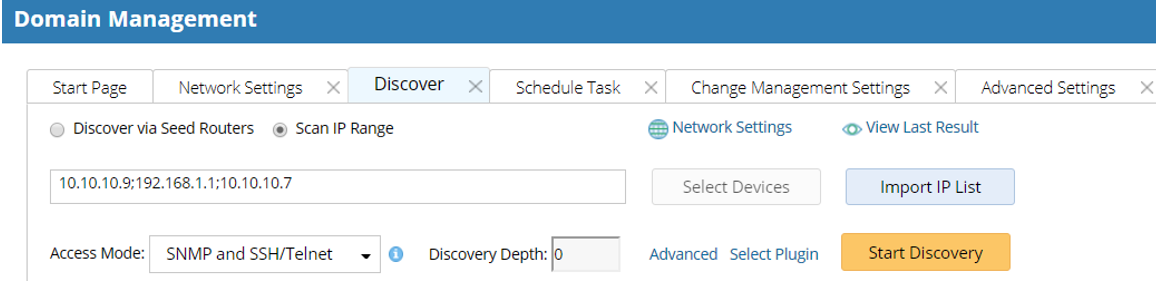
2)On the Discover tab, select Scan IP Range.
3)Enter all management IP addresses of your Checkpoint Firewall R80 devices and separate each IP address with a semicolon. You can also enter all IP address by importing an IP list in CSV format.
4)Keep other options as default and click Start Discovery.
2.Re-discover Checkpoint Firewall R80 via API after the SNMP/CLI discovery is completed.
1)Enter the IP address of the Endpoint (excluding the https://IP) that you have configured in the API Server Manager.
2)Keep other options as default and click Start Discovery.
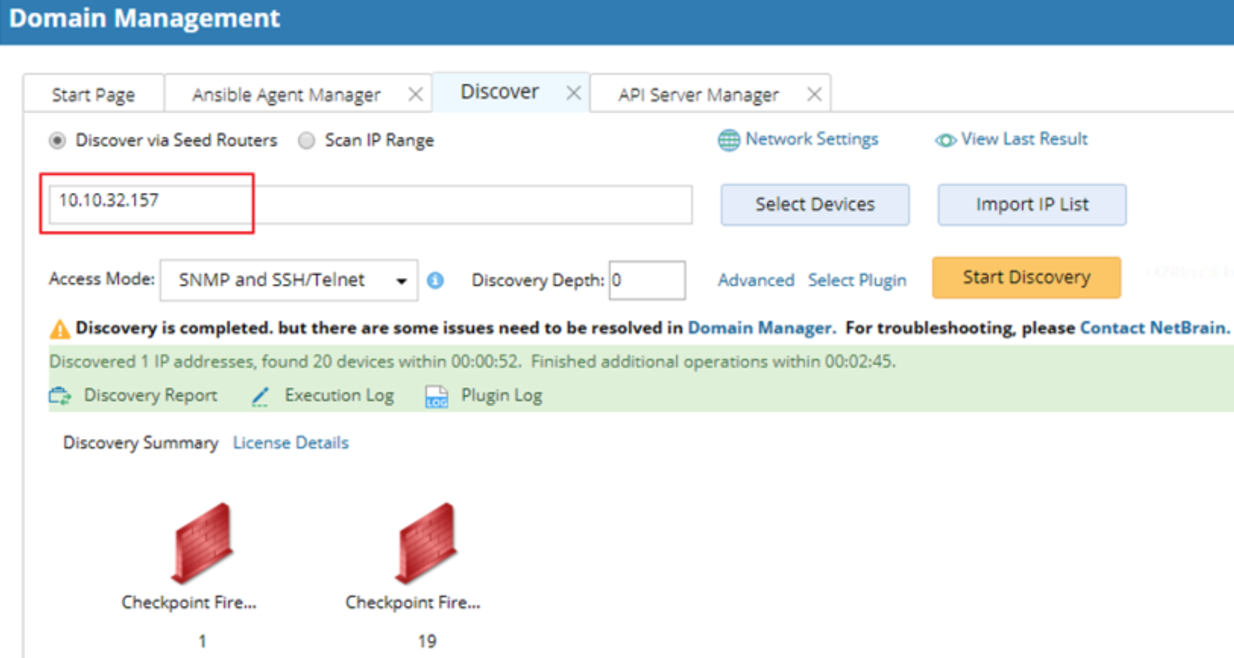
Note: The discovery adds Checkpoint Firewall R80 to your NetworkBrain domain and only retrieves very basic information via Checkpoint APIs. After the discovery, you need to run a benchmark to retrieve more data of the devices, such as configuration files, routing table, and NCT data (Policy Table/NAT Table/IPsec VPN Table).
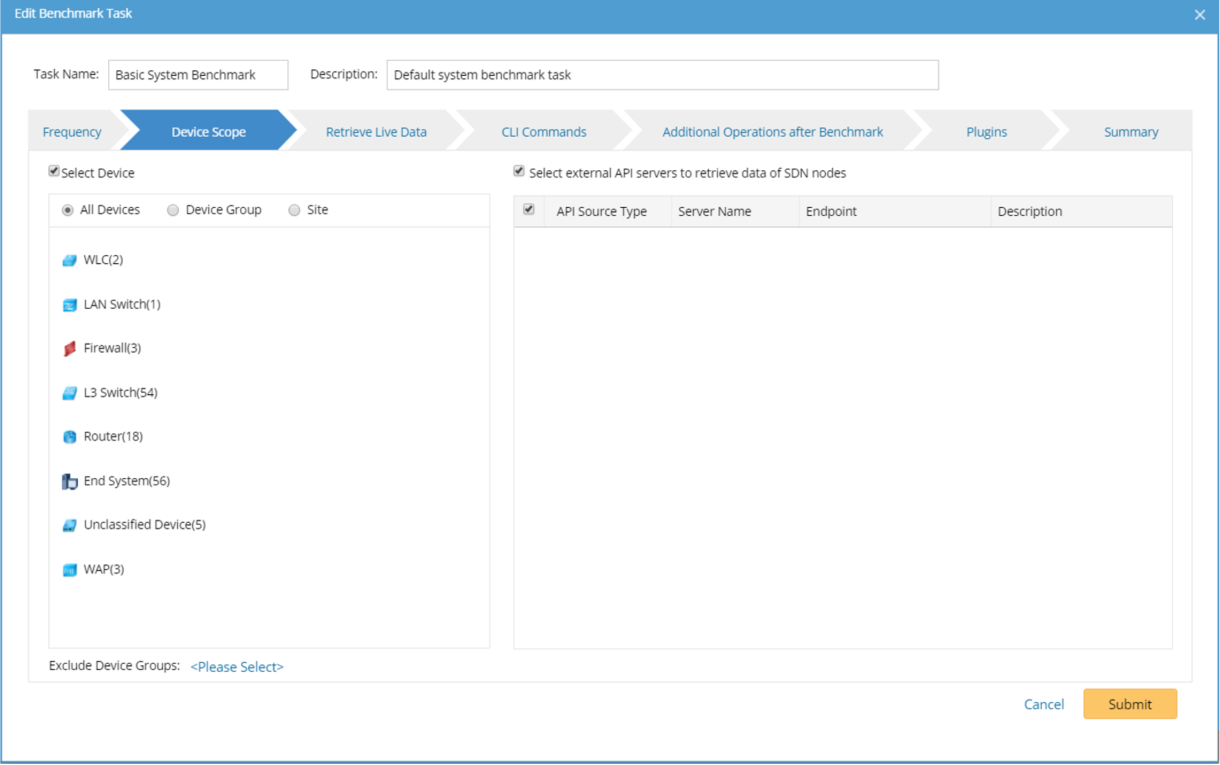
Running a Benchmark Task to Update Data and Build Topology
After the discovery is done, you need to run a benchmark task to update the data of the Checkpoint Firewall R80 devices and build topology in your NetworkBrain system.