Check the Configlet and View Golden Config Verification Results
Color Code in the Table Area in Result Tab
The table formed by selected target devices, golden config columns and config parser variable columns will be filled by color blocks after the building process.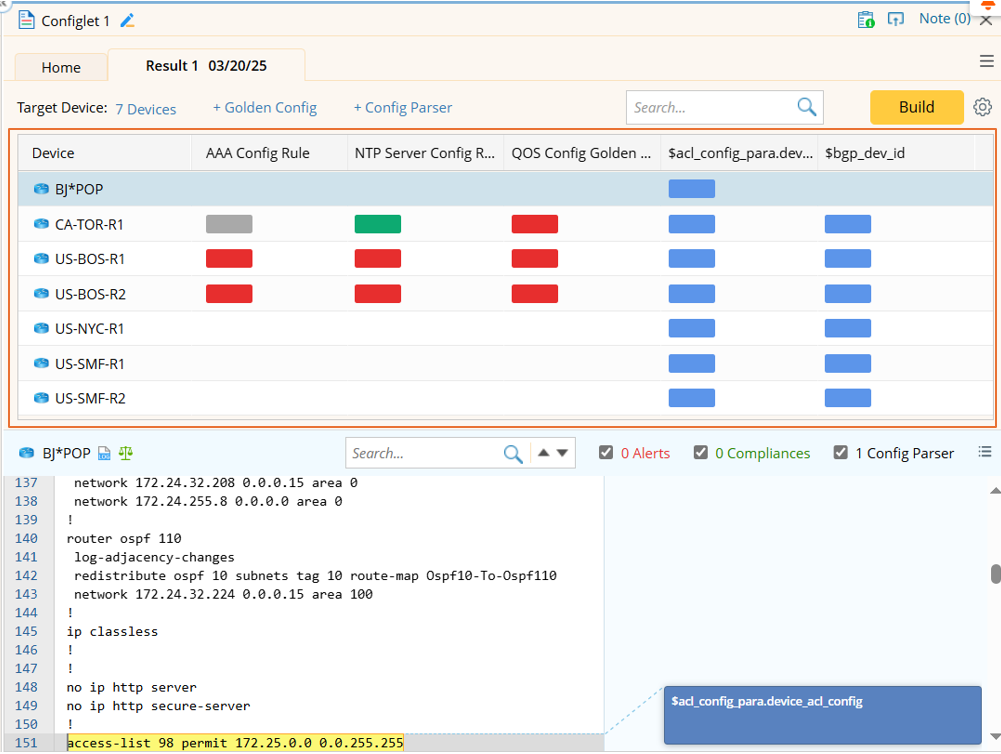
- For golden config rule:
- Green Color block (Success): Upon golden config check, the current config matches the golden config.
- Red Color (Alert): Upon golden config Check, the current config does not match the golden config.
- Blank: No device is applicable for the golden config rule.
- For Config Parser Variable:
- Blue color: Configlets are parsed on the current device。
- blank: The config parser variable does not match the device.
View Config Result
Select an entry from the table to view the golden check results and config parser variables associated with that device in the "Configlet Result Area" below. By default, the first device in the table is selected, and the corresponding data is displayed in the "Configlet Result Area". 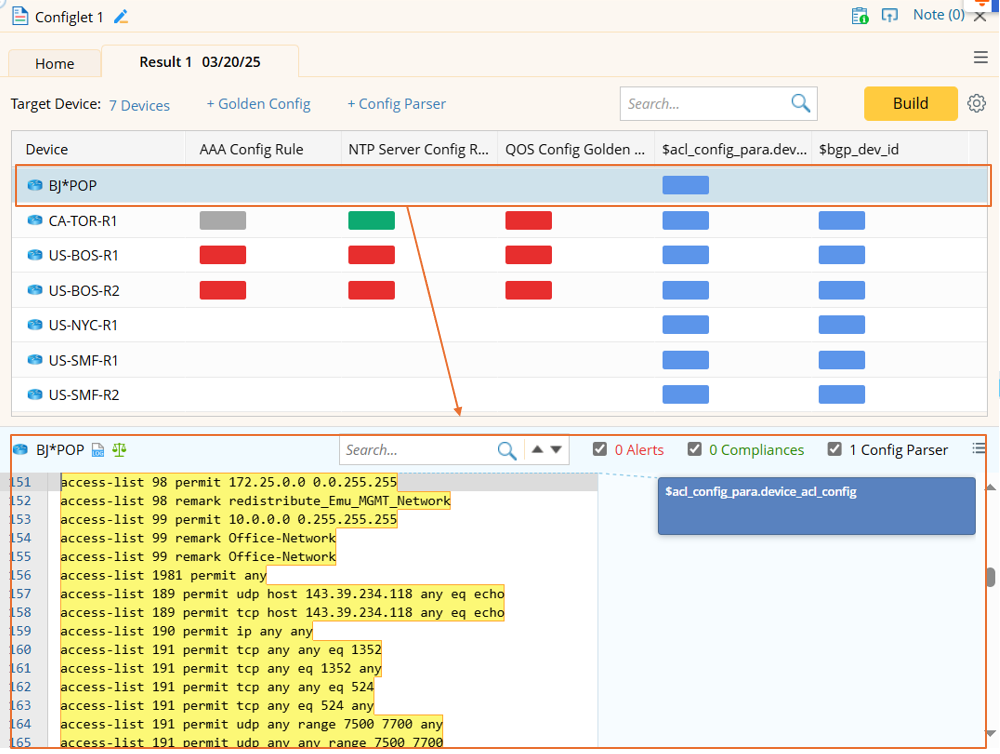
View Golden config check results or parser config for each block: Click a color block, the corresponding config instance or config parser will be located in the Configlet Result Area.
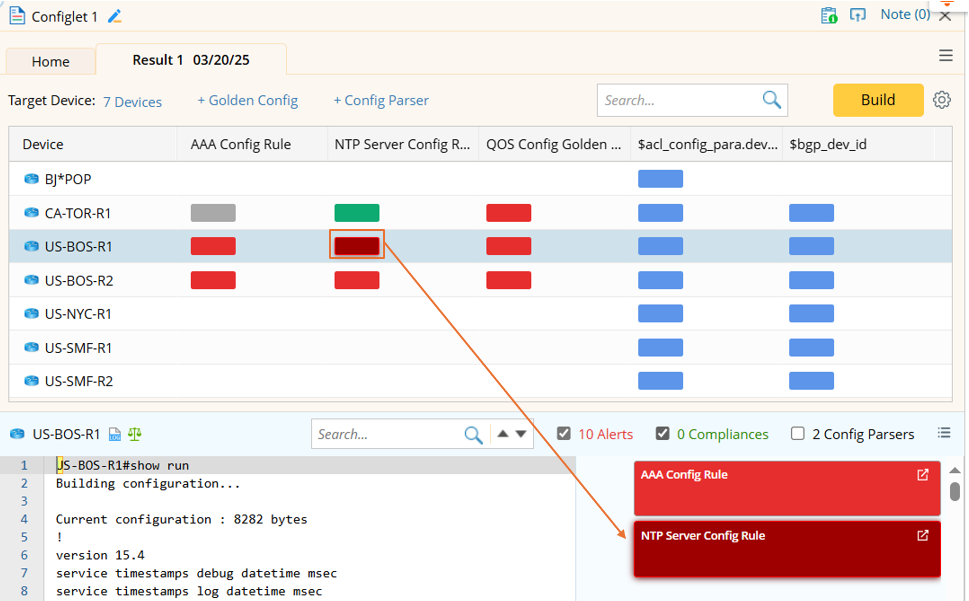
Filtering the config results can be done by checking the three checkboxes: Alerts/Compliances/n Config Parsers. 
Compared with the Golden Config Pane on map, the following new functionalities are added: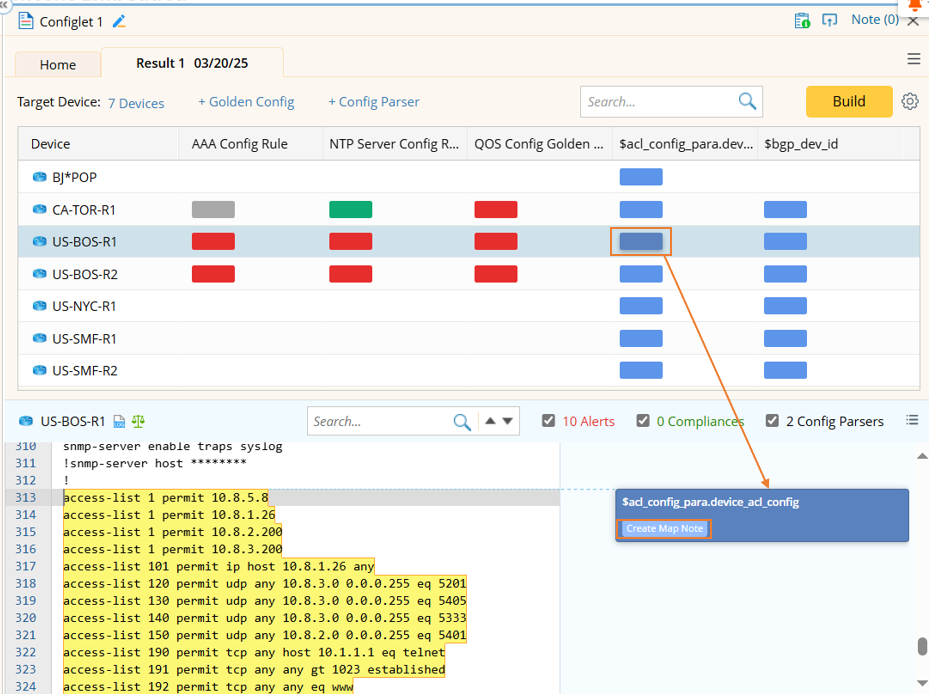
- View Config Parser Variable: The config parser variable matched with the current device is shown in the Configlet Result Area.
- Create map note for parser configlet: The config lines matched by the config parser variable are added to the device note and displayed on map. The device note title is the config parser variable column name.
View and Operate on Configlet Results
The time when the current result is created is shown in the Result tab title. The dropdown list from the result tab lists results created at different times. You can switch to view different results,
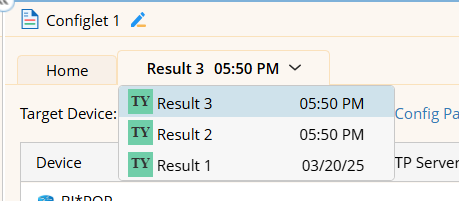
Operations on results include: 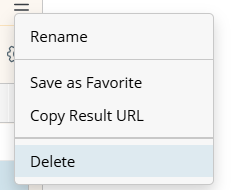
- Rename: Give the result another name. The time of creating the result will be constantly shown on the result tab and will not be removed by renaming the result.
- Save as Favorite: Save this node as Favorite.
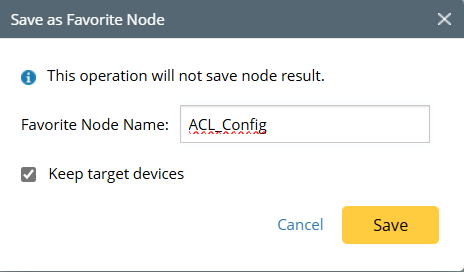
- Copy Result URL: Copy the result URL to share the result or open it in another page.
- Delete: Delete the current result.