Create Runbook Containing Configlet Node from Runbook Template
A Runbook containing Configlet node can be created from a Runbook Template.
Use Existing Golden Config and Config Parser in Runbook Template
A Runbook containing a Configlet Node can be created by directly utilizing golden configs and config parser variables in a Runbook Template. The columns defined in the template are automatically added to the Configlet Node without additional configuration. The results vary based on the selected golden configs and config parser variables, and the Runbook Template is created based on the current results.
- Open a Runbook containing well-defined Configlet node. Click the
 icon, then select a Save as Template. A Runbook Template is created and you will enter the Runbook Template Edit mode.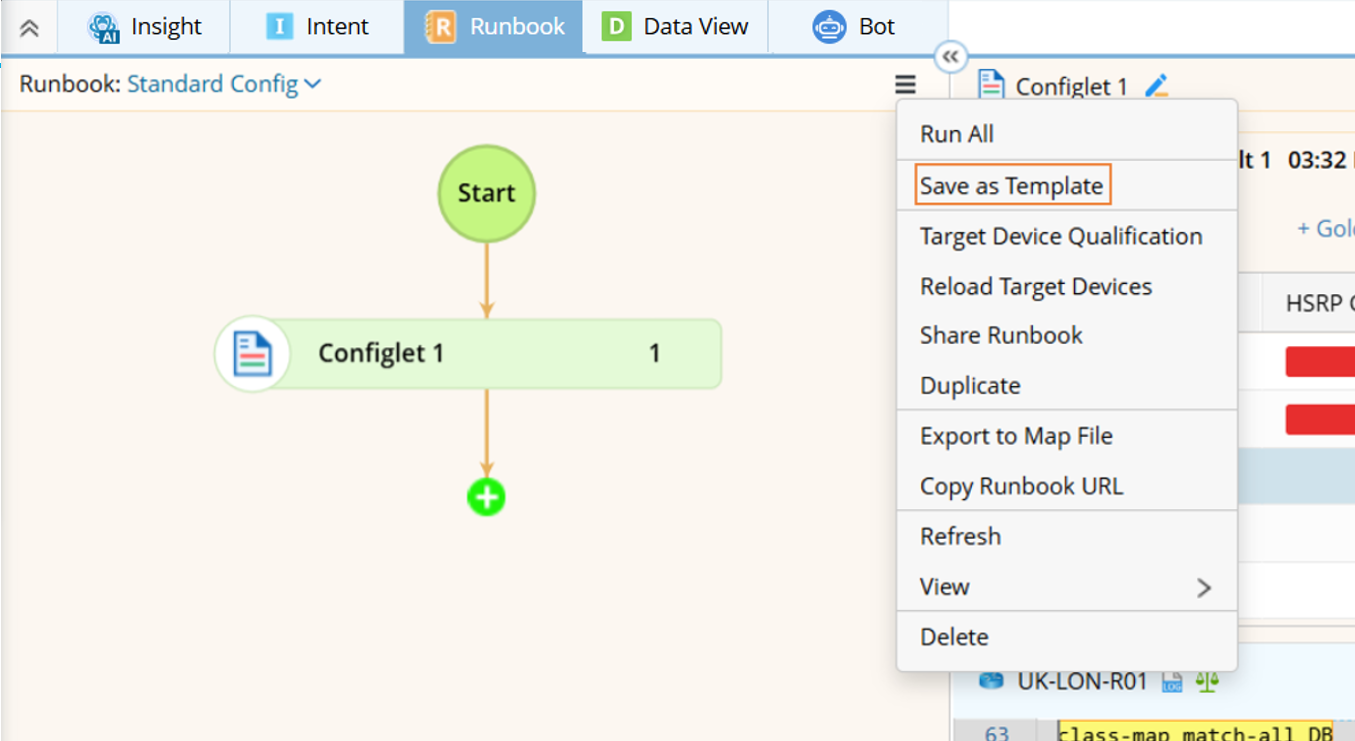
- Click Save, then specify the Runbook Template name and the Folder for the Runbook Template in the Save Runbook Template dialog.

- Click OK to save the Runbook Template .
- Open the Runbook Template from All Runbook Template, then click Create Runbook.

- A Runbook is created with the same name as the Runbook Template. In the Configlet node, devices on the current map are selected, and the chosen golden config rules and config parser variables from the Runbook Template are added. You can continue to edit the Runbook as needed.
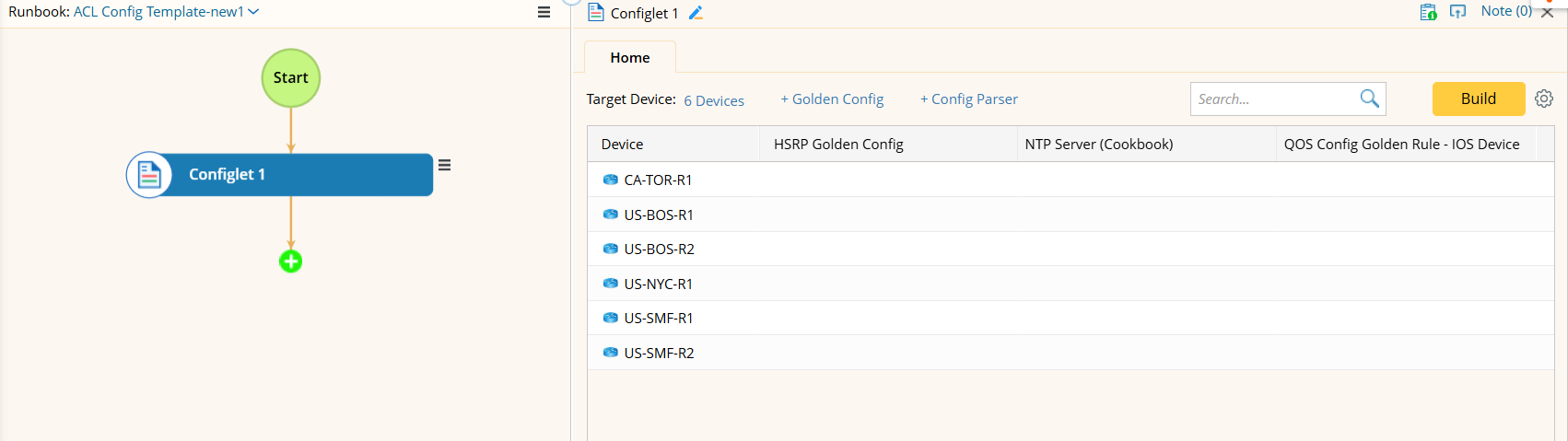
Add More Golden Config by Search Phrase (Set Search Phrase Value with Input Dialog)
The "Add Golden Config by Search Phrase" function allows you to add more golden config to the Configlet node. You can select global Runbook Template variables to use as search phrases. For example, you can use the search phrase "BGP" to add more golden config to the Configlet Node.
- From a Runbook containing a configlet node, click the
 icon, then select Save as Template. A Runbook Template is created and you will enter the Runbook Template Edit mode.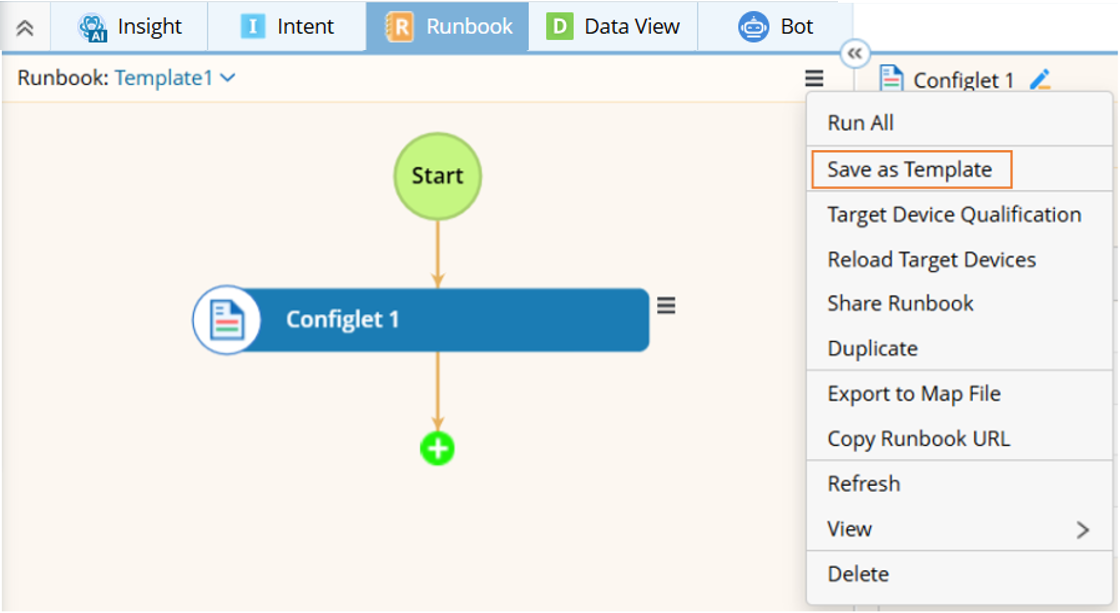
- Click the Start node to add Runbook-level template variable. "_TargetDevices" template variable is already added. You can add "search_phrase" template variable that will be used to find golden config rules.
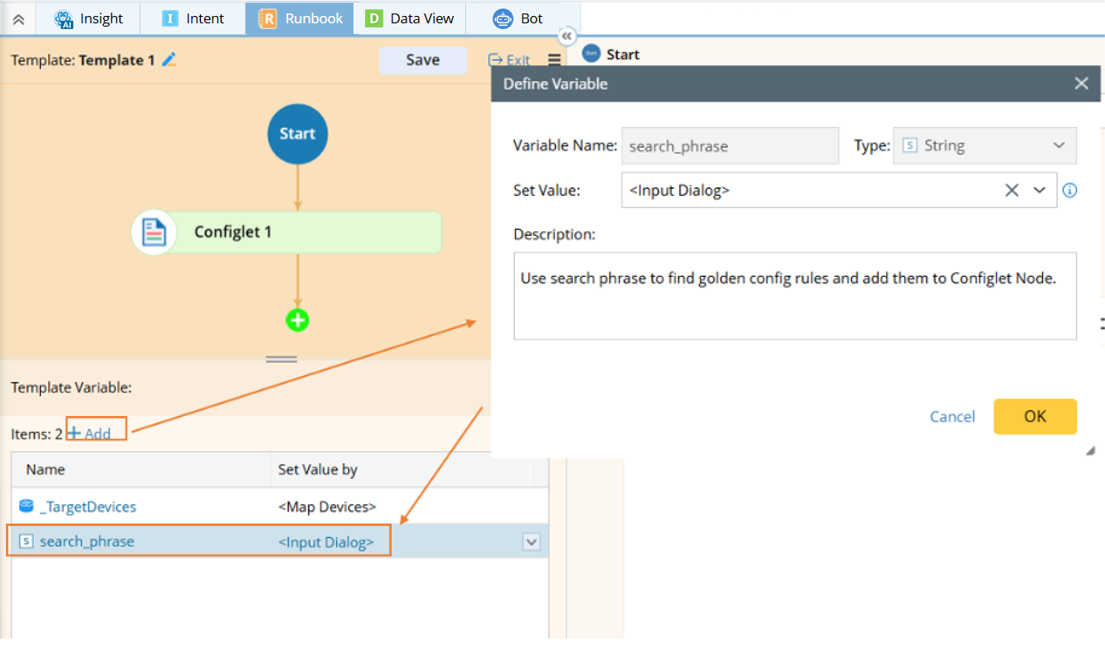
- Click +Add to open the Define Variable window.
- Specify variable name and variable type.
- Set Value: Select "<Input Dialog>".
- Define Description.
- Click OK to close this window.
- Click the Configlet Node to define Configlet Node-level template variable.
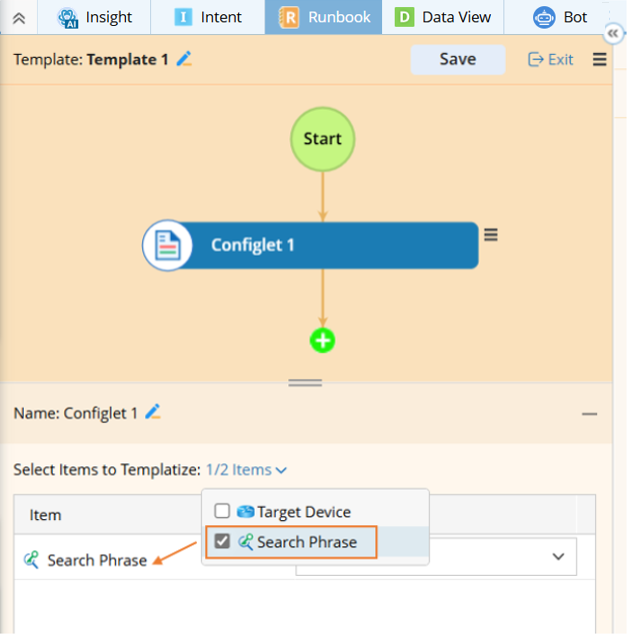
- From the "n items" dropdown menu, select and add the item Search Phrase.
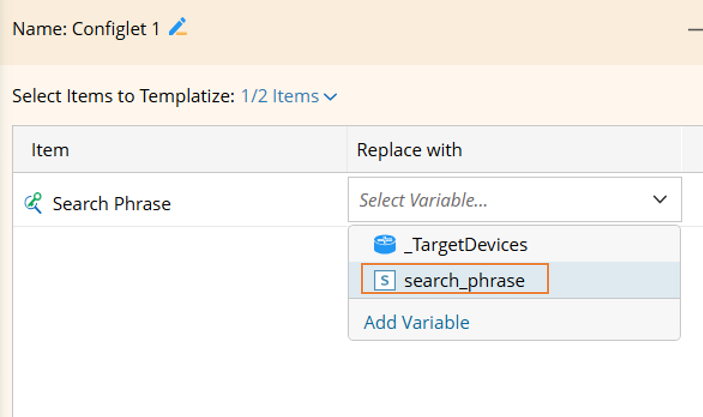
- Select the template variable "search_phrase" defined in step 2 to use the value to replace Search Phrase item.
- Click Save, then select a folder and specify a name for the Runbook Template (e.g., "ACL Config Template").
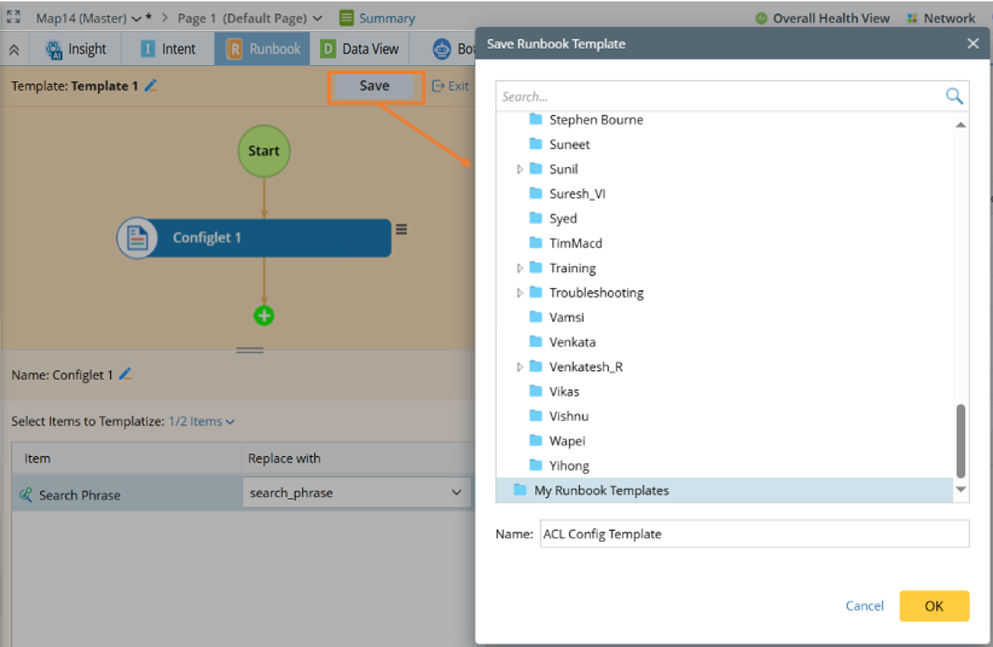
- Click OK to save the Runbook Template.
- From the "n items" dropdown menu, select and add the item Search Phrase.
- Open the "ACL Config Template" in All Runbook Template.
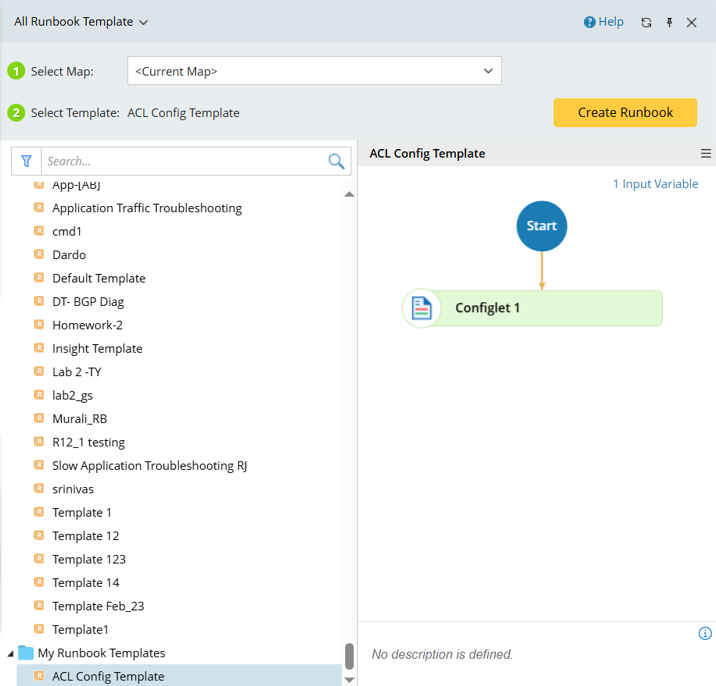
- Click Create Runbook, then in the pop-up dialog, enter the value for the Runbook Template variable, e.g., input "BGP". In this Runbook Configlet node, Golden Config containing "BGP" will be found.

- Click OK. A Runbook is created from the Runbook Template. You can edit the Runbook if needed.
Add More Golden Config by Search Phrase (Set Search Phrase Value as Constance Value)
The search phrase can also be set as a constant value, then you don't need to input the value in an input dialog. An example is given below: Use the search phrase "BGP" to add more golden config to the Configlet Node.
- From a Runbook containing a Configlet node, click the icon, then select Save as Template. A Runbook Template is created and you will enter the Runbook Template Edit mode.
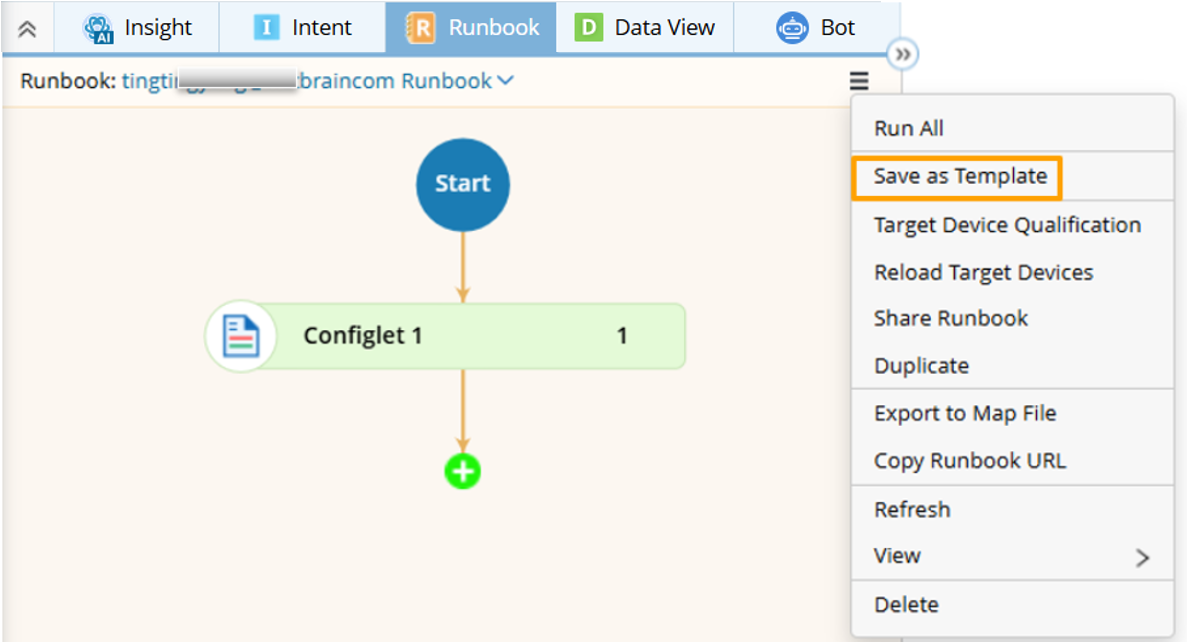
- Click the Start node to add Runbook-level template variable. "_TargetDevices" template variable is already added. You can add "search_phrase" template variable that will be used to find golden config rules.

- Click +Add to open the Define Variable window.
- Specify variable name and variable type.
- Set Value: Directly input a constant value "BGP".
- Define Description.
- Click OK to close this window.
- Click the Configlet Node to define Configlet Node-level template variable.
- From the "n items" dropdown menu, select and add the item Search Phrase.
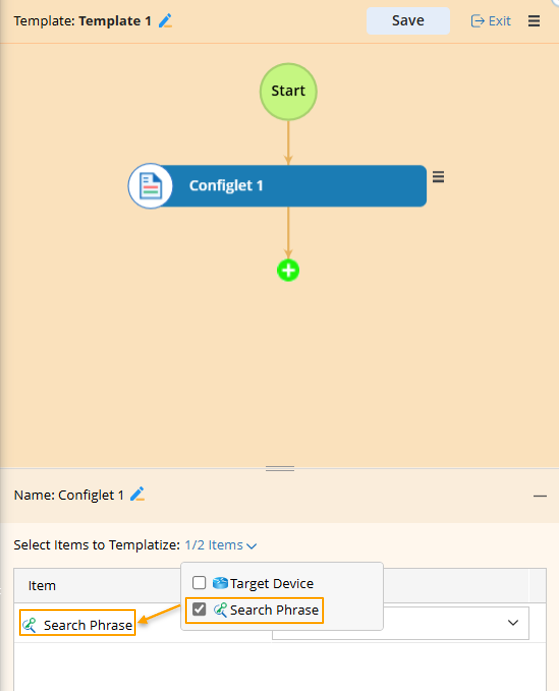
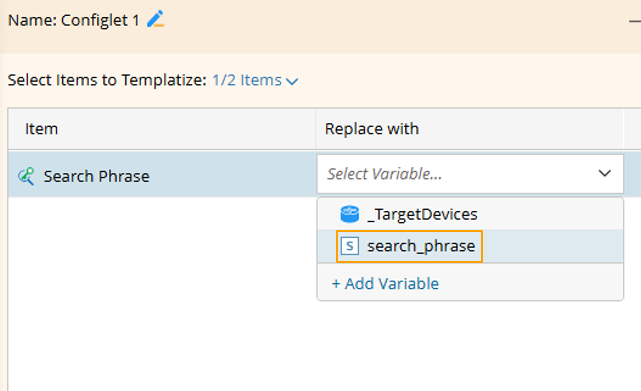
- Select the template variable "search_phrase" defined in step 2 to use the value "BGP" to replace Search Phrase item.
- Click Save, then select a folder and specify a name for the Runbook Template (e.g., "BGP Config Template").
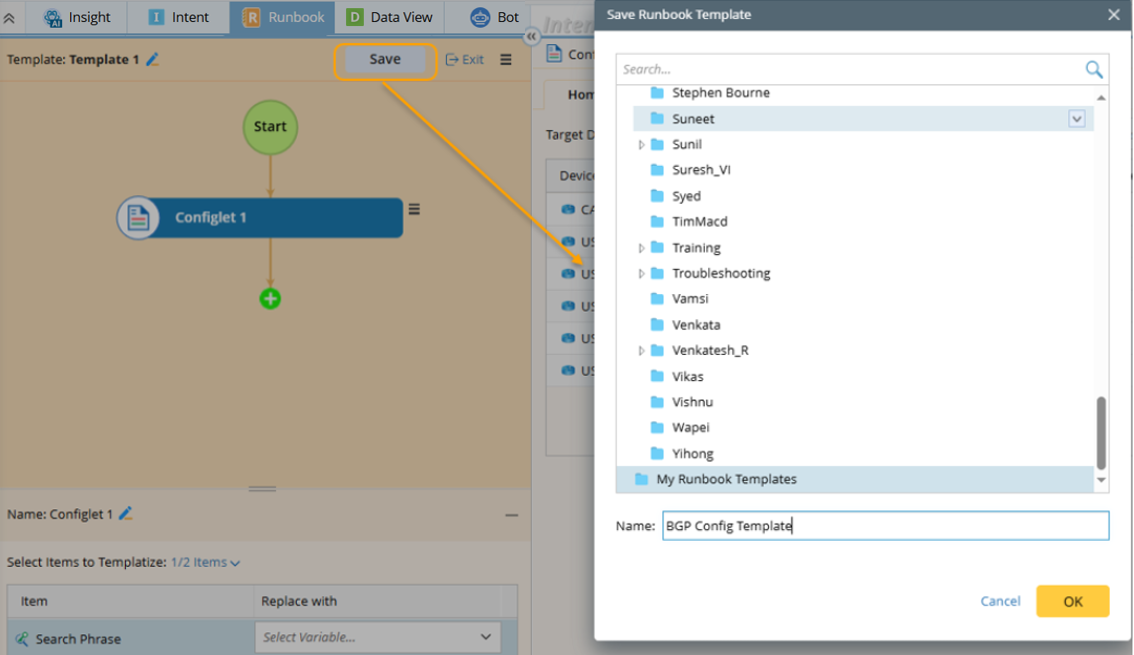
- Click OK to save the Runbook Template.
- From the "n items" dropdown menu, select and add the item Search Phrase.
- Open the "BGP Config Template" from All Runbook Template.
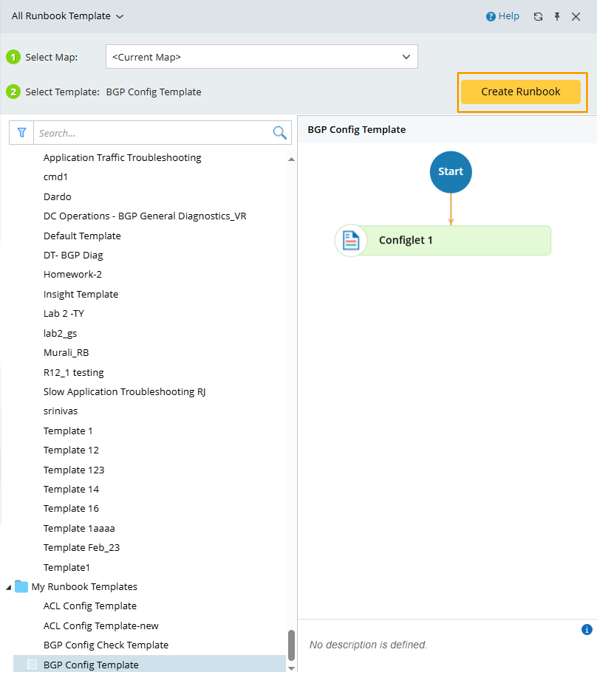
- Click Create Runbook to create a Runbook with the same name as the Runbook Template. In this Runbook Configlet node, the Golden Config containing "BGP" will be found. You can edit the Runbook as needed.