R12.1 JA-2025July15
Generate Golden Intent
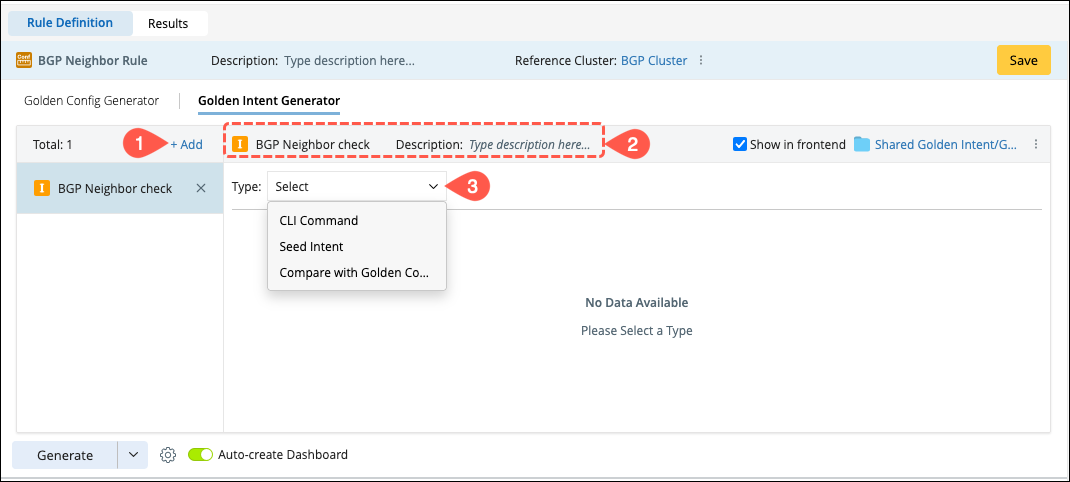
You can create a golden intent under the assessment rule in three different ways, navigate to the Golden Intent Generator tab within the Assessment Rule interface and:
- Click +Add to start creating a new intent.
-
Enter the basic information such as name, description and location.
-
Select one of the Golden Intent types from the drop down menu:
- CLI Command: Define Command Parser to perform the Check.
- Seed Intent: Create a golden intent using an existing Seed Intent.
-
Golden Config Check: Generate the Golden Intent through Golden Config Check.
-
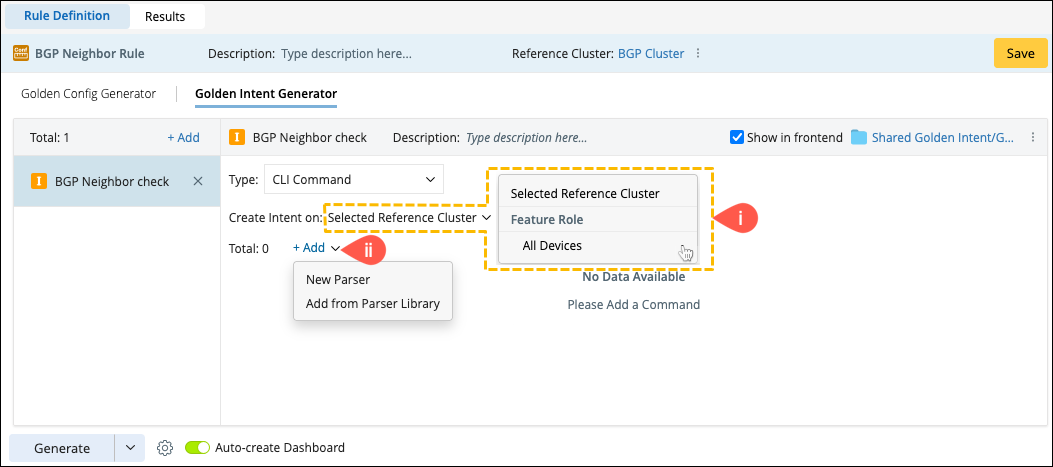
Select the device scope to create Intent on either Selected Reference Cluster or All devices of the network.
-
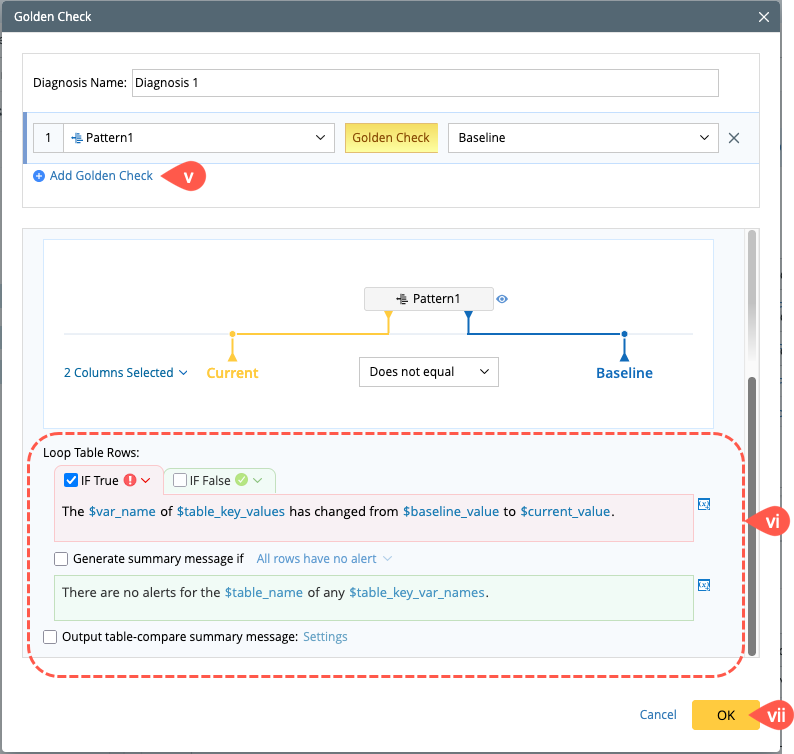
Add a command parser by clicking +Add, you can select either an existing parser from the library or create a new one.
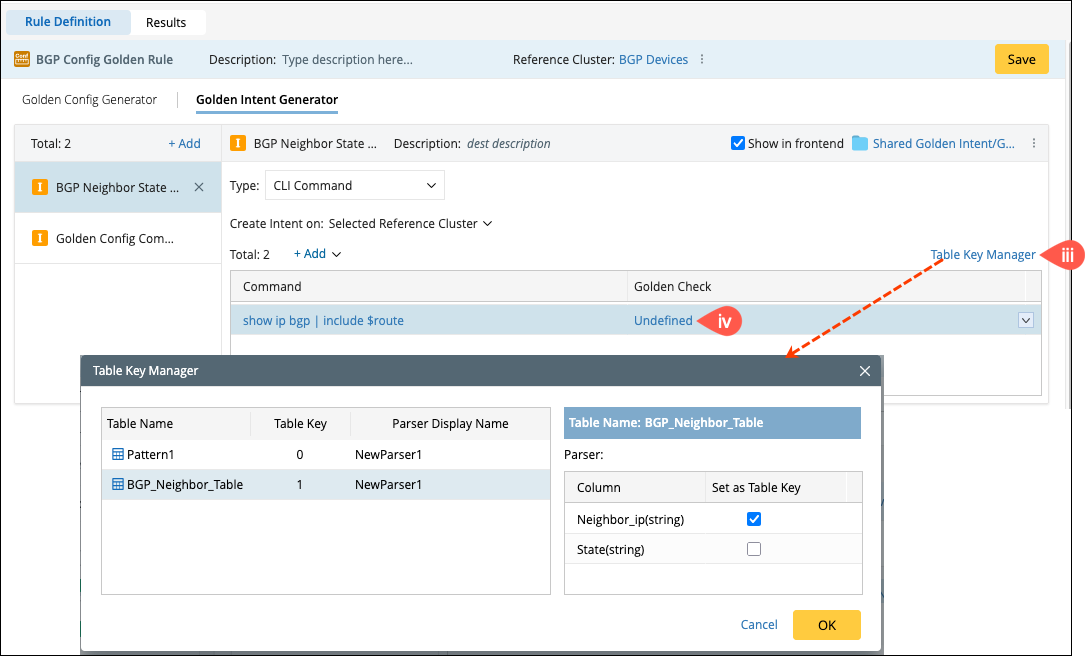
- Set the table key in Table Key Manager.
- Click Undefined in the Golden Check column for defining the diagnosis condition and message.
- You can add multiple Golden checks to the diagnosis.
- Define the message to display for True and False conditions.
-
Click OK to save and close the window.
-
Select the seed intent from the intent manager and click OK.
-
Select the target reference cluster from Create Intent on.
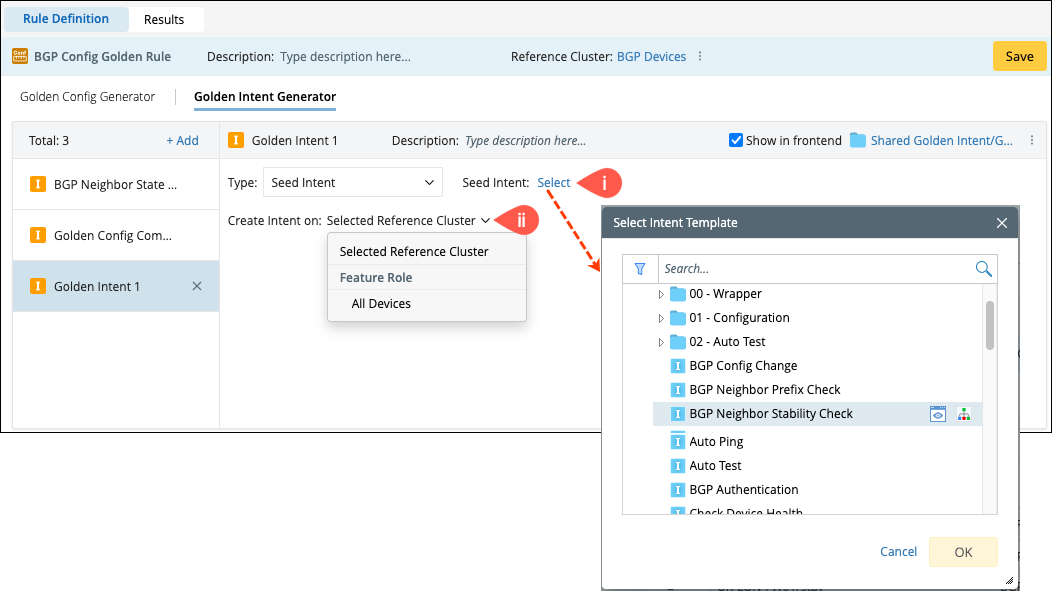
- Select the variable for the necessary macro variable.
-
Click Save to save the intent.

- Select a severity in the field Filter Golden Config via Severity.
-
Enable Refresh Configuration File before Golden Config Check as needed.

CLI Command
Each CLI command based intent can include multiple commands and checks. Add the Command and Golden Check information as follows:
Seed Intent
To replicate an existing intent from the intent manager to target devices, select Seed Intent as the type.
Compare with Golden Config
The Compare with Golden Config function will be scheduled to periodically check and display results.

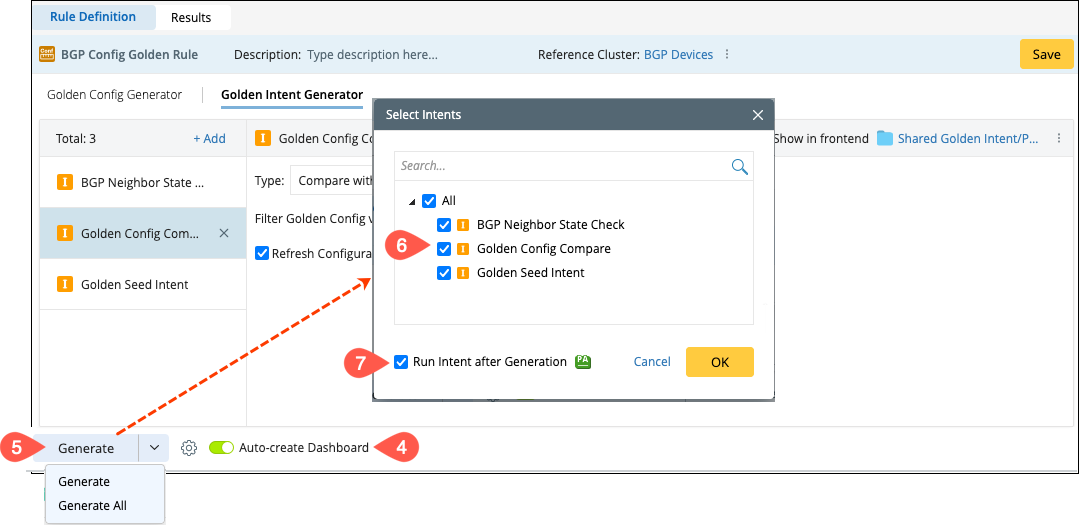
Note: Compare with Golden Config will not be available in the Type menu if a reference cluster is not selected. - Turn ON the Auto-create Dashboard.
- Click Generate to replicate the created intents to the reference cluster selected as the target device scope. A window will pop up displaying the list of the golden intents defined under the current Golden Rule.
- Select the applicable intents to generate them in batch and click OK.
-
Also, you can directly check-in the option Run Intent after Generation.
-
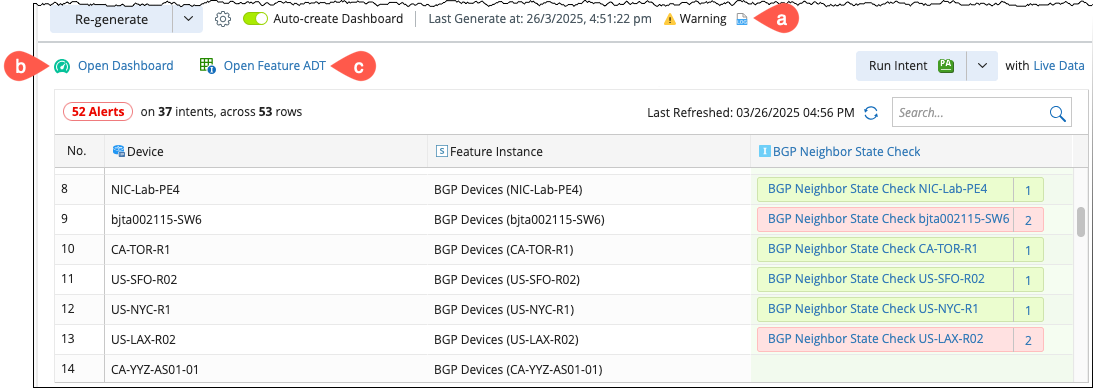
Intent Execution Results: The execution results will be displayed in the table. The following functions are provided at the top of the table:
- An Execution log with warnings, errors and information.
- Open Dashboard: If the Auto-create Dashboard option is enabled, it will be automatically generated and a link to access the dashboard will appear.
-
Open Feature ADT: An ADT for the feature will be generated upon execution.