Define Eigen
Define the Eigen variables based Golden Feature (GF) tailored to the network technologies in use, such as BGP, HSRP, and Multicasting. These GF's will classify the network devices based on specific configuration attributes and generate calculated feature instances, which are utilized by the Golden Intent (GI) for network analysis and validation.
What is Eigen Variable?
Eigen Variable refers to a distinctive attribute or set of attributes used to uniquely characterize a feature instance. The system retrieves the values of all eigen variables from each device and combines them to compute a unique identifier called the Eigen Value. Devices that share the same eigen value are grouped, called (Eigen Group), meaning they represent the same feature instance.
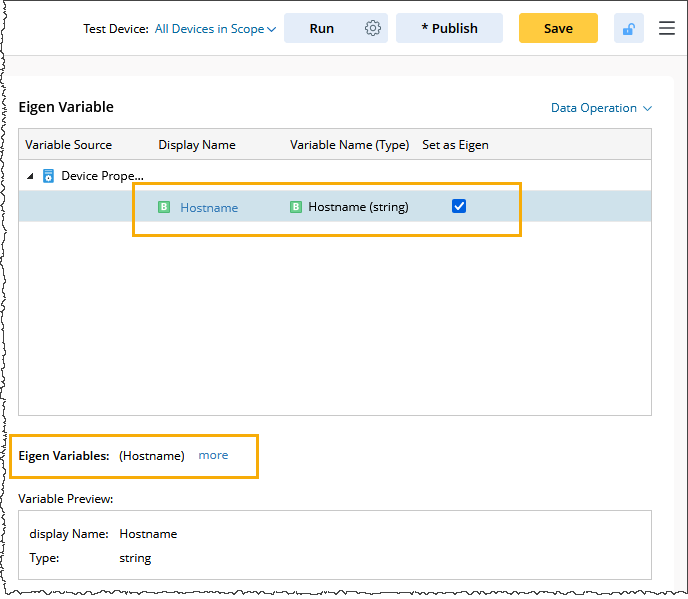
Scenario 1: In the below picture, the device Hostname is used as Eigen to build the Golden Feature.
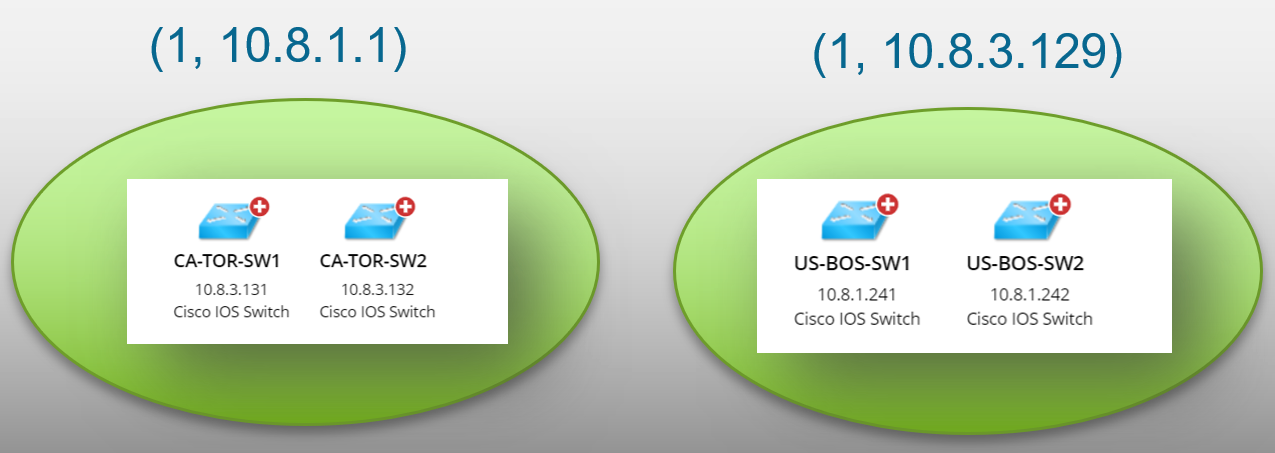
Scenario 2: When a device has several eigen values, it means the device may belong to multiple feature instances.
Example: A router device belonging to different HSRP groups, then use Group_ID and Virtual_IP as Eigen values to group HSRP feature instances, e.g., R1 and R2 have the same Eigen value (1, 192.168.10.1).
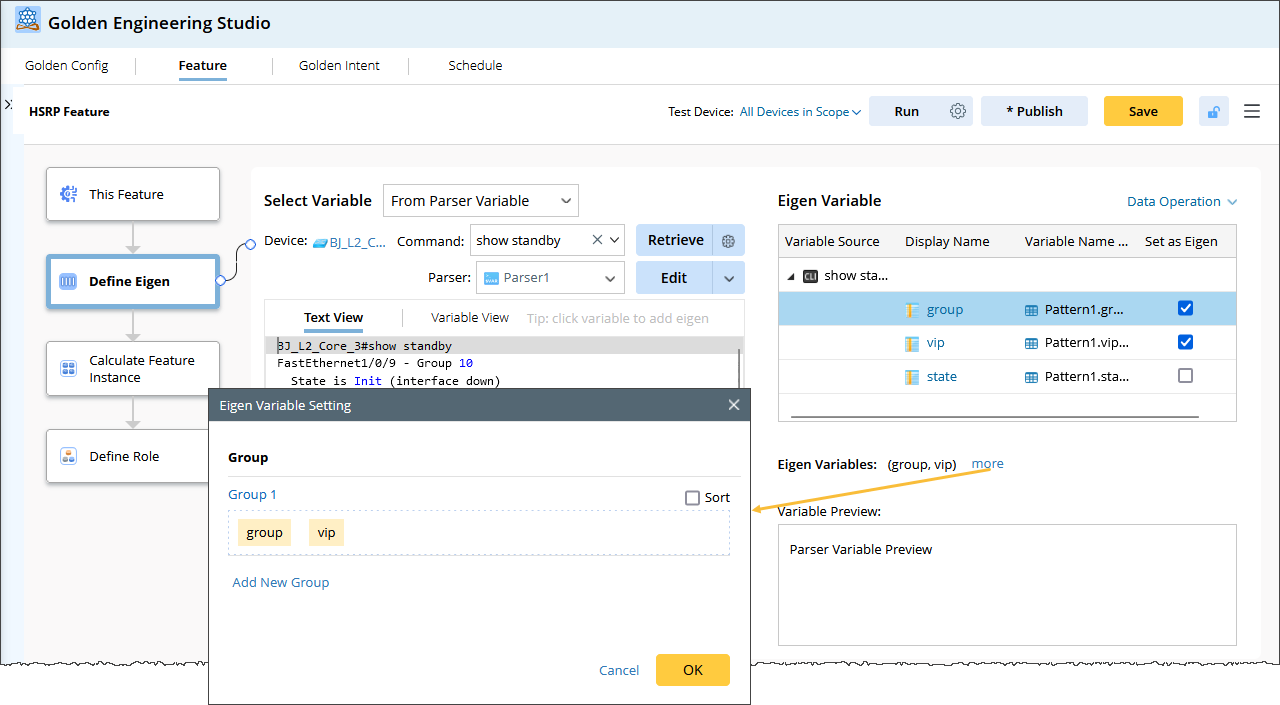
The Define Eigen node is used to define the variables used for Eigen calculations or other Conditions. Each eigen value will create a feature instance, and each feature instance will be assigned to related devices.
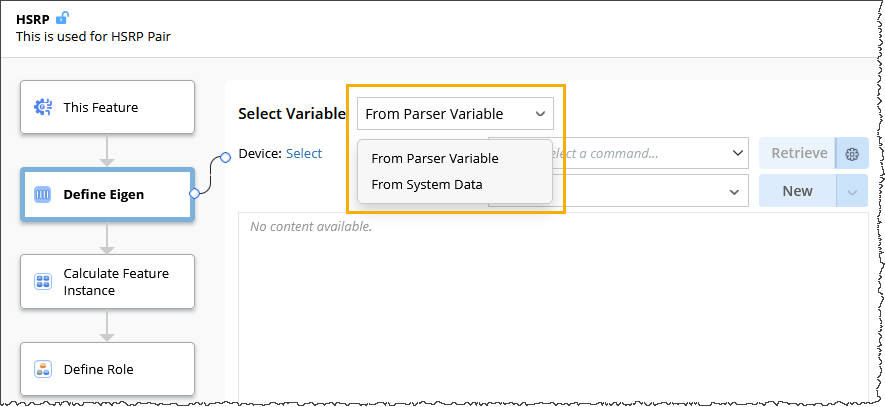
To select variables for eigen specification, you can use either of the following sources:
- Parser Variable from CLI or Configuration.
- System Data.
Set Eigen From Parser Variable
By default, From Parser Variable is selected in the UI.
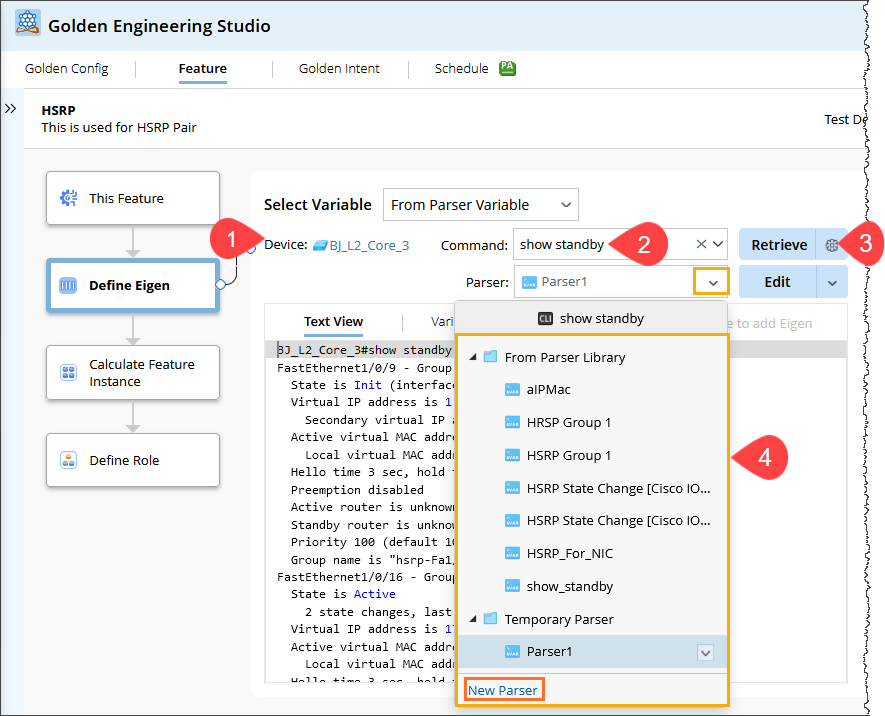
- Select the Device from which you want to retrieve configuration data.
- Input the relevant CLI command or select the Configuration to fetch the device’s configuration.
-
Click Retrieve to fetch the device's configuration data for variable parsing. By default, the system selects Live Data as the source. If you need to change the data source, click the Settings icon and choose a different data source.
-
Choose a parser either from the parser library or create a New Parser. For more details, refer to the topic Select Parser from the Quick Intent.

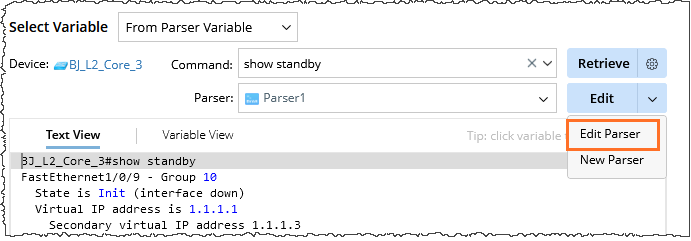
Note: The parser is self-contained; it remains within the GF and can be adjusted further. Edit Parser from the Edit drop-down menu.
-
Add the selected variable to the Eigen Variable table as follows:
-
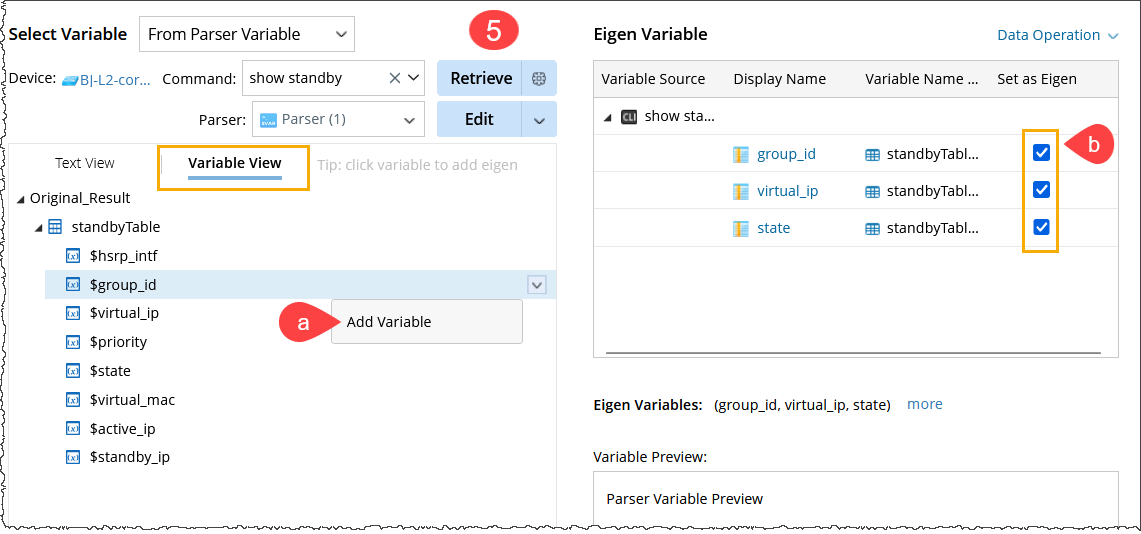
In the Variable View tab, select an individual variable and open the
 menu >Add Variable.
For example, $group_id, $virtual_ip, and $state are added to the Eigen Variable table. - To set a variable as an Eigen Variable, select the checkbox of each required variable.
-
In the Variable View tab, select an individual variable and open the
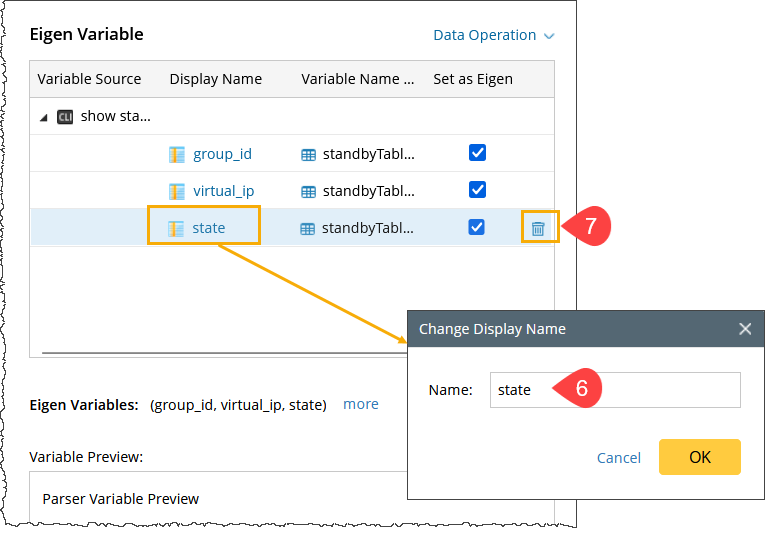
- To change the variable Display Name, click the Variable, and the Change Display Name dialog will appear.
-
To delete the variable, hover over the variable, and the delete icon will appear.
Set Eigen from System Data
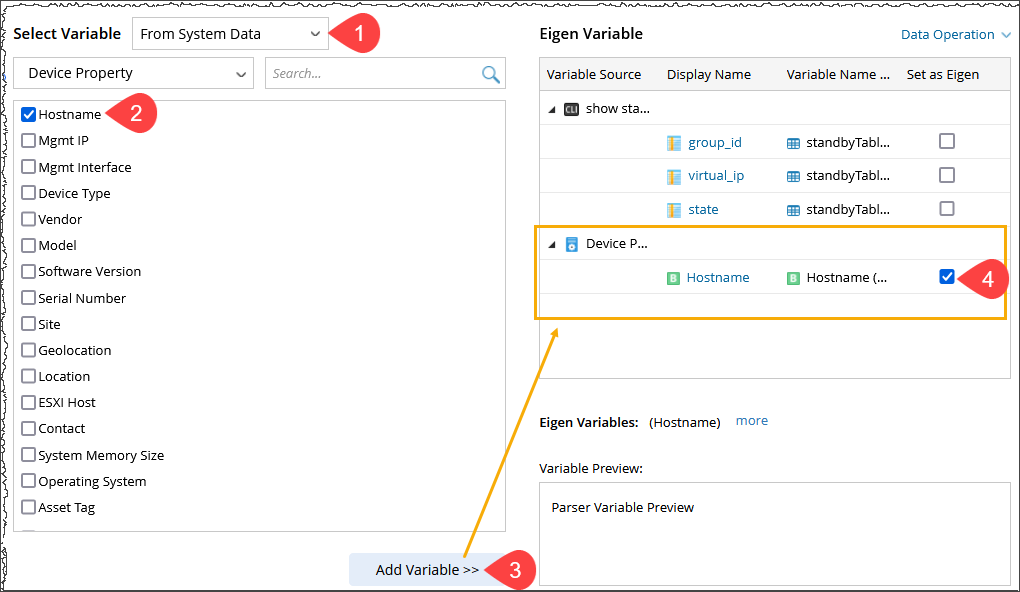
To select a variable from the system data:
- In the Select Variable field, choose the option From System Data from the drop-down menu.
- Select a data type, e.g., Device Property > Hostname.
- Click Add Variable >> to add the variables to the Eigen Variable table located on the right side. The Hostname will be added under the Device Property.
-
To set the Hostname as an Eigen variable, select the checkbox.
The system provides built-in functions to define compound variables that convert a single variable into different formats or calculate new variables using two or more existing single variables.
Add Compound Variable
The system provides built-in functions to define compound variables and convert predefined variables in terms of variable types, units, values, etc. You can create compound variables from the currently selected variables. In the following example, L3 Topology variables are used to create a compound variable.
- Select L3 Topology from the drop-down list and select all four variables.
-
Select the Local Interface and Neighbor Interface from the available options. This Device and the Neighbor Device are by default selected.
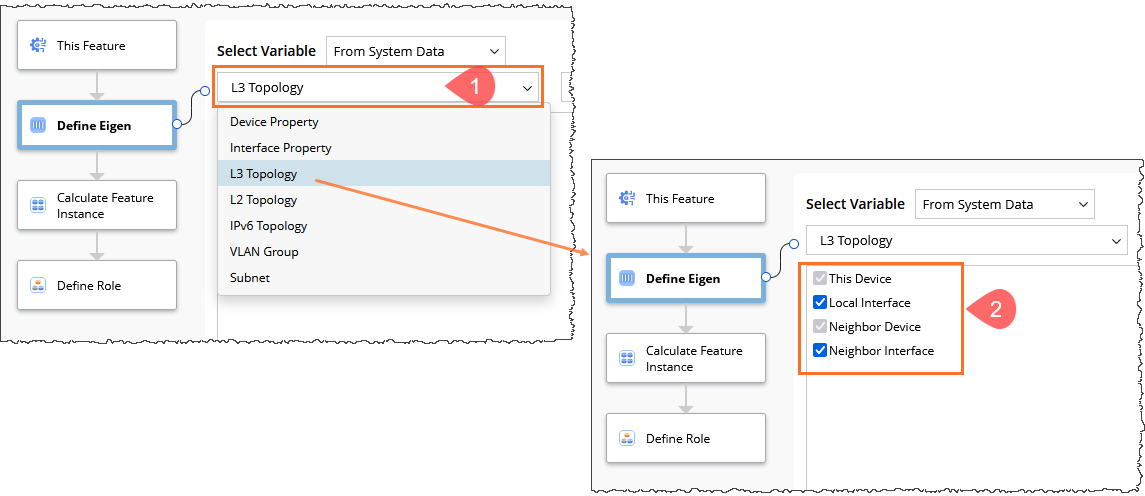
- Click Add Variable >> to add the selected variable to the Eigen table.
- Go to the Data Operation function and select Add Compound Variable from the drop-down.
-
To add the Compound Variable, follow these steps:
- In the Variable Name field, enter the desired variable name.
-
In the Definition field:
-
Use the dollar sign (
$to select available variables from the drop-down menu. -
Combine two variables by separating them with a plus sign (
+).
-
Use the dollar sign (
This Compound Variable will uniquely identify a local interface across the network if the device hostname is unique.
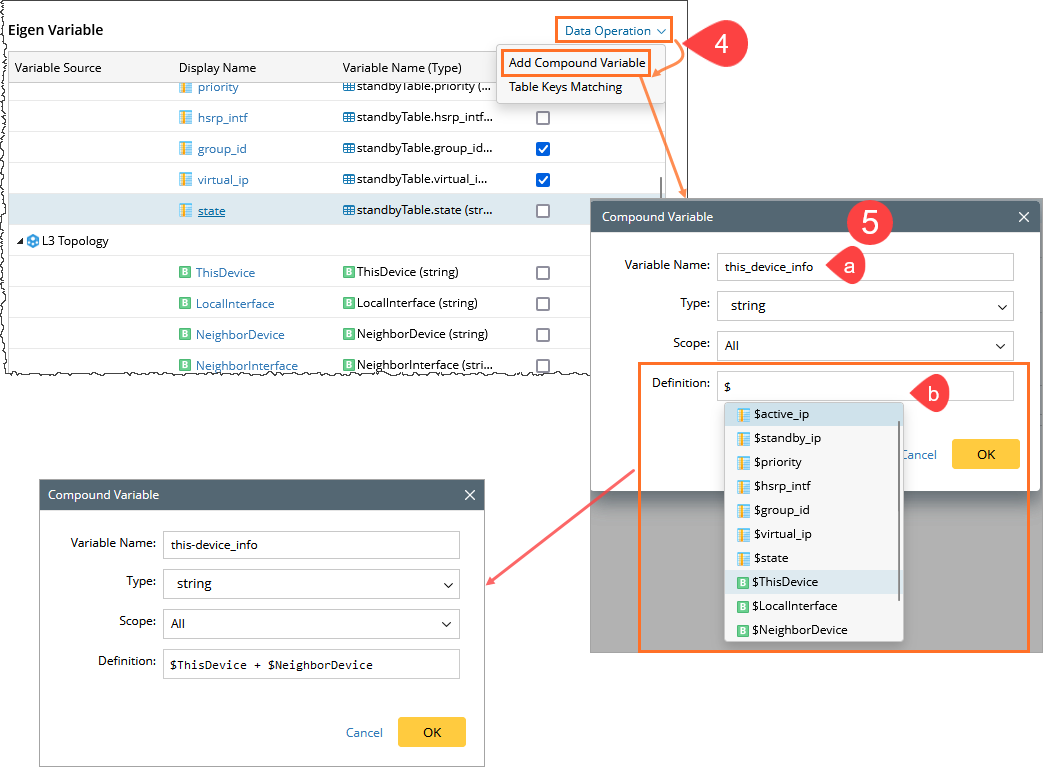
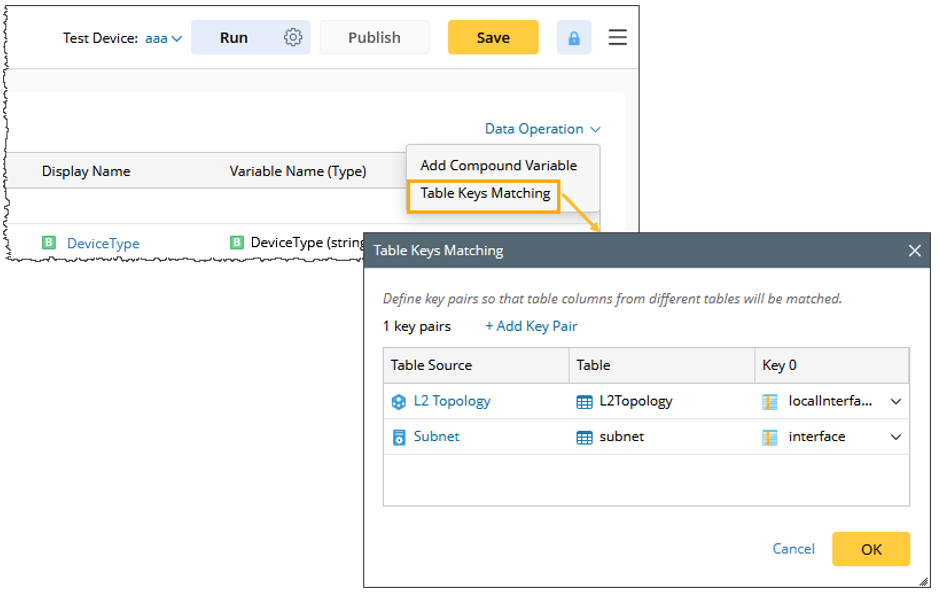
Table Keys Matching
You can define multiple Paired Keys for merging, ensuring that columns from different tables are correctly paired for the merge.
More Settings for Eigen Variable
Selected Eigen variables, marked via check boxes in the table, are grouped. Eigen values are used to group devices with similar characteristics into a single group. To group a device with its Layer 2 neighbors, a different method may be needed to form an Eigen group, for example:
Eigen variable: (this device, local interface, neighbor device, neighbor interface)
To create a variable group, follow these steps:
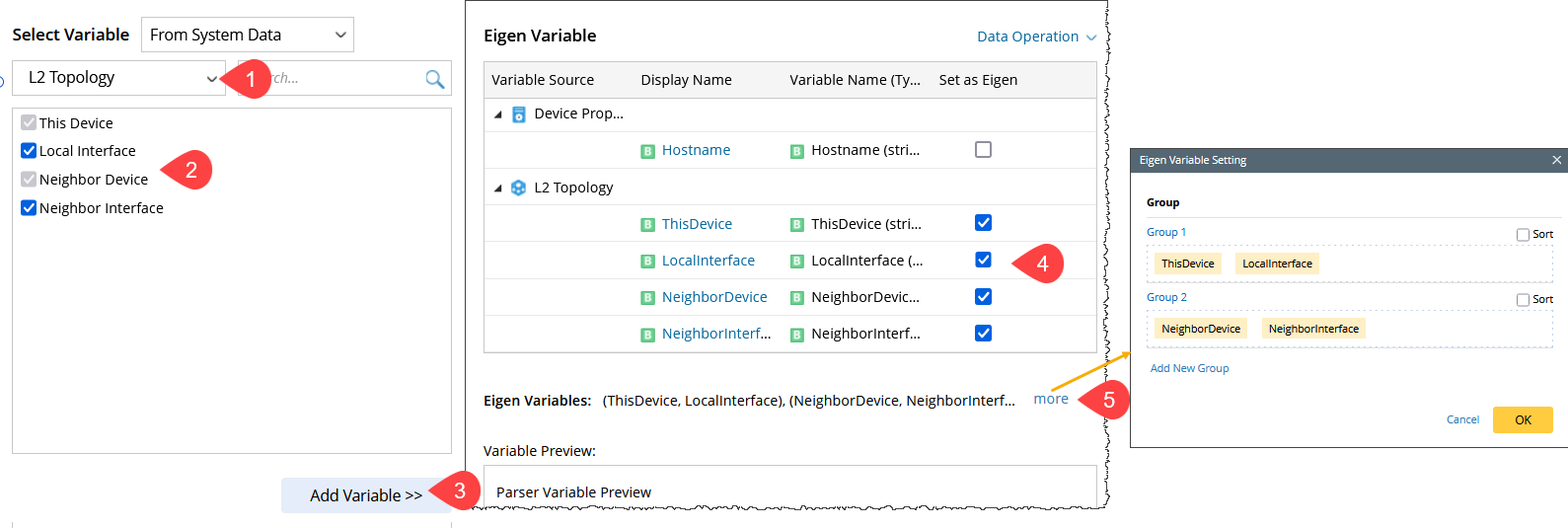
- Select L2 Topology from the drop-down menu.
- Select the Local Interface and Neighbor Interface from the available options. This Device and the Neighbor Device are by default selected.
- Click Add Variable >> to add the selected variable to the Eigen table. The variable will appear under the L2 Topology section.
- Select all check boxes under the L2 Topology section to set as the Eigen Variable.
- Click More to view the Eigen Variable settings for grouped variables.