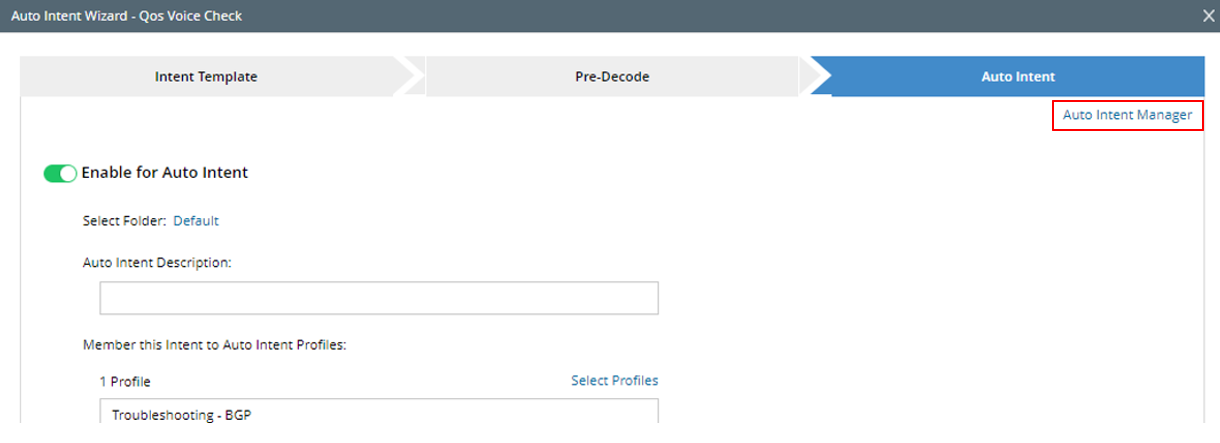
Enable Intent Template for Auto Intent in Wizard
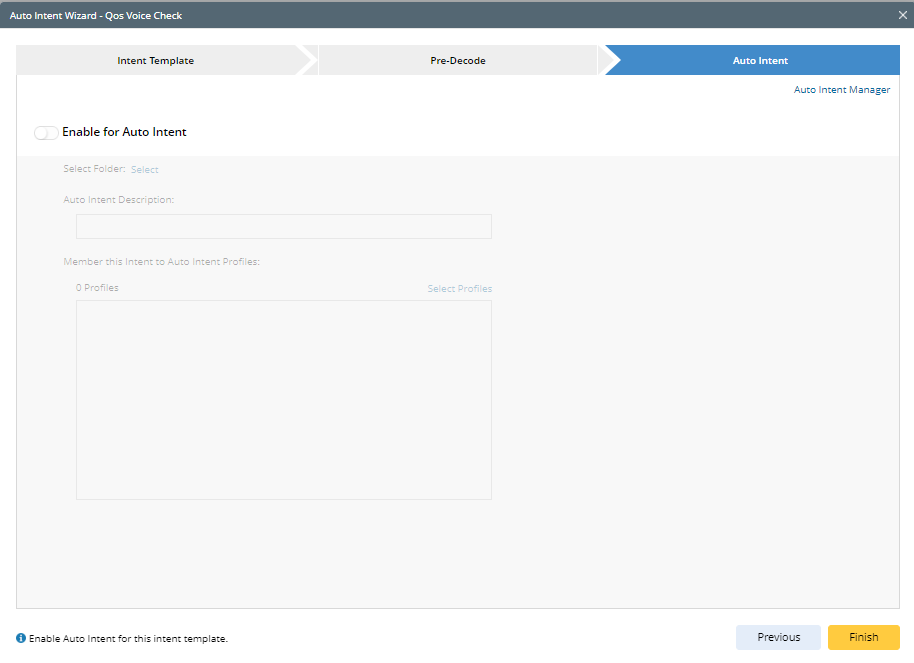
In the Auto Intent step, power users can enable an intent template to allow end user to use auto intent. This step also defines the Auto Intent logic and organizes it into profiles.

Enable Auto Intent
Follow the steps below to enable the current intent for Auto Intent.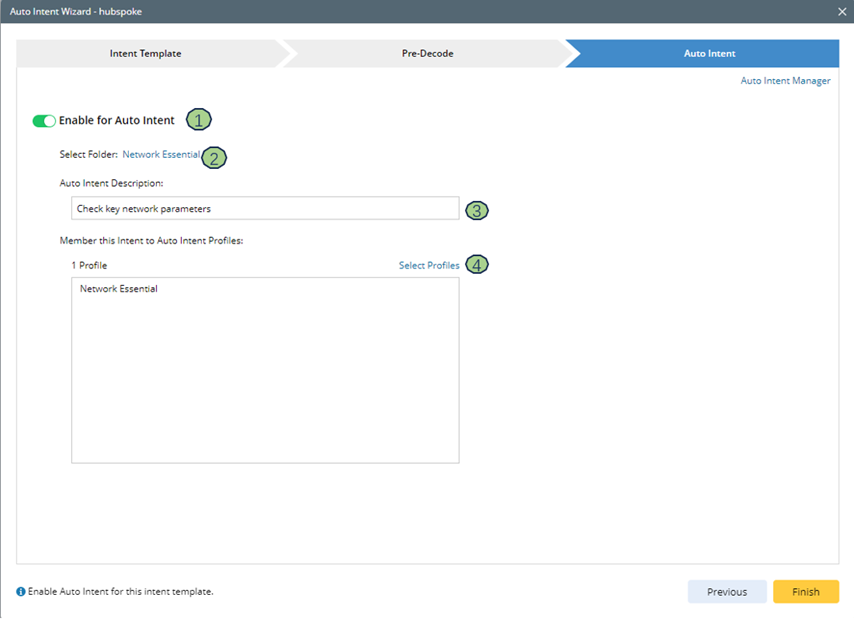
- Turn on the Enable for Auto Intent toggle button (
 ) at the top of the Auto Intent tab, then operate on this tab.
 - In the Select Folder section, click Select, and then choose a folder from the Select Folder dialog box. Click OK to confirm the selection.
If a folder is selected, its name appears in place of Select. To change the folder, click the folder name.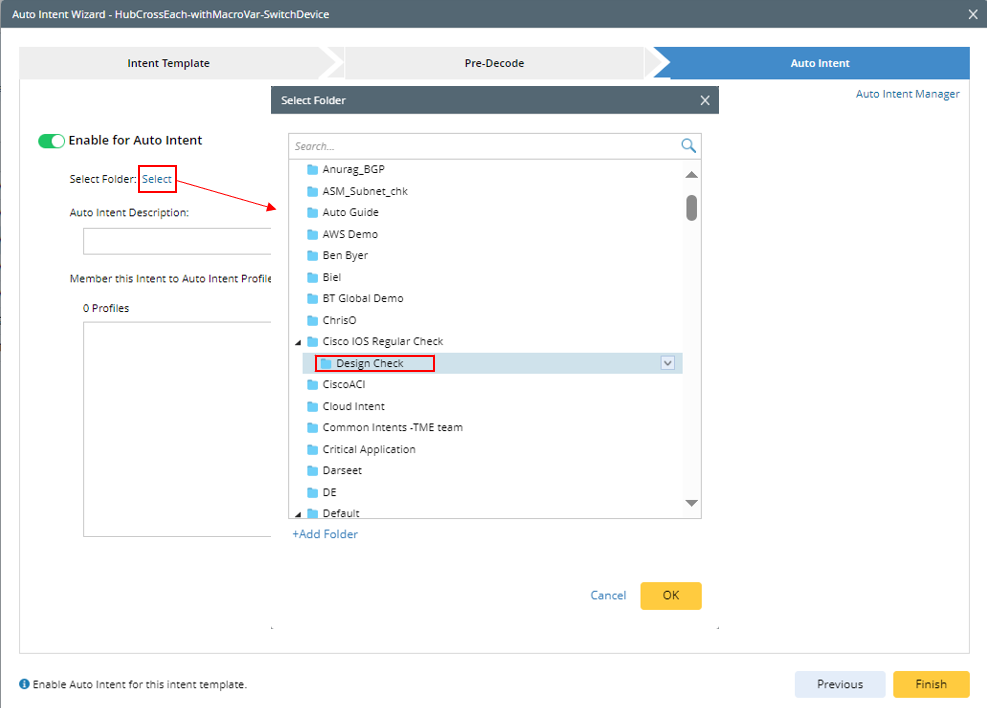

Note: The Folder structure in this dialog box is the same as that in the Auto Intent tab in IBA center. You can also add a new folder for storing this auto intent (add parent folder node from “+ Add Folder” link; add child folder node from drop-down menu of the parent folder). 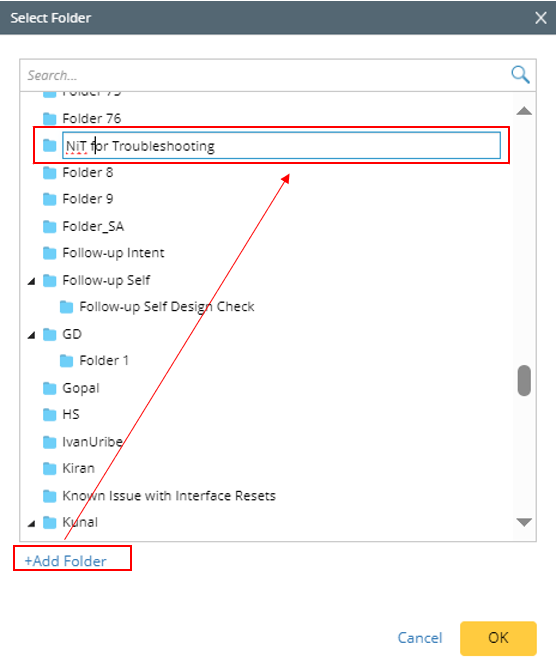
- Auto Intent Description: In this section, enter description to provide information, such as the use and function of the auto intent.
- Add the auto intent to Auto Intent Profile: You can select onlu one profile at a time. You can add several profiles. If the intent is classified into a profile, end users can filter this intent by profile in the Auto Intent pane.
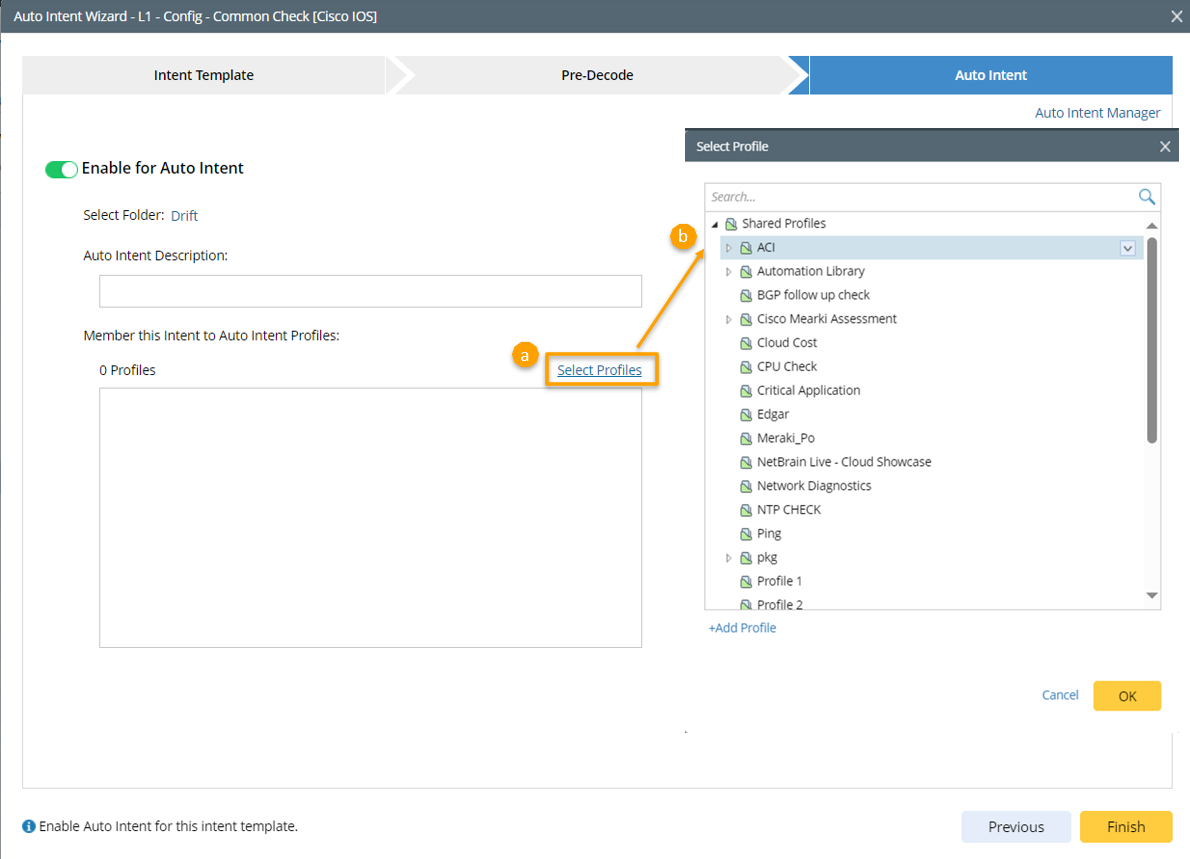
a. Click Select Profiles in the Member this Intent to Auto Intent Profiles section.
b. In the Select Profile dialog box, select a profile. You can repeat this step to add the auto intent to more profiles.
c. Click OK to complete the selection and close this dialog box.
Note: You can add a profile for grouping this intent template. 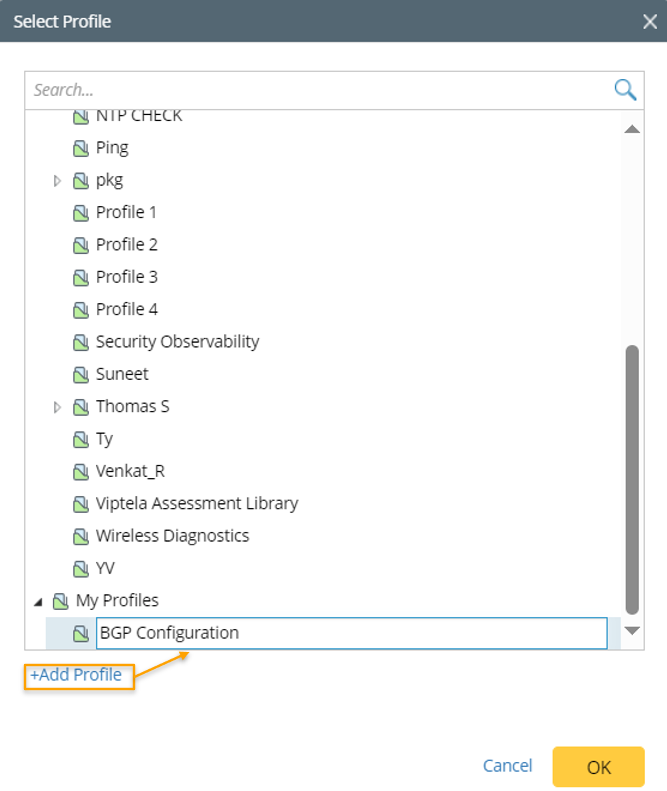
Note: Selected profile will be listed in the Select Profiles area. You can hover over a profile and click the  icon to remove a profile.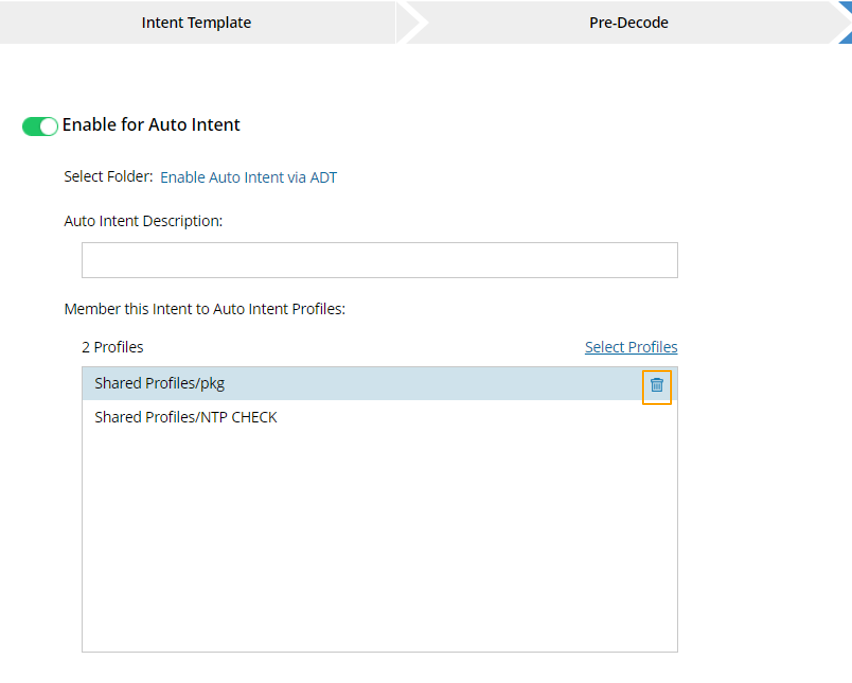
After configuring all the settings, click Finish in the lower-right corner to enable the intent template for auto intent and close the wizard.
Disable Auto Intent
A power user can disable the intent template for Auto Intent by turning off the Enable for Auto Intent toggle button at the top of the Auto Intent tab. A confirmation message box appears to verify the action.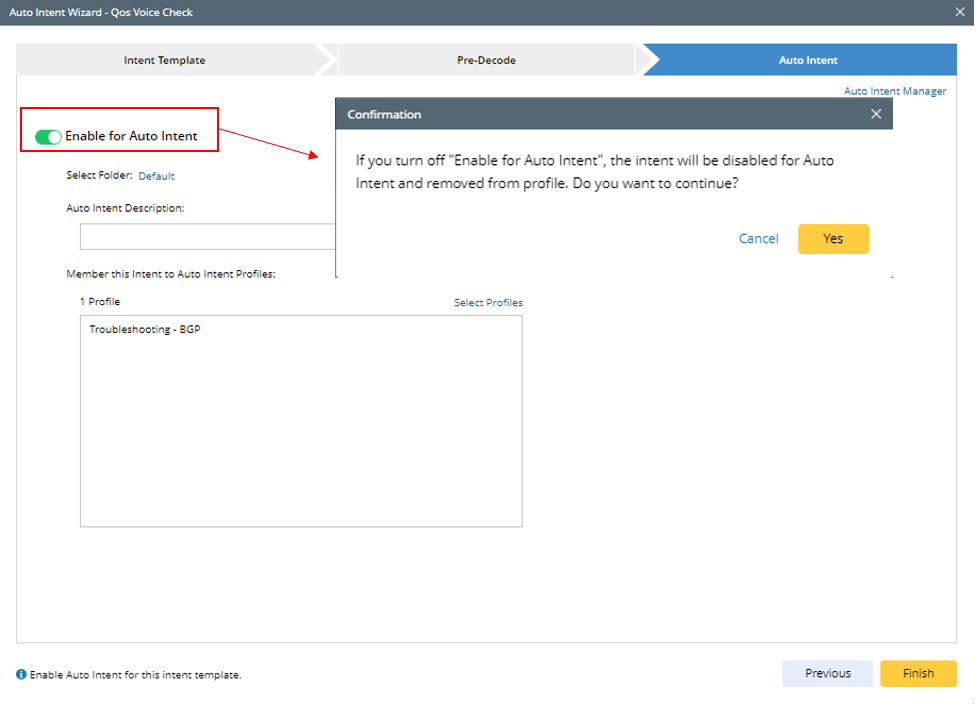
After the Auto Intent function is disabled:
- The current intent can no longer be used as seed intent for creating auto intent.
- The current intent is removed from the Auto Intent Profile tab in IBA Center.
- The Auto Intent tab is dimmed and becomes inactive.
Open IBA Center from Auto Intent Wizard
After an intent is enabled for Auto Intent, you can optionally click the Auto Intent Manager link to verify whether the intent appears in the Auto Intent tab of the IBA Center. If the intent is enabled and stored in the selected folder, the system navigates to the Auto Intent tab, and the current intent entry is highlighted.