Guidebook Manager
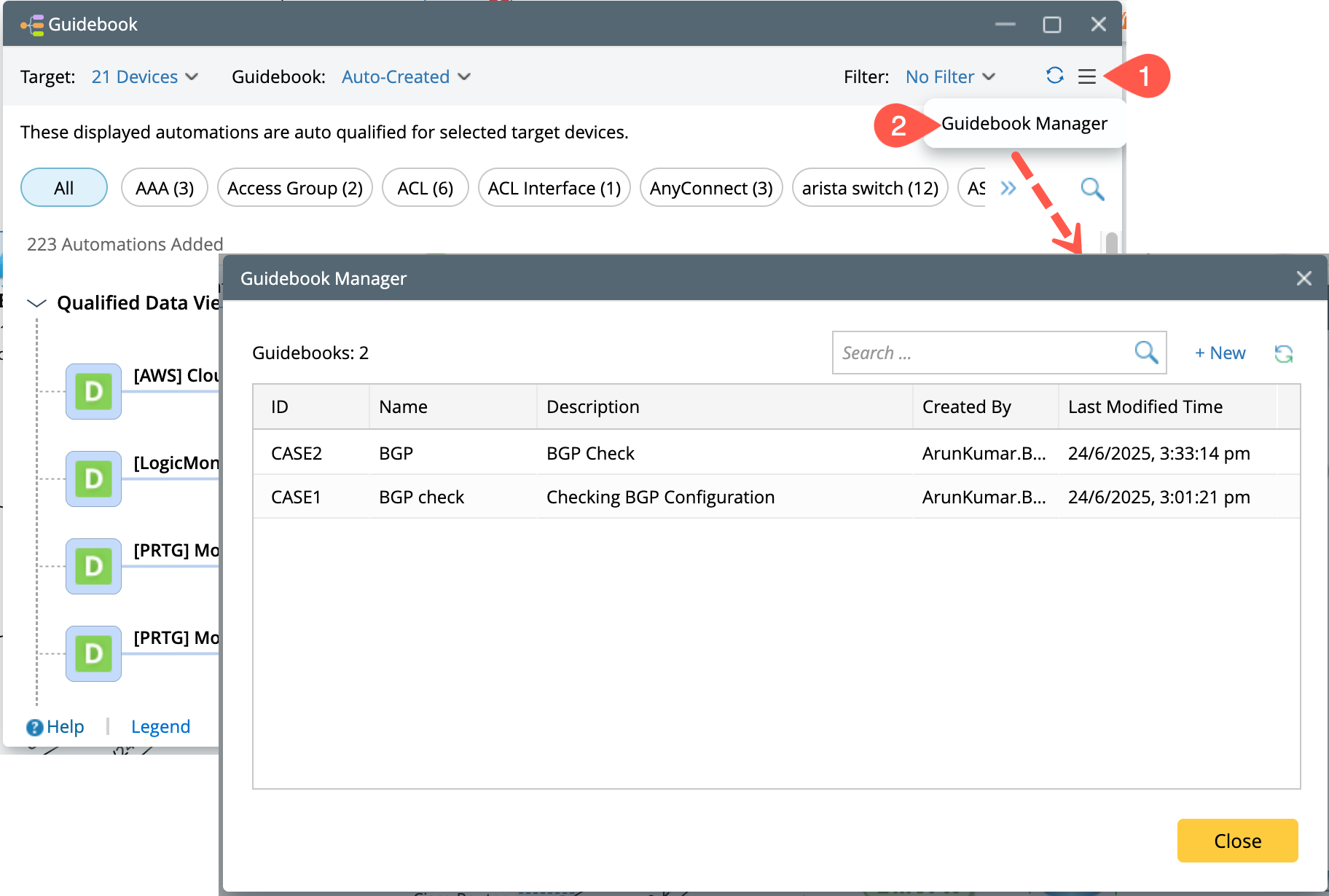
Guidebook Manager offers a central location where users can manage their saved Guidebooks. To activate the Guidebook manager:
-
Click
 on the Guidebook interface.
-
Select Guidebook Manager from the drop-down.
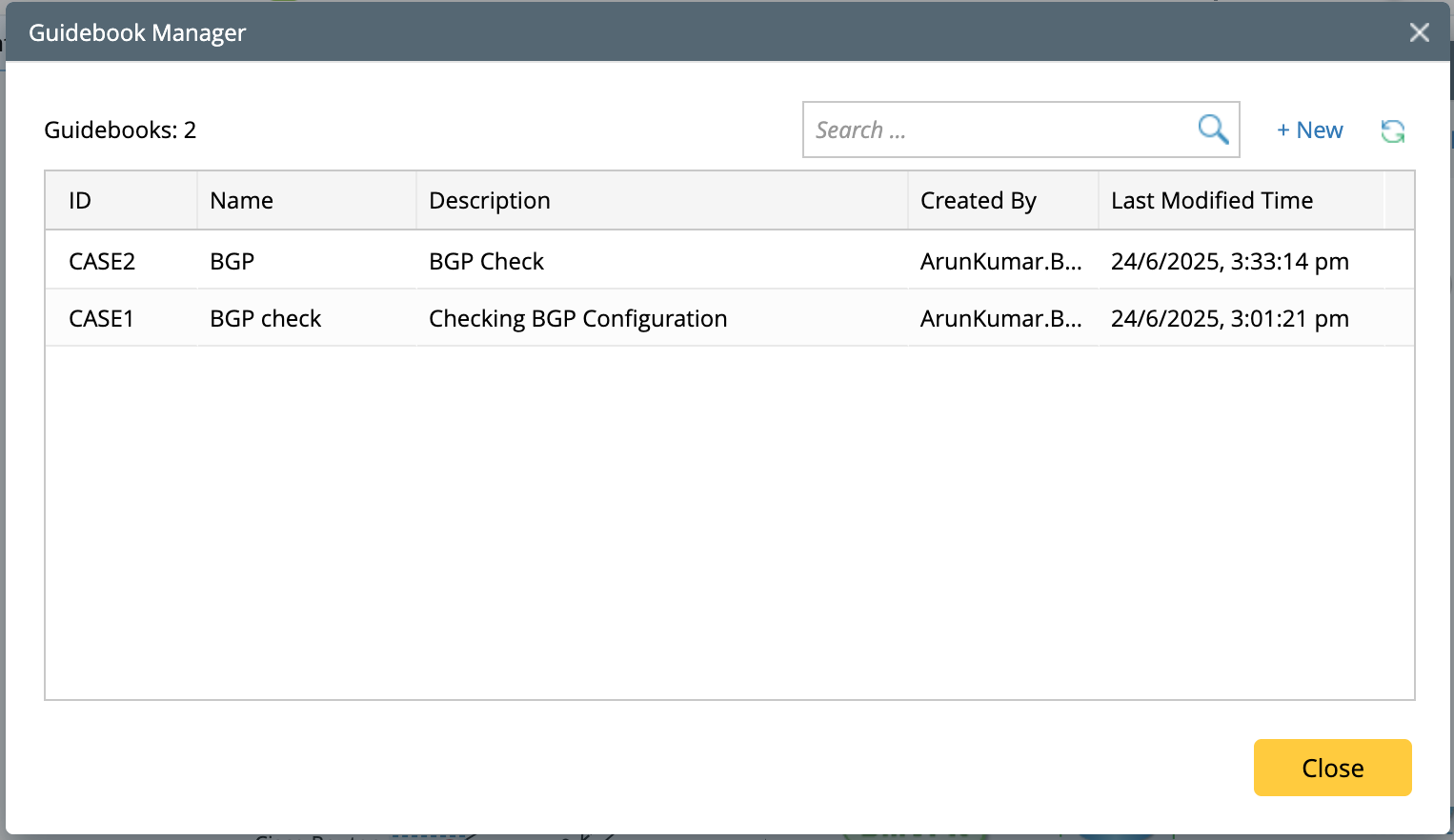
You can view all saved Guidebooks in the Guidebook Manager interface and their respective detailed information:
- Guidebook ID
- Guidebook Name
- Description
- Created by
-
Last Modified Time
Managing Guidebook
-
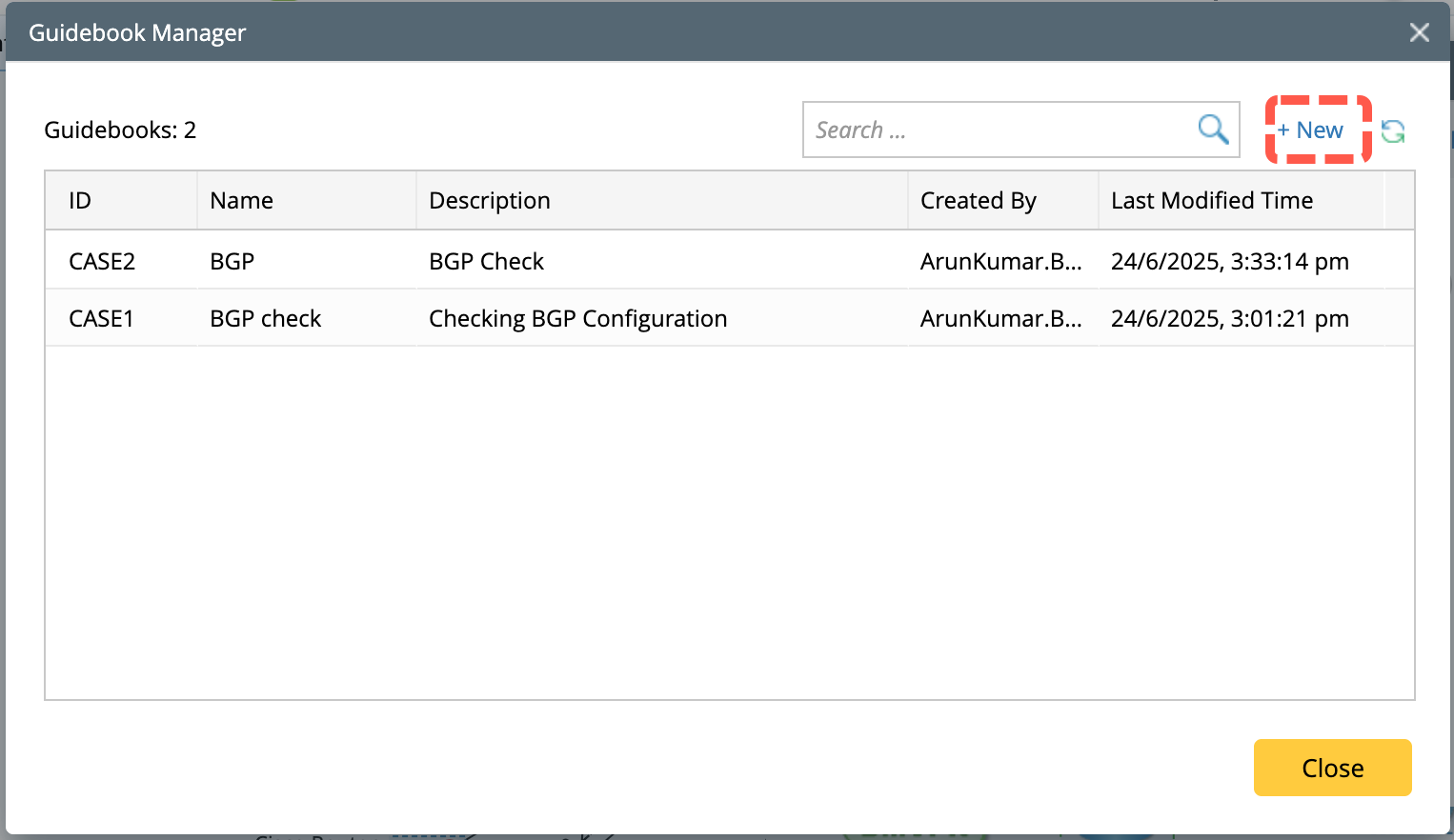
Create Guidebook: To create a new guidebook, click +New and go to the topic create a Guidebook.
-
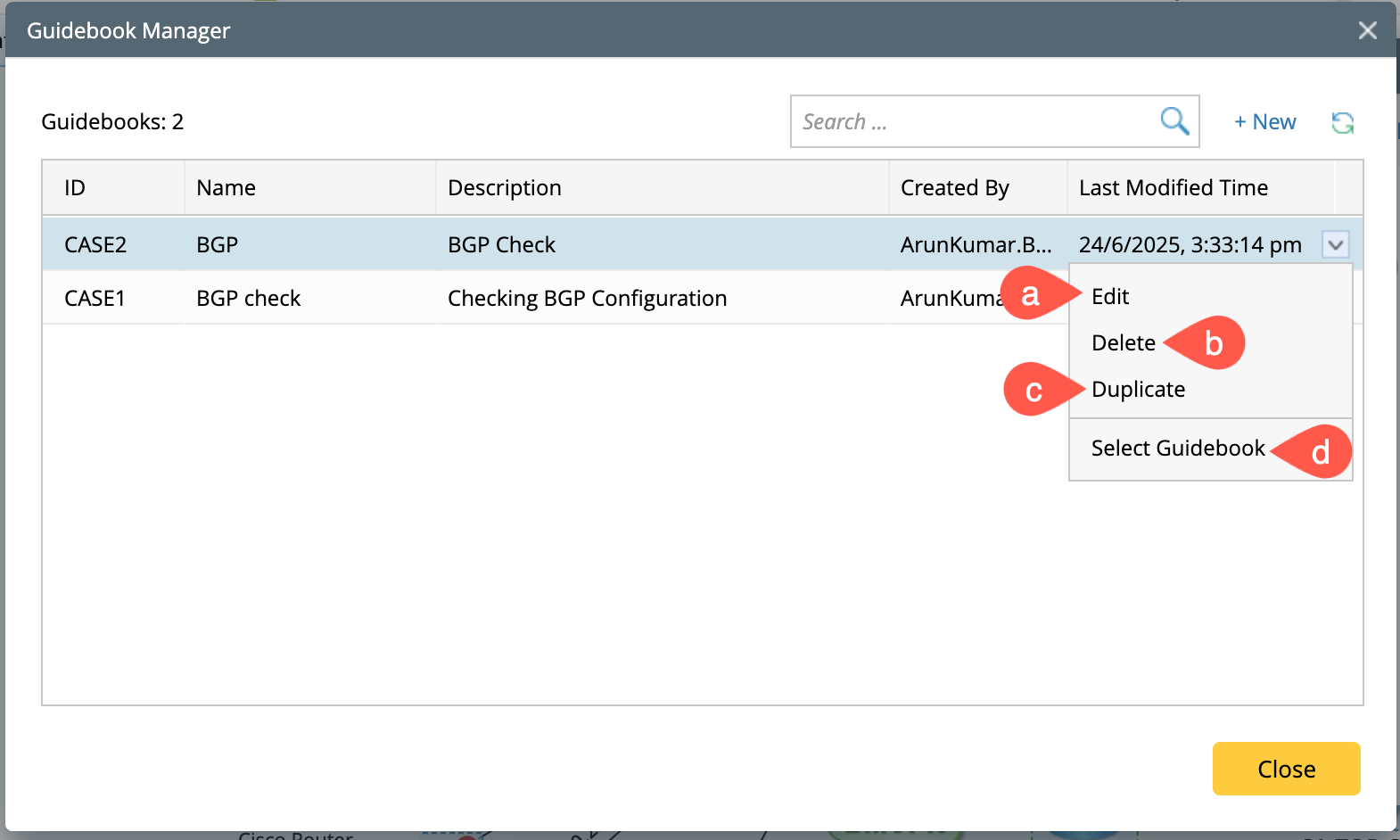
Other options in managing the guidebook: Select a Guidebook, right-click or click
 to open the menu.
-
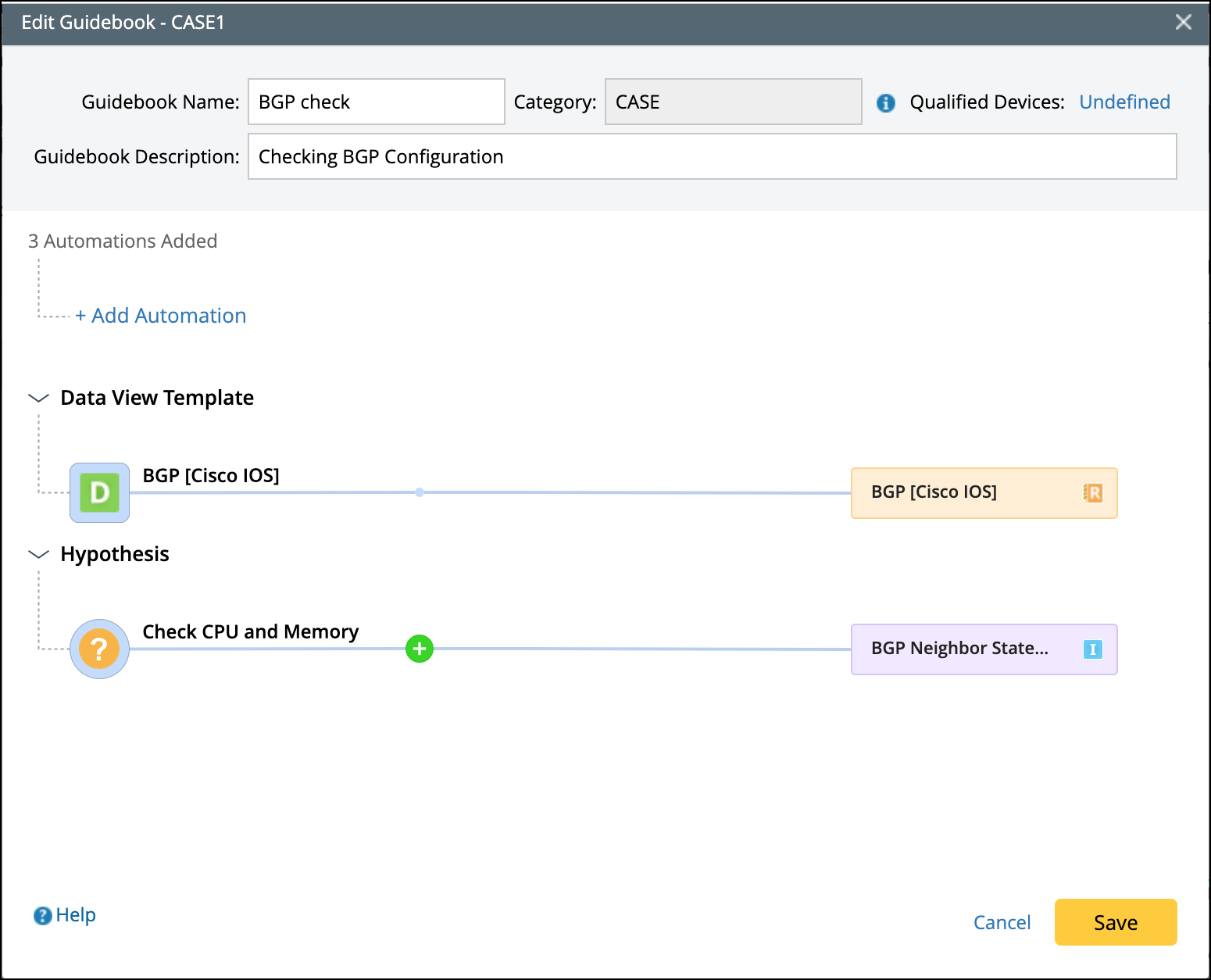
Edit Guidebook:
Click Edit to open the corresponding window. Then, you can modify all the settings, refer to Modify Guidebook for more details.
-
Delete Guidebook:
Click Delete and a confirmation prompt will appear. Select Delete in the prompt window.


Note: The selected Guidebook, as well as the respective hypothesis, will be deleted. -
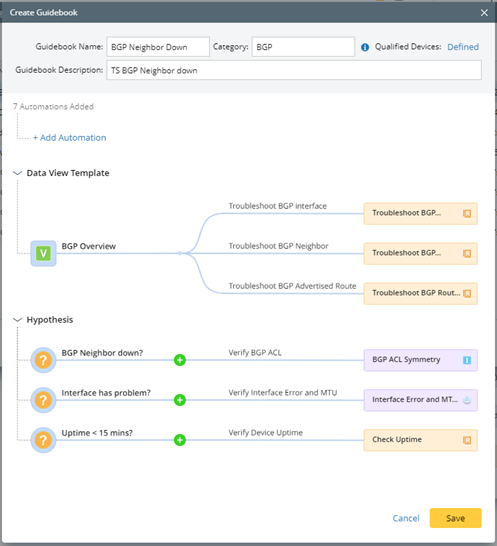
Duplicate Guidebook:
Click Duplicate in the drop-down menu. And in the Create Guidebook window, the current settings will inherit the settings of the selected Guidebook.
-
Select Guidebook:
- Click Select Guidebook to open the Add Target Device window.
-
In the Add Target Device window, select the Guidebook's applicable device(s) as the target device(s). The Guidebook will become available.
Note: The applicable devices are the qualified devices defined by the user when creating the Guidebook. 
-
Edit Guidebook: