Browse Device Data on Map
On a map displaying the network topology, you can view basic configuration information on device and interface labels, such as interface IP addresses and routing policies. To see more detailed data, Zoom in on the map.
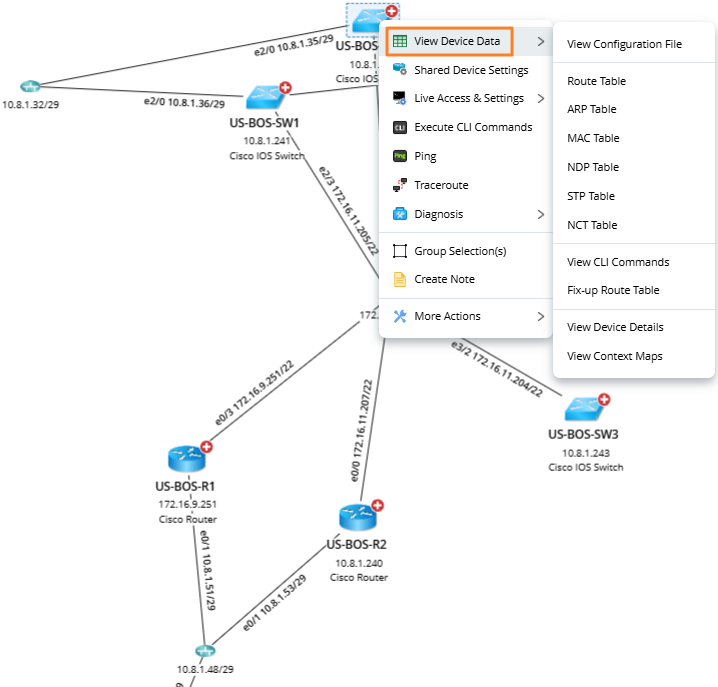
To access additional device data, right-click a device and select View Device Data.
This information can help you understand the network design or troubleshoot network issues.

|
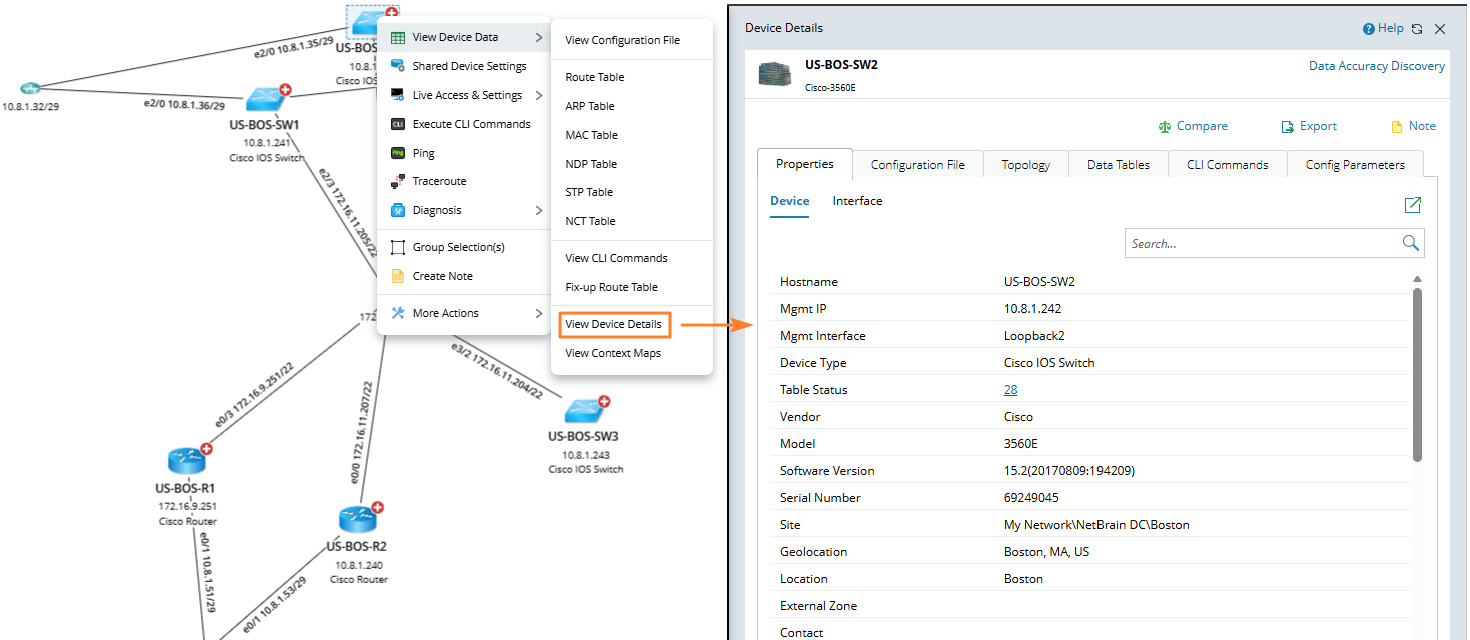
Note: You can also right-click a device and select View Device Data > View Device Details to view all of this device data along with additional detailed information. For more information, see Device Details.
 |
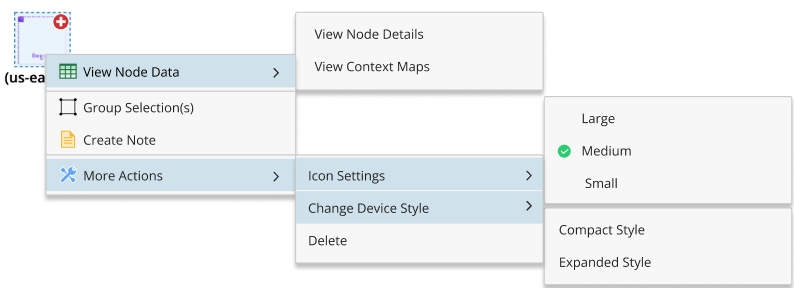
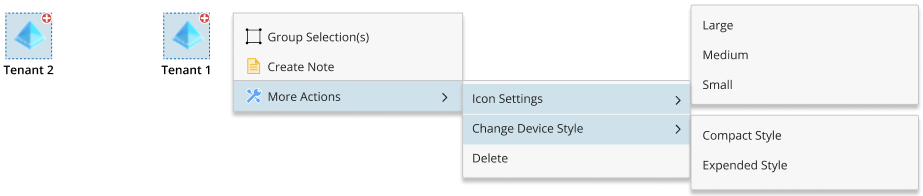
If a node is mapped, you can view the node data from the following menu.
- Context Menu for Single Node Selection:
- Context Menu for Multiple Nodes Selection:
You can also double-click a node to directly open its details pane.
|
|
Note: The behavior of the logic node is not affected by the user reference.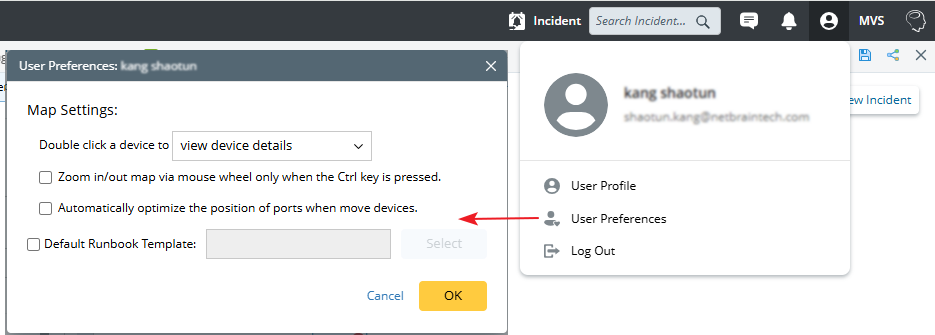 |
Zoom In/Zoom Out
Each map is displayed at 100% zoom by default. To adjust the zoom level and control the amount of data displayed, rotate the mouse wheel forward to zoom in or backward to zoom out.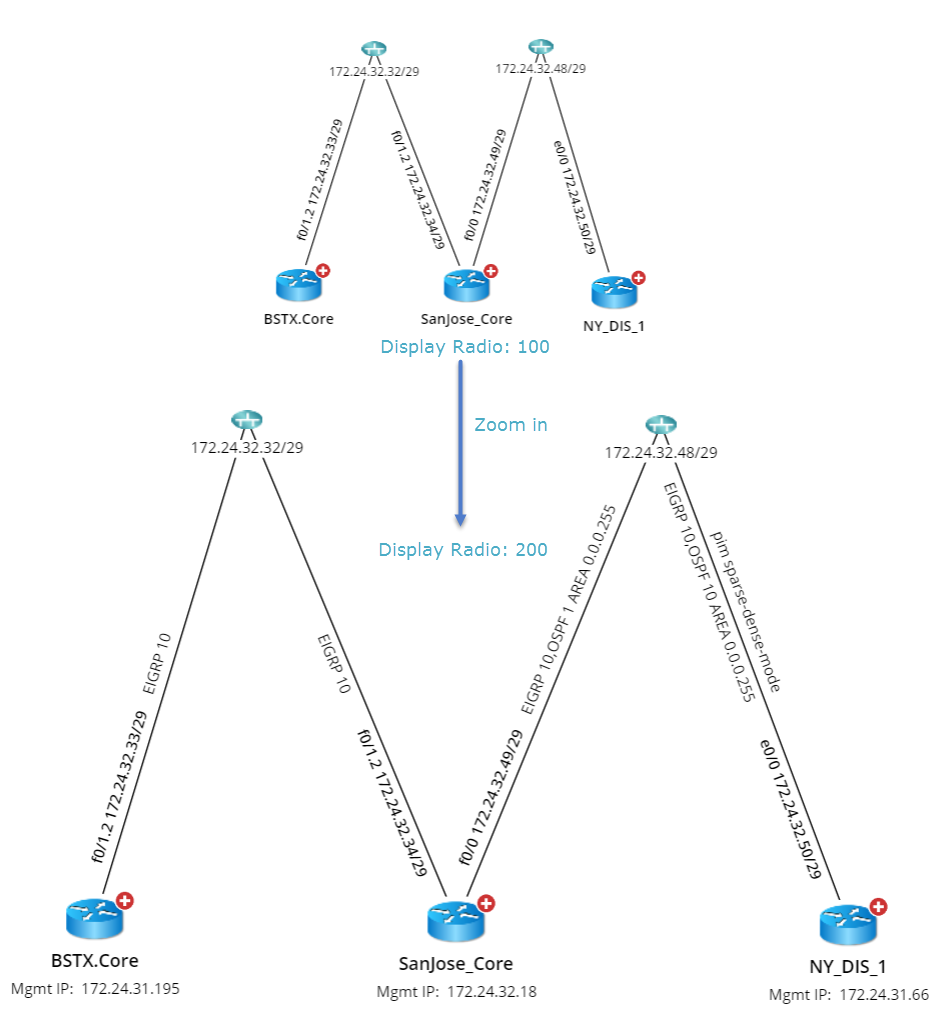
|
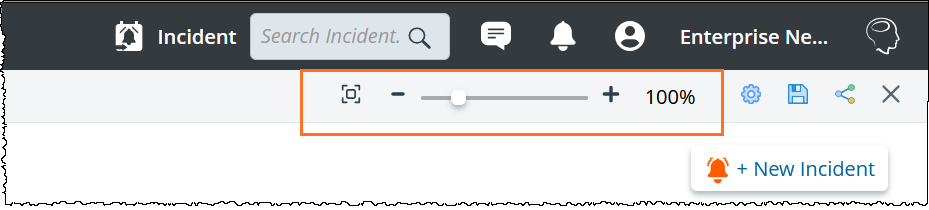
Tip: You can also change the map display ratio through the zoom controls located on the right side of a map. To customize the threshold of display radio for each data unit. For more information, see Customizing View Options for Data Units. |
|
Tip: You can view more detailed configuration of the devices in the Design Reader. |
Fit to Screen
In the upper-right corner of the map, click the Fit to Screen ( ) icon to adjust the map display to fit your screen.
Customize View Options for Data Units
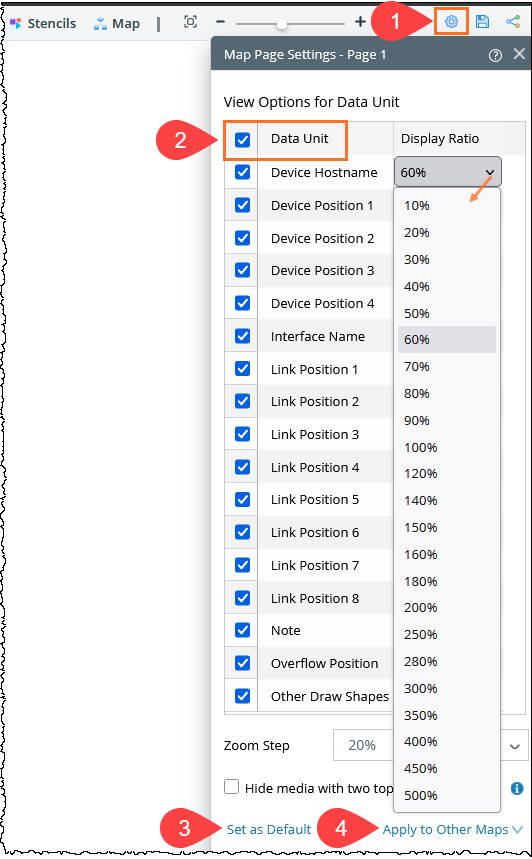
- On a Map, click the
 icon from the Map Toolbar.
 - Customize the following settings based on your needs. See Map Page Settings for more explanations.
- To adjust the display ratio for a data unit, click the cell in the Display Ratio column to change the value.
- To hide a data unit from the map, uncheck the checkbox.
- To apply this change as the default to all your newly created maps, click Set as Default. Otherwise, this change will only be applied to the current Map session.
- To apply this change to other existing Maps, click Apply to Other Maps and select the Maps from the dropdown to apply this setting.
See also: