Build Base Table with Node via Dynamic Search
When to build ADT base table using node found via dynamic search?
In the “Node via Dynamic Search” method, a node column containing traditional devices, networking devices, and Logic nodes can be added to ADT via Dynamic Search. Node object properties (System common properties, technology common properties and node-specific properties) can be populated to ADT.
Define Basic Table Data with Node Found via Dynamic Search
By the “Node via Dynamic Search” method, a node column containing traditional devices, networking devices, and Logic nodes found via dynamic search can be added to ADT. Node object properties (System Common, Technology-specific, and Logic Node) can be populated to ADT.
To build the base table with the node properties, follow the steps below:
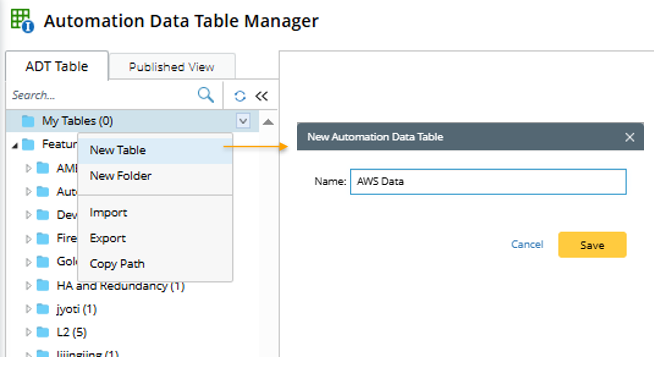
- Open Automation Data Table Manager, then create a new table and name it (for example, AWS Data).
- Click Table Builder to open Automation Data Table Builder of the ADT.
- Under the Define Base Table tab of Automation Data Table Builder, define the following settings:
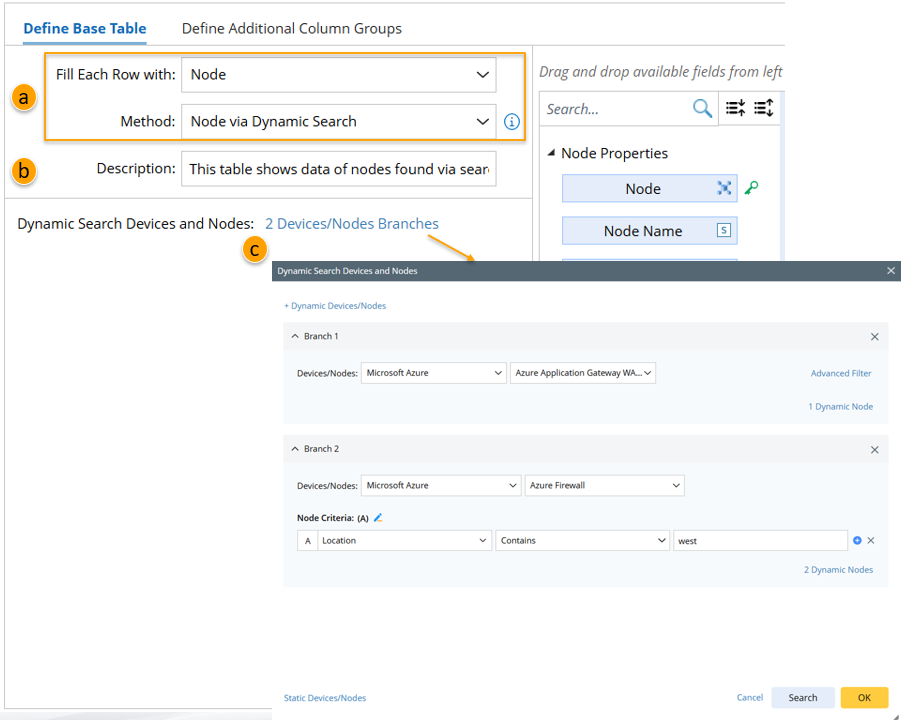
- Select Method to build Base Table: Select Node > Node via Dynamic Search method. After this method is selected, the available fields (which can be selected in step 4) will be listed and categorised in the Available Field area.
- Description: Input descriptions for the base table (for example, This table shows data of nodes found via search), to describe its use and function.
- Dynamic Search Devices and Nodes: Add branches and define the filter conditions for the branch if necessary. Also, static devices/nodes can be added. The nodes/devices find via dynamic search and their properties can be used to build the base table.
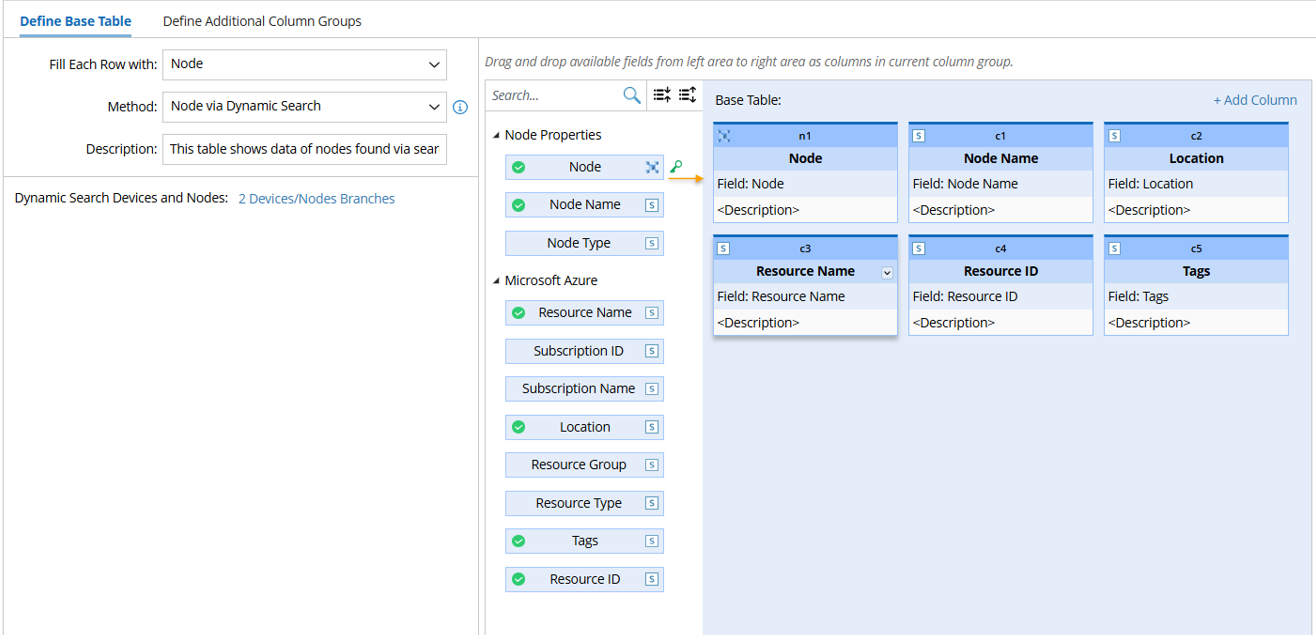
- Mapping Available Fields to Column Group: Drag and drop the available fields to the column group definition area to create ADT columns automatically. For the Node via Dynamic Search method, Node field is the key field.

Note: To perform common operations on a column, click corresponding items from the drop-down menu, for example, you can click Edit from the drop-down menu of Device column to change the display name. 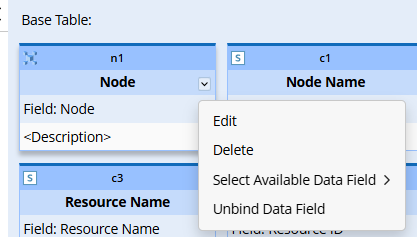
- Click Save to save all the settings, but the table data will not be built.
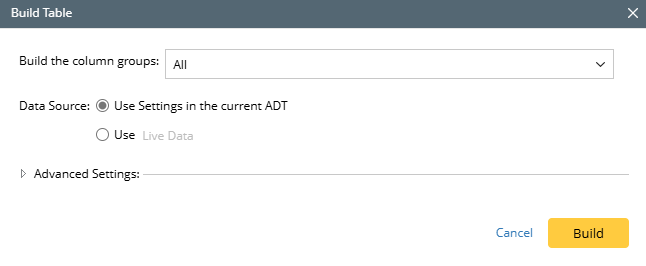
- Click Save and Build. The Build Table dialog appears, define the settings as per your preferences. The system will save the settings and build the table data.
|
|
Note: The fields available for this base table are categorized according to the branches defined in the selected groups. You can collapse/Expand all the categories by clicking the  / /  icon. icon.
|
The following table lists the available fields listed in the field area to be selected.
| Field Type | Fields | Description |
| System-Level Node Property | System-level node properties are fixed in the system.
| When the search results includes logic node, the system-level node properties are available fields for the ADT. |
| New Technology Common Property | One new technology type (e.g. AWS) includes serval node types that share some common properties. The following are the new technology level common properties for Amazon AWS service:
| When the searched node belonging to a new technology, the common properties of this new technology are the available fields for the ADT. |
| Node Specific Property | Each logic node type may have unique properties. These properties are the node-specific properties. The following is the node specific property of the node type "AWS ECS Service" of the Amazon AWS service:
| When the searched nodes belonging to a logic node type having its unique property, the unique properties are the available fields for the ADT. |
| Traditional Device Property | Traditional device properties (such as device type, vendor, model) can be used as the available fields of the ADT. | When the search nodes have traditional device property, these properties are the available fields for the ADT. |