R12.3-2026Apr21
Configure Cisco CX API Server
Follow the steps below to configure Cisco CX API Server:
- In the NetBrain Desktop, go to the main menu
 and click API Server Manager.
 - Click Add API Server.
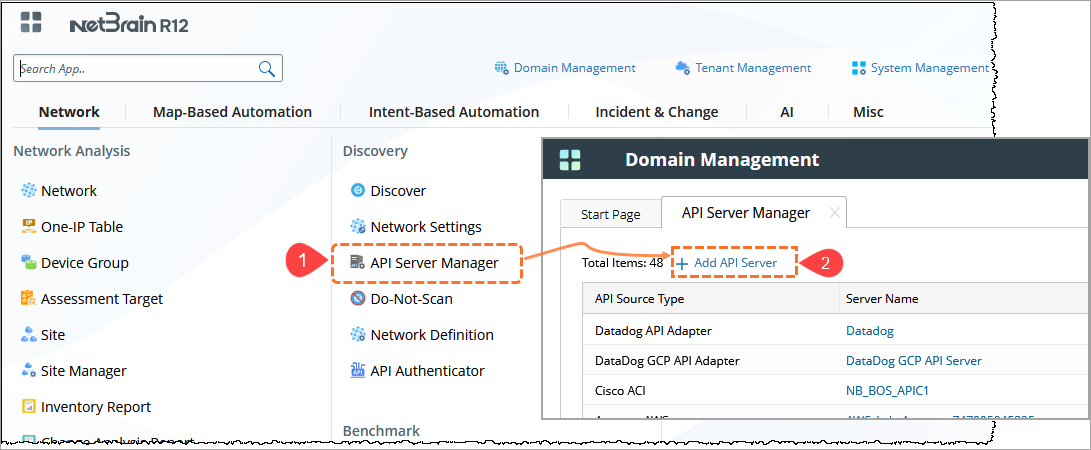
- Enter the following details:
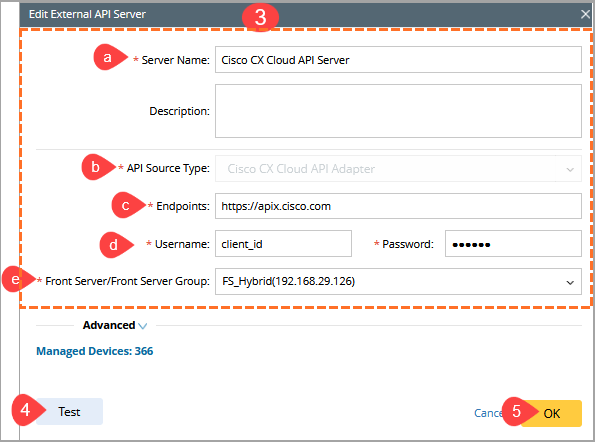
- Enter Server Name and Description.
- From the API Source Type dropdown, select: Cisco CX Cloud API Adapter.
- Endpoint: Enter the Cisco CX API URL
- Username and Password: Enter the provided credential and the corresponding password. (Include token if required based on Cisco documentation).
- From Front Server/Front Server Group, select the appropriate server. Ensure the selected server has connectivity to the Cisco CX API endpoint.
- Click Test. Verify that the connection is successful.

Note: A successful API connection is required to fetch Cisco CX data. If the connection test fails, the data retrieval plugin will not return any data. - Click OK to save the API server configuration.
In the next step, you will run the CX Cisco Cloud Data Retrieval Plugin.