User Groups
System Management provides the group-based access control. By creating a group with the users, you can manage visibility and access to folders and files across companies, teams, countries, and roles. Users without proper group permissions will not be able to see or be aware of restricted folders or their contents.
User groups let you to organize and manage permissions for multiple users at once. There are two types:
- External Group
- Local Group
External Groups
When you connect to an external authentication server (like AD/LDAP/SSO), groups are automatically created in the format: $groupName ($type_$serverName).
-
Default description clearly indicates which server the group comes from. These groups synchronize automatically:
- If a group is deleted on the external server, it disappears here too.
- If a group name or server name changes, the update is reflected automatically.
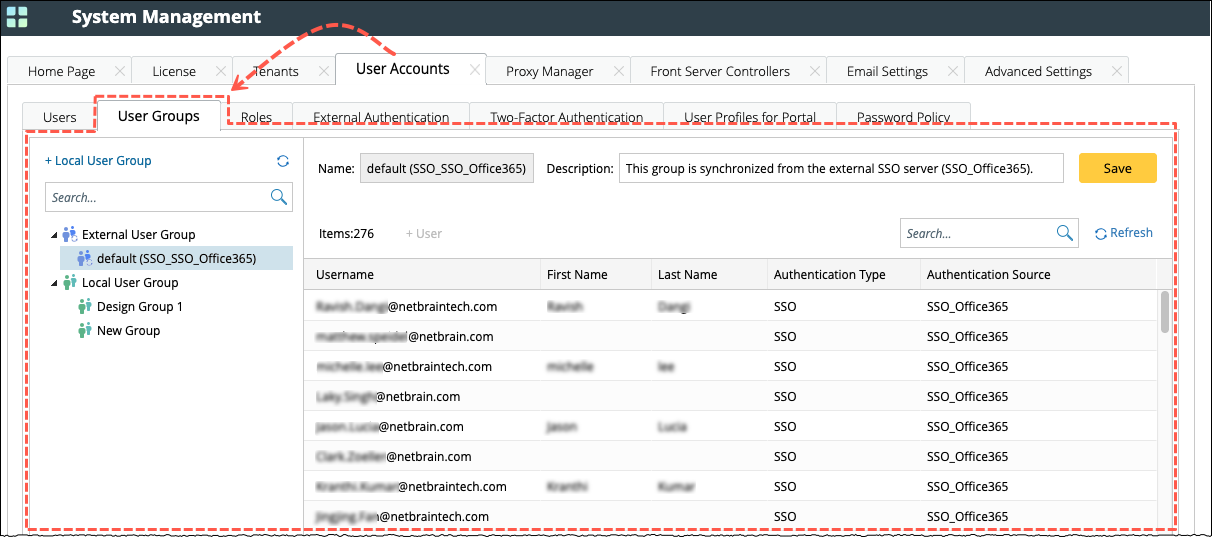
- User cannot manually delete external groups. Only the description field can be edited, and other details are read-only.
Local Groups
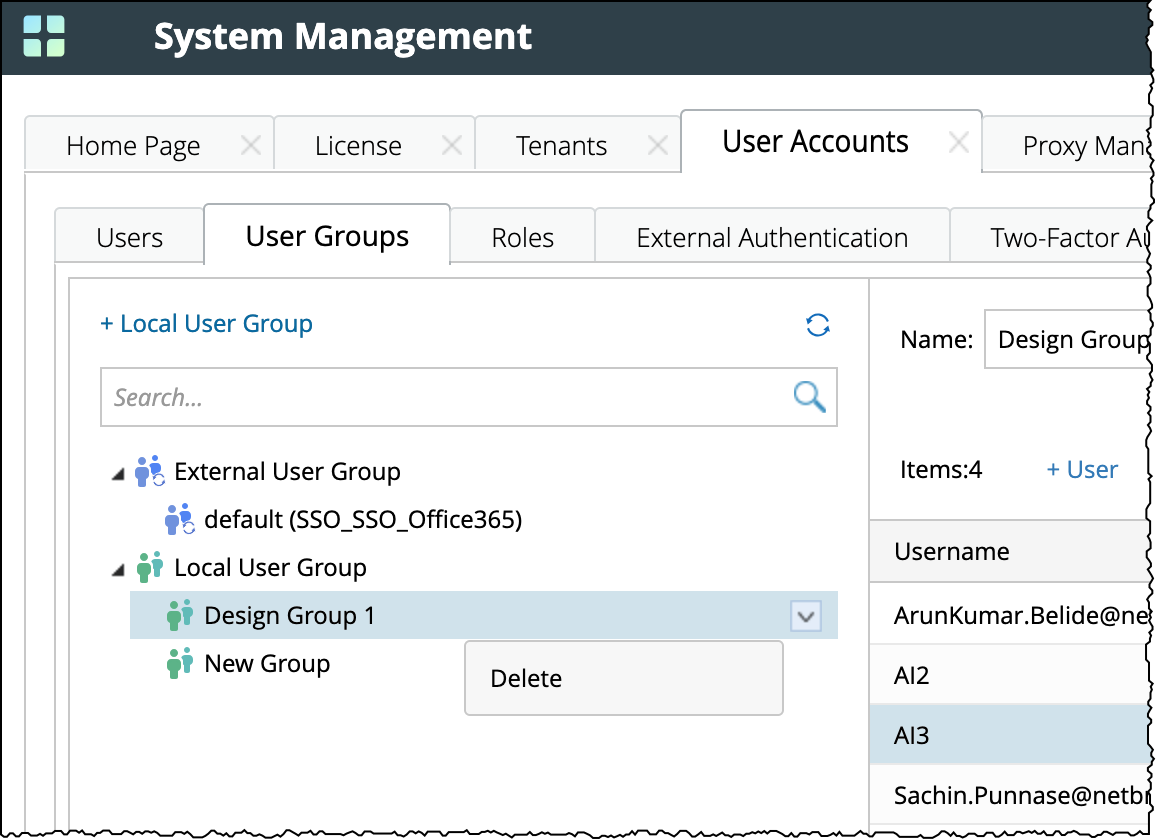
You can manually create a local group and add users to it. Groups are sorted by name for easier lookup and they can be deleted when needed.
To create a new local user group:
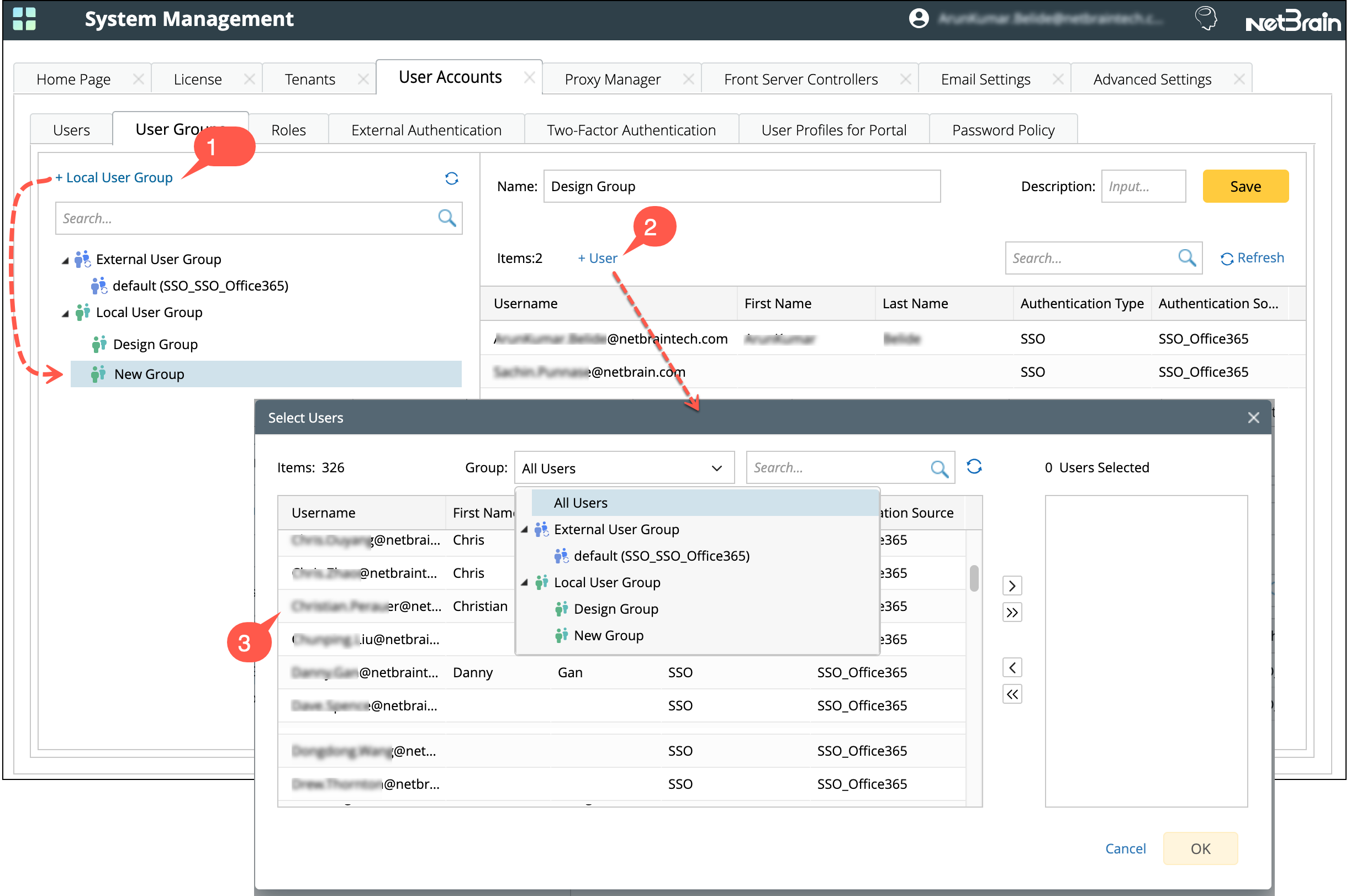
- Click +Local User Group and a New Group appears under the Local User Group.
- On the right pane, Click +User and a window with full user list appears (with search and filtering).
-
Select the users you want to add to the user group and click OK.
-
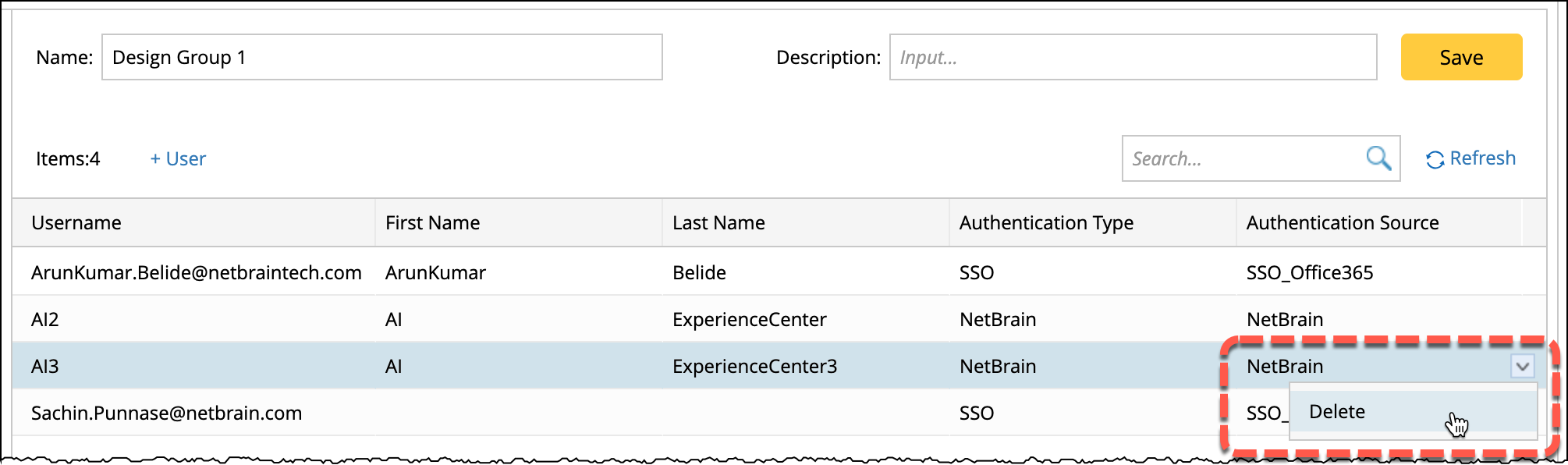
You can remove the users from the group later if needed.