User Accessibility
You can control who can view and edit folders, maps, and files using the User Accessibility wizard. Three configuration options are available to define accessibility settings.
- No Restrictions: Everyone can view, and privileged users can edit.
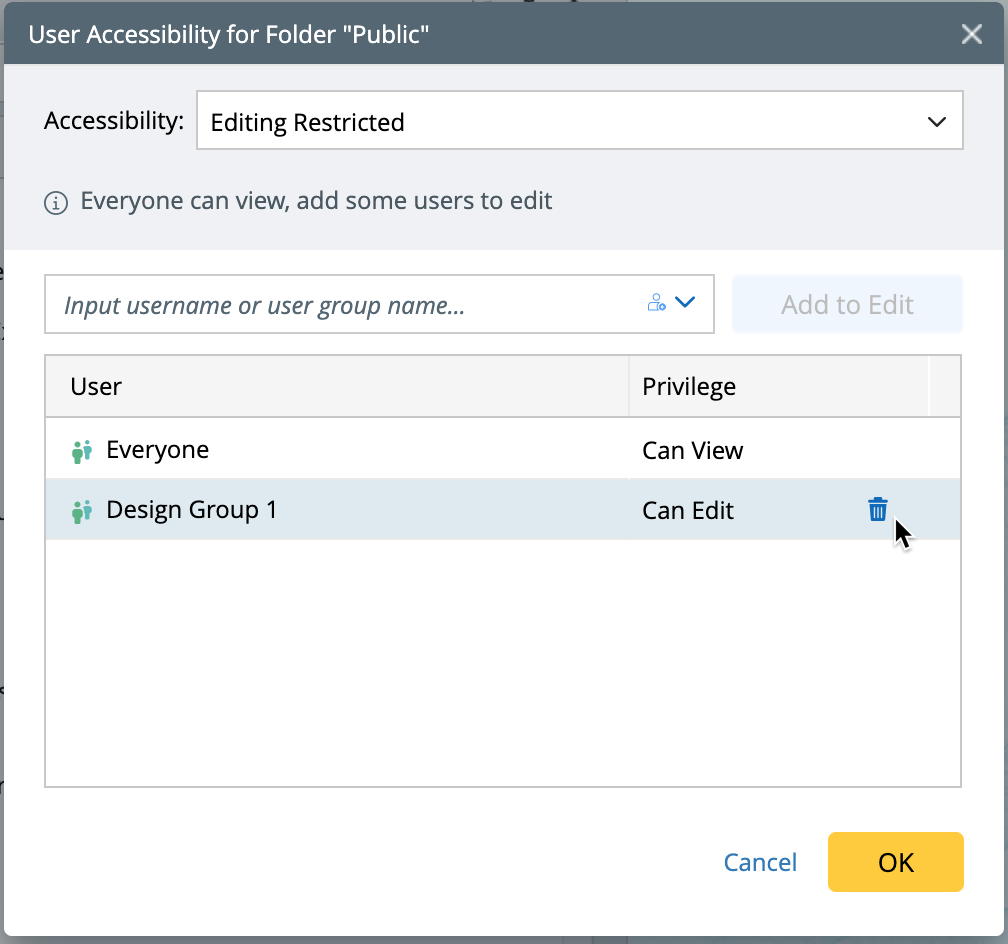
- Editing Restricted: Everyone can view, but only selected users/groups can edit.
- Viewing and Editing Restricted: No default access, only selected users/groups can view or edit.
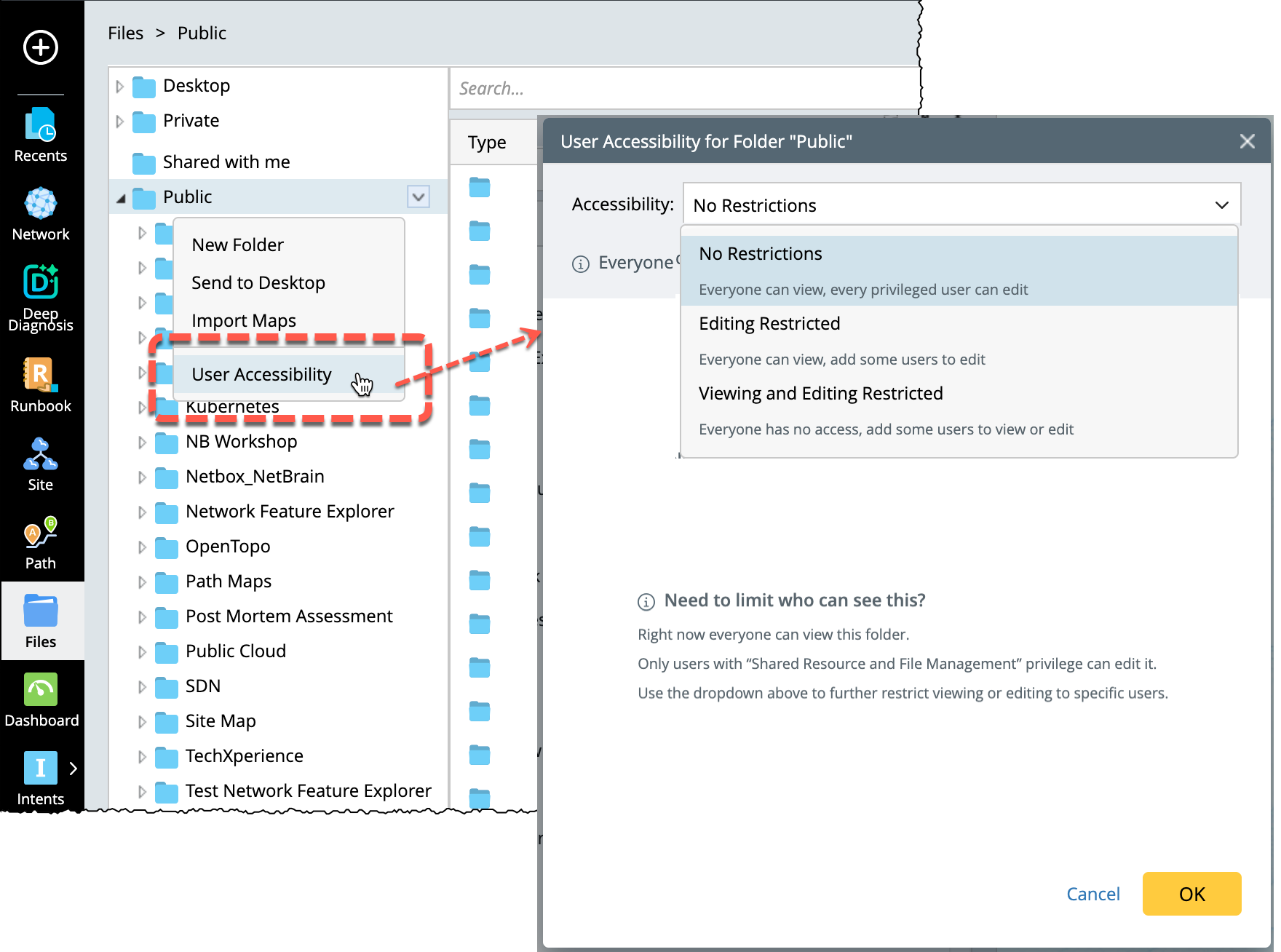
This topic describes how to configure accessibility permissions for folders and sub-folders, as well as for maps and other files.
Folder Accessibility Permissions
-
No Restrictions: Everyone can view, and privileged users can edit.
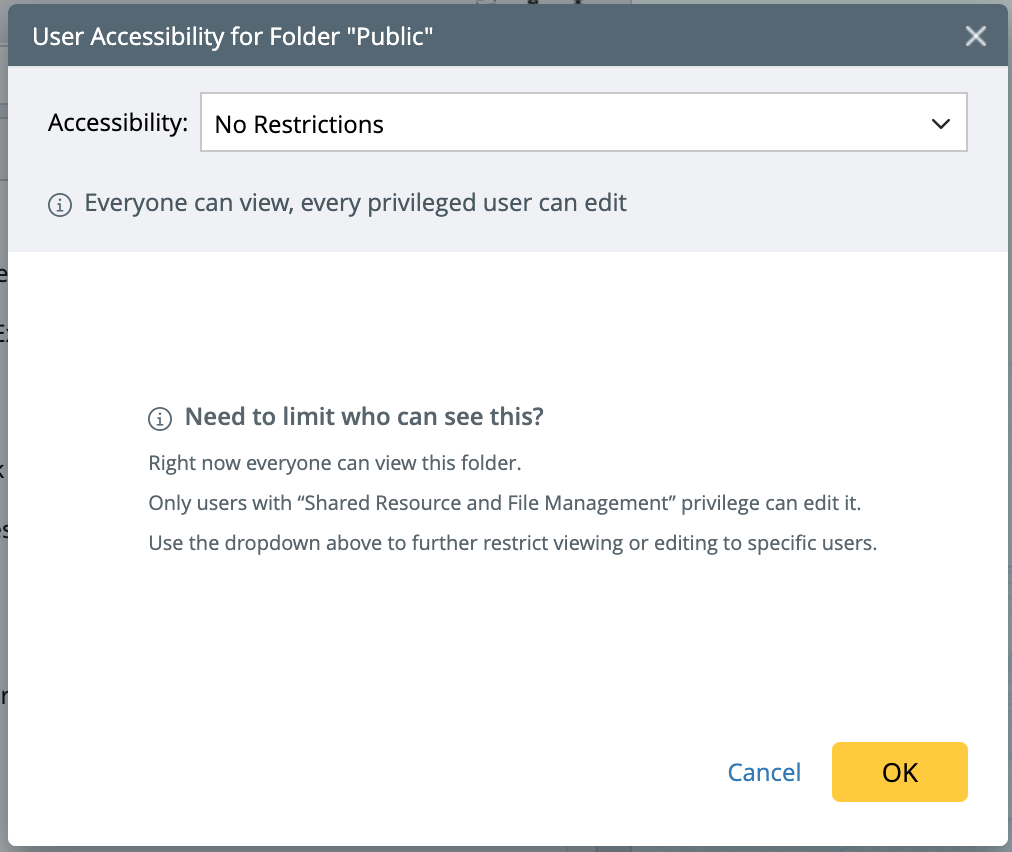
-
Editing Restricted: Everyone can view, but only selected users/groups can edit.
-
To empower a user / user group with edit access:
-
From the drop-down menu, select users / user group to choose the users.
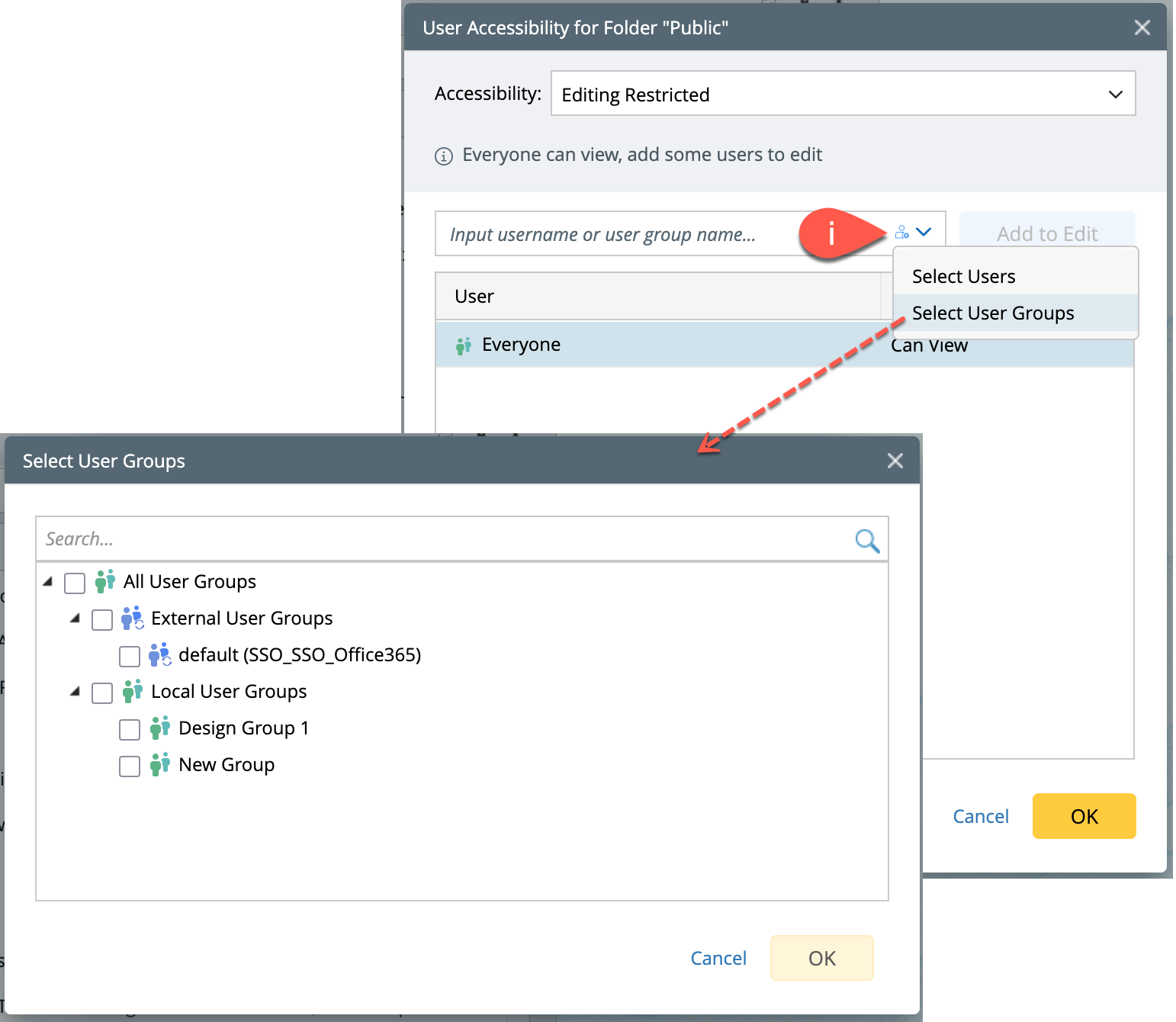
-
Click on Add to Edit.
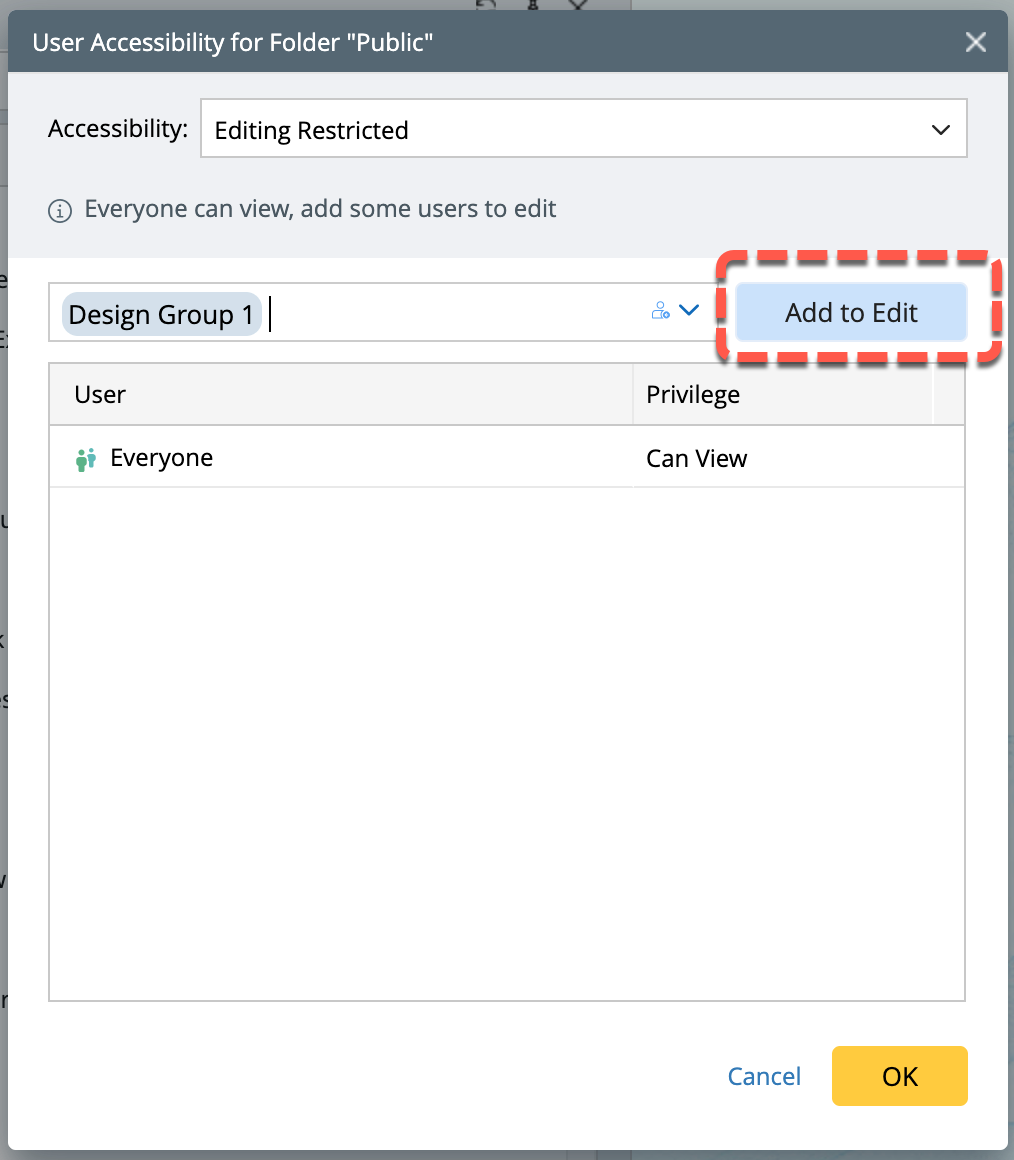
-
From the drop-down menu, select users / user group to choose the users.
-
To Delete a user/group, hover the cursor on it and delete option will appear.
-
To empower a user / user group with edit access:
-
Viewing and Editing Restricted: No default access, only selected users/groups can view or edit.
-
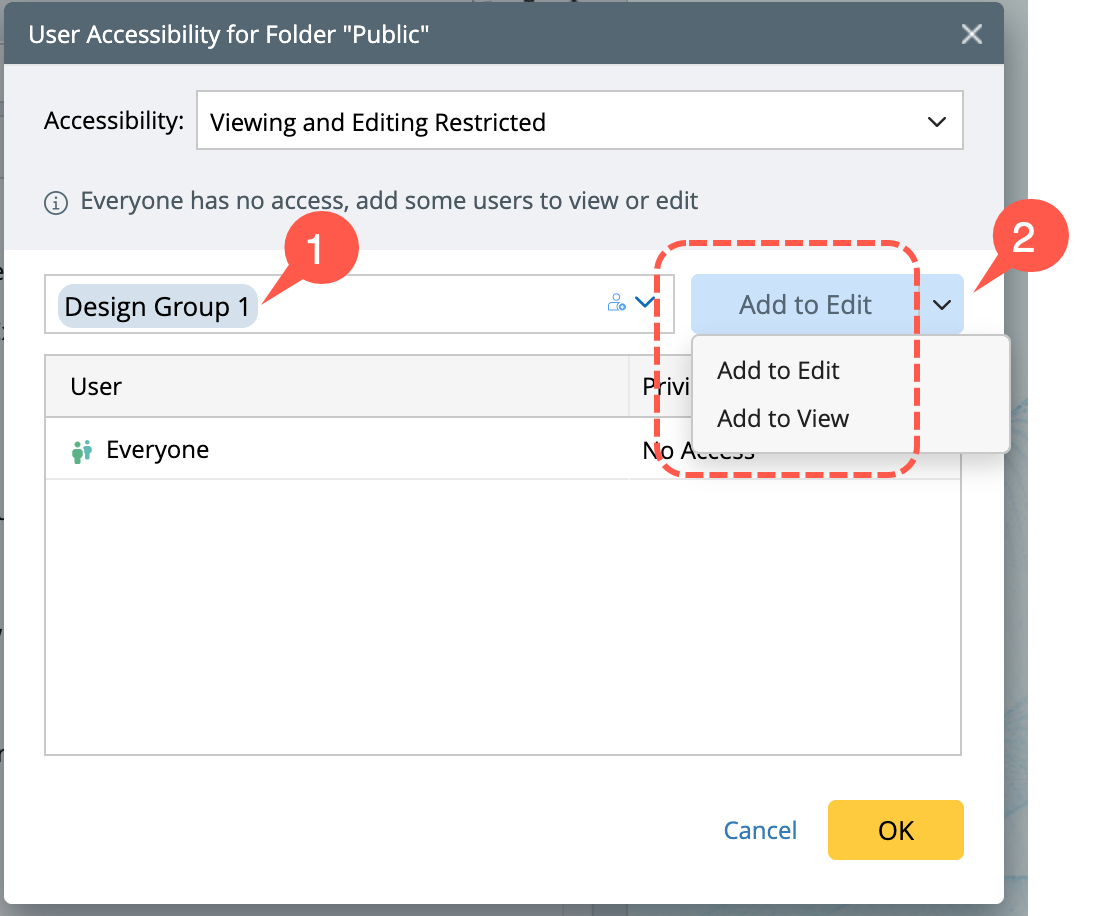
Adding a User or Group: At first, no permissions are assigned. To grant access:
- Select a user or group and click Add to Edit.
-
Choose whether they can View or Edit.
-
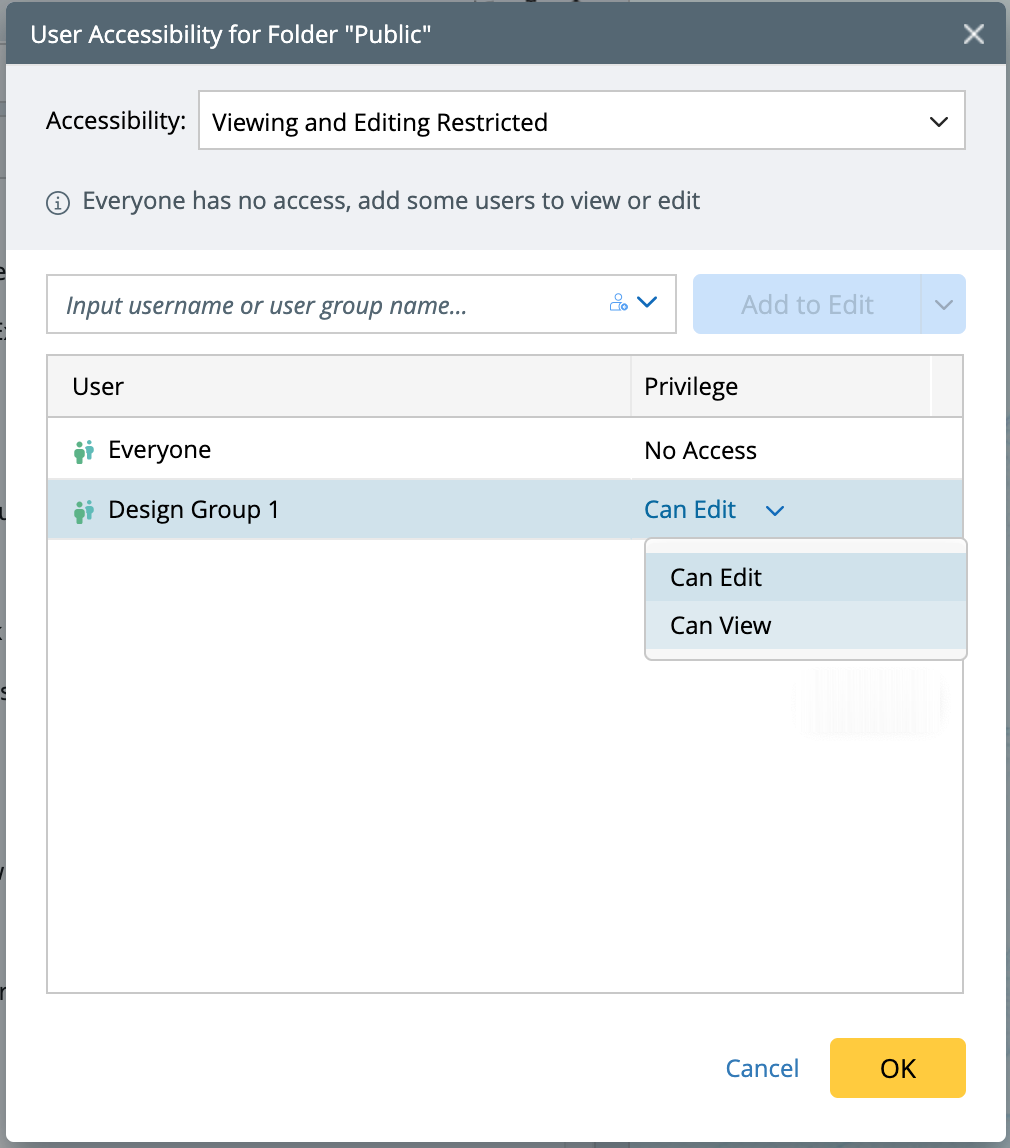
Changing Permissions: After adding, permissions can be modified at any time. You can switch a user or group from View to Edit, or vice versa.
-
Adding Groups: When groups are added:
-
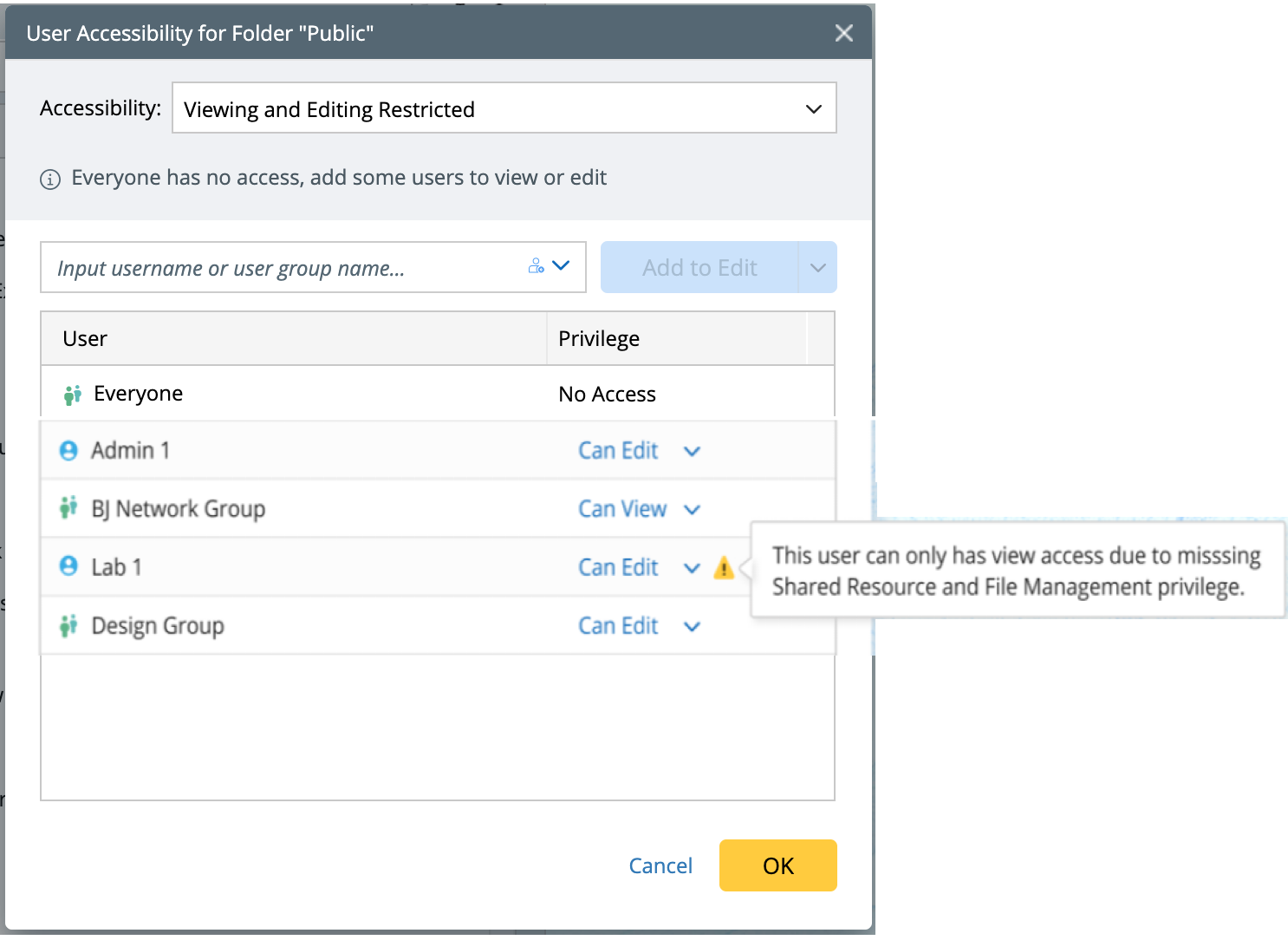
If a group is given Can Edit, all members of that group inherit the edit rights.
-
If a user in the group does not have the required shared privilege (for example, Shared Resource and File Management), they will be limited to View Only even if the group has Edit.
-
Warnings appear if there is a mismatch (for example, “Can Edit” selected but the user lacks supporting privileges).
-
-
Overlapping Memberships: If a user is part of multiple groups:
-
The system always applies the highest permission (for example, if one group gives View but another gives Edit, the user will have Edit).
-
If the same user is added both individually and as part of a group, the system still applies the maximum permission.
-
-
Removing Access: Hover over a user or group entry to remove their permissions.
-
Adding a User or Group: At first, no permissions are assigned. To grant access:
Accessibility - Sub-folders, Maps and Files
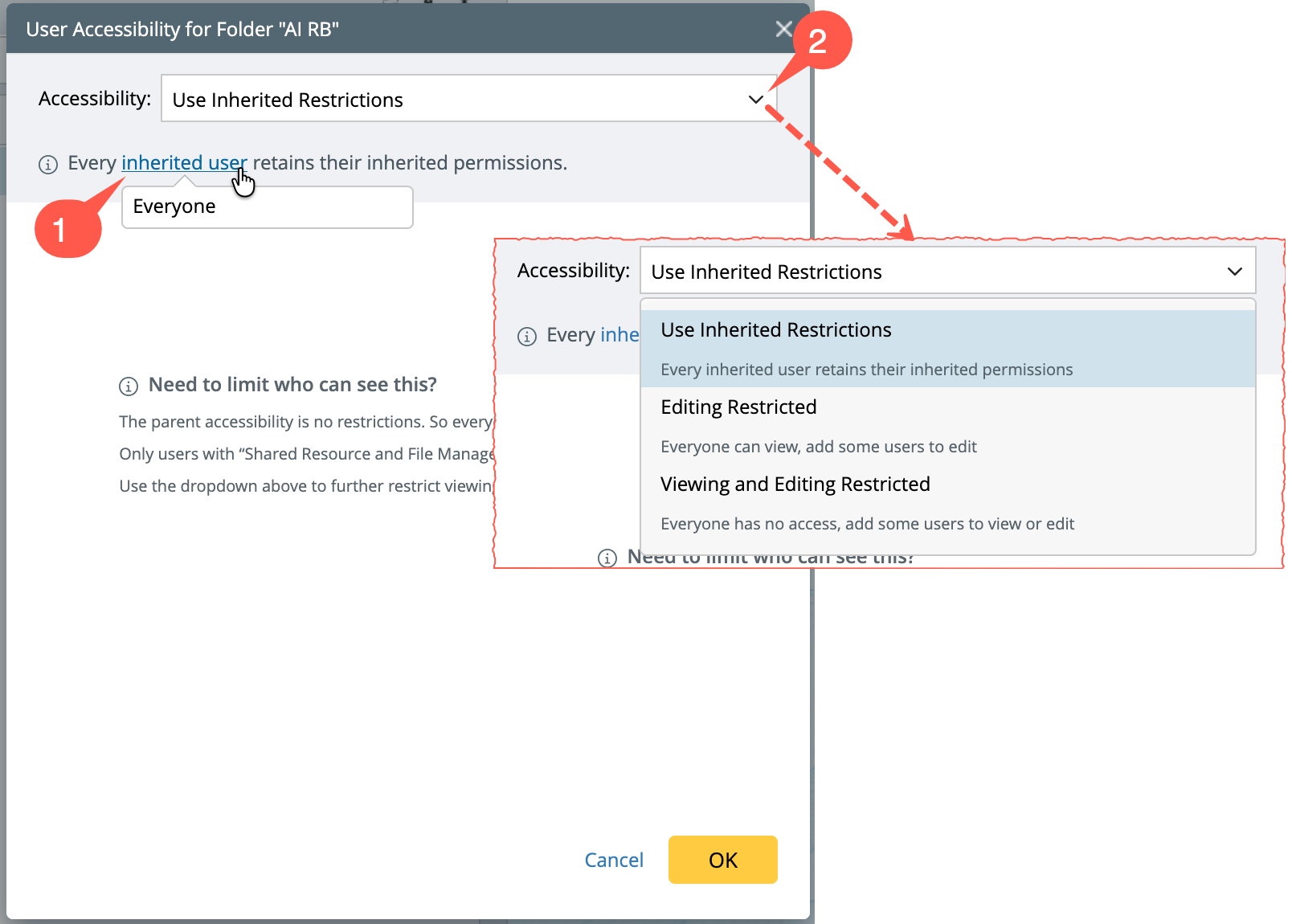
Permissions for sub-folders, maps, and other files work the same way as folders. By default, a sub-folder or file access is set as Use Inherited Restrictions to inherit the permissions of its parent folder.
- To view the list of users, click Inherited Users.
-
Stopping Inheritance: You can explicitly break inheritance by changing the accessibility option at the Subfolder/Map/File level to have its own custom permissions.
-
Map / File Access and Permission: Map/Files follow the same permission rules as folders, with some special behaviors:
- Editing Rules: A map file can be edited by only one person at a time. If another user opens it, they can only view it until the editor finishes
-
Map Selection window: The map selection window respects user permissions:
- Items with No Access will not be listed.
- For editing, maps with View Only access are hidden.
This behavior is consistent across key features such as Map Page Settings, ADT Builder, Intent Settings, Incident workflows, NIC, API Stub, Context creation, Runbooks, Global Search, Function Portal, Benchmark, Save As Map, AI Document, and Export-to-File actions.