R12.3-2026Apr21
How to Use AI Online Help

The user flow for AI Online Help:
- Select documentation version. Choose the version that matches your environment or needs.
- Enter your question and click Send. If you want to query the Rest API, enable the Ask From NetBrain Rest API checkbox before sending.
- View the answer and if you would like more details, click the reference link included in the response.
- (Optional) Ask a follow-up question. Continue the conversation to get more clarification or deeper insights.
To start a completely new topic, click New Chat to enter a new question.
For other resources:
- Click NetBrain Document to open the original help document for the selected version.
- Click NetBrain University to access training videos and learning materials.
Examples
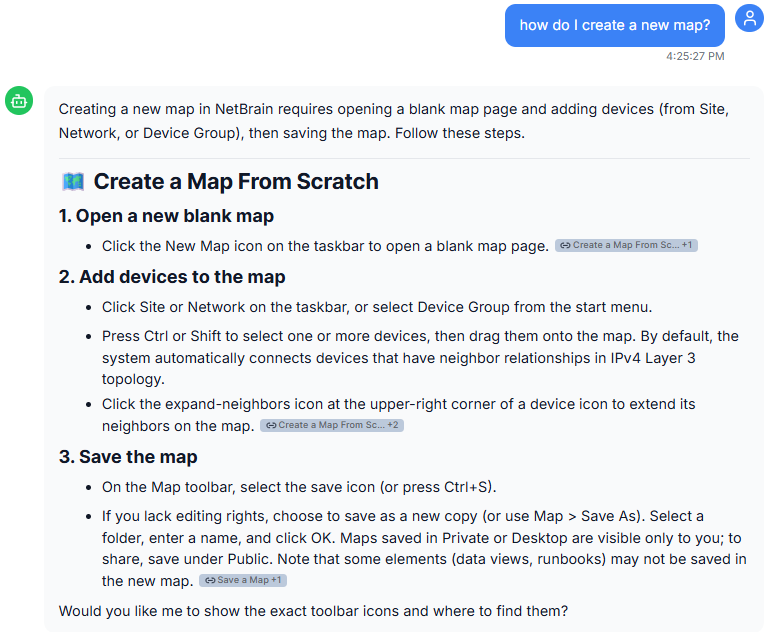
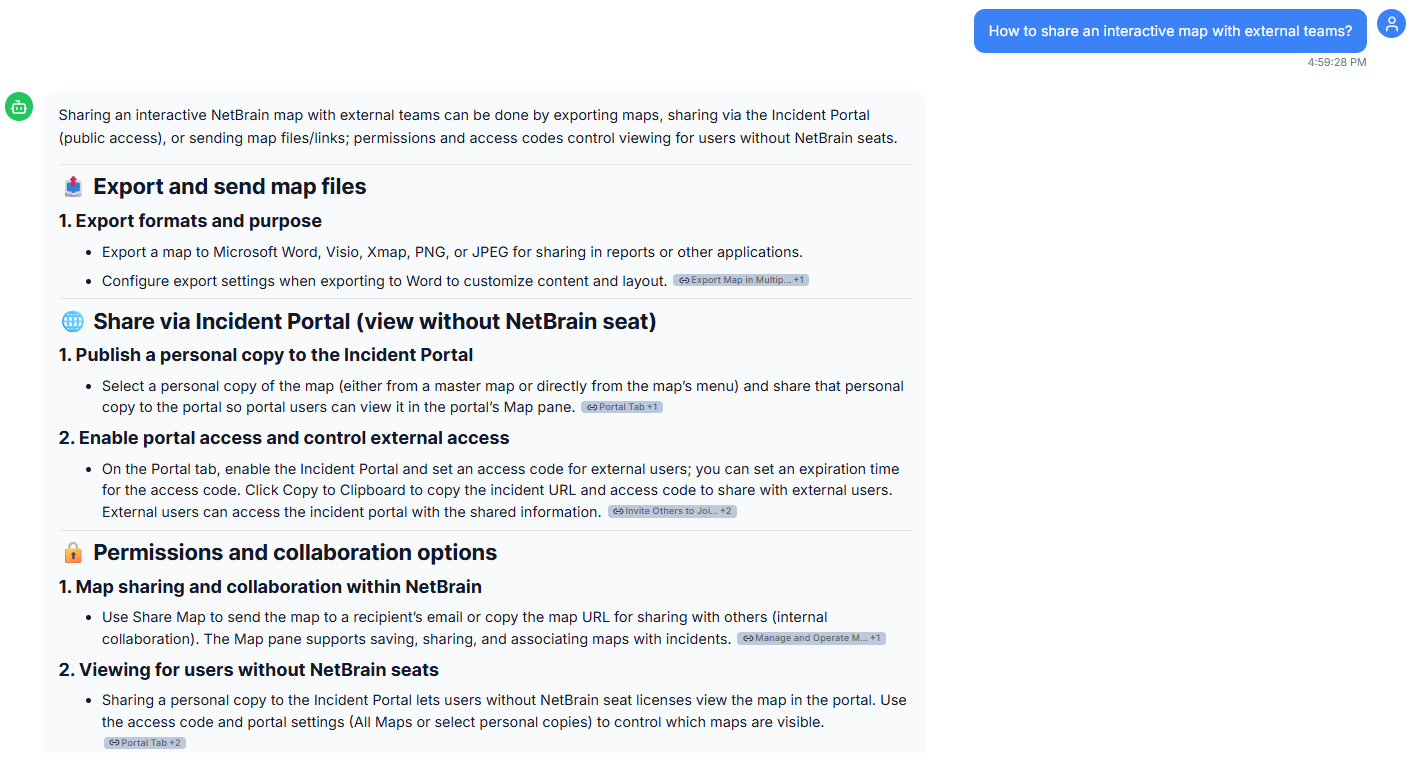
Example 1: A new user wants to create a new map and share the interactive map with external teams who do not have seat licenses.
- Ask a question: How do I create a new map?
- Ask a follow-up question: How to share an interactive map with external teams?
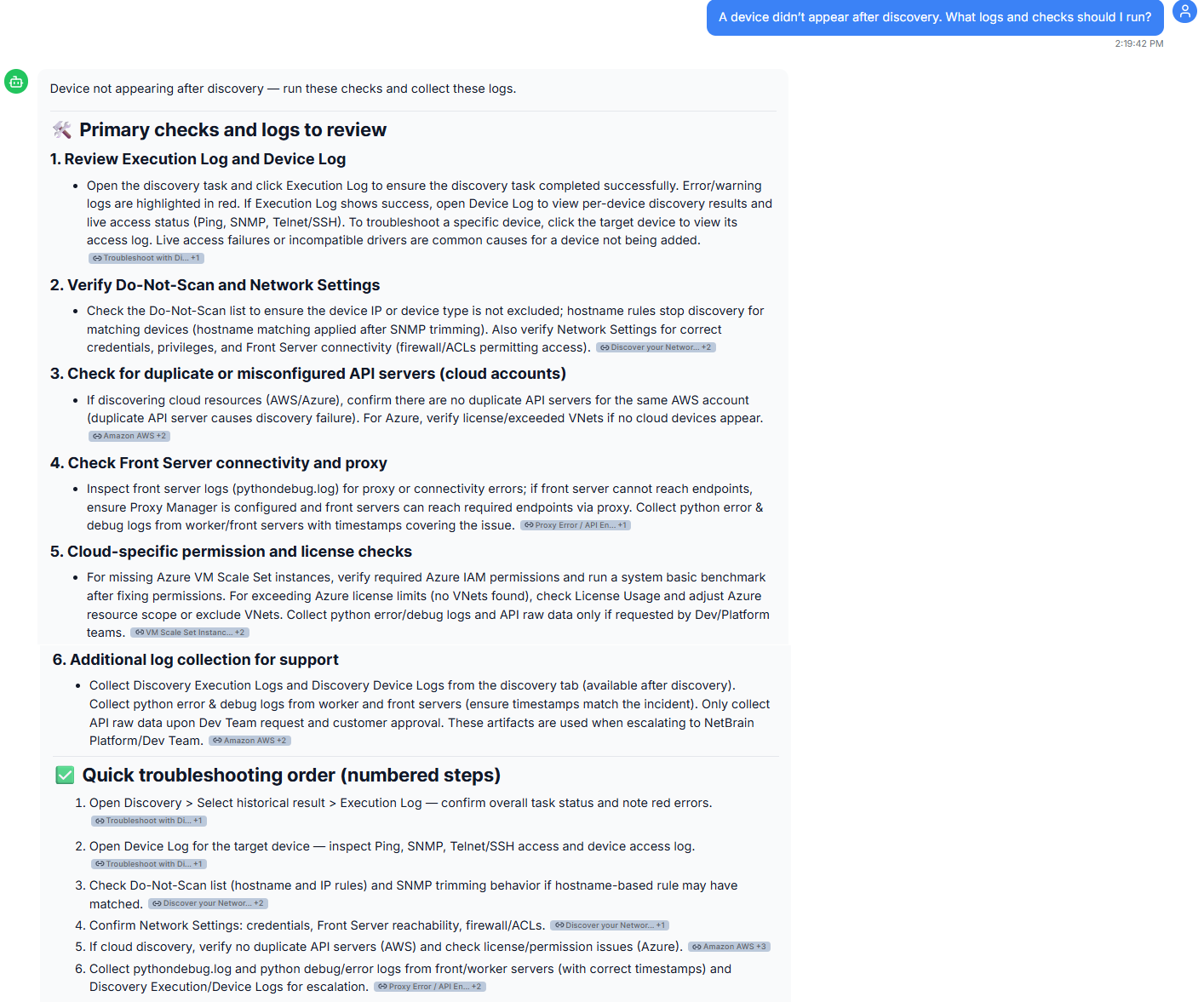
Example 2: A device didn’t appear after discovery, and the user wants to check logs and run diagnostics but is unsure which logs to review or what checks to perform to identify the issue.
- Enter the question: A device didn’t appear after discovery. What logs and checks should I run?
- View the response.
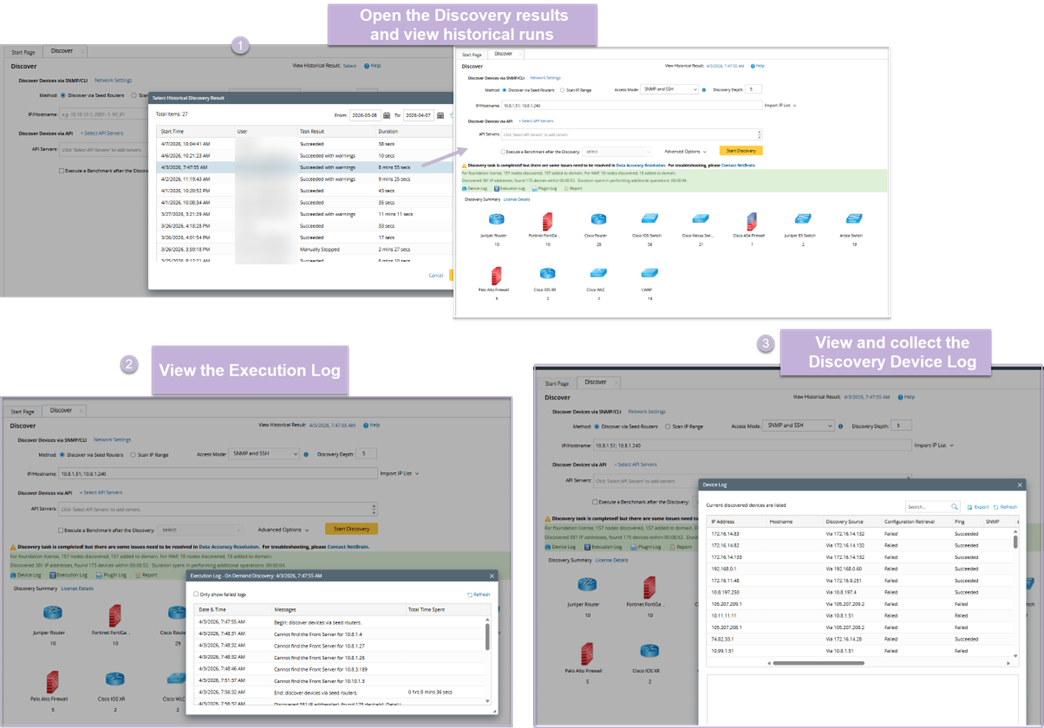
- Ask a follow-up question. Based on the response, the user wants to know: How to collect the Discovery Execution and Device Logs step-by-step?
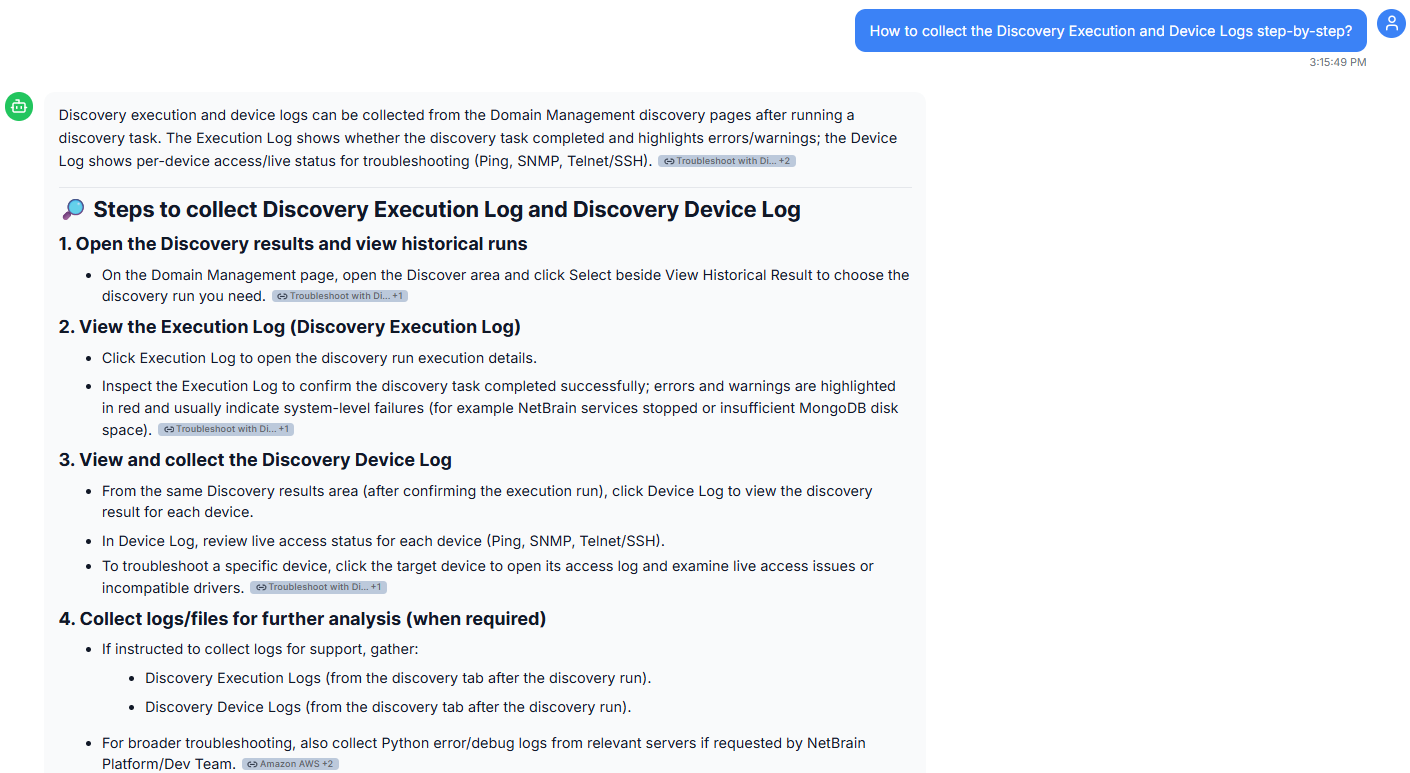
- The user can then follow the steps to collect the execution and device logs for further analysis.