Manage Device
Devices can be managed by Path or Group:
Application Path
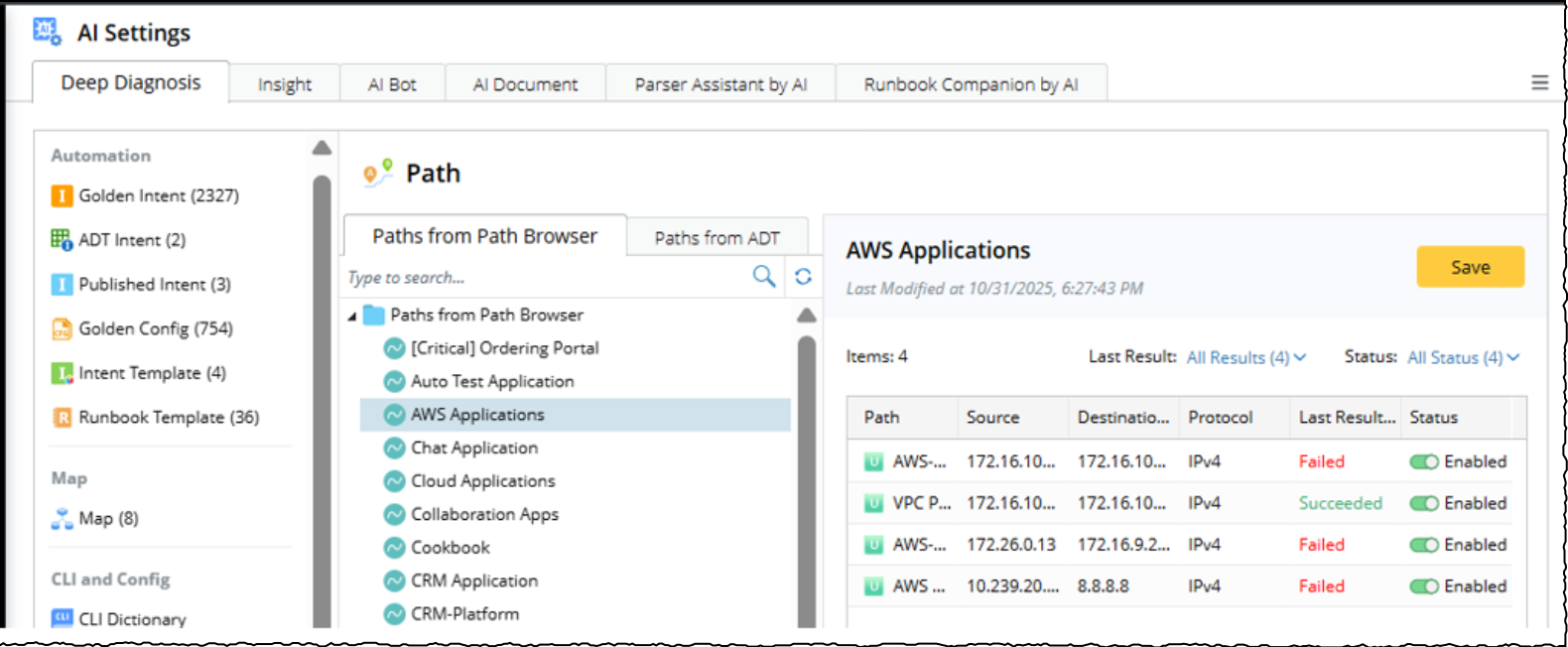
Application paths are not included by default, you have to manually add the application paths in Deep Diagnosis Manager to troubleshoot path-related issues. Once an application path is added, Deep Diagnosis can recognize the path from user input, match relevant automations, and troubleshoot issues related to the path and its associated devices.
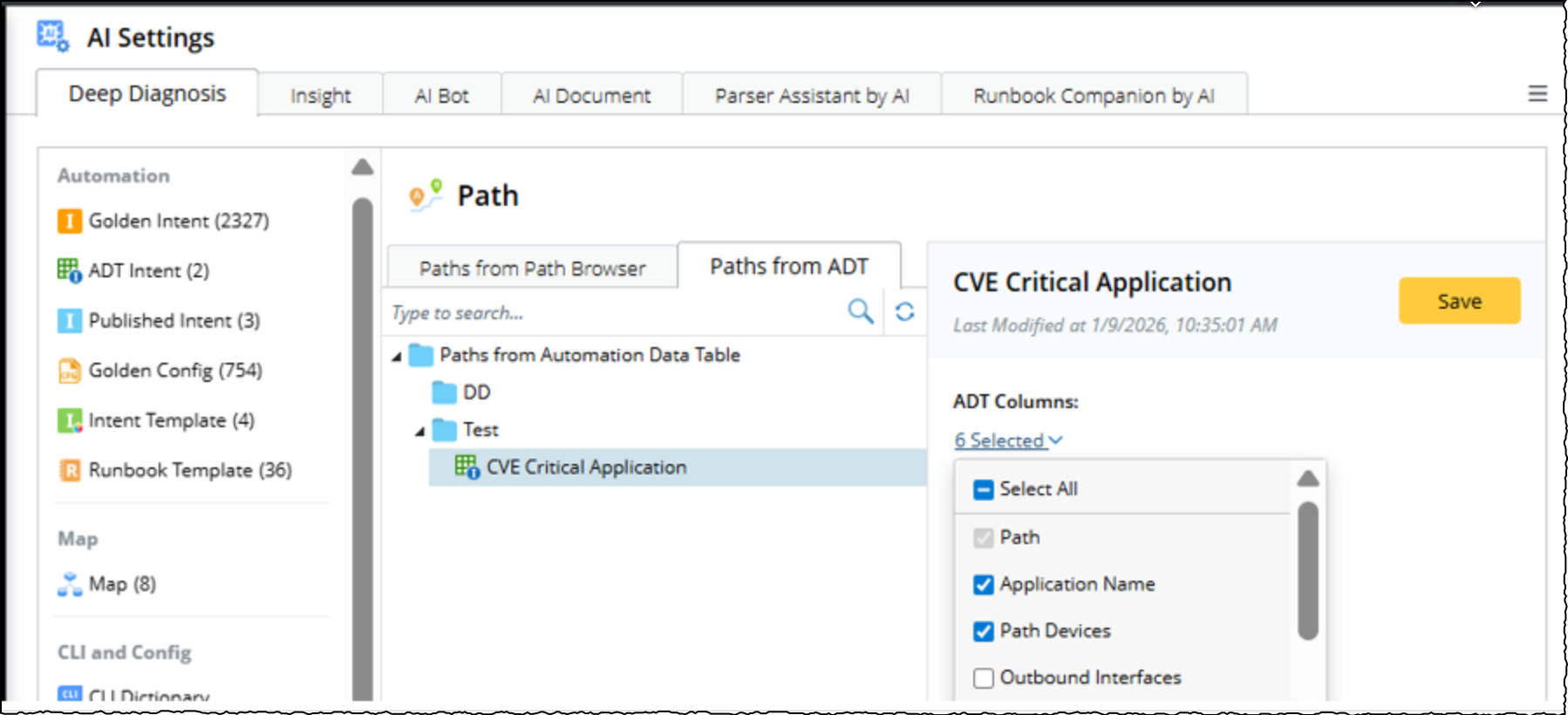
The system provides two methods to add application paths to Deep Diagnosis manager.
-
Add from Path Browser: You can add paths directly from the Path Browser. The attributes used for matching are Application name, Path name, Source and Destination. When a path is matched, the path details and the devices along the path are returned to the AI.
-
Add from ADT: To add application paths from ADT, matching uses the same attributes Application name, Path name, Source and Destination. The data returned to Deep Diagnosis is determined by the selected ADT columns. Support for additional ADT column types will be enhanced in future releases to improve AI readability.
Device Group
To troubleshoot multiple devices simultaneously, you can create a device group and add it to Deep Diagnosis database. A device group can be defined using:
-
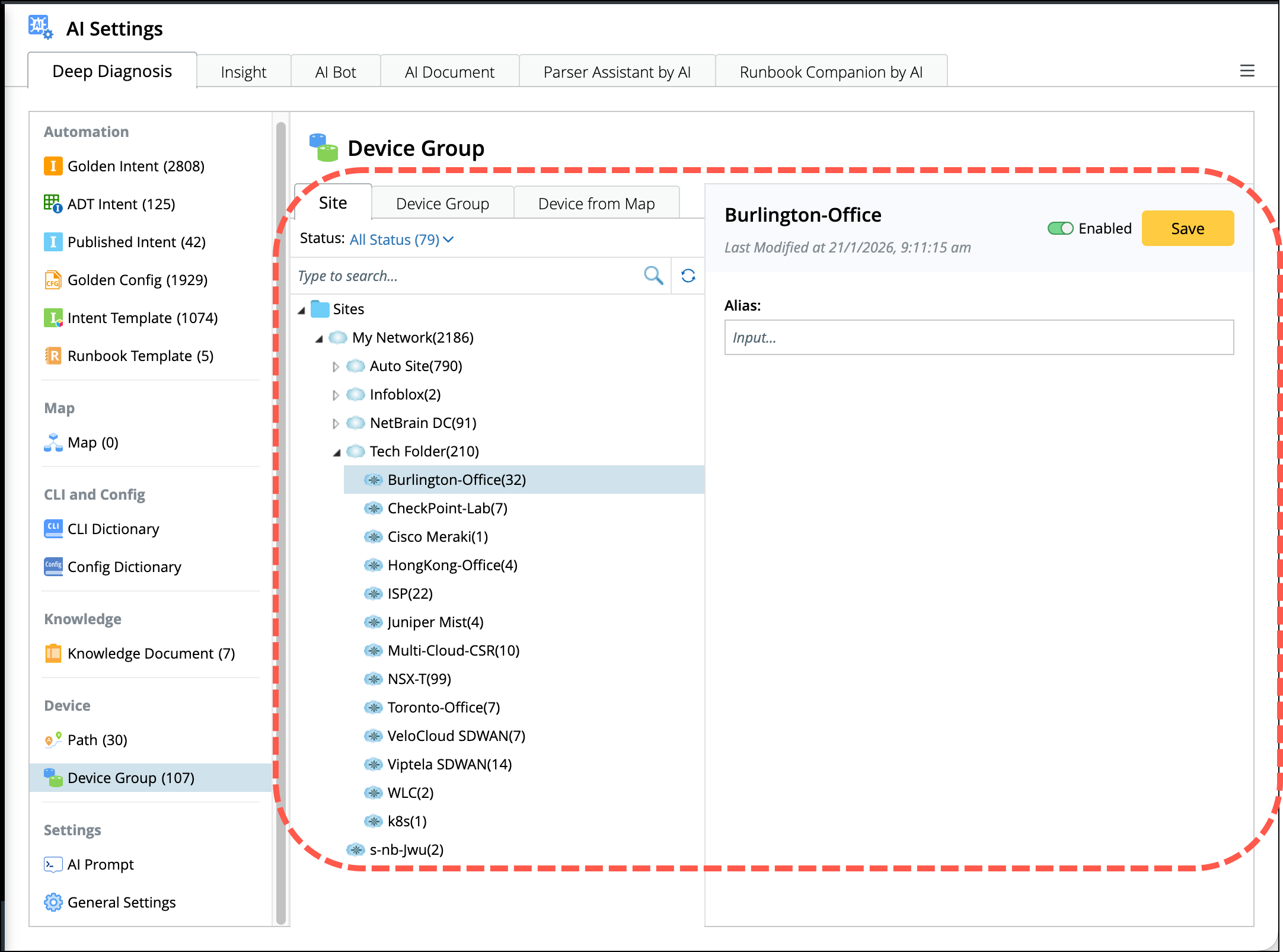
Site: The groups configured by site in the database will auto sync to the deep diagnosis. Select a site and the details will appear on the right. Define aliases to help AI during diagnosis.
- Device Group: To add device groups to the database:
- Choose a folder's drop down menu and select Add Device Group.
- Tick the selection boxes of the required device groups.
-
Click OK, the selected device groups will appear in the deep diagnosis database.
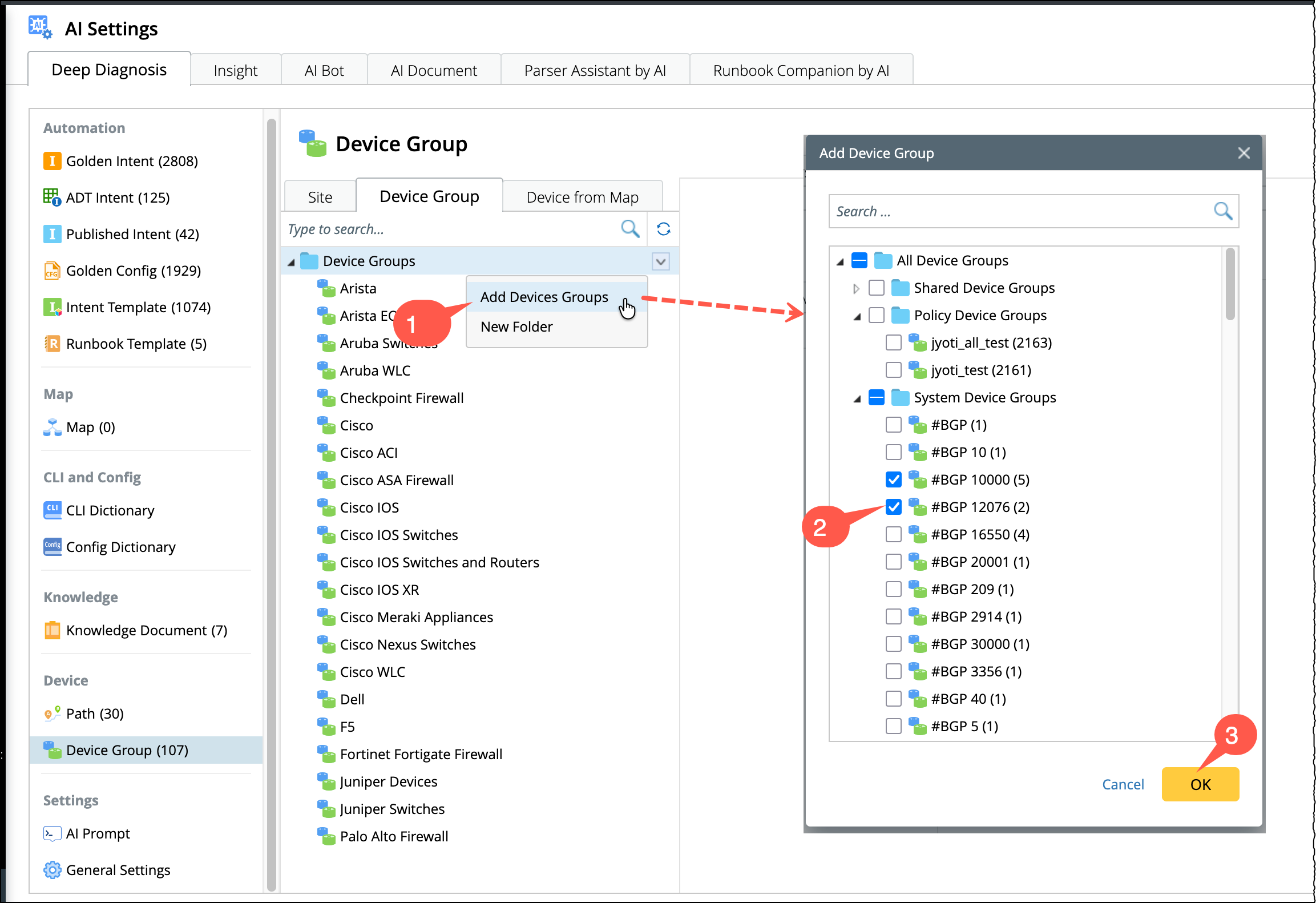
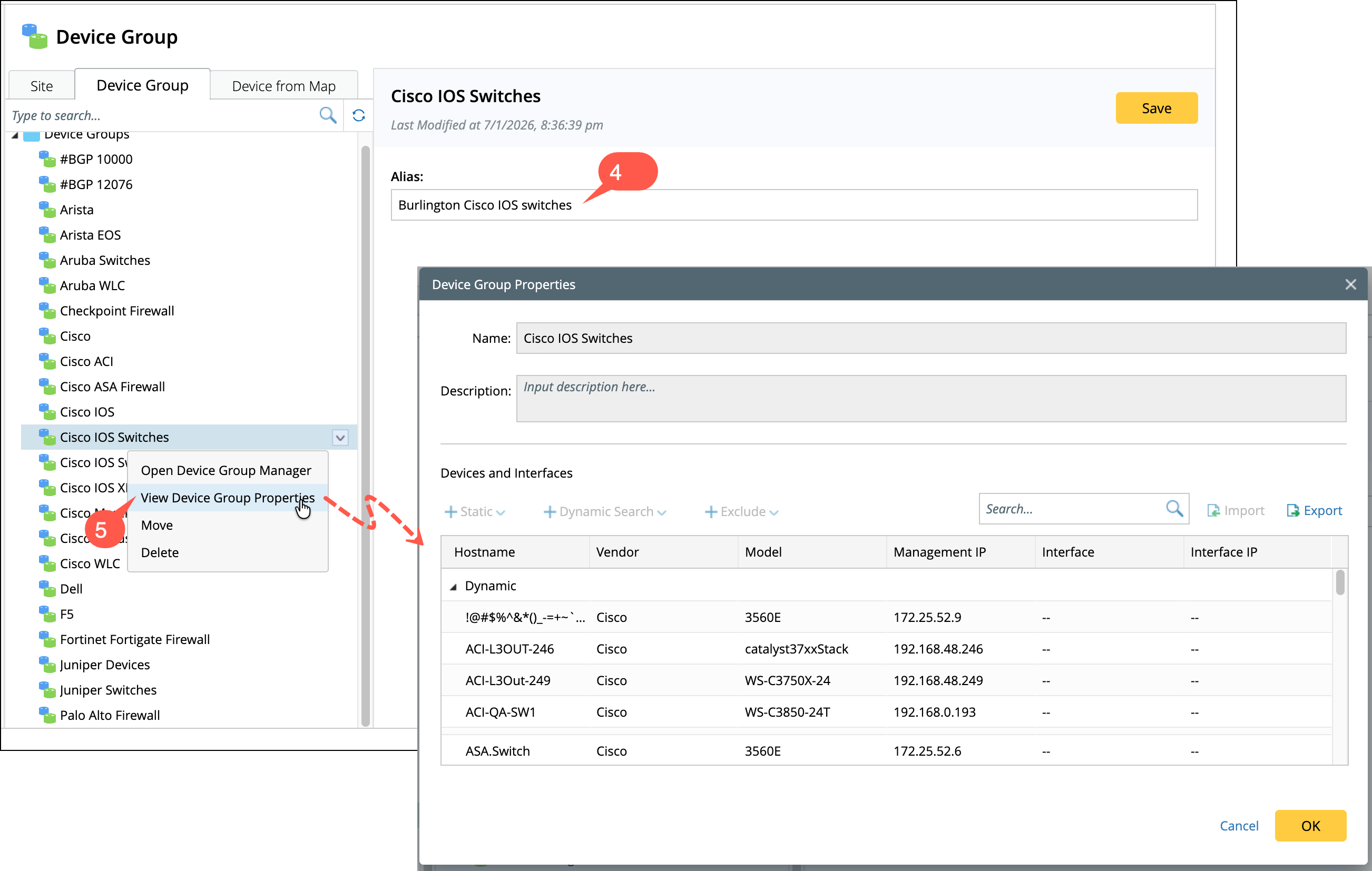
- Define aliases to help AI during diagnosis and click Save.
-
To view the Device group properties and modify the device group, open its drop down menu and choose View Device Group Properties.
- Map: To add device groups based on the Map:
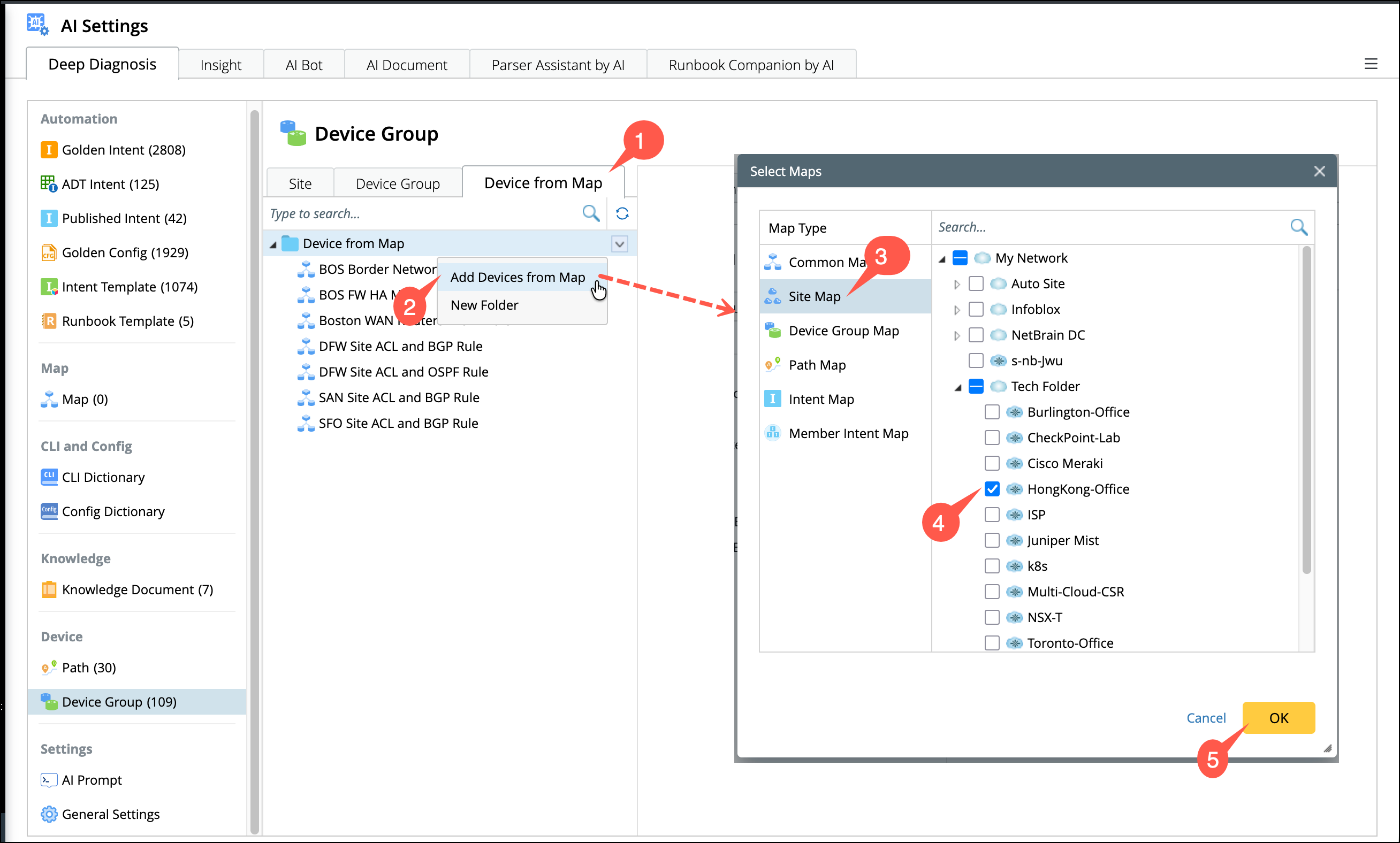
- Go to Device from Map.
- Choose a folder's drop down menu and select Add Device from Map.
- Select the Map Type from the navigation pane on the left.
- Tick the selection boxes of the required device groups.
-
Click OK, the selected device groups will appear in the deep diagnosis database.

|
Note: Deep Diagnosis supports groups of up to 30 devices. If a group exceeds this limit, any additional devices are automatically ignored. |