Managing Network Changes
Managing network changes can be a challenging task for network engineers during regular maintenance, which is prone to human errors and requires seamless planning, implementation, and verification. Based on the executable runbook automation framework, the Network Change Management feature introduces an adaptive workflow to document the best practices of the change management process and ensures a safer network change task:
- Reduce Human Error in Network Changes — the Design, Implementation, and Operations teams can leverage a single map to define and validate changes. Changes can even be deployed with automation.
- Implement Changes with One Click — the Design team can predefine a configuration template that the Implementation team can execute with one click. If required, these changes can be rolled back.
- Validate Changes Visually — the Operations team can verify whether the changes were implemented as planned by executing a predefined runbook without adverse impact.
Network Change Task Flow
The typical workflow of a Change Management task is as follows:
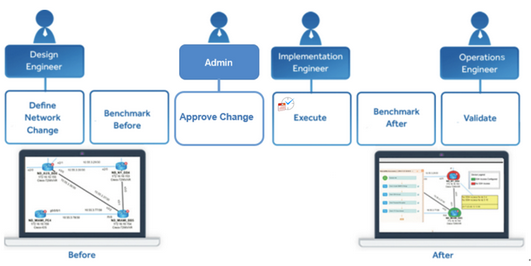
- Define Network Change — define network changes, such as commands and devices.
- Benchmark Before — collect network data as a baseline before implementing the change.
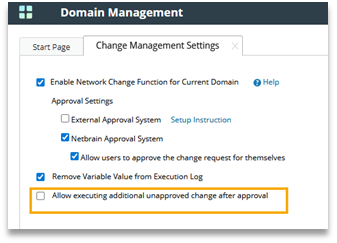
- Approve Network Change — approve a network change task in the system or an external system.
- Execute Network Change — execute commands on devices.
- Benchmark After — collect network data after implementing the change.
- Compare — compare and validate the differences between two benchmark baselines.
Manage Network Changes
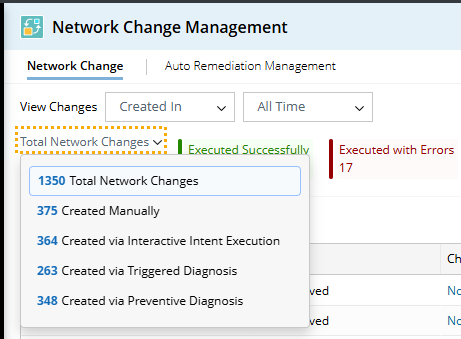
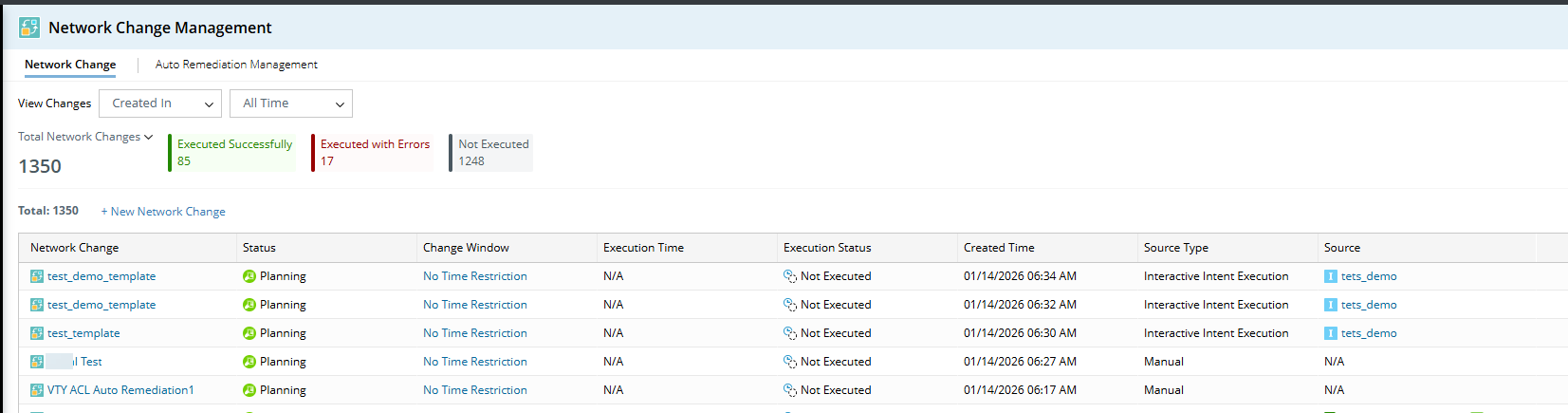
Engineers can view the changes and their status in the Network Change tab in Network Change Management.
| Column | Description |
| Network Change | Name of the network change. When a network change is generated via TAF/PAF remediation, it is named as <Change Management Template Name>+ <The Execution Time>. |
| Status | New statuses:
|
| Execution Time | The time when the task was/will be executed.
|
| Execution Status | If the Execute node is executed successfully:
|
| Created Time | The time when the change task was created. |
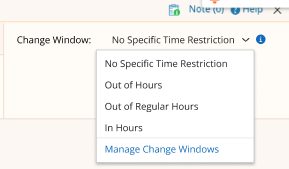
| Change Window | The change window defined in change management template.
|
| Source Type |
|
| Source | Depending on the source type, the sources could display:
Scheduled Task: It can be a scheduled ADT intent or golden intent. Or it can be generated via an incident. |


 Scheduled Task - <Intent Template Name>
 Scheduled Task - <Intent Template Name>
 <Ticket ID> -<Intent Template Name>
You can use additional filters to quickly locate specific changes.
| Filter | Description |
| View changes created/executed in All Time | View change tasks according to the time range they were created/executed. |
XX Created Manually XX Created via Interactive Intent Execution XX Created via Triggered Diagnosis XX Created via Preventive Automation | View change tasks based on their source.
|
| Executed Successfully/ Executed with Errors/ Not Executed | View change tasks based on their status. |
Execution Method:
| View change tasks according to their execution methods. |
Execution Results:
| View change tasks by specific results. |
Source Type:
| Manual: The change tasks were created manually. Interactive Intent Execution: The intent was executed manually. Schedule ADT Intents: The change task generated via Scheduled ADT Intents. Schedule Golden Intents: The change task generated via Scheduled Golden Intents. Triggered Diagnosis: The change task triggered by TAF. |