R12.3-2026Apr21
View AI Results on the AI Insight Tab
Prerequisites: Ensure the automations are enabled in the Insight Manager.

|
Note: To reduce UI complexity, AI Insight visibility can be controlled across the application, as Deep Diagnosis provides an alternative capability.
|
On the AI Insight tab, you can send a query related to the current domain to the LLM.
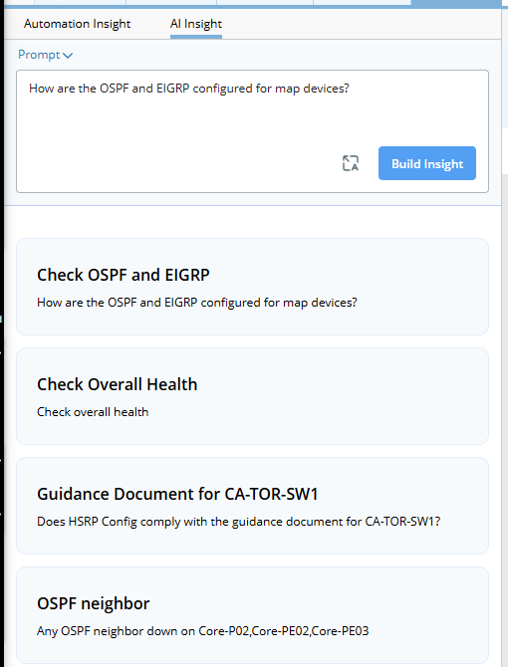
Use Flow
-
Start a new insight. You can either manually enter a prompt or select one.
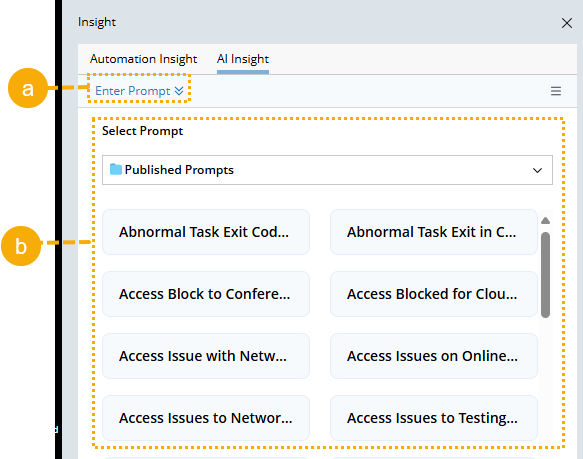
- Enter a prompt.
- Select a prompt. The published or saved prompts are available to select.
- Click Build Insight.
-
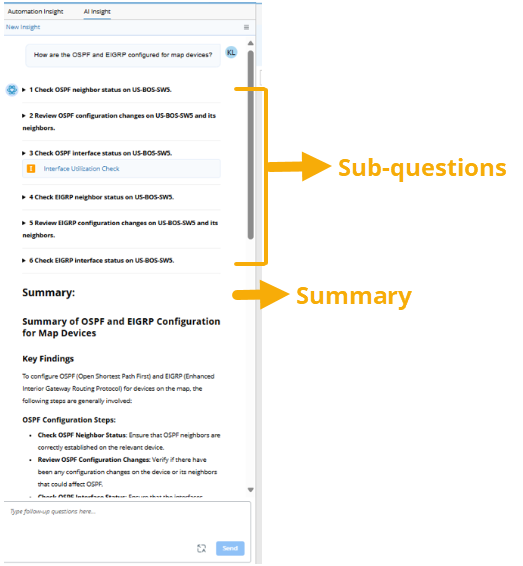
View the result and summary generated by the LLM, which includes sub-questions and summary.
-
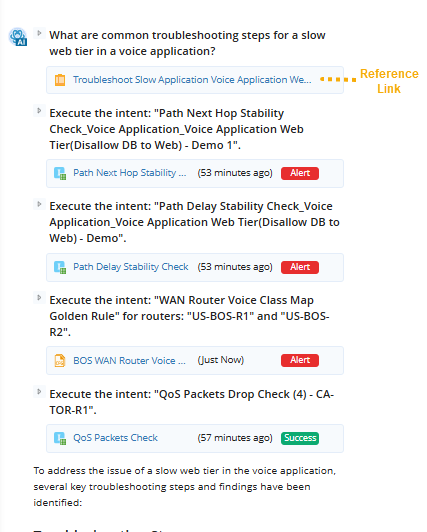
Sub-questions: The prompt is broken down into sub-questions based on a knowledge document or the LLM's reasoning. The LLM will generate answers for each sub-question and may include reference links to intents or knowledge documents.
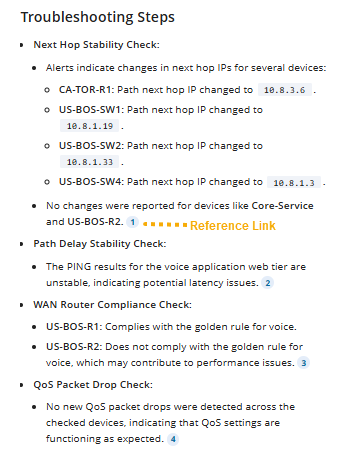
- Summary: The summary of the findings.
-
Sub-questions: The prompt is broken down into sub-questions based on a knowledge document or the LLM's reasoning. The LLM will generate answers for each sub-question and may include reference links to intents or knowledge documents.
-
You can type in a follow-up question or click New Insight to reset the LLM’s context and start a new question.
- After starting a new insight, users can input their question as an initial prompt. LLM will search for data within resources defined/enabled in Insight Manager.
- When receiving a follow-up question, the LLM will search for data based on the context of the initial answer.