R12.3-2026Apr21
View Cisco CX EOL Data Using Intent and Dashboard
Access and visualize Cisco CX EOL data using ready-to-use Network Intents and Dashboards, no additional setup required. Quickly review device lifecycle status and identify hardware nearing or past end-of-life to plan next steps.
Locate the Network Intent
Follow the steps below to access and run the pre-built intent and review EOL data results.
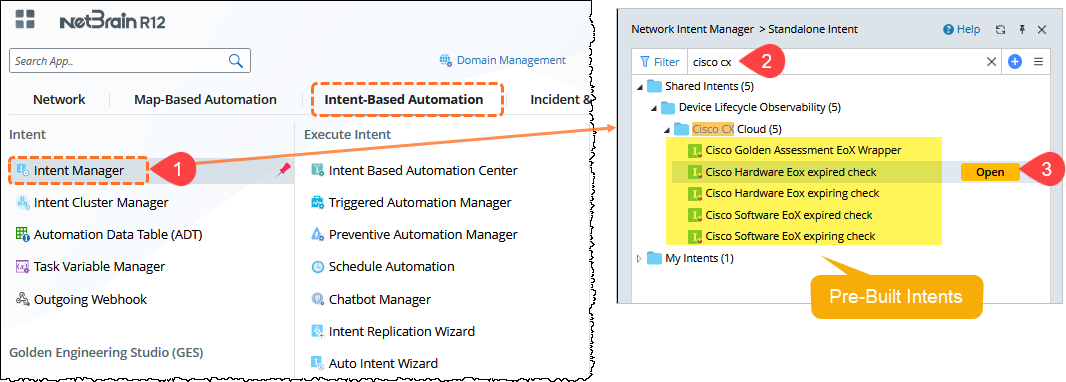
- In the NetBrain Desktop, click the Main Menu
 , and select Intent Manager .
 - Use the search bar to find the intent (for example, Cisco CX).
The folder structure is: Shared Intents > Device Lifecycle Observability > Cisco CX Cloud. - Select the intent from the list and click Open. The intent opens in View mode.
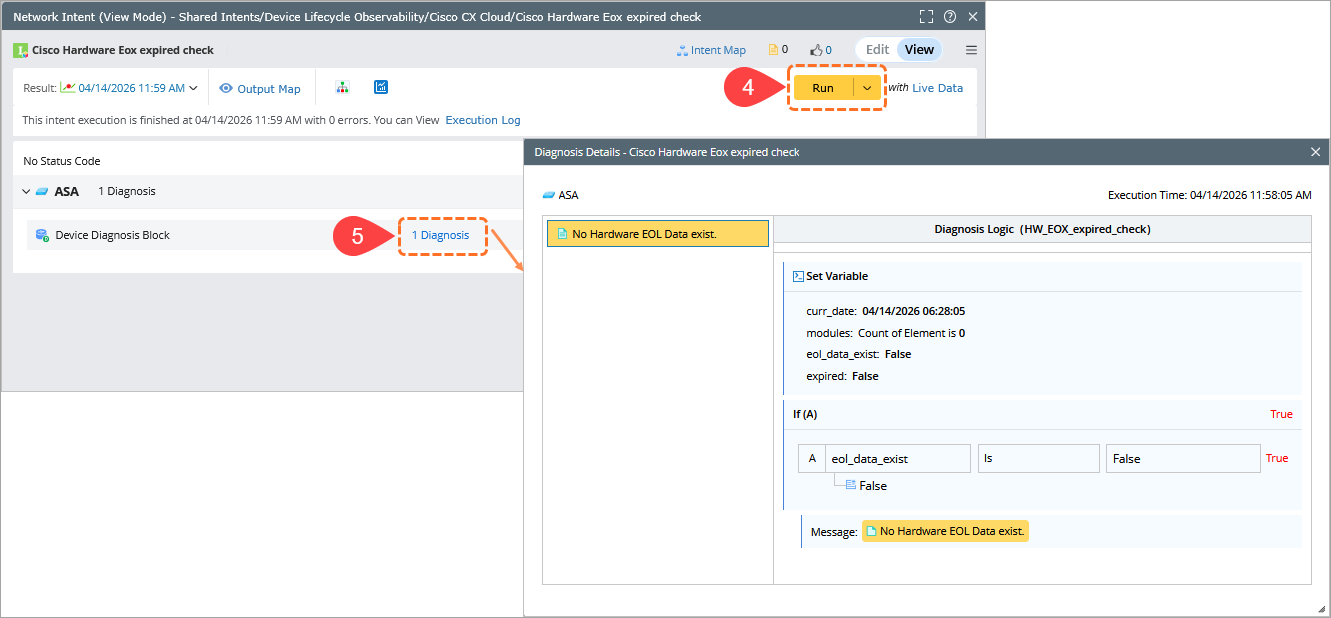
- Click Run to fetch the latest results.
- Click Diagnosis to view the status messages.
View Cisco CX EOL Data in Dashboard
Follow the steps below to visualize Cisco CX EOL data and quickly identify devices that require attention.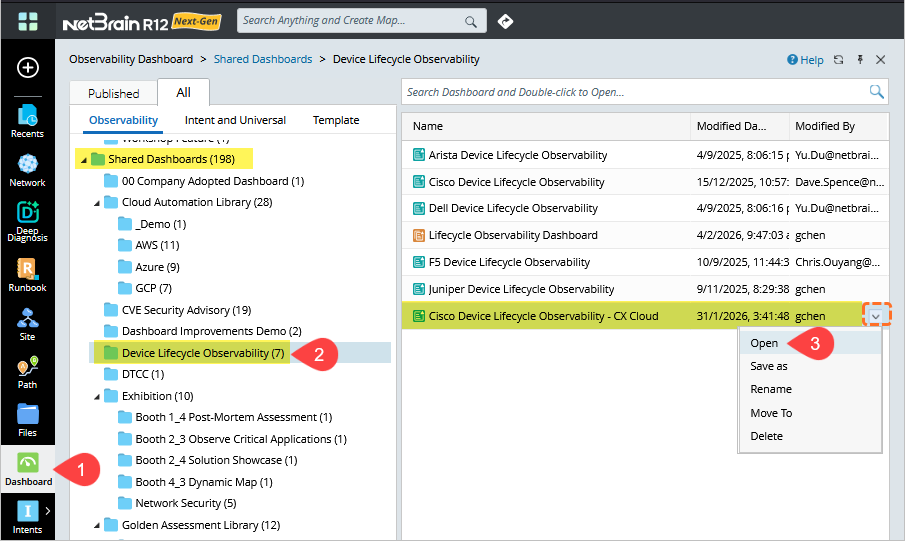
- In the NetBrain Desktop sidebar, click Dashboard.
- Navigate to Shared Dashboards > Device Lifecycle Observability.
- From the left-hand panel, select Cisco Device Lifecycle Observability - CX Cloud and open it.
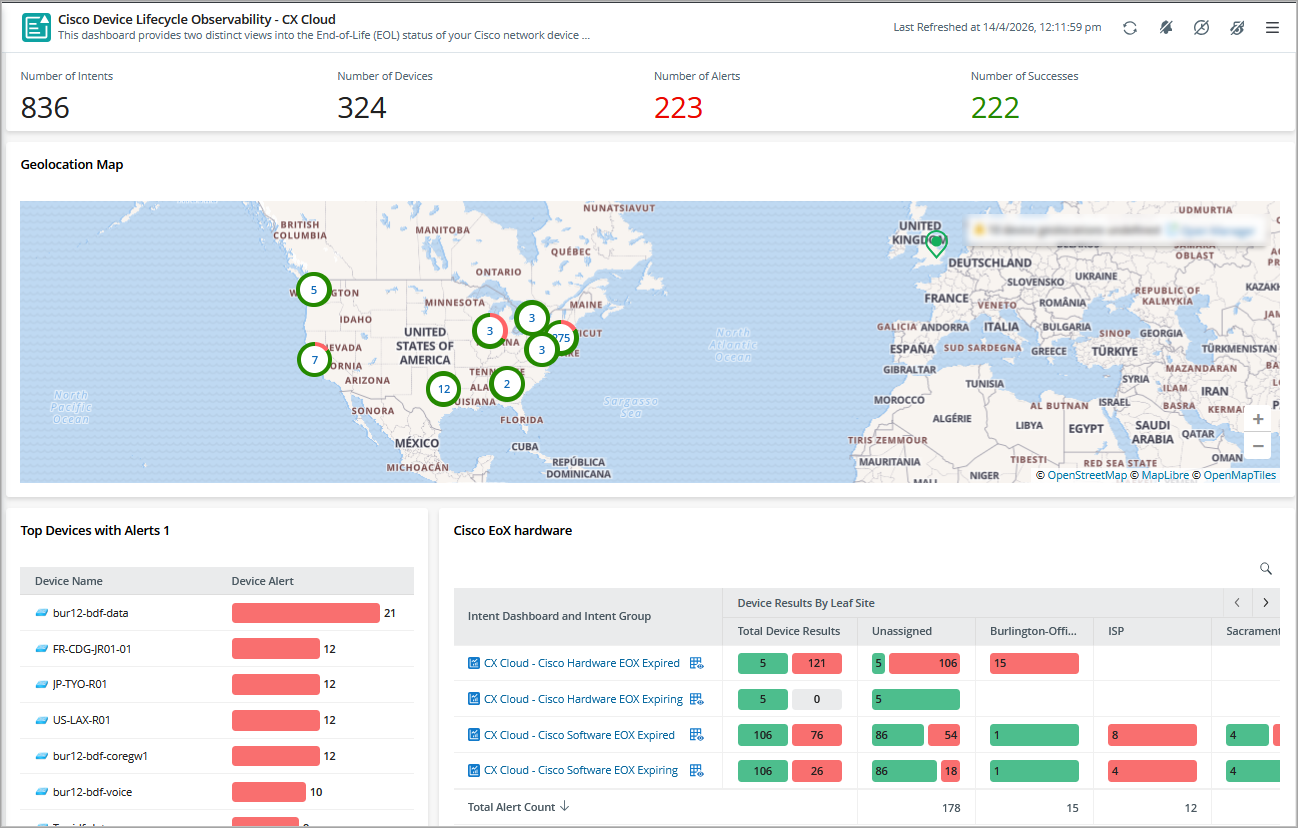
The observability dashboard opens in a new window. - Review the available widgets, including Number of Device Alerts, to identify expired devices.