Device Access Control, User Privilege and other
This topic includes the following sections:
- Device Access Control (DAC)
- User Privilege
- Audit Log
- Privilege Limitations for "Access to the Live Network"
Device Access Control
The GF includes two primary components that require Device Access Control (DAC):
- Restrictions on data retrieval.
- Restrictions on the display of existing results within the View GF interface.
Further details are provided below.
- When you select a device and click Retrieve, a prompt will appear if you do not have DAC permissions for the selected device.

If you do not have DAC permissions, the Text View and Variable Preview panes will appear as follows.
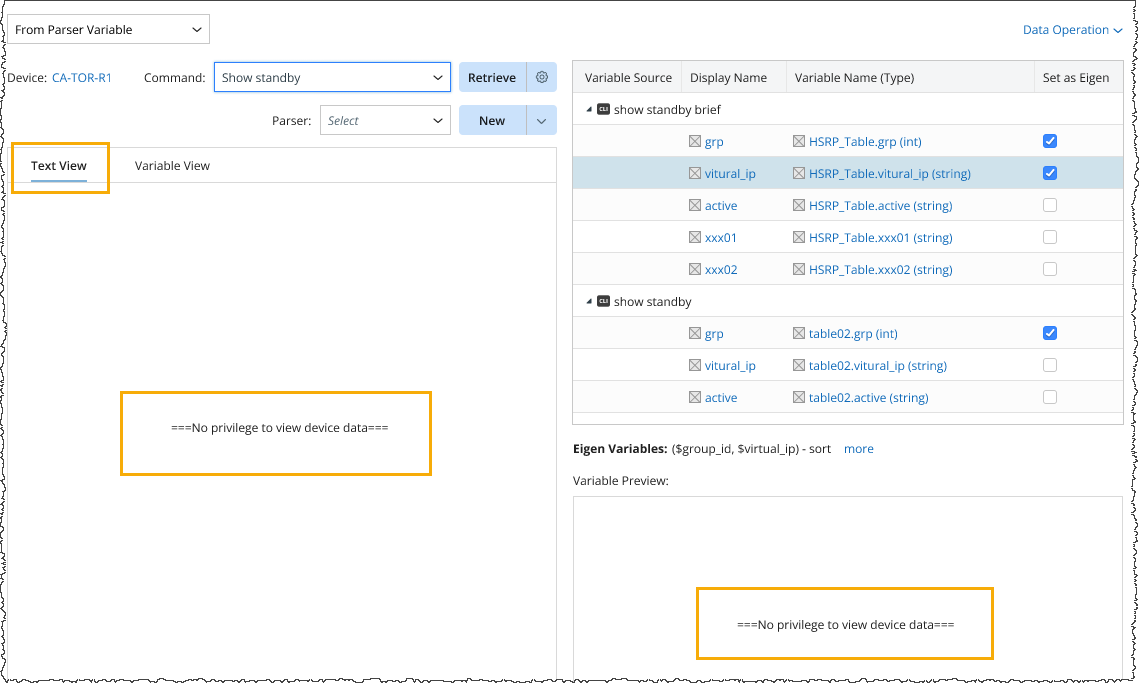
- When you Calculate and View Instance Results, if any device involved in a row of results does not have DAC permissions, only the device and count columns will be displayed normally for that row; other columns will not be able to show data, as shown below.

Note: If a row of data involves multiple devices and any one of those devices lacks DAC permissions, it is considered that there are no permissions. 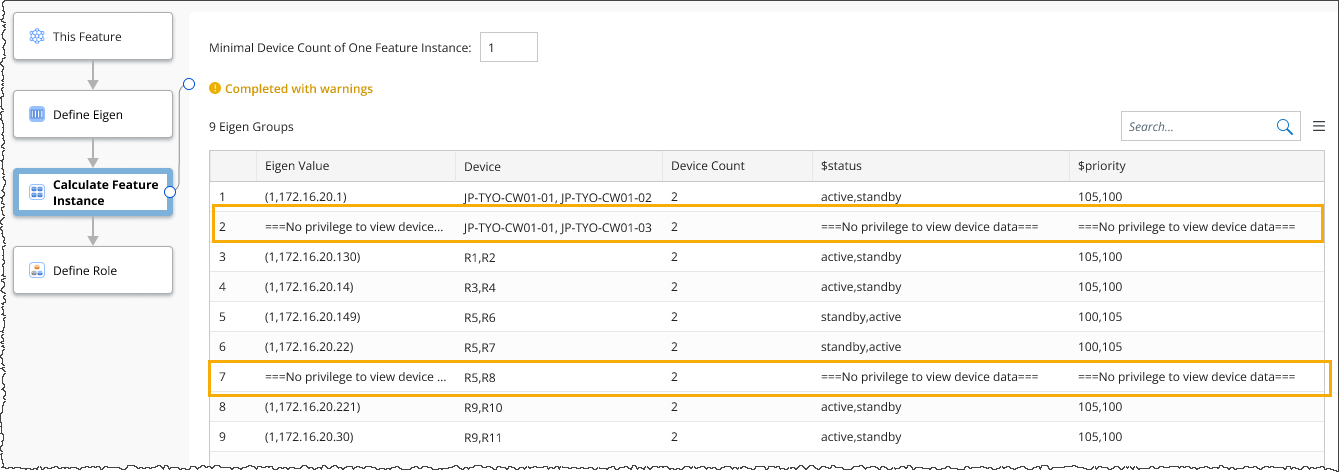
- When you Export the results, the data within the file is marked as No privilege to view device data.
- When you access the All Device role, if any device associated with a row of results lacks DAC permissions, only the device name will be displayed in that row. The other columns will not show any data, as illustrated below.

User Privilege
Users without Shared Resource and File Management can open multiple tab pages within the GES. However, their capabilities are limited:
- Modification Restrictions: Users lacking Shared Resource and File Management cannot modify the Golden Feature or its associated content. Specifically, they cannot:
- Define, modify, or save content.
- Run processes, calculate roles, or publish results.
- Their access is restricted to viewing only.
- The right-click menu for the created Golden Feature offers only two options: Export and Copy Path. All other options are disabled.
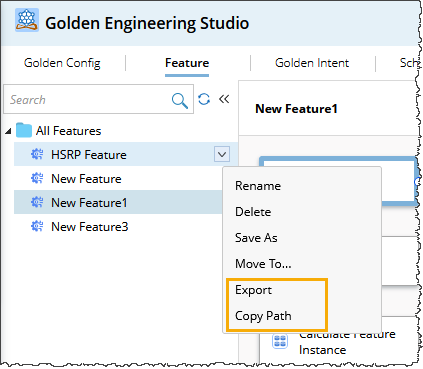
- The right-click menu for the folder: only Export is allowed; all other options are not permitted.
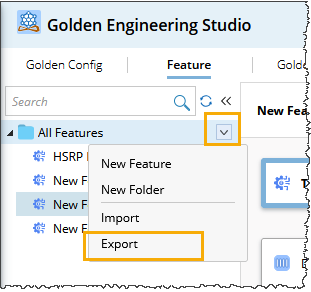
Follow the image below to Add Role i.e., Shared Resource and File Management.

Audit Log
The following operations will be recorded in the Audit Log:
- New Feature
- Delete Feature
- Edit & Save Feature
- Import Feature
Log sample: ["2024-10-16T20:39:38.4570707Z","caohuan","shared_tenant","shared_domain","","10.99.98.43","Chrome","NI","Import","Import Golden Feature File BGP.xgf.","Succeeded","","WIN-SPJ3THMG467 (192.168.31.15)"])
- Import Folder.
Privilege Limitations for "Access to the Live Network"
If you do not have the "Access to Live Network" privilege, certain operations in the GF will be restricted:
- When you attempt to retrieve CLI/Config, an error message will appear indicating insufficient permissions.
- If you try to run Live Data, a notification will also alert you to the lack of permissions.
|
|
Note: If no Parser Variables have been added and only System Data (GDR) is used, there are no restrictions, and the user can run the operation. |