Advanced Settings in GF
The following advanced settings are optional and can be configured based on your specific use case. To access these settings, navigate to the  . The available settings are as follows:
- Lock Settings
- Golden Neighbor Settings
- Load Settings from Published Dataset
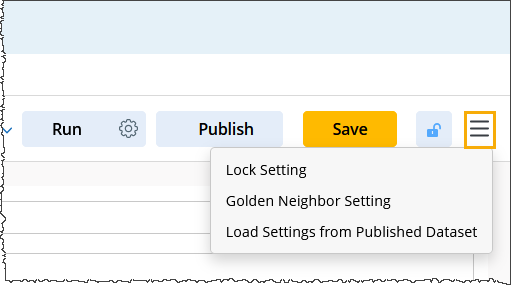
Lock Settings
Use these settings to lock or unlock the published feature. By default, the feature is unlocked.

|
Note: You can access this function by either navigating to the Lock Settings or by clicking the lock icon. |
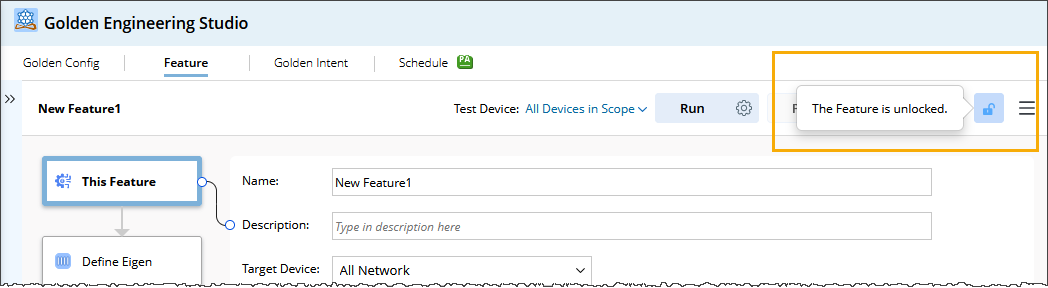
To lock the Feature, follow these steps.
- Click the lock icon to open the the Lock Settings dialog.
This dialog will display a toggle button for locking, password options, and a Lock Annotation section. When you select the toggle button, the feature can be locked only after it has been saved.
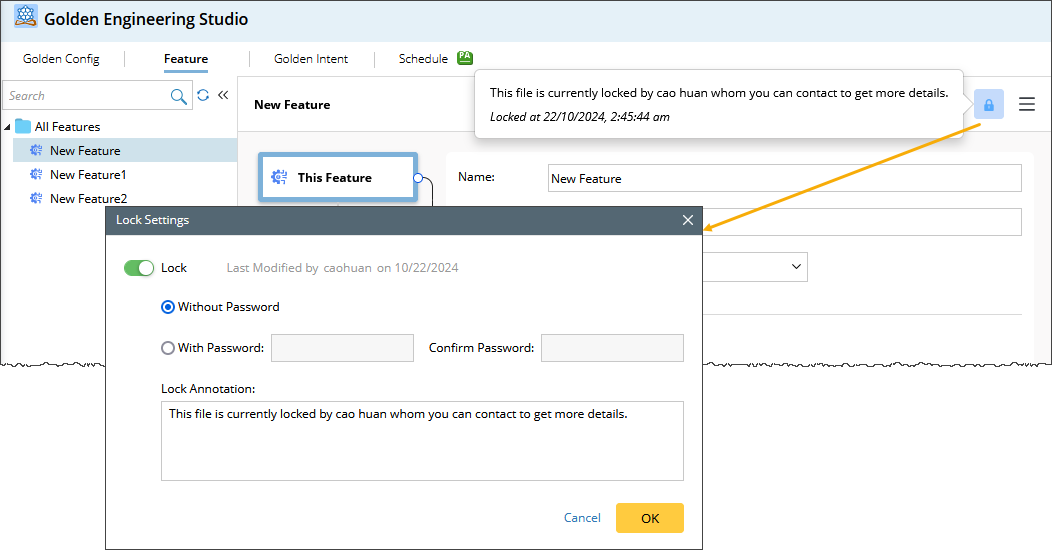
Once the feature is successfully locked, the following UI changes will be observed:
- The components on the right side of each node will become read-only and cannot be edited.
- User can switch the nodes and view the settings.
- The supported operations at the top will be disabled.
- The supported operations at the bottom will be disabled.
Golden Neighbor Settings
You can designate a GF to serve as a Golden Neighbor. A Golden Neighbor represents the relationship between "this device" and its "neighbor." For instance, all devices associated with the "HSRP" feature will consider each device as "this" and its corresponding HSRP neighbor as the "neighbor."
To configure Golden Neighbor Settings, follow these steps.
- Navigate to the menu
 and select Golden Neighbor Settings.
Ensure the checkbox is checked by default. This indicates that the selected GF will be used as a neighbor type of GF in Golden Intent.
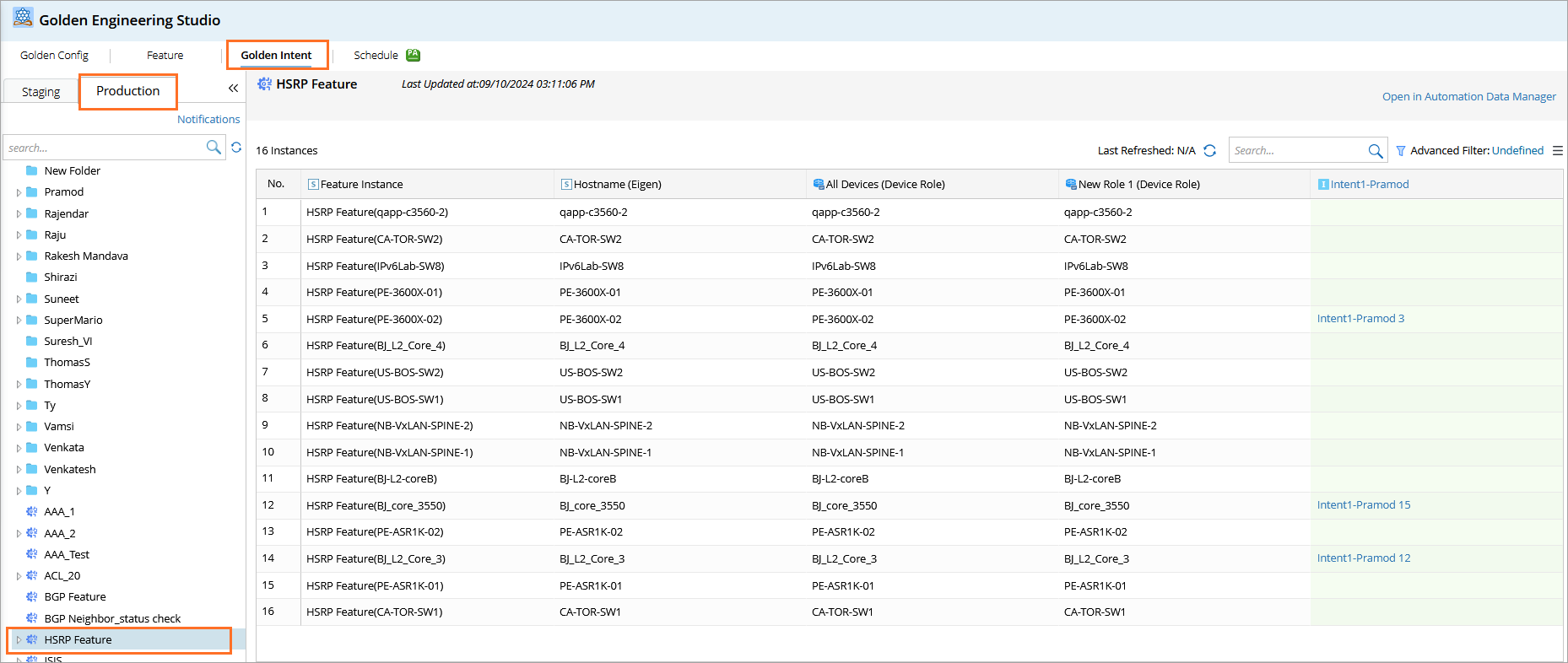
When the setting is done, you can check "this Device" and its Neighbor devices in the Golden Intent > Production pane.
Load Settings from Published Dataset
The Published Dataset is a background data structure created when a Golden Feature (GF) is published. Its primary function is to allow you to load the recorded data into the current GF definition This enables users to view, edit, and adjust the data as needed.
When you click Load Settings from Published Dataset, a confirmation prompt will appear. The user must confirm the action before the most recent Published Dataset is reloaded into the current feature, and the system will automatically save the changes.
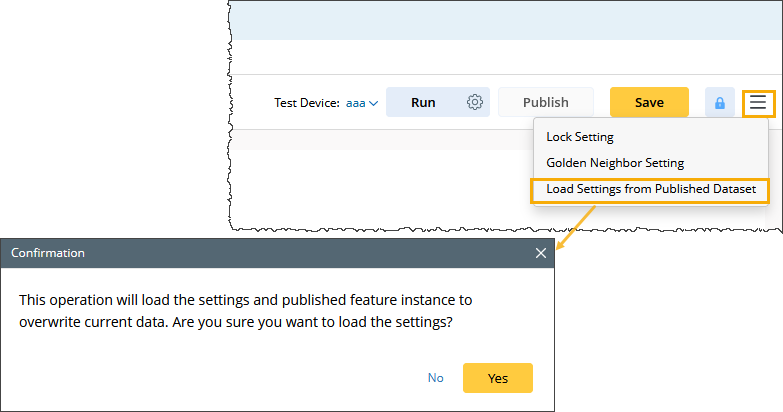
The table below presents the recorded published dataset.
| Nodes | Content that is restored Published Dataset |
|---|---|
| Node 1 | Target Device Settings |
| Node 2 |
|
| Node 3 |
|
| Node 4 |
|
|
|
Note: When the GF is published, the data in the corresponding Published Dataset will be updated according to the following logic: |