Publish Feature
Instance data for a feature can only be used to build member intents with the specified GIs once the feature has been published to the production environment.
The Publish button is enabled only when the feature was run using the All Devices in Scope option.
To publish the feature, follow these steps.

|
Note: Before clicking the Publish button, you need to check whether the current feature definition matches the definition from the last run. If the definition does not match, you will be prompted to run feature discovery again to avoid confusion from inconsistencies between the result and definition. |
-
Click Publish to publish the feature. In the confirmation dialog, click Publish to proceed.
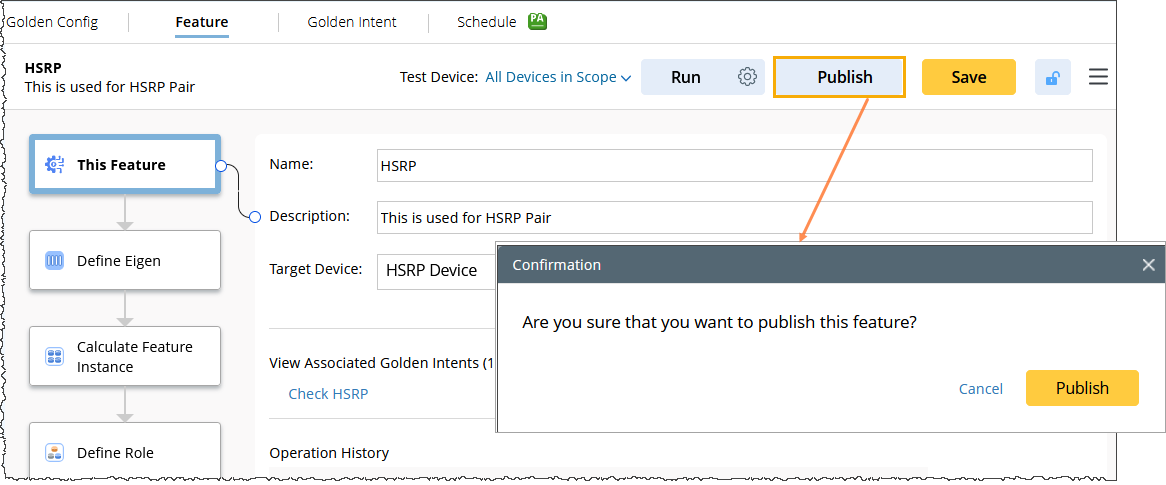
The star (*) symbol will appear on the Publish button under the following conditions.
- If you have clicked the Run button on All Devices in Scope.
- If you have used the Calculate Role function in Define Role node.
This star (*) indicates that the user needs to click Publish again to update the results. The star will disappear once user clicks the Publish button.

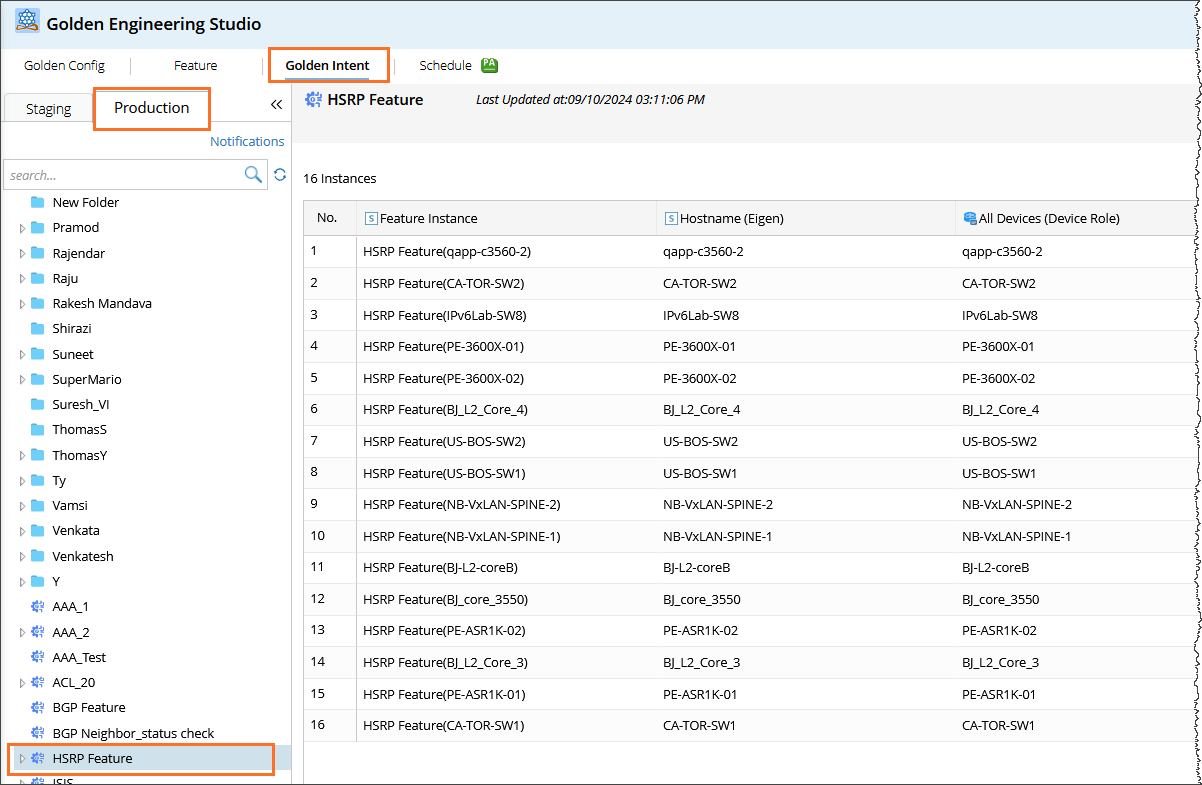
This GF will be pushed to the Golden Intent > Production environment. Once the GF is defined, it can be utilized for defining the Golden Intent.
| |
Note:
|