Manage - CLI and Config - Deep Diagnosis
The CLI and Config dictionaries are shared across AI Bot, AI Insight, and Deep Diagnosis to ensure consistent analysis.
CLI Dictionary
During the Deep Diagnosis reasoning process, if a matched CLI command is found in the CLI Dictionary, both the raw CLI output and the parsed results are sent to the AI. The parsed results help the AI interpret large and complex CLI outputs more efficiently, improving diagnostic accuracy.
Unlike AI Bot and AI Insight, Deep Diagnosis is not restricted to the CLI commands defined in the CLI Dictionary. It can use its own knowledge to decide which CLI commands to send to devices and makes execution decisions based on its own reasoning.
To define a CLI command in the CLI Dictionary:
- Go to AI Settings > Deep Diagnosis.
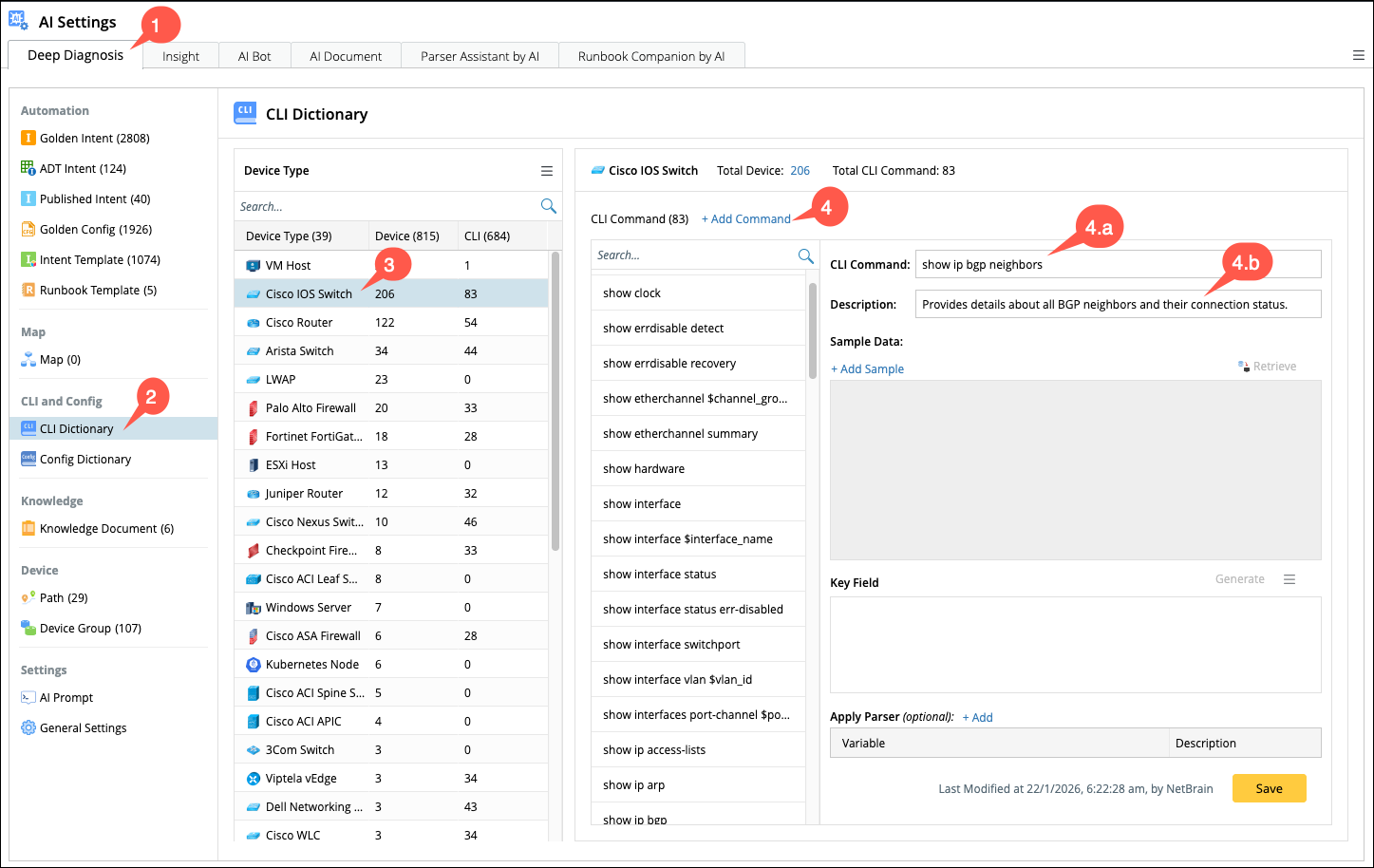
- Select CLI Dictionary from the left navigation pane. The CLI Dictionary details appear on the right.
- From the Device Type column, select a device type. You can use the search bar to quickly find a specific device type.
-
Click + Add Command to create a new CLI command. Configure the command details:
- CLI Command: Enter the command to retrieve the data from the selected device.
-
Description: Provide a brief explanation of the command’s purpose for future reuse and AI reasoning.
-
Click + Add Sample.
- In the device selection window, choose a device of the selected type and click OK.
- The system retrieves the command output from the device and displays it in the Sample Data field.
-
Key Field
- Click Generate to automatically generate key fields using the default prompt.
- If needed, select Generate with Customized Prompt to modify the prompt and refine the generated keys.
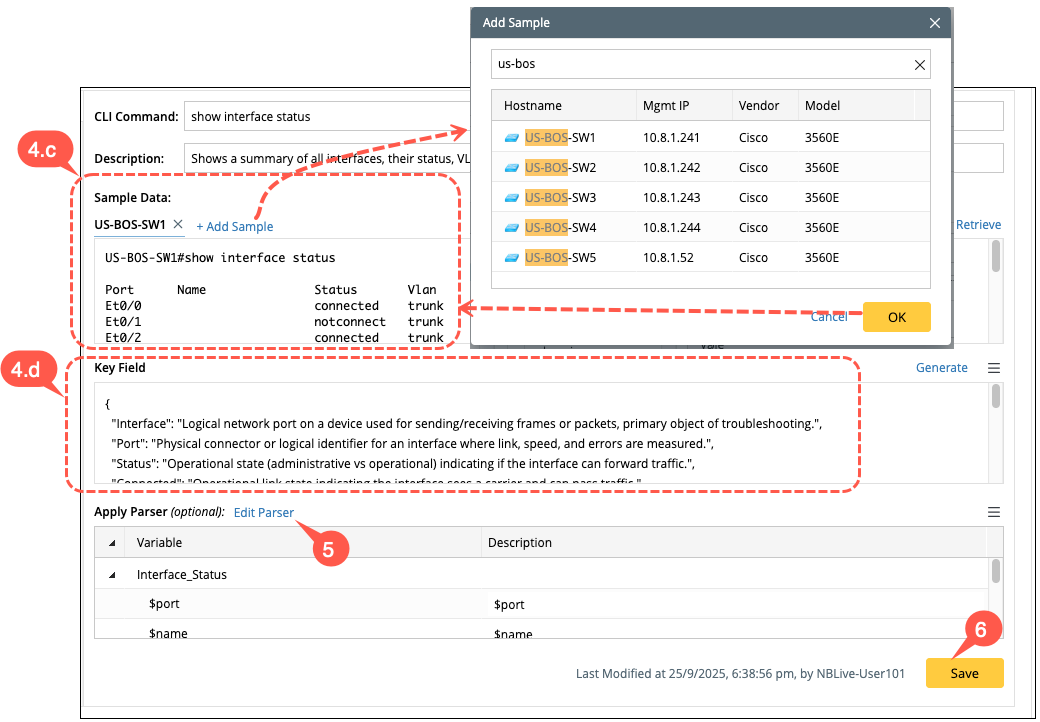
- Apply Parser (optional): Create and apply a parser using the Visual Parser to structure the retrieved CLI output for better analysis and reuse.
- Save the command to add it to the CLI Dictionary.
Once defined, the CLI command can be reused by Deep Diagnosis to retrieve and interpret device data more accurately during the reasoning process.
Config Dictionary
Deep Diagnosis can use parsed configlets for reasoning, it improves accuracy and reduces cost while analysing configuration files. If configlets are unavailable, Deep Diagnosis automatically analyzes the full configuration file for reasoning.
To define a configuration in the Dictionary:
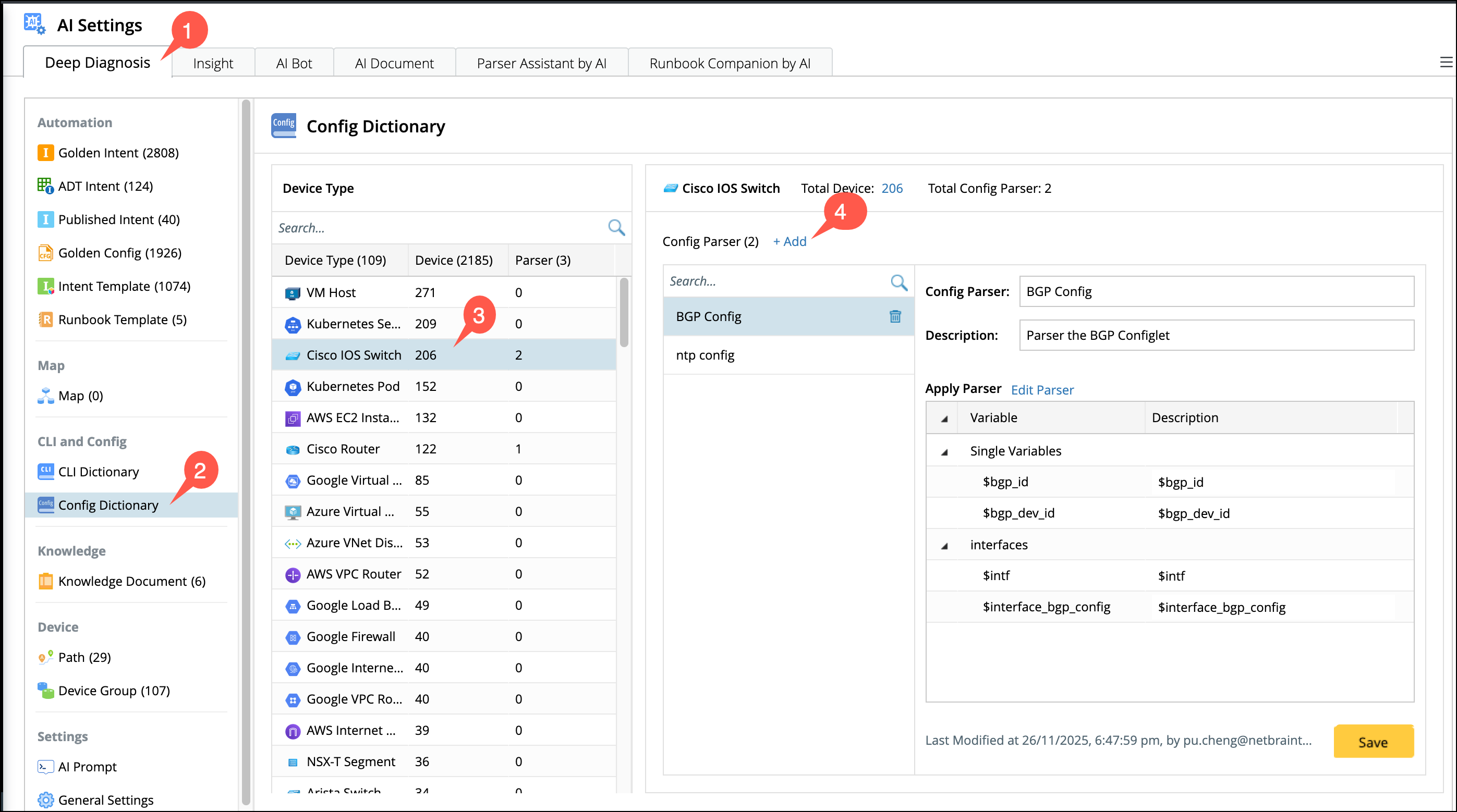
- Go to AI Settings > Deep Diagnosis.
- Select Config Dictionary from the left navigation pane. The Config Dictionary details appear on the right.
-
From the Device Type column, select a device type. You can use the search bar to quickly find a specific device type.
-
Create a new config parser: Clicking + Add to open the standard Visual parser.
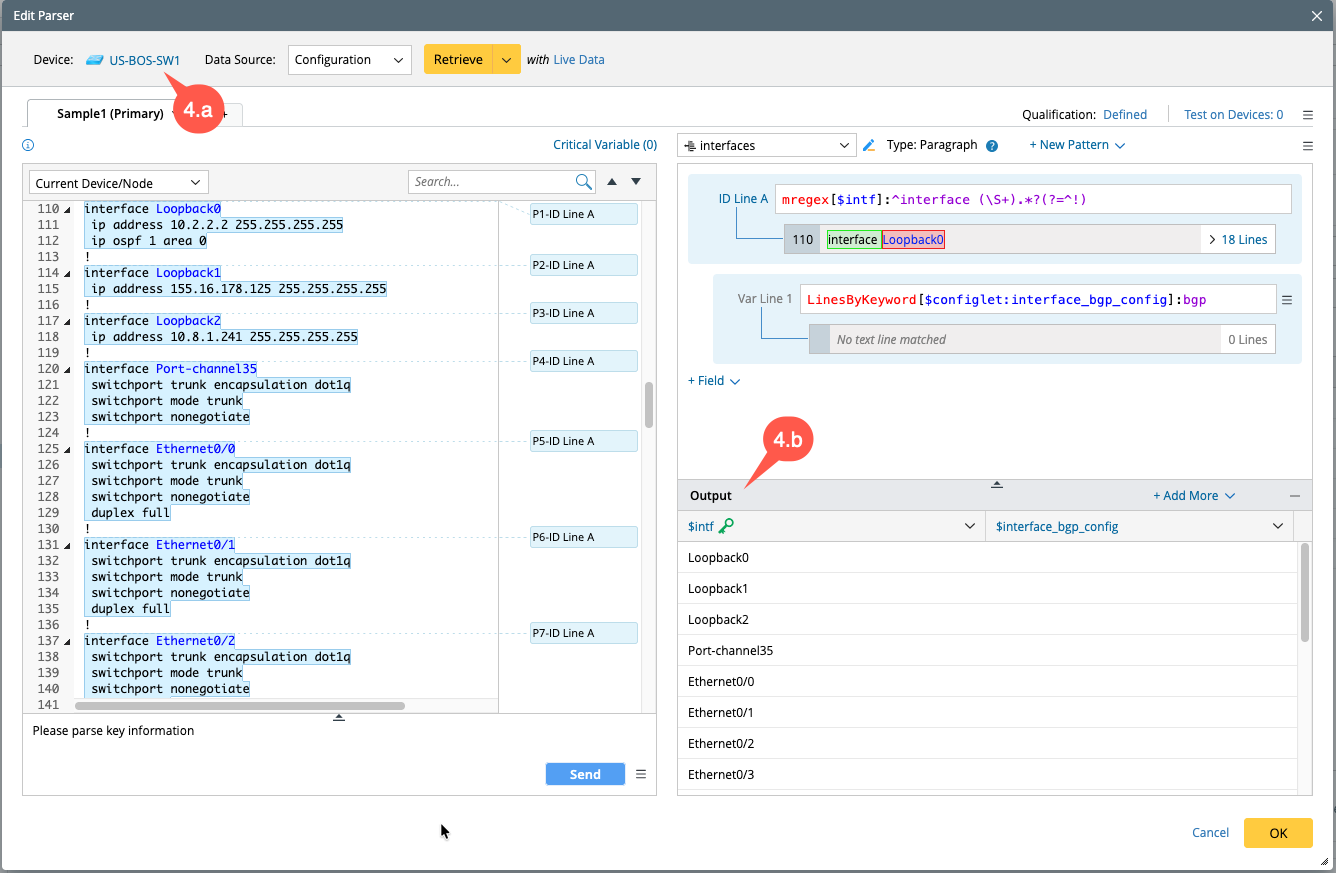
- Choose a device and click Retrieve for the configuration data.
- Parse the variables from the sample data.
-
Config Parser:
- Name: Edit the name for AI to easily understand specifying the key purpose.
- Description: Briefly define the purpose and usage.
-
Apply Parser:
- The parsed variables and parsers will appear under this field.
- An option to customize the created parser is also provided.
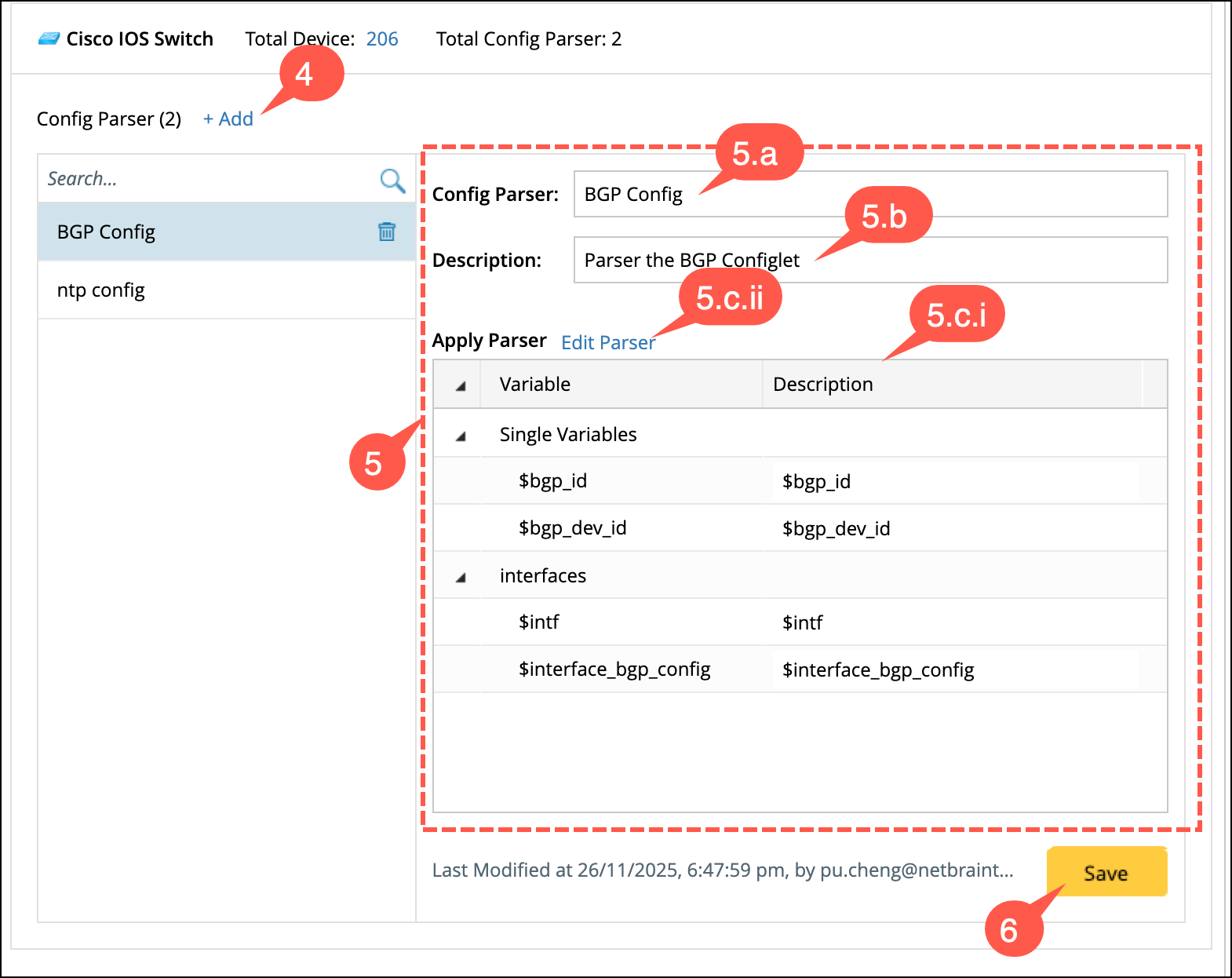
- Save the config to add it to the Dictionary.