Test via Runbook Template
Users can select a ticket type and send its ticket data to Runbook Template to see whether a suitable Runbook Template exists, how the ticket would be handled within the runbook, and whether the automations inside the Runbook Template are capable of resolving this network issue.
User Flow
In Ticket Analysis for AI, after the tickets are analyzed and classified:
- Select a ticket type.
- Select a problem type, which is the ticket to test.
- (Optional) Select the ticket fields.
- Click Test via Runbook Template.
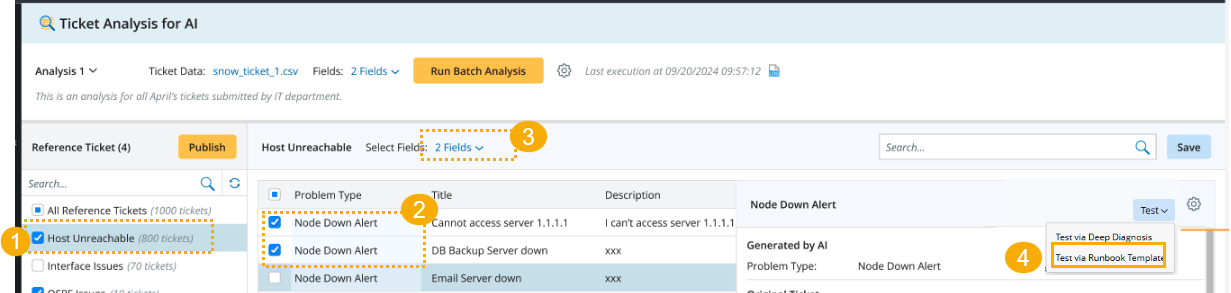
- On the Select Runbook Template window, users can switch the option to Recommended Runbook Template to view Runbook Templates recommended by AI based on the current ticket data, helping them quickly identify the most relevant templates for troubleshooting this ticket. Alternatively, users can browse and use other Runbook Templates under the All Runbook Templates option.
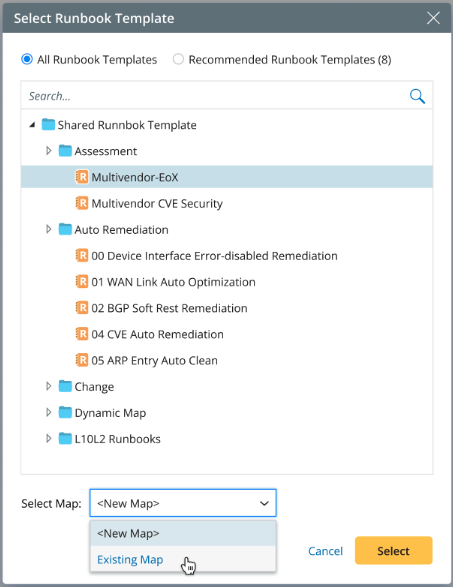
- Select a map to run the selected Runbook Template.
- Click Select.
- On the Select Runbook Template window, users can switch the option to Recommended Runbook Template to view Runbook Templates recommended by AI based on the current ticket data, helping them quickly identify the most relevant templates for troubleshooting this ticket. Alternatively, users can browse and use other Runbook Templates under the All Runbook Templates option.
The system sends the ticket data (for example, ticket description, configuration_item, priority, category, etc.) to LLM. Then the LLM extracts the values from ticket data and maps them to the corresponding variables defined in the Runbook Template, such as target device, IP address, etc.
A pop-up dialog allows users to confirm and modify these values if needed. 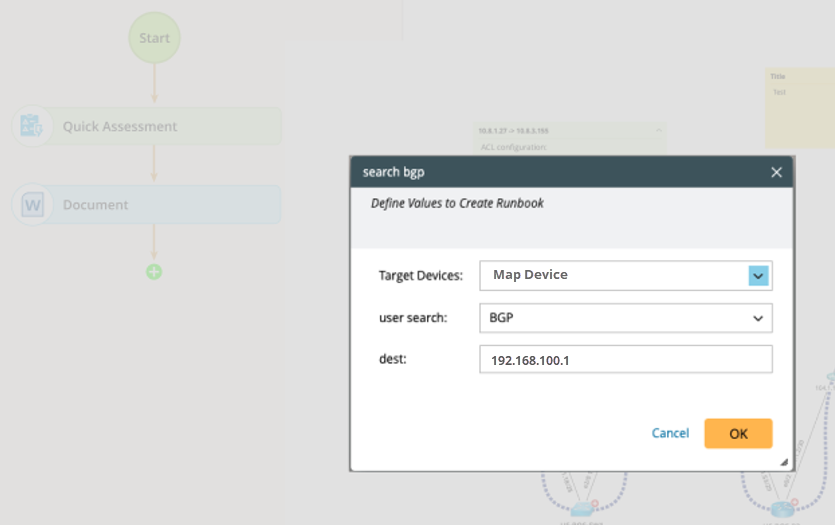

|
Note: LLM interprets the variable meanings and selects the most appropriate value from the ticket data. The extraction may not always be accurate, but users can adjust the value if needed. |
After confirmation, the map is opened, and a runbook is created using the provided input values.
Users can run to see whether it resolves the issue. If it does, the Runbook Template is suitable for this ticket type. If not, users can modify the runbook and save it to the Runbook Template.
See also: