R12.3-2026Apr21
Use TAF Remediation
Here is the use flow for triggered automation remediation.
- Define the change template used for the remediation.
-
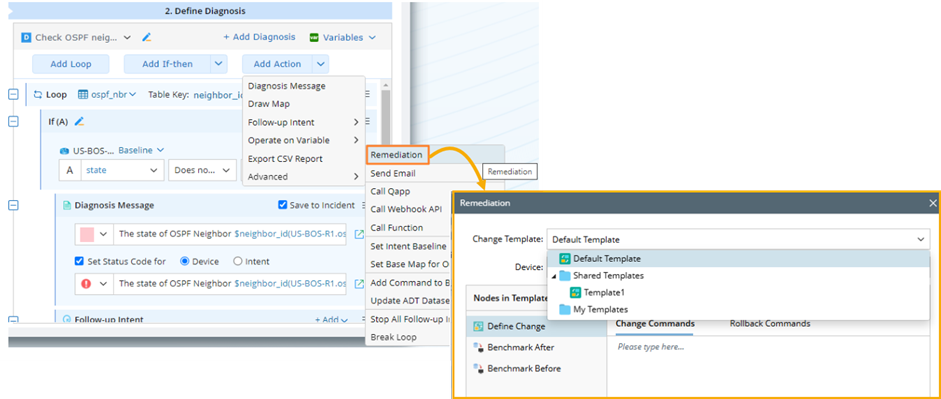
In an NI diagnosis, navigate to Add Action > Advanced > Remediation, select an appropriate change template for the remediation NI.
-
To configure remediation capabilities, add and define the remediation NI in the Auto Remediation Management.
-
Click the start menu, and select Incident & Change > Network Change Management.
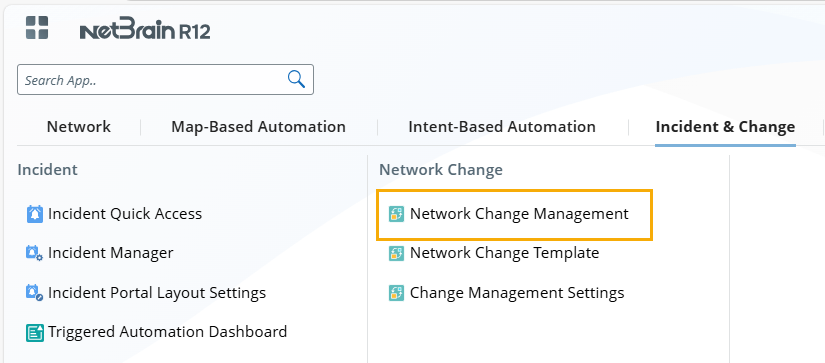
- In Network Change Management, navigate to the Auto Remediation Management tab.
-
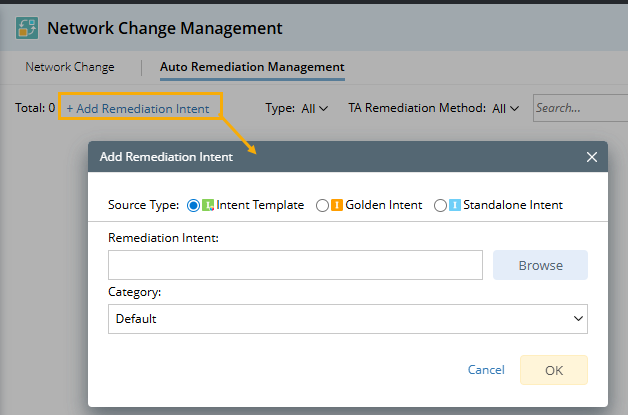
In the Auto Remediation Management tab, click Add Remediation Intent.
-
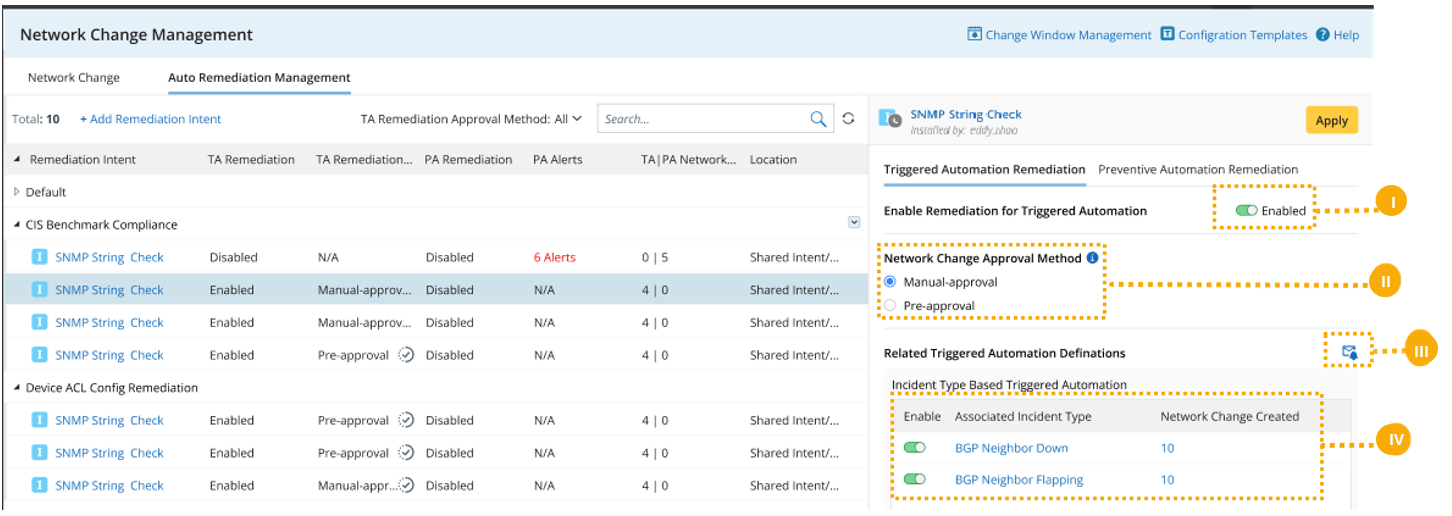
Configure the settings for the remediation NI.
-
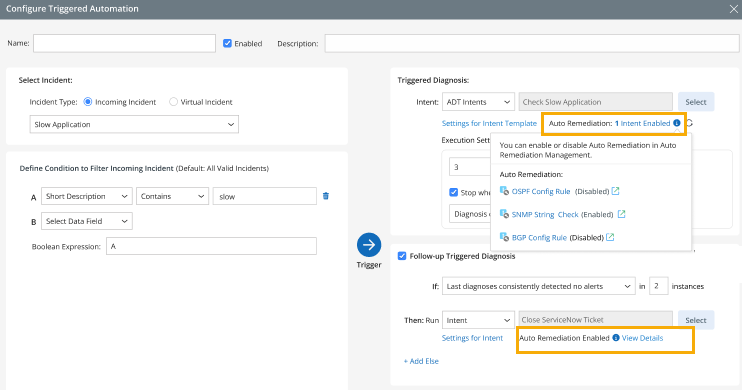
Enable the Enable Remediation for Triggered Automation checkbox.

Tip: Once it is enabled, you can also view it in Triggered Automation Manager.
-
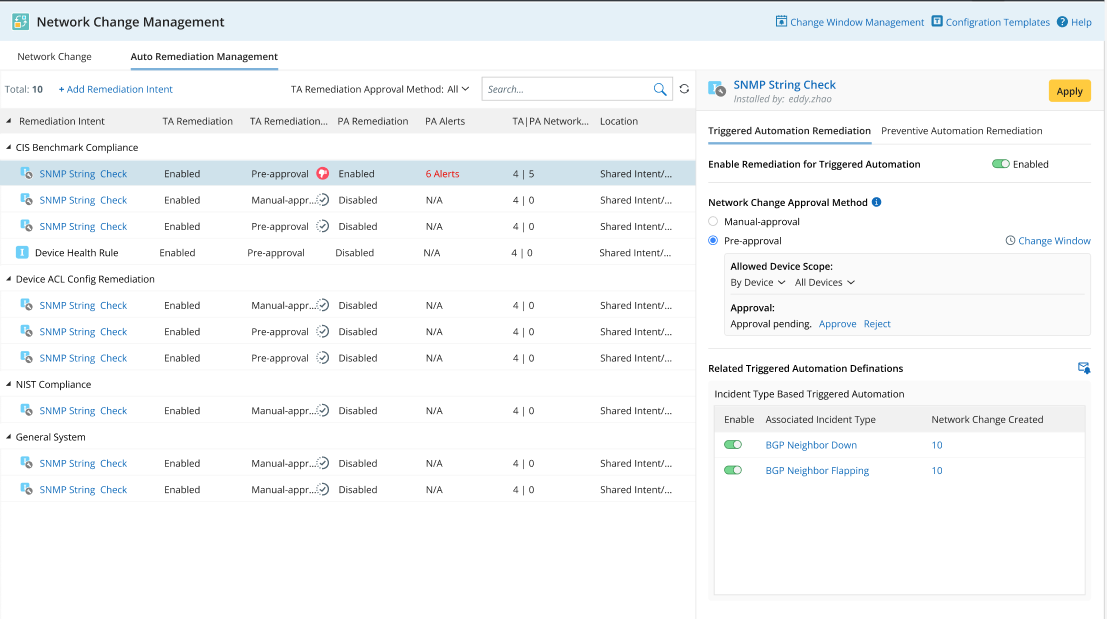
Select a Network Change Approval Method.
- Manual approval. The change task requires approval once generated. The approval flow remains the same for manual approvals. Where the approval occurs (NetBrain or external) and who can be the approver, depends on the configuration in the Planning Node.
-
Pre-approval. The change task is approved prior to its creation, so no approval is required afterward. However, the task needs to be executed manually.
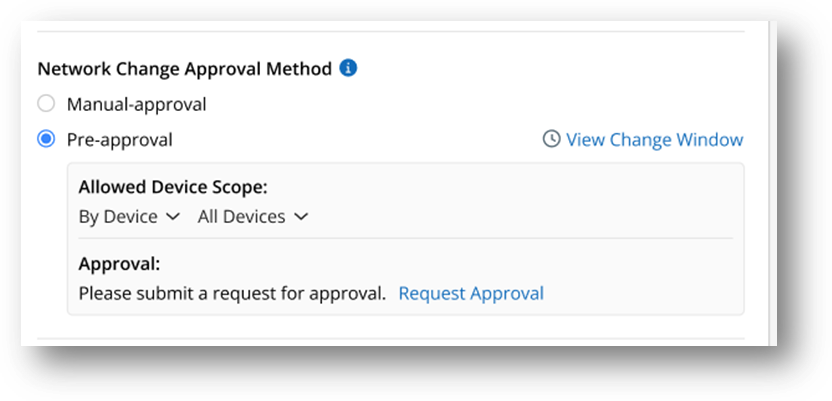
- Allow Device Scope. Select the devices you want to pre-approve for the change task.
-
Approval. Submit a request to an approver to pre-approve the change task.
- If the request is approved, the change task with the allowed devices will be generated in Approved status.
-
If the request is not approved yet, the change task can still be generated, but will require manual approval afterward.
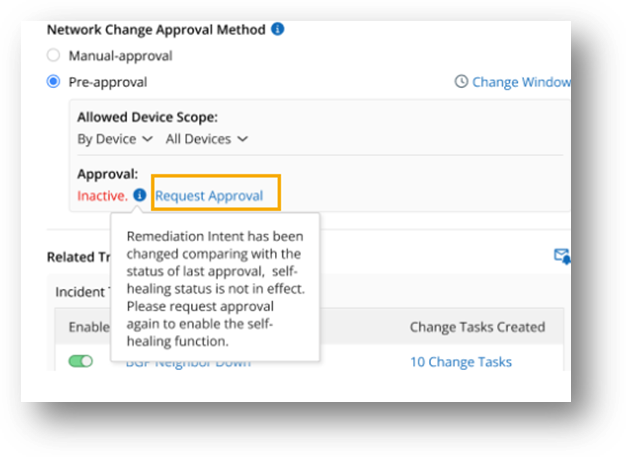
Note: The pre-approval status may change as a safety measure. Changes made to the remediation intent, or the device scope will set the Approval status to Inactive. Users can request approval again if the status becomes inactive.
-
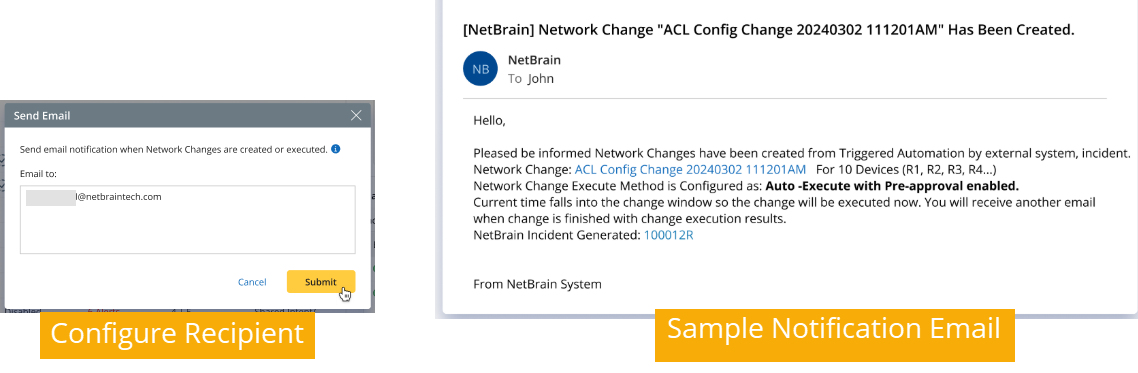
You can configure who will receive an email notification when a change task is created.
- Enable or disable an associated incident type as needed.
-
Enable the Enable Remediation for Triggered Automation checkbox.
-
Click the start menu, and select Incident & Change > Network Change Management.
-
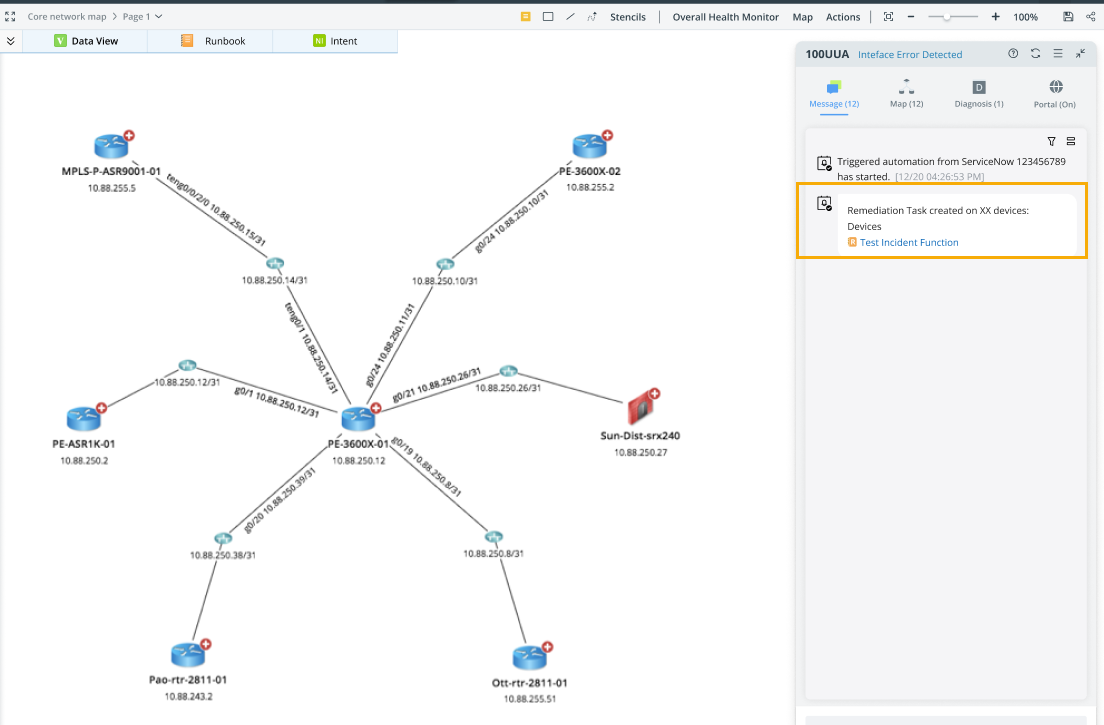
When a third-party ticket comes in and triggers the remediation NI, a change task is generated.The change task is shown in the incident pane and the third-party system.
-
View and manage the auto remediations. You can view whether the remediation intent and its incident type are enabled for remediation.
See also: