Using Maps in Deep Diagnosis
In addition to the default Use Map Data option discussed in earlier topic, you can add or link a map to provide network context to the deep diagnosis. In this topic, we shall see:
- Creating a new map to safely modify or annotate a map without impacting shared or production maps.
- Link an existing Map
-
AI-Added Maps for Diagnosis
Create a New Map
You can create a new map specifically for a Deep Diagnosis query as follows:
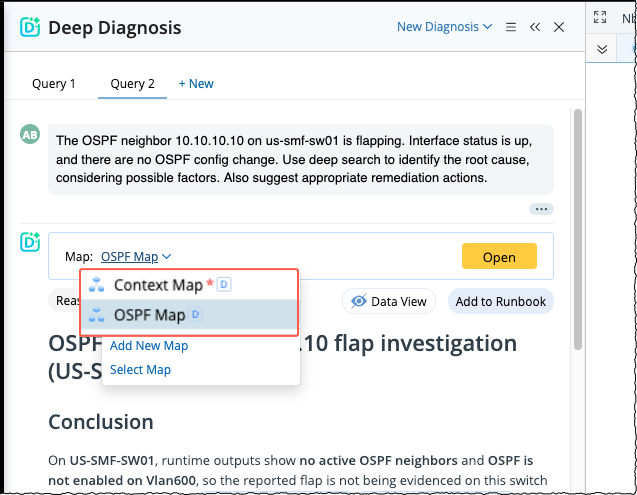
- From the Map drop-down, select Add New Map.
- Specify the Name for the map and click Create.

The created map is accessible only within the current diagnosis and it is automatically deleted when the Deep Diagnosis query is deleted. It is marked with a  icon.
icon.
Link an Existing Map
Linking an existing map gives you flexibility to reuse existing topology while protecting original maps. And supports troubleshooting without unintended changes. You can also reuse an existing map for additional context as follows:
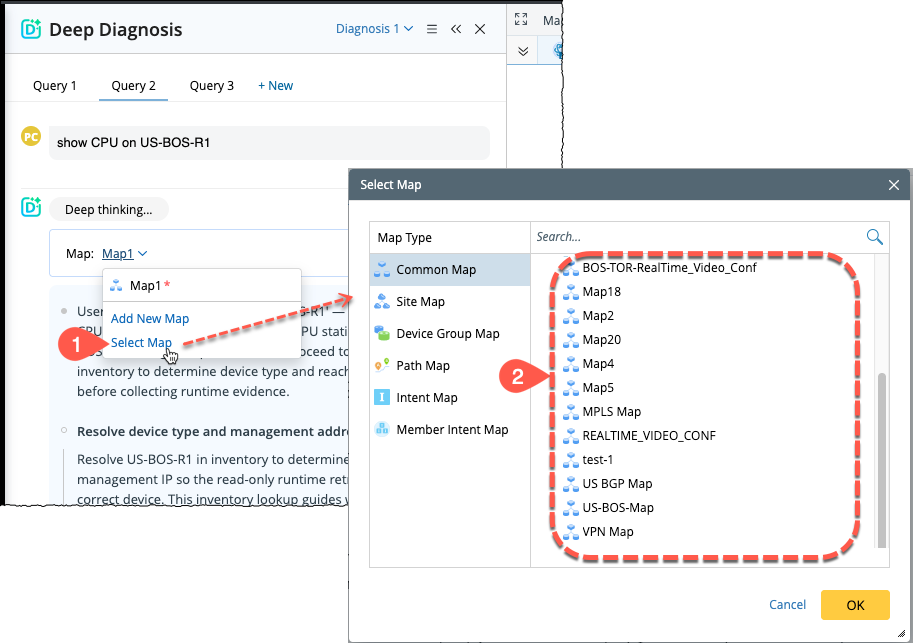
- From the Map drop down menu, choose the option Select Map and the corresponding window appears.
- Select an existing map and click OK to add it to the deep diagnosis.
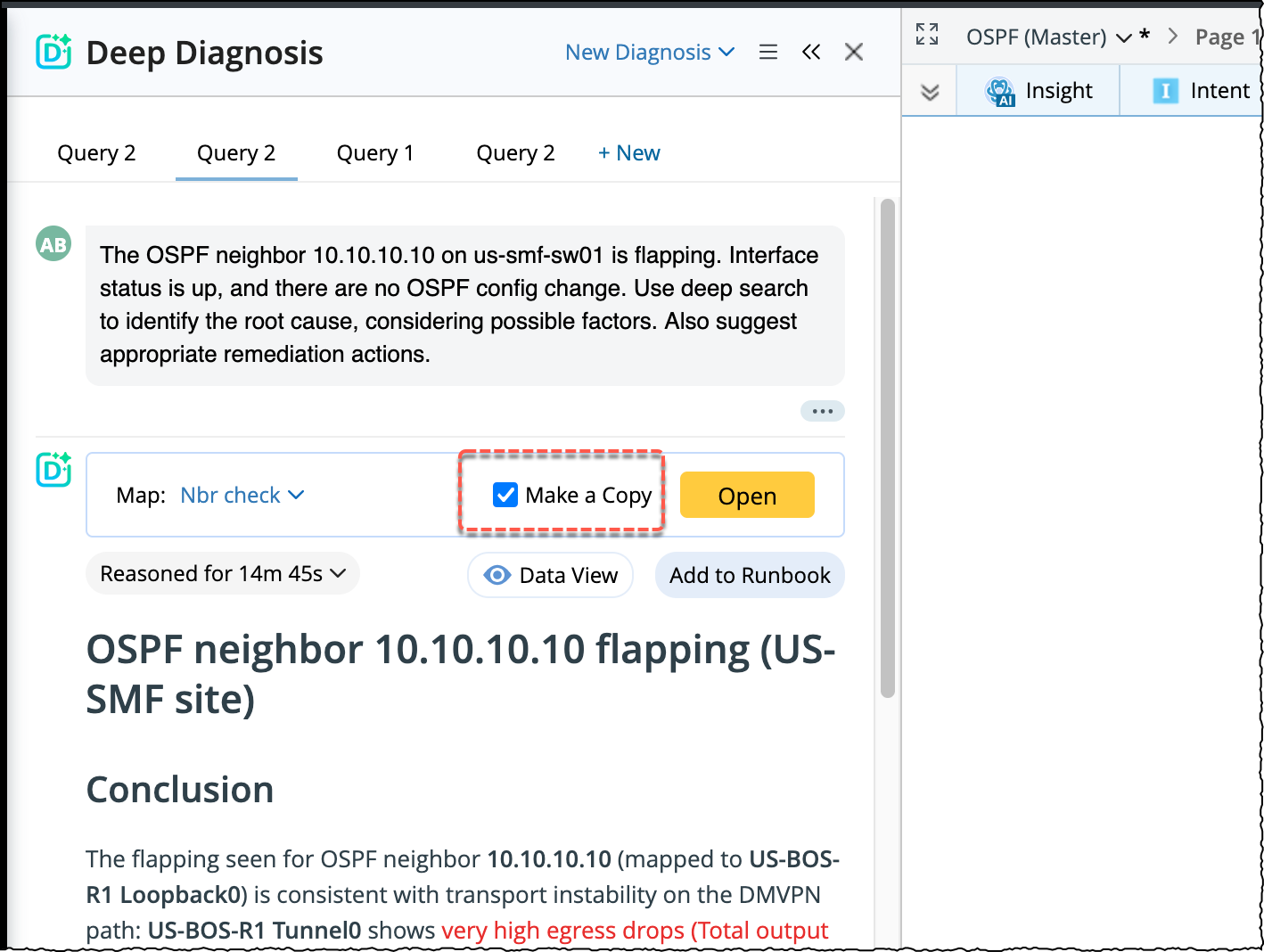
- After selecting a map, you can either allow modify the existing map or create a copy without affecting the original map. If:
-
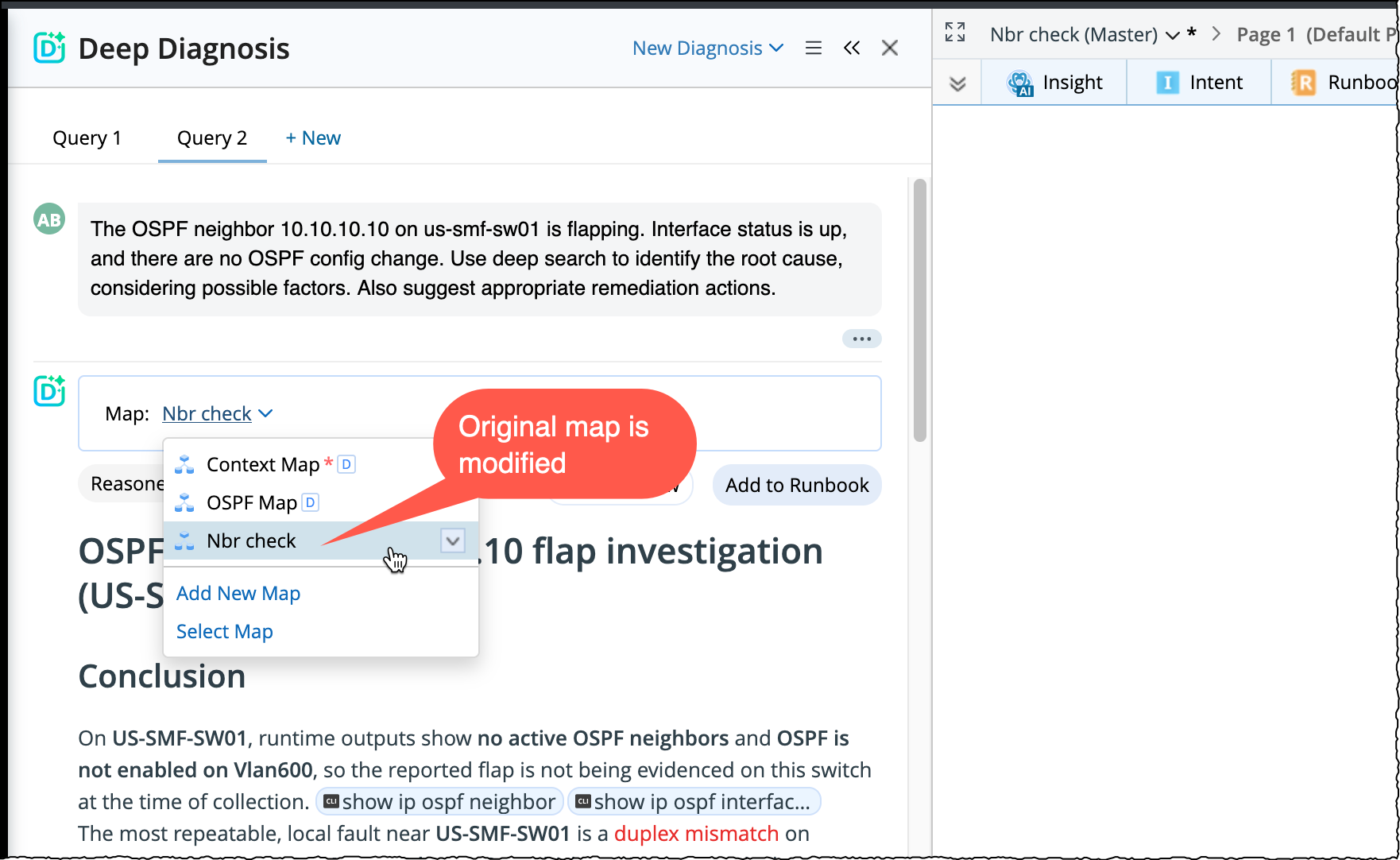
Modify the original map (without making a Copy)
-
The original map is used directly and no icon is shown.
- Any changes affect the original map.
-
The original map is used directly and no
-
Make a Copy: When this option is selected, a copy of the selected map is created and the copied map becomes a Deep Diagnosis–created map.
AI-Added Maps during Diagnosis
During the deep diagnosis process, the system may automatically identify and add maps relevant to your query. These maps are marked with an  icon, indicating they were added by the system. And they are sourced from maps defined in the Deep Diagnosis Manager.
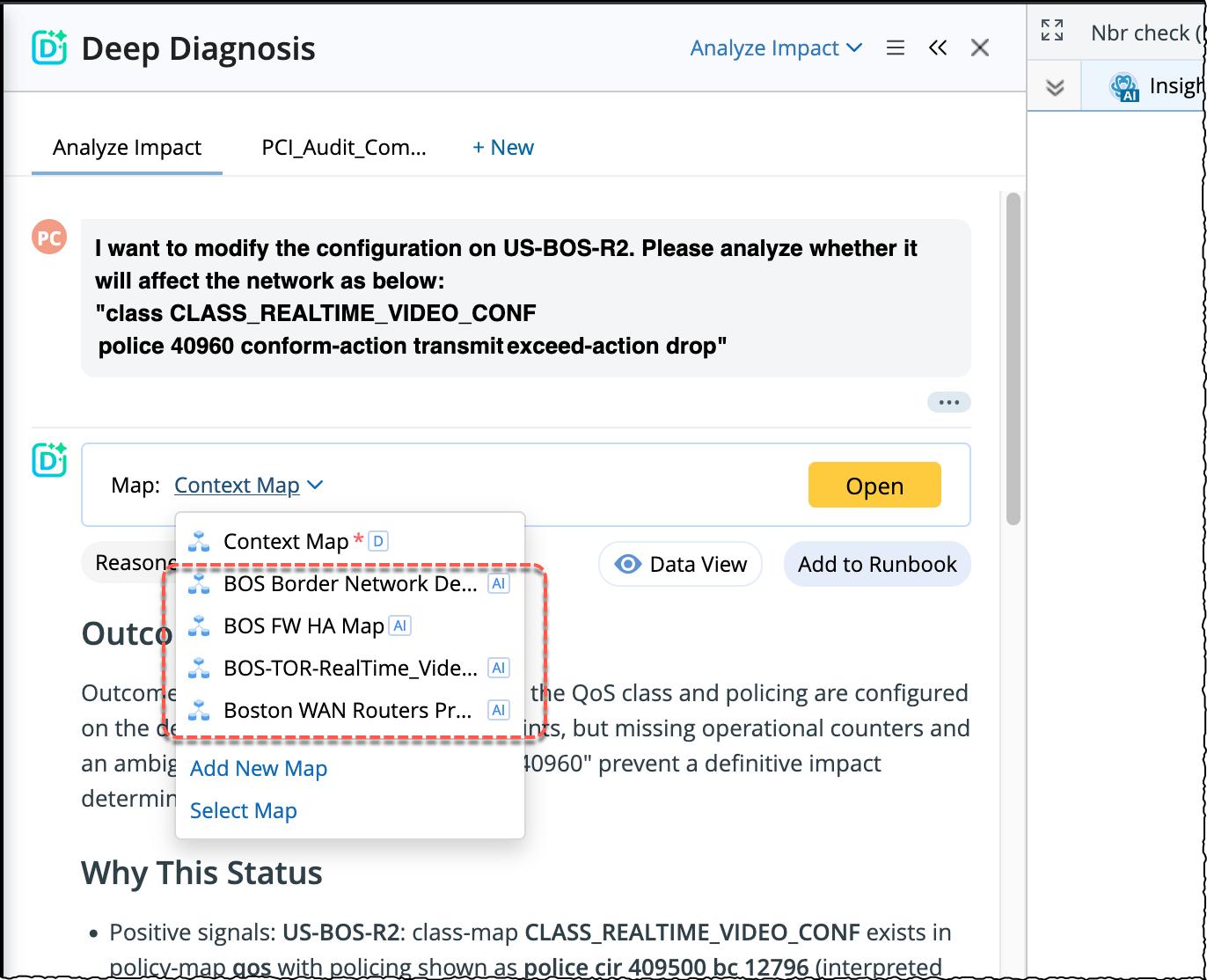
You can select an AI-added map or choose Make a Copy to convert it into a Deep Diagnosis created map. It helps to:
- Automatically surface relevant topology without manual searching.
- Take the control of AI-suggested context when deeper investigation is needed.