Key Functions
Deep Diagnosis allows you to run and manage multiple queries and diagnoses simultaneously, refine inputs, and organize results for easy reuse with the following key functions:
- Managing Diagnosis
- Multiple Queries in One Diagnosis
- Smart Input in Query field
- Using Map Data
- Sharing and Exporting the Diagnosis
Managing Diagnosis
All diagnoses are organized in Shared Diagnosis and My Diagnosis folders.
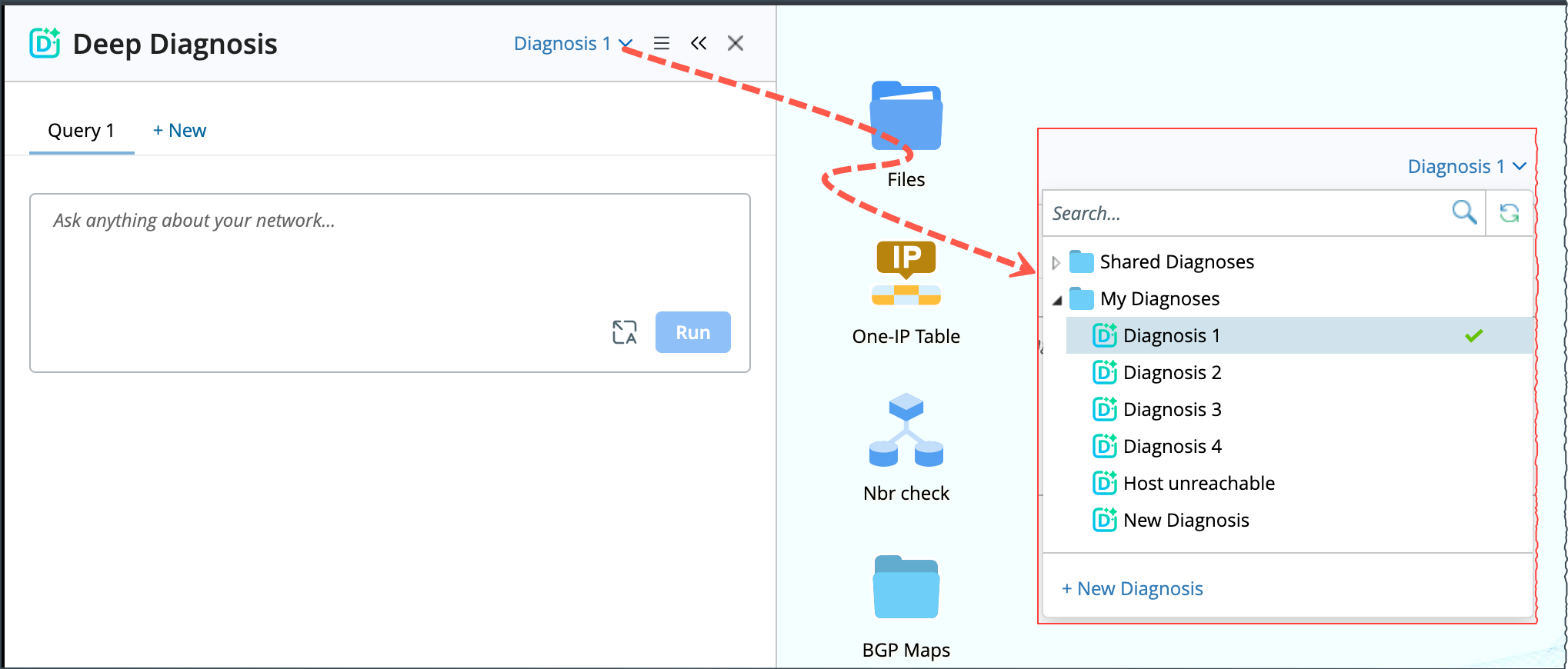
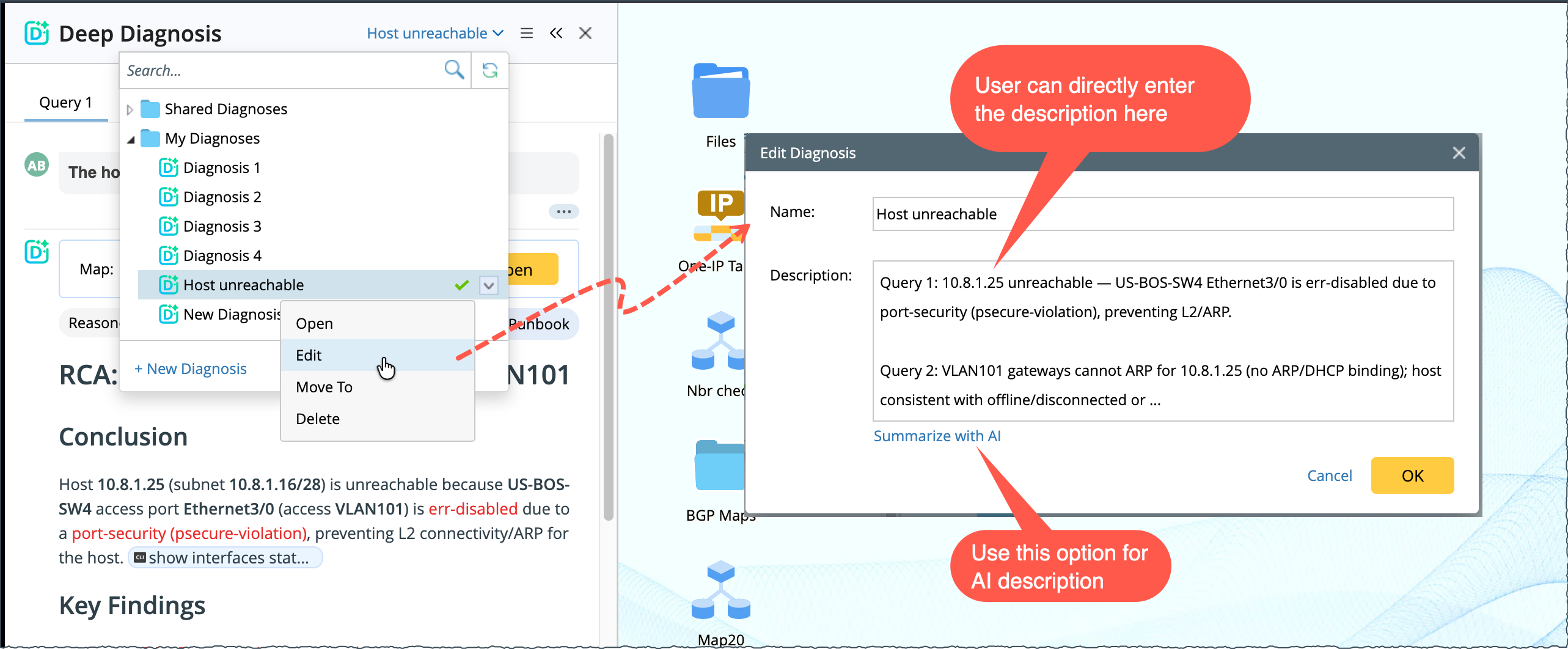
You can create, rename, and organize diagnosis and its folders. Also, you can customize the description of each diagnosis, either manually or using AI-generated content.
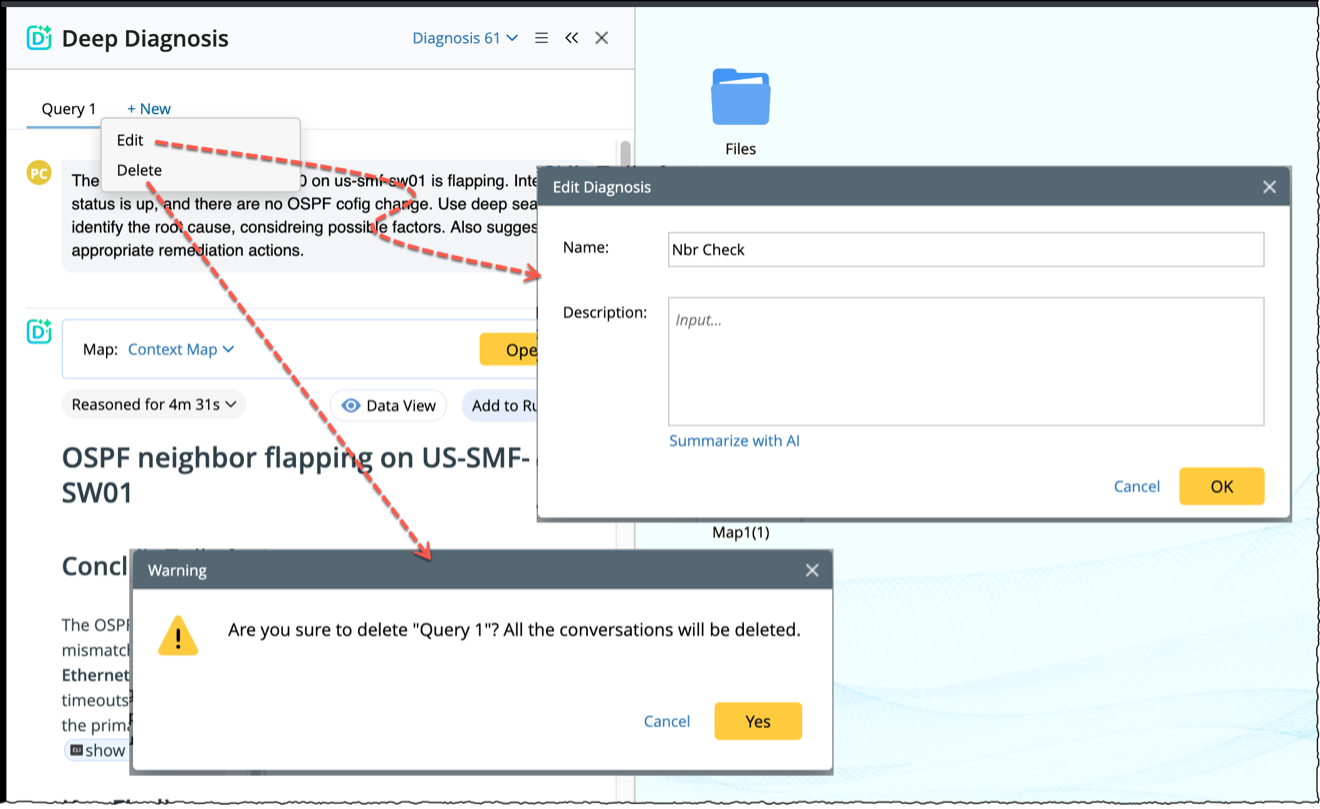
Multiple Queries in One Diagnosis
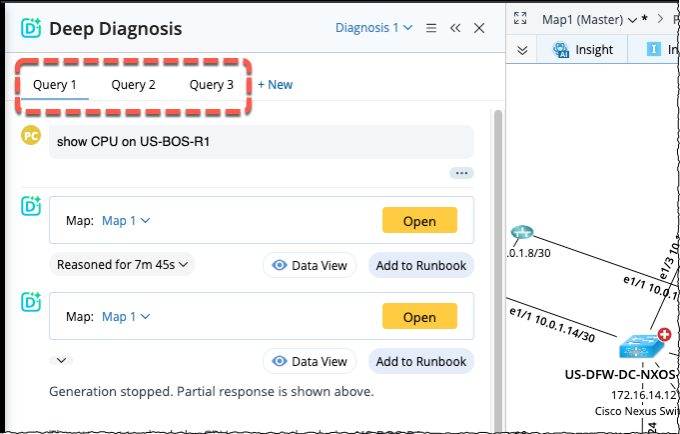
A single diagnosis can include multiple queries (Query 1, Query 2, and so on).
- Queries run independently, allowing multiple queries to execute in parallel. Creating a new query does not affect existing queries, even if they are currently running.
- Multiple diagnoses and multiple queries can run simultaneously. Each diagnosis supports up to 100 queries.
- Queries can be edited.
-
You can rename or delete a query at any time.
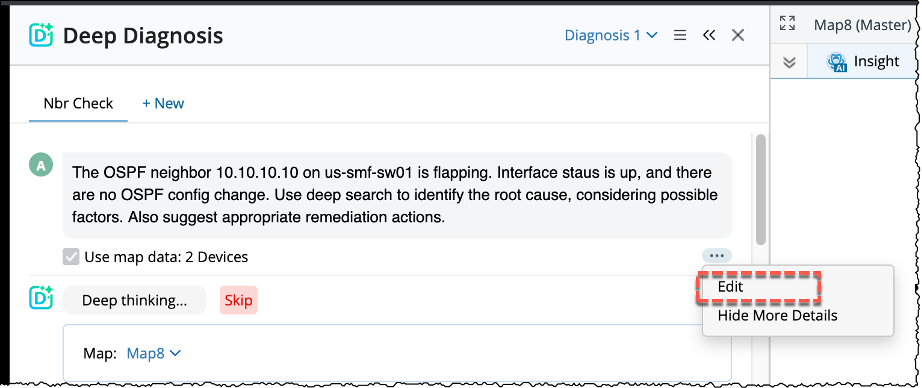
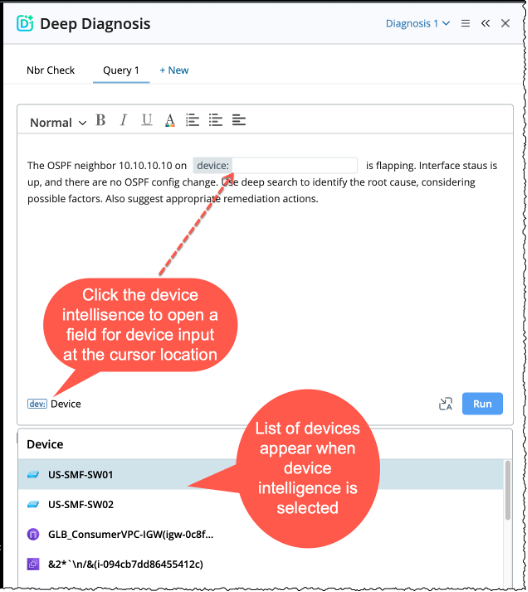
Smart Input in Query field
The query input field provides an optional rich-text editor ( ) and Device IntelliSense (
 ) for faster and more accurate input. You can edit a query even after sending it, or while it is still running.
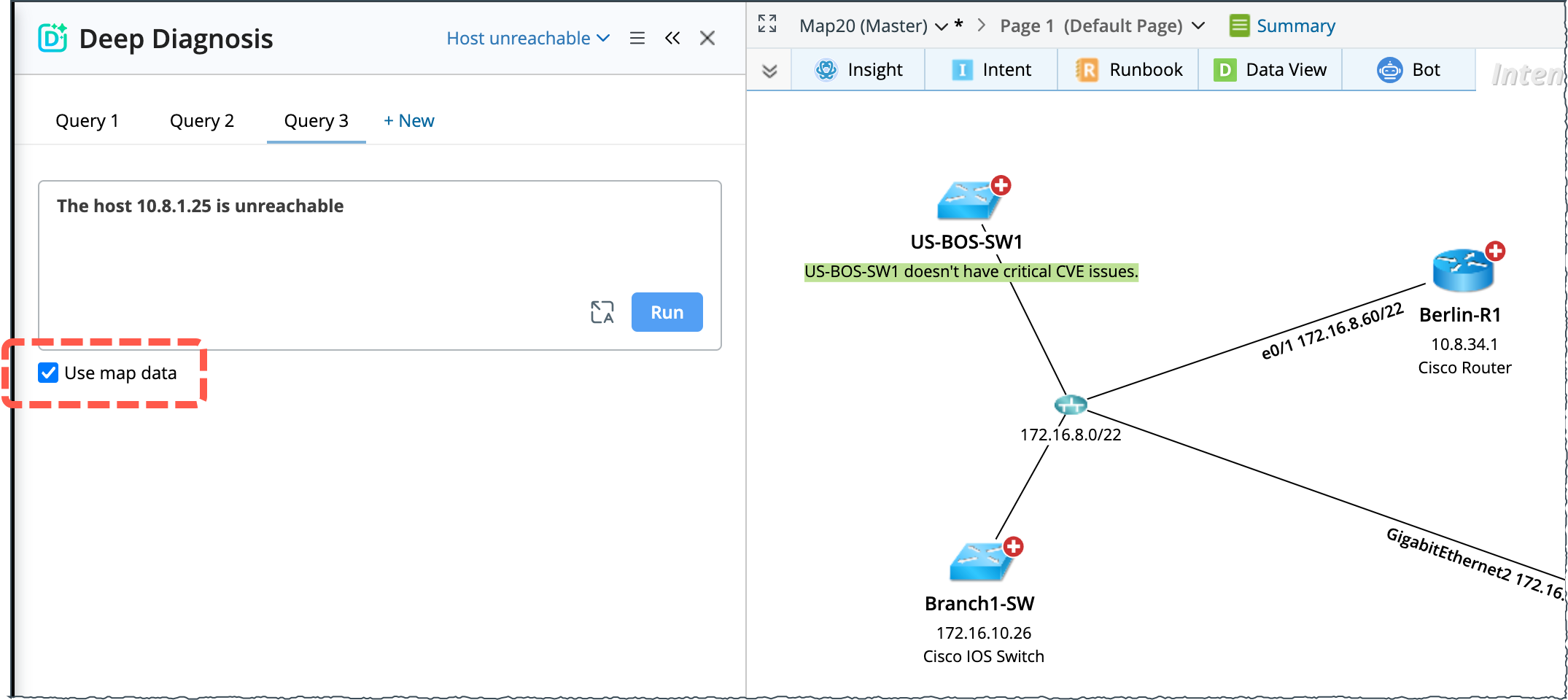
Using Map Data
Deep Diagnosis can be run with or without a map data. When Use map data is selected, the AI limits its analysis to the devices on the selected map.
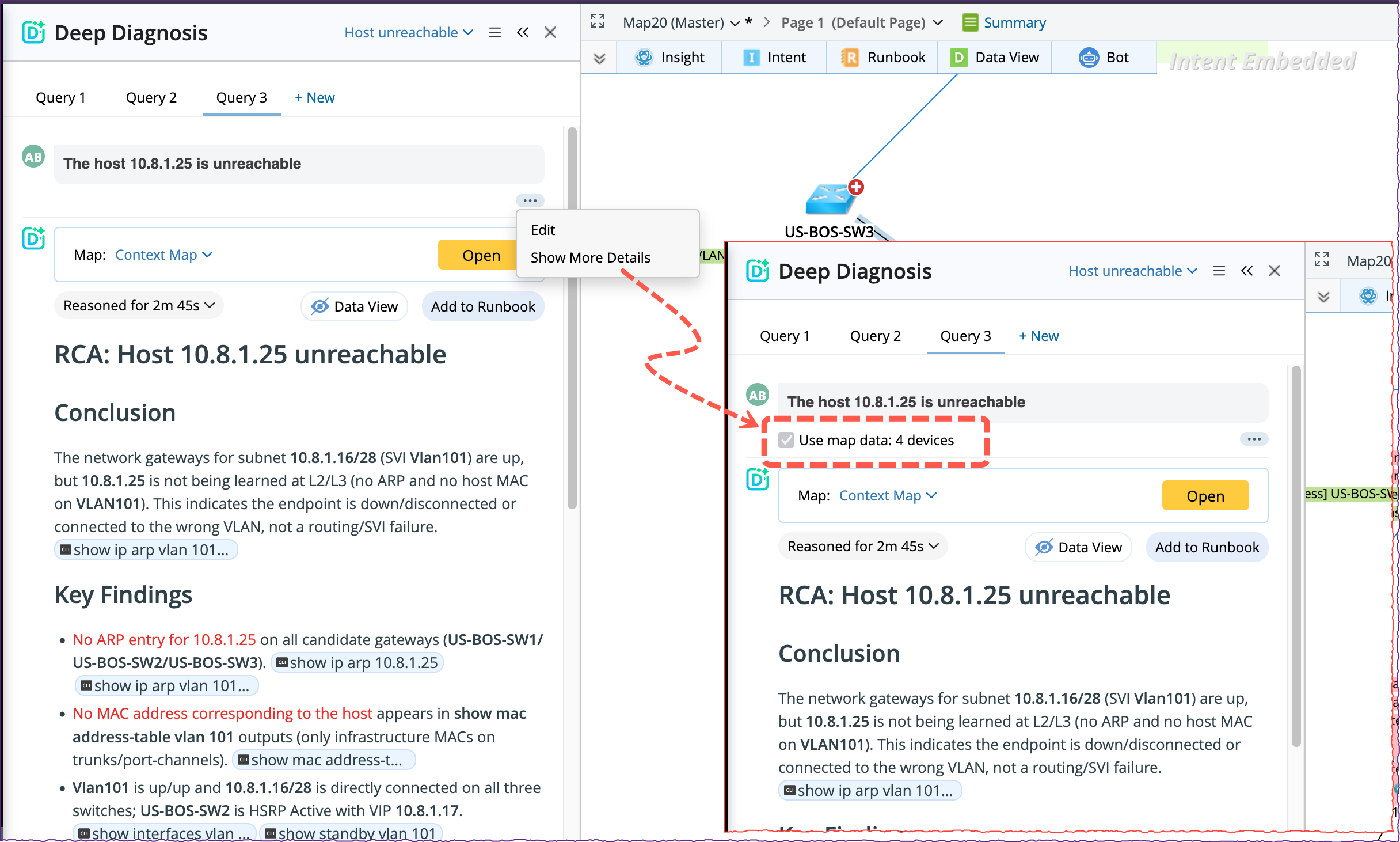
Once the query is submitted, the Use map data option disappears. User can find it in Show more Details option. And the wording will be greyed out. It helps you to understand the previous diagnosis context after the map is closed.
Sharing and Exporting the Diagnosis
-
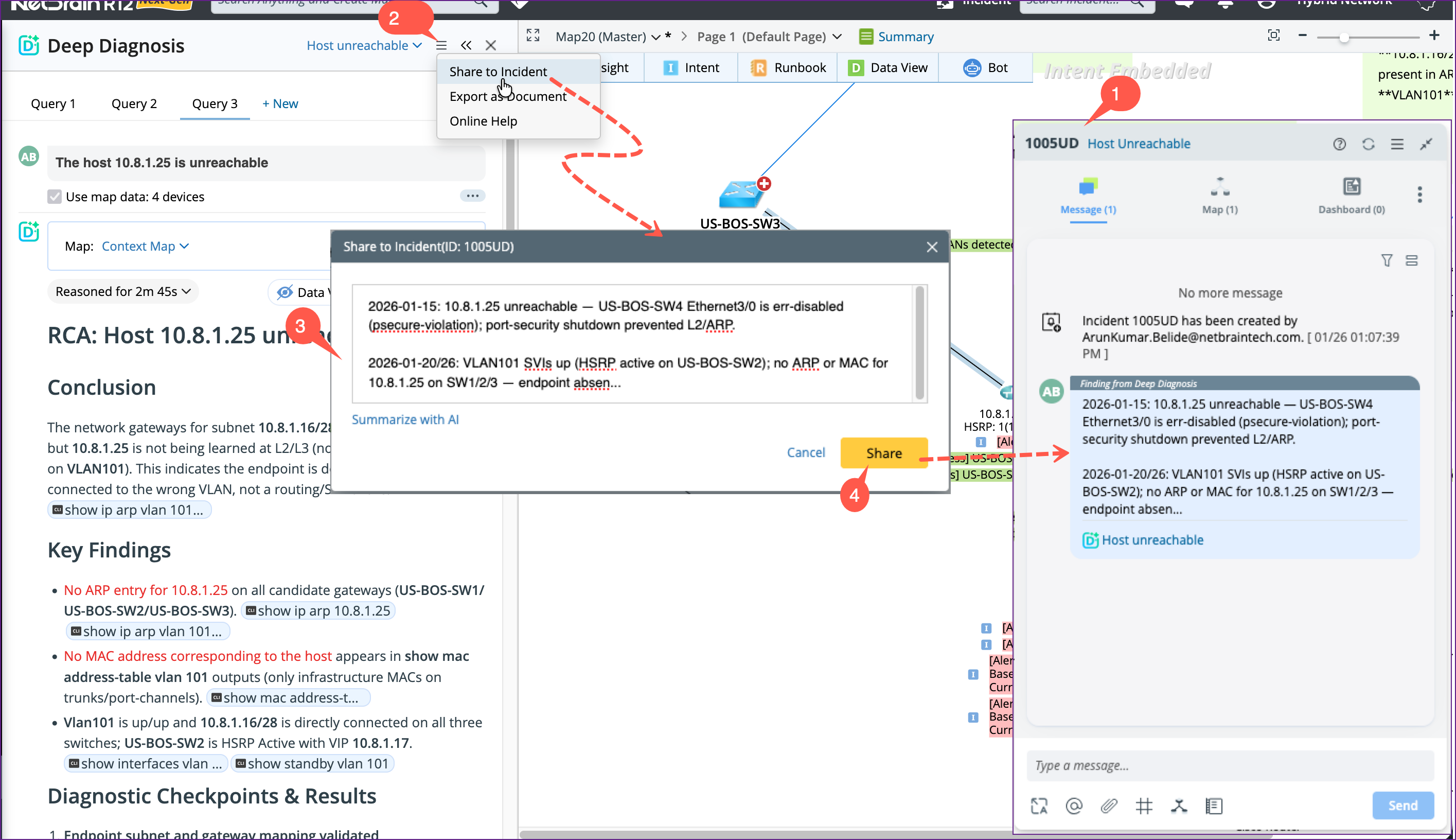
Share to an Incident: You can share the diagnosis to an existing/new incident and add notes for collaboration.
- Open an existing or new incident.
-
Go to
 menu located at Deep Diagnosis pane header and select Share to Incident.
- Enter a description manually or use Summarize with AI to generate a concise summary.
-
Click Share to add the diagnosis summary to the incident.
-
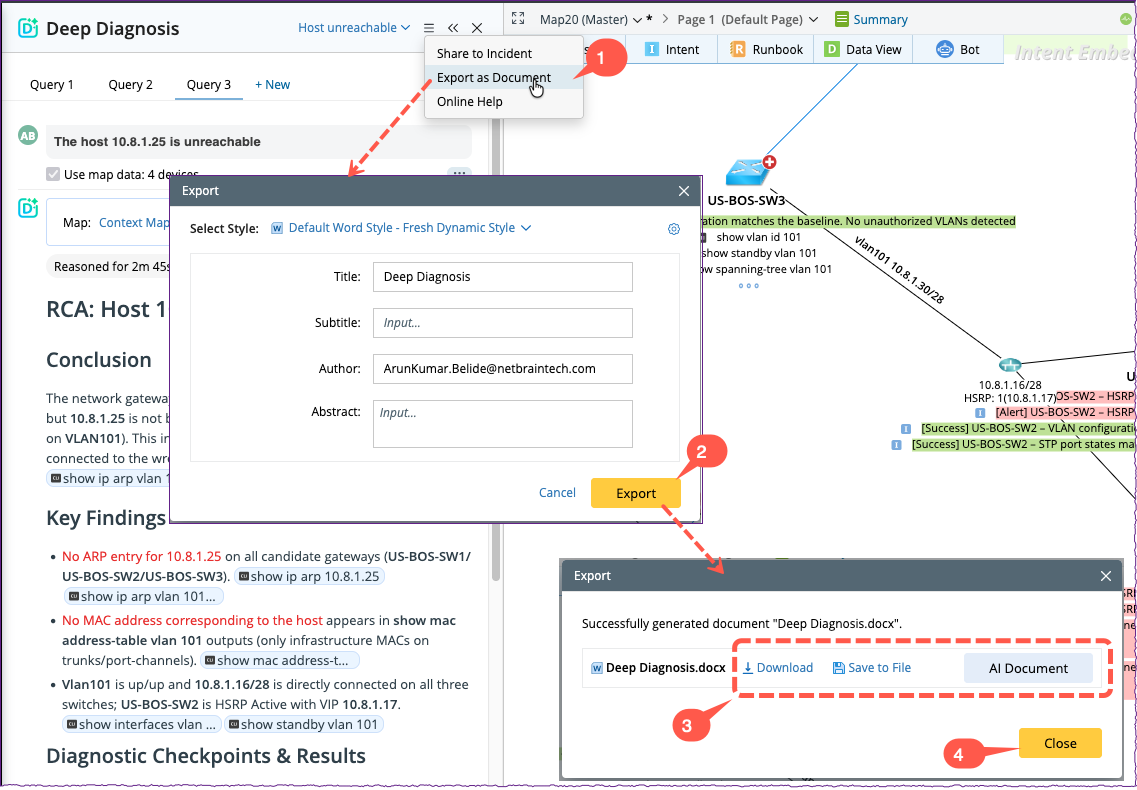
Export to a Document: Diagnosis results can also be exported as a document, which includes (Original inputs, Clarification exchanges, Final analysis and conclusions).
-
Go to menu located at Deep Diagnosis pane header and select Export as Document.
- In the Export window, fill in the details and click Export.
- Once the export processed is completed, you can click:
- Click Close.
-
Go to