Calculate Feature Instance
The primary function of this node is to allow you to select a subset of Test Device for computing and debugging the Feature Instance. This process is based on the Eigen settings configured in earlier steps. By choosing specific Test Device, user can focus on testing and refining the Feature Instance, ensuring it operates correctly before applying it more broadly across the network.
The system will calculate Feature Instances by:

To calculate the Feature Instance, follow these steps.
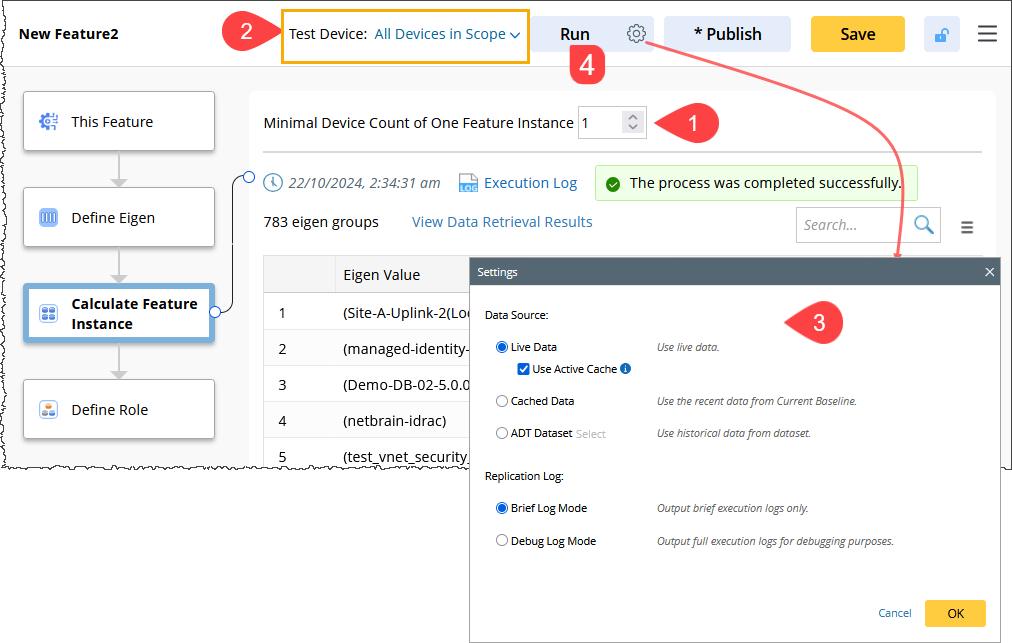
- Set Minimal Device Count of One Feature Instance (Optional)
- This setting determines the minimum number of devices required to generate each feature instance. The default value is 1, meaning that the feature instance will be created only when it contains one or more device. If the number of devices is less than or equal to the minimum device count, the feature instance will not be generated.
- The valid input range is 1 to 1000, and this field cannot be left empty.
- Select Test Device
By default, this option is set to All Devices in Scope, which includes all devices specified in the Target Device setting of the This Feature step. You can modify this selection as needed based on your requirements.
The drop-down menu also includes an option New Test Device Set. You can select an existing Test Device Set from the menu. However, by default, no sets are available, so you must create a New Test Device Set tailored to the current feature's characteristics. - By default, the system uses Live Data as the data source. To modify the data source, click the Settings icon and change the Data Source if needed.
- Click Run to initiate the calculation of the Feature instance.
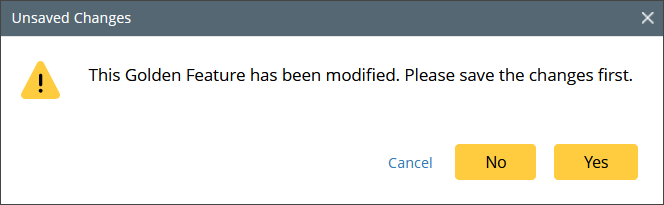
Note: Before clicking Run, make sure to save any changes; otherwise, a warning popup will appear.
You can stop the process at any time. Only the results generated up to that point will be displayed.

Create New Test Device Set
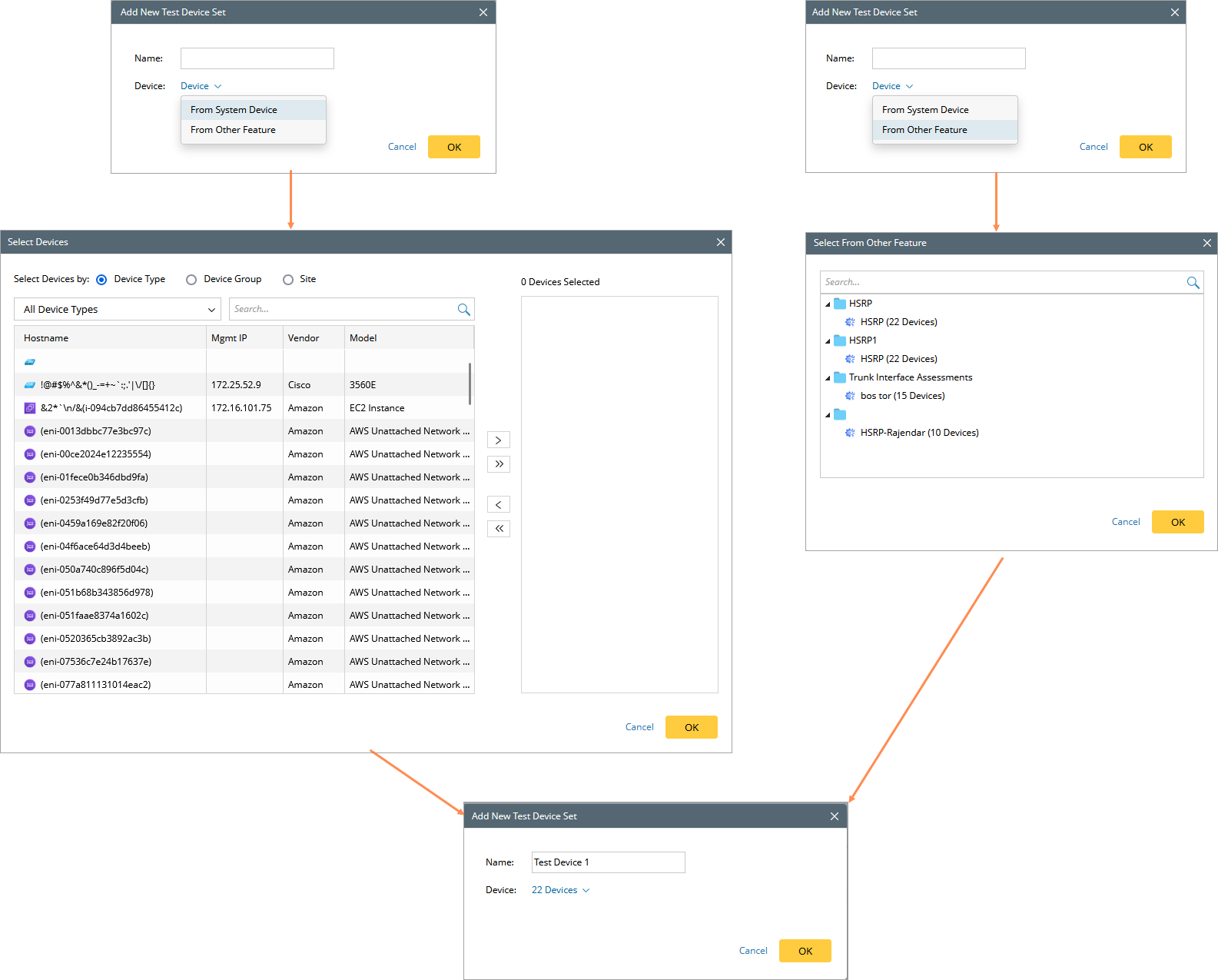
- Click New Test Device Set from the menu, which will open the Test Device Set dialog box.
The New Test Device Set is created in two ways:
- From System Device
- From Other Features
The following illustration explains these two methods:
View Feature Instance Result
-
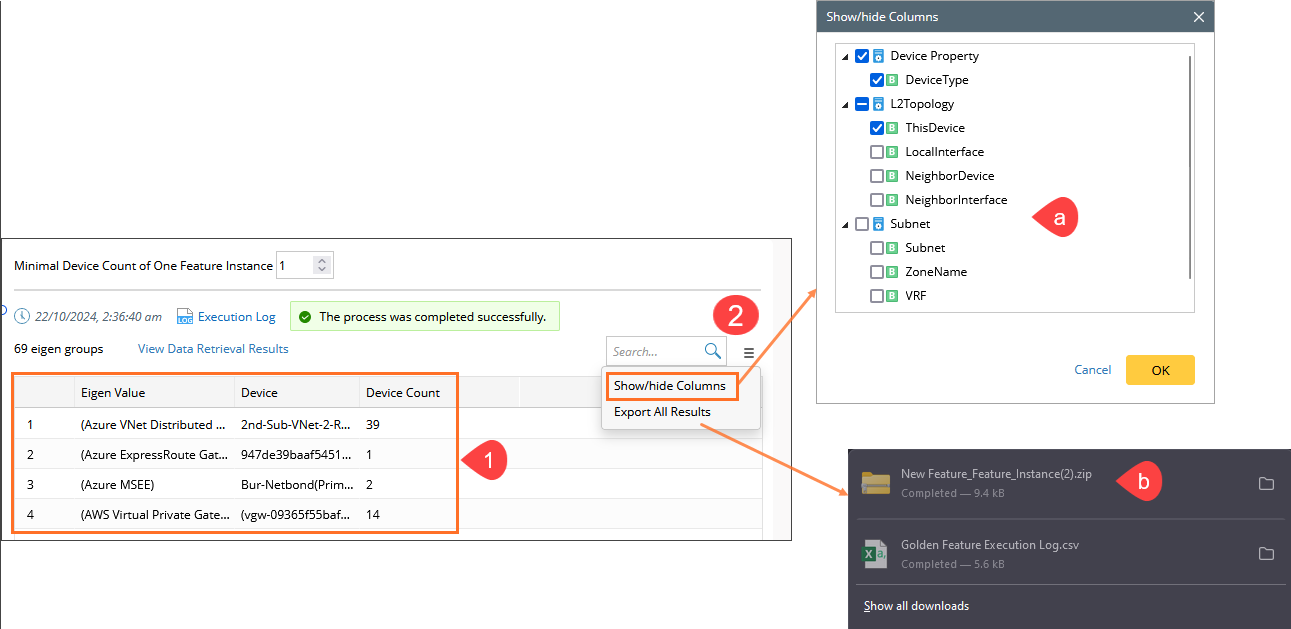
After executing the logic of the Calculate Feature Instance node, the result table will populate with the corresponding results. By default, the table includes three fixed columns:
-
Eigen Value: Shows the specific Eigen value. Each unique Eigen value generates a row, and devices with the same Eigen value are grouped into the same row.
-
Device: Displays the devices in this Eigen group.
- Device Count: Shows the number of devices included in this Eigen group.
Note: The columns in the result table support sorting.
-
- The View Feature Instance Result
 menu provide options to manage column visibility and export results.
- Show/Hide Columns: Use this option to customize the display of columns (not applicable for default columns). You can select or deselect columns to show or hide them as needed.
- Export All Results: This option downloads the current result table in the zip file format. The default file name is
$featureName_Feature_Instance.zip.
- Show/Hide Columns: Use this option to customize the display of columns (not applicable for default columns). You can select or deselect columns to show or hide them as needed.
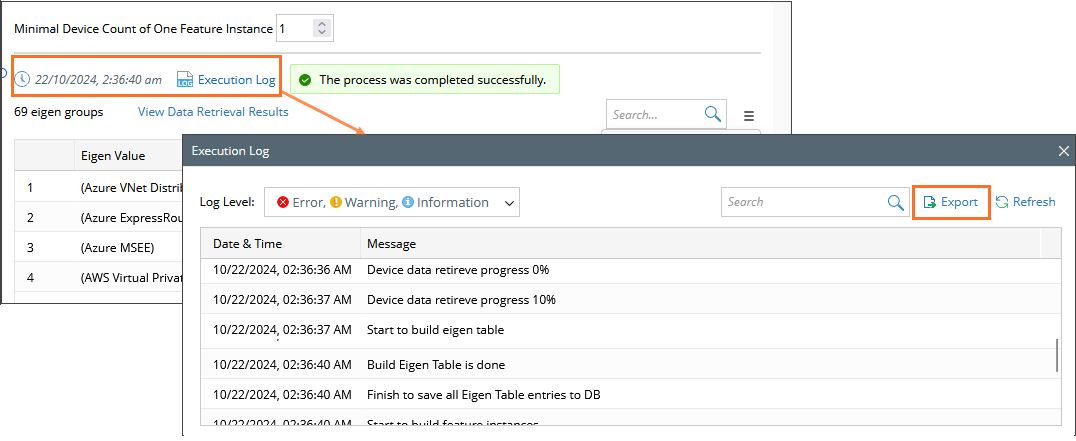
View Execution Log
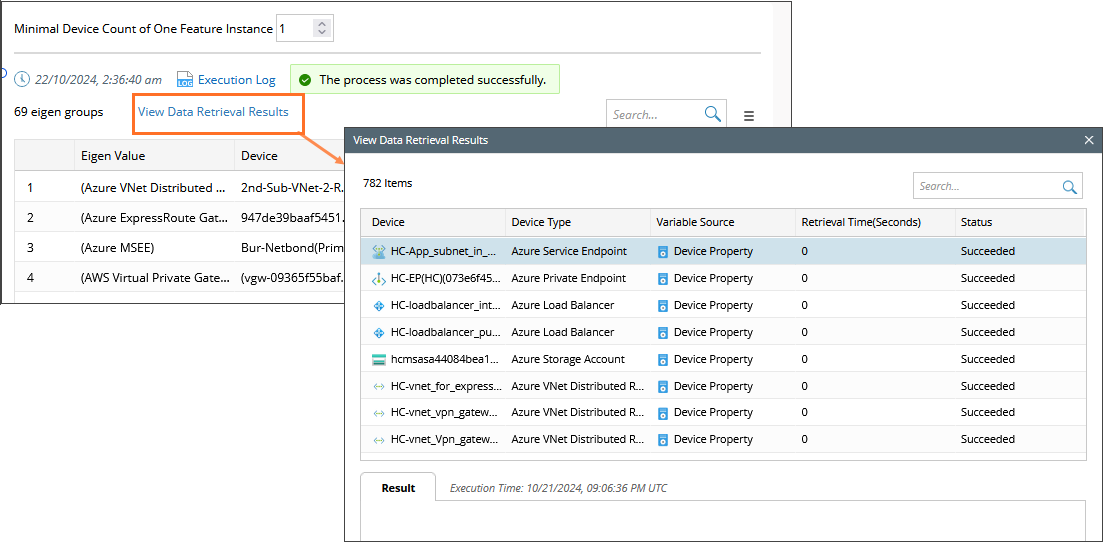
View Data Retrieval Results
Click the View Data Retrieval Results link to see the results and execution time for individual row.