R12 Publication-2025July16
View Golden Config Check Results Per Device
From the Golden Config pane, you can view the Golden Config Check results for one matched device at a time.
Operations on the Top Operation Bar
From the operation bar at the top, you can do the following: 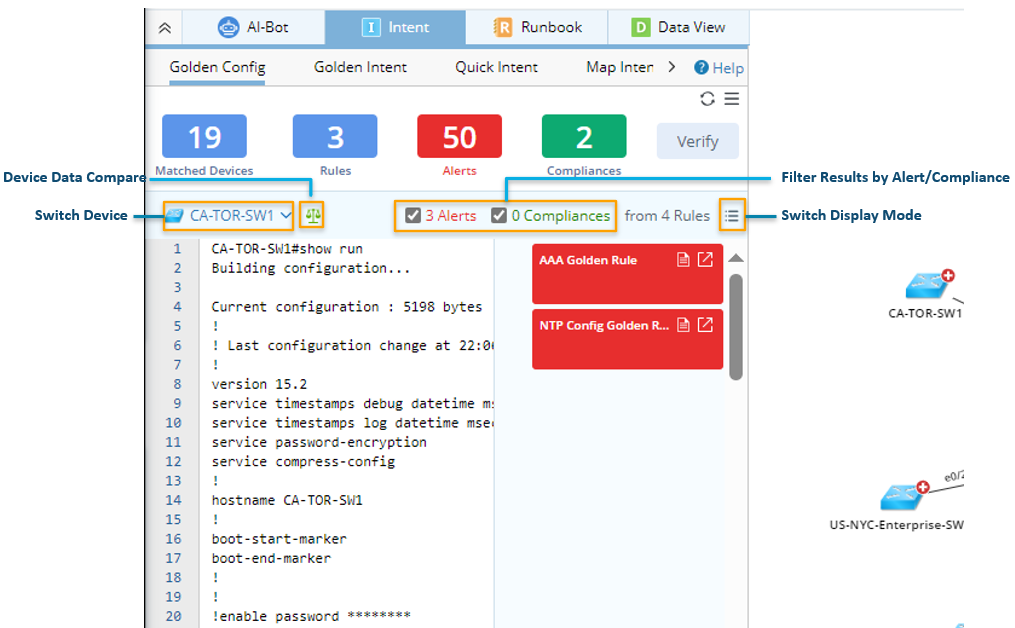
- Switch Device: Switch device from the device list to get the device data of the selected device. The number of generated alerts and compliances from Golden Config Rules matched with each device are shown next to the device. The devices in the device list are arranged in descending order based on the count of alerts.
- Steps: Click the
 icon, then select device from the device list.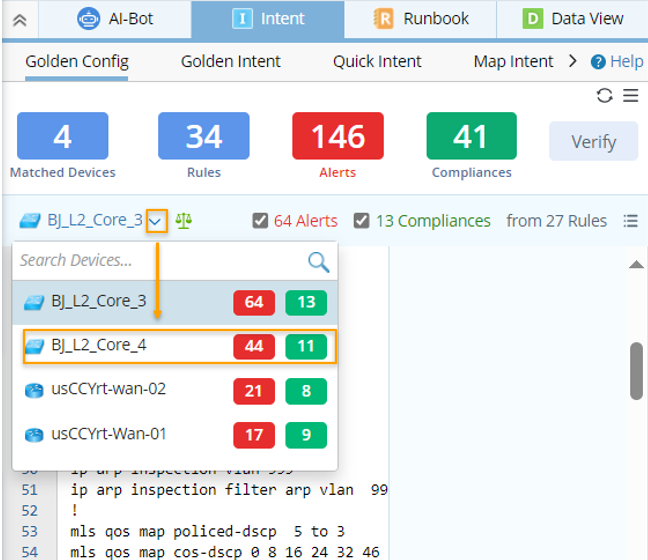
- Steps: Click the
- Filter results by Alert/Compliance: The Golden Config Check results related to the selected device will be shown (the count of alerts and count of compliances, the number of Golden Configure Rules matching the current device). By checking checkbox for Alert/Compliance, filter the Golden Config Check results to display only the ‘Golden Config Rule Check Notes’ with alert results or with compliance results.
- Step: Check or uncheck the Alerts /Compliances checkbox. By default, both checkboxes are selected.
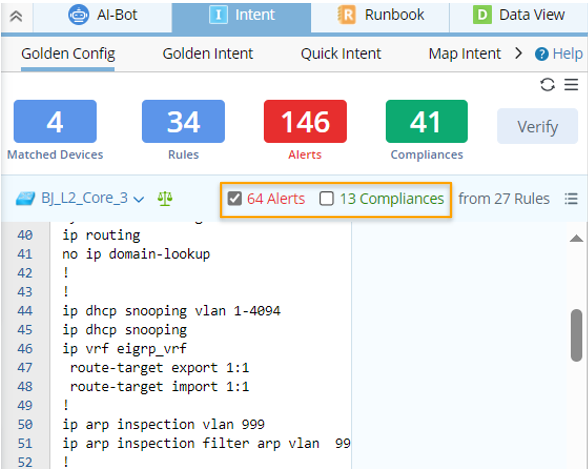
- Step: Check or uncheck the Alerts /Compliances checkbox. By default, both checkboxes are selected.
- Switch Display Mode: Choose from two modes for displaying the config files in this pane (by switching between the
 /
/  icons):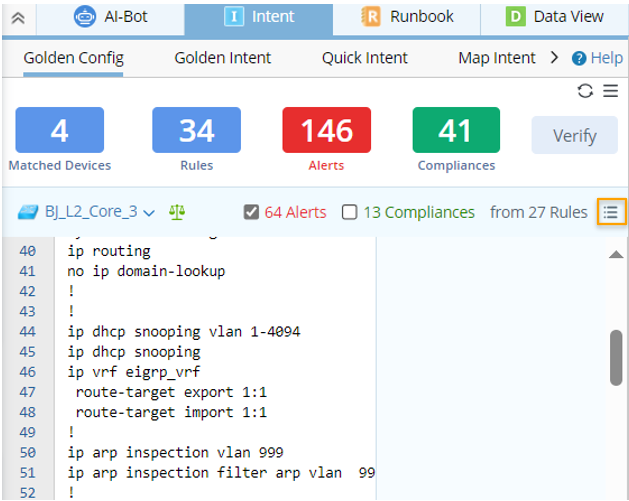
- Original Config mode: View the full original command texts.
- Summary Config mode: Only view the config file sections matching with config instances to make users focus on config lines of config instance.

Tip: A maximum of 2M data can be loaded in the left pane. If the data size of the configuration is over 2M, a tip message will appear to tell users this limitation is reached.
- Device Data Compare: Check the results for comparing the configurations files of the selected device from the two most recent time points.
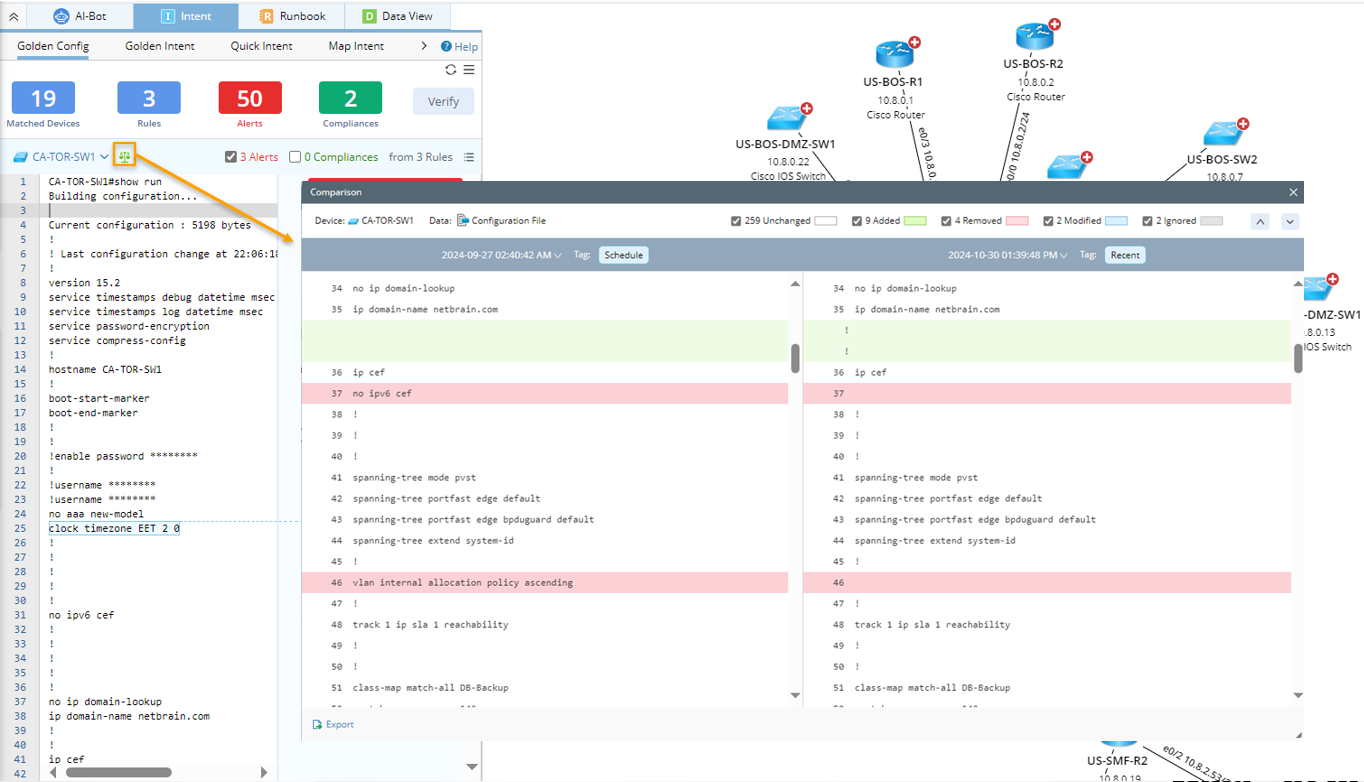
- Click the
 icon, then the window will open.
- Click the
Operations in the Main Body of Golden Config Pane
The main body of the pane will present the following: 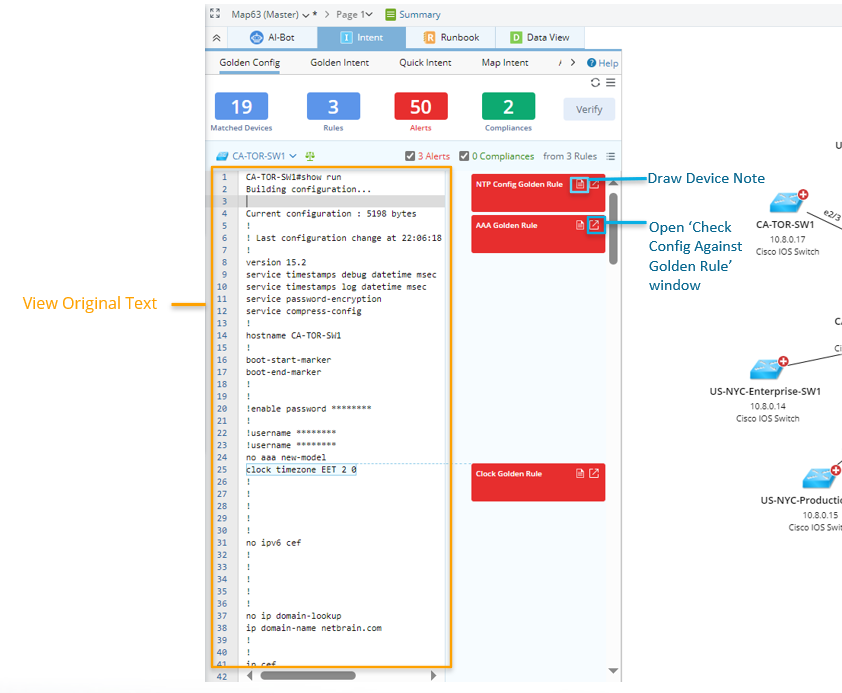
- By default, the whole config line will be displayed (Original Config mode).
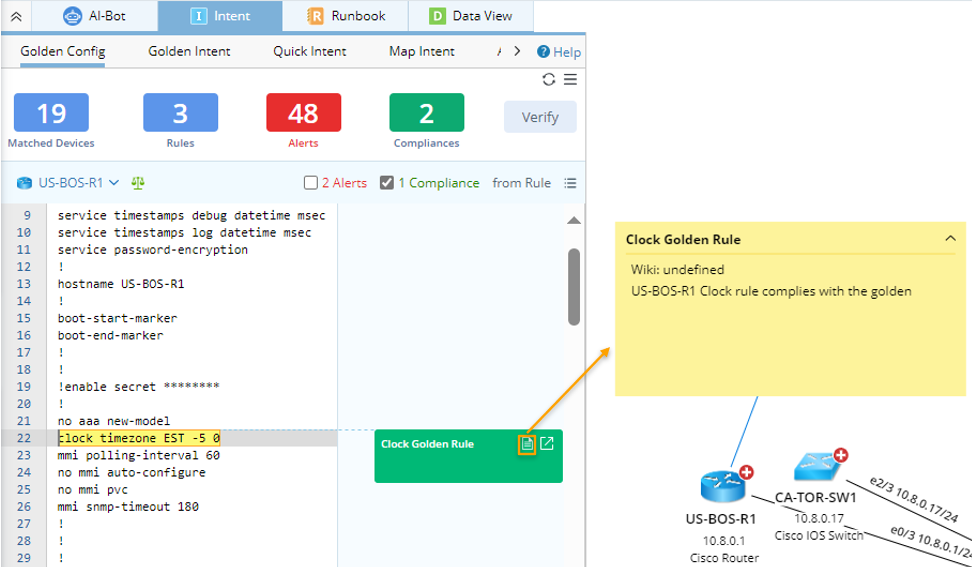
- For each config instance, the corresponding Golden Config Rule Check Note is shown on the right side to provide the following information:
- Basic info: Golden Config Rule name, the Design Wiki for the config Instance.
- Color-Code:
- Red color indicates the Golden Config check result is Alert.
- Green color indicates the Golden Config check result is Compliance.
- If this Golden Config Rule Check Note is dimmed, it indicates alerts are generated from Golden Config Check but the alerts are muted. See Mute Alert for more information.
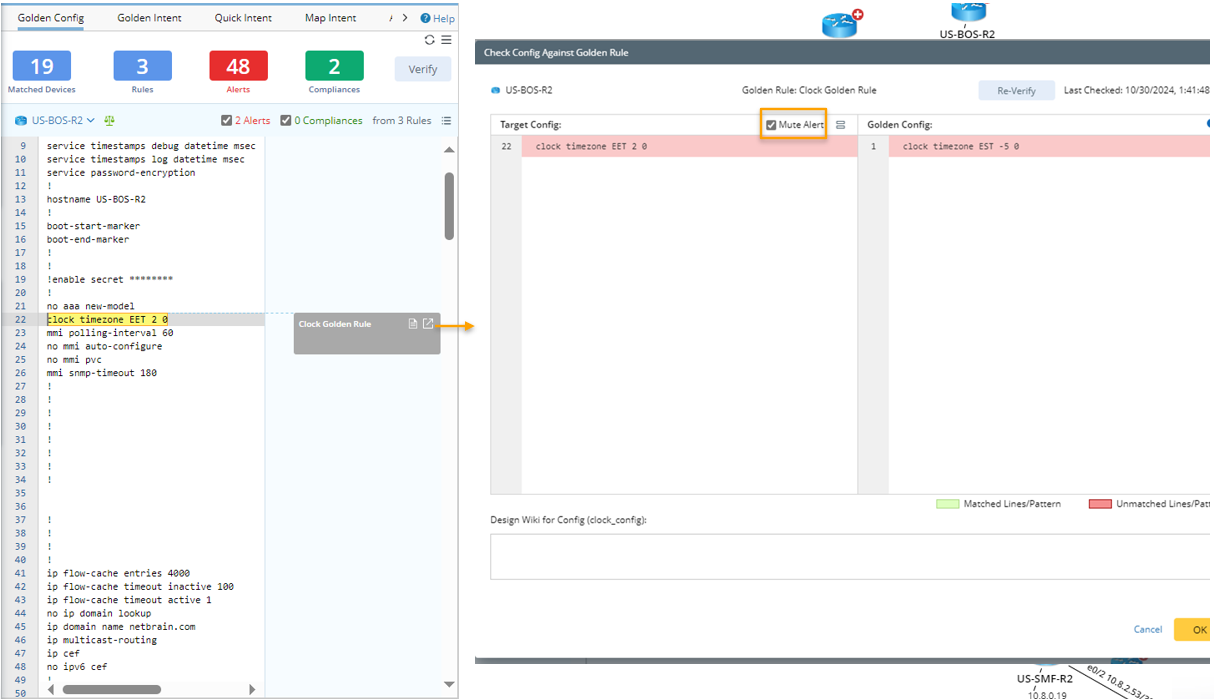
- The Golden Config Rules shown on the right side can be filtered by Alert/Compliance to provide a neat UI.
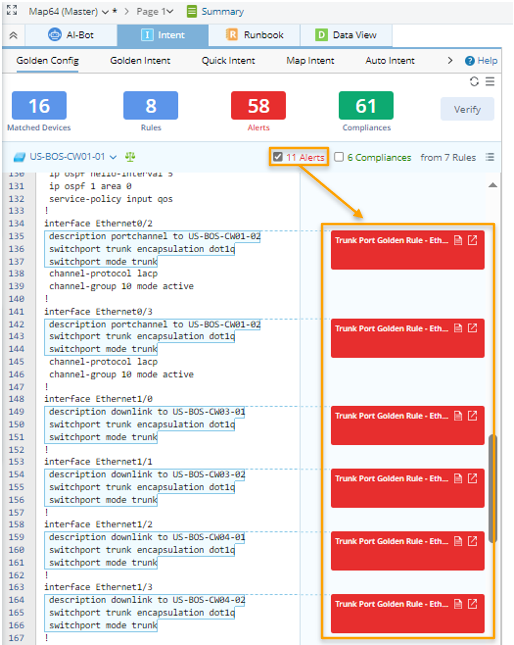
Note: When Alerts is selected as filter, the muted alerts will not be shown. - View more details: The Check Config Against Golden Rule window can provide more Golden Config Check details. For more information, see Check Config Against Golden Rule.
- Device Note: A device note can be created for the device to show: The Golden Config Rule name, Design Wiki, alert message, and a message for generated compliance results. If the device is not on the map yet, it will be automatically drawn on the map before adding the device note.
In a Golden Config Rule Check Note, click the icon to draw map device note.