2023-Nov-03-R11.1a
Auto Intent
Auto Intent is a function to enable you to clone and execute an intent based on the results of the intent decoding service in the IBA Center. Further, qualified path intent, ADT installed and enabled in IBA Center and the corresponding ADT assets associated with the map device are also included in Auto Intent for creating proper intents. When a map opens, the matched intents with the auto intent enabled in the IBA Center and all types of qualified intents as well as ADT assets are listed for creating and executing intents. Auto Intent allows users to build intents that will be applied to their network based on existing intent templates/path intents/ADT and ADT assets without defining parser and intent diagnosis logic from scratch.
Auto Intent UI
Auto Intent is a tab added under the Intent tab of a map. The Auto Intent UI is shown below: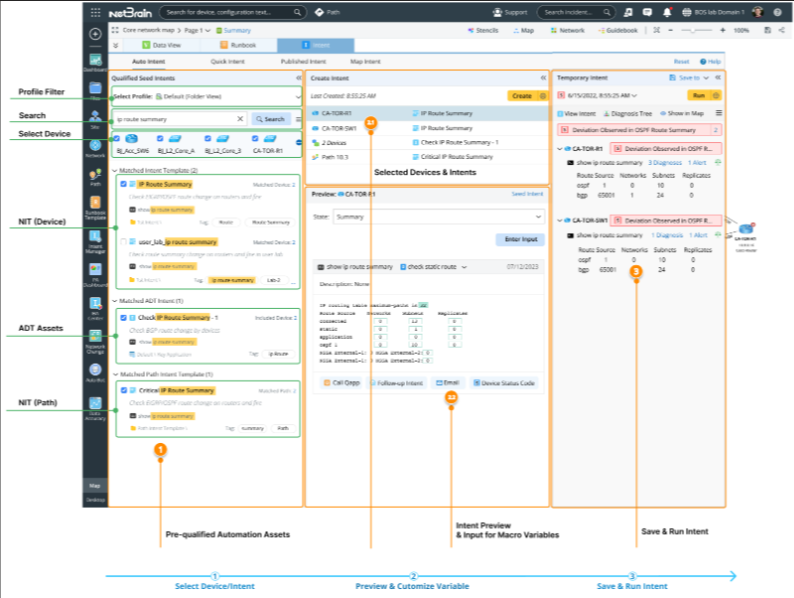
- Pre-qualified Automation Assets: The pane for selecting map devices and organizing intent templates, path intent templates, ADT intents/automation assets (intent/map/path).
- Profile Filter: The area for selecting a Profile for filtering intents.
- Search: Search intents.
- Select Device: The area for selecting map devices.
- NIT (Device): The intent templates enabled for Auto Intent and associated with map devices are listed. Devices associated with intent template are in the second hierarchy of the folder structure.
- ADT Assets: Intents/Maps/Paths of the enabled ADT are listed.
- NIT (Path): The intent templates enabled for Auto Intent and associated with map devices (the map devices have paths passing through them).
- Create Intent: The pane for listing selected elements, defining macro variables, previewing intent and creating intent.
- Selected Devices & Intents area: Show the items selected from the left pane.
- Intent Preview & Input for Macro Variables: Preview items highlighted or selected in the left pane and the items highlighted in the Selected Devices & Intents area to facilitate network intent selection; input values for macro variables of the target device to create proper intent.
- Temporary Intent: Run intent and view the execution results, then add the created intent as map/path/common intent for further troubleshooting.
 |
Note: ADT folder in this pane is represented by the icon  , and the intents/maps/paths of the ADT are listed under the ADT folder. , and the intents/maps/paths of the ADT are listed under the ADT folder.
|
Use Flow
The flow for end users on Map is shown in the diagram below: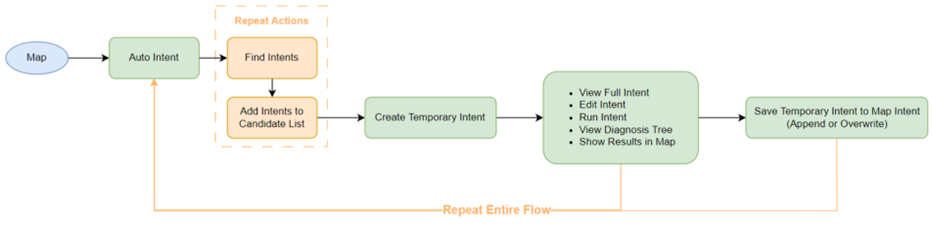
The flow for power users in IBA Center is shown in the diagram below: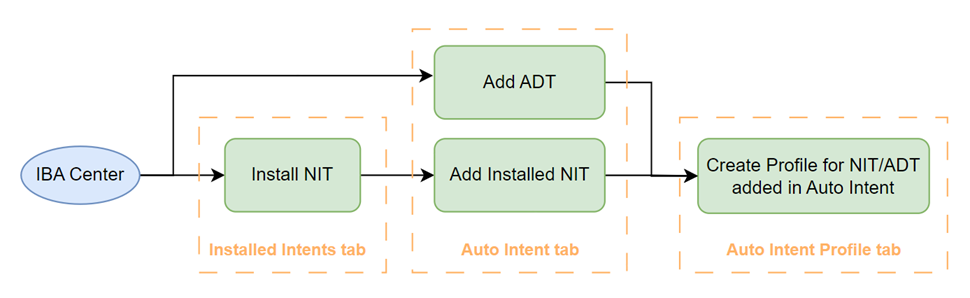
Where to Start
If you are an end user, open a map, then go to Intent > Auto Intent to perform relevant operations. 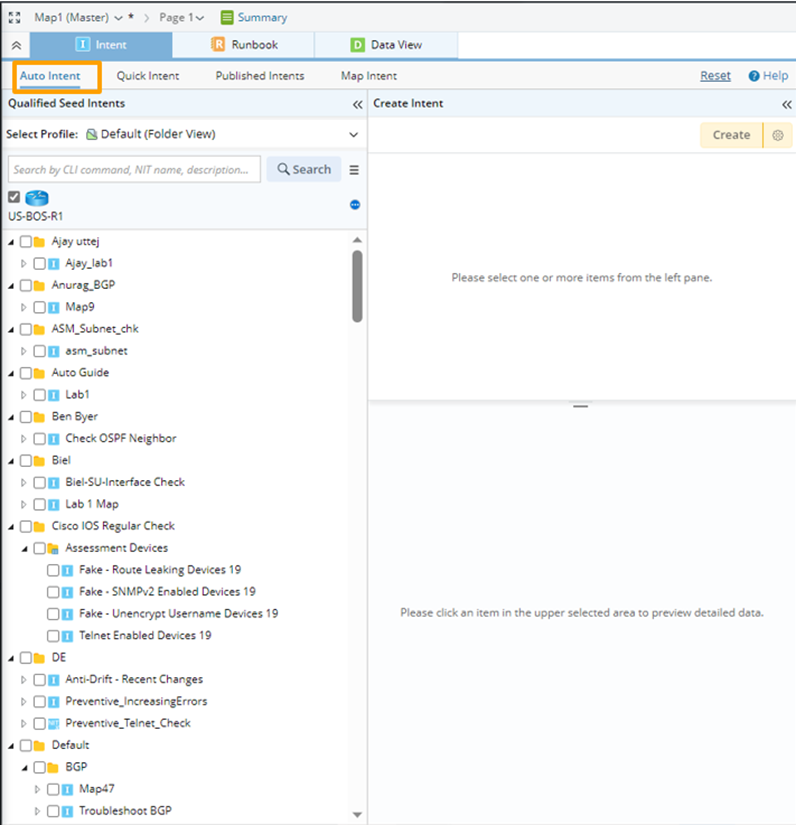
See also: