10.1.9 JA Publication
Configure Triggered Automation in IBA Center
You can install or intent template for an incident type in the IBA center.
After the configuration, you can also manage the triggered automation in Triggered Automation Manager.
Follow the steps to configure triggered automation in IBA center:
- Click
 and select Intent Based Automation Center.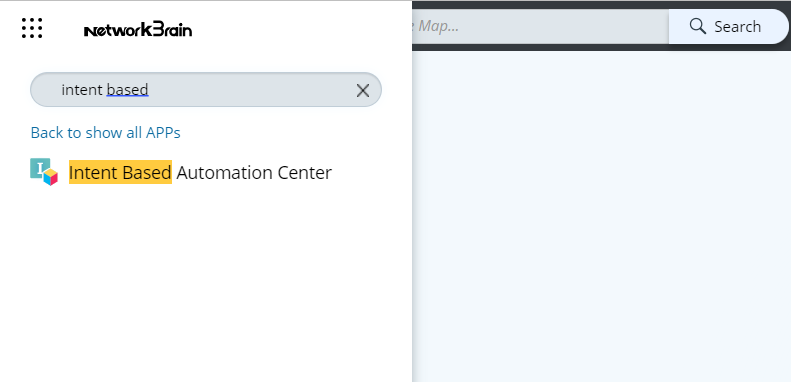
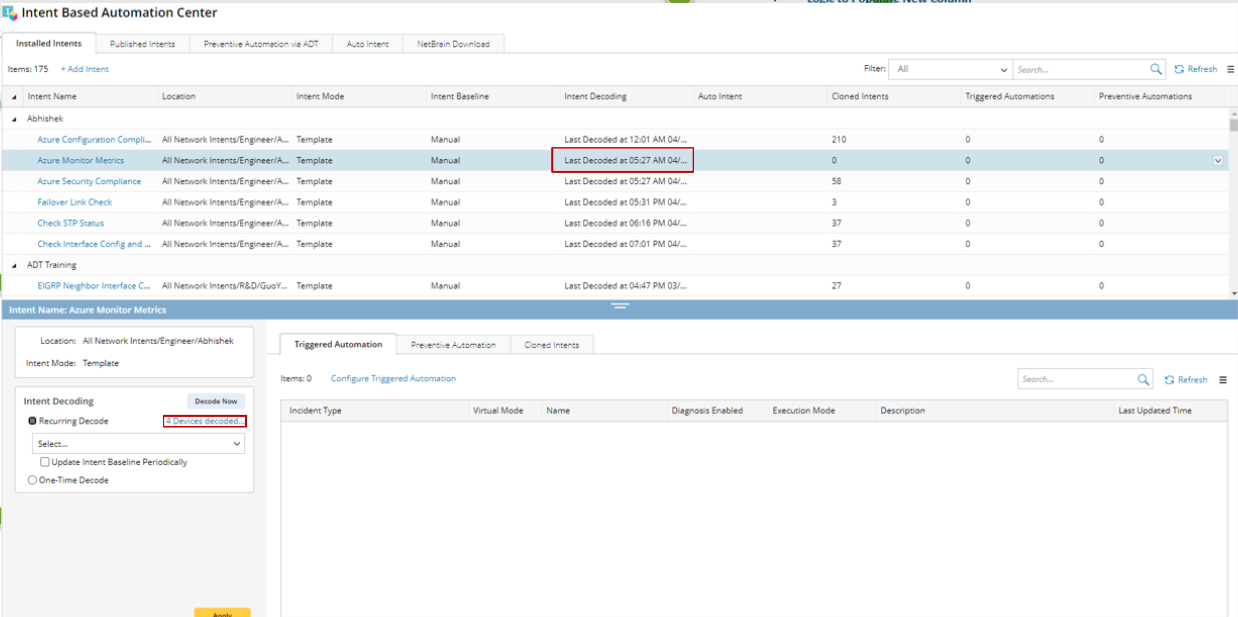
- In the Installed Intents tab, add an intent or select one. For example, select the intent Azure Monitor Metrics.

- If you add a new intent template or select one that has not been decoded, click Decode Now.
- The NIT decoding service creates a list of qualified devices based on the NIT setting. These qualified devices will be used later to clone NIs on the fly.
- You can select one-time or recurring decoding.

Tip: You can know whether the intent template has been decoded from:
- Display Last Decoded at <specific time> info in the intent decoding column
- Display xx devices decoded behind the one-time decode option
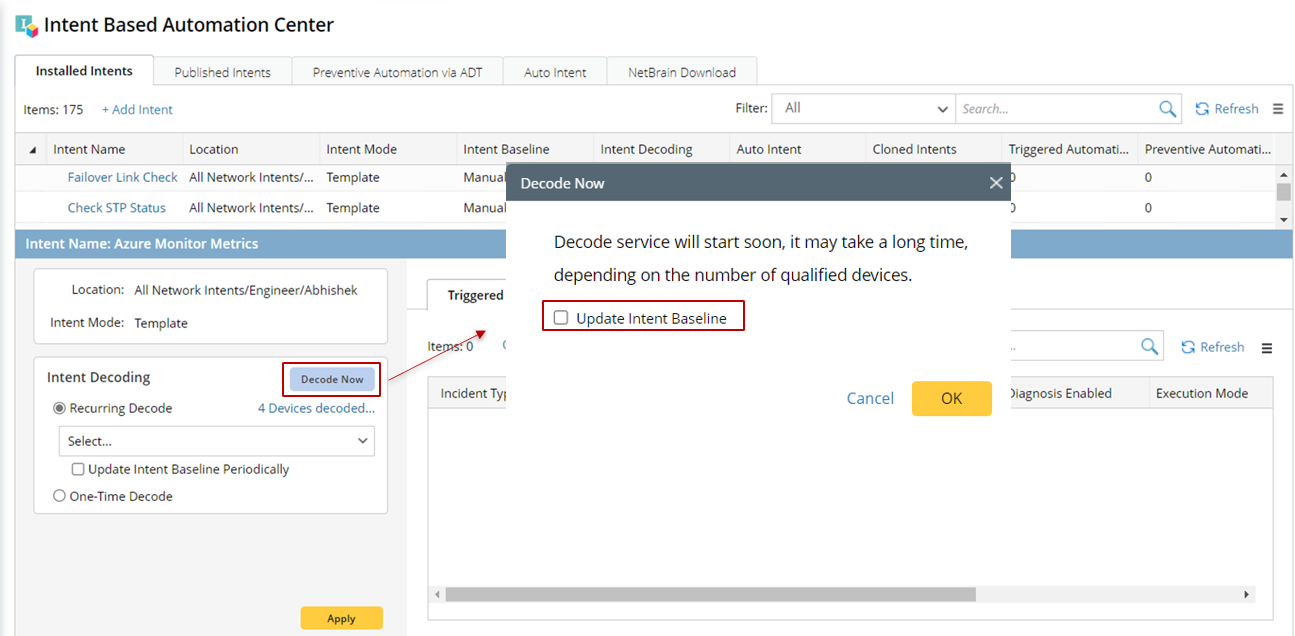
- When the decoding is finished, click Decode Now and enable Update Intent Baseline from the Decode Now dialog. Click OK.
- Click Configure Triggered Automation under the Triggered Automation tab.
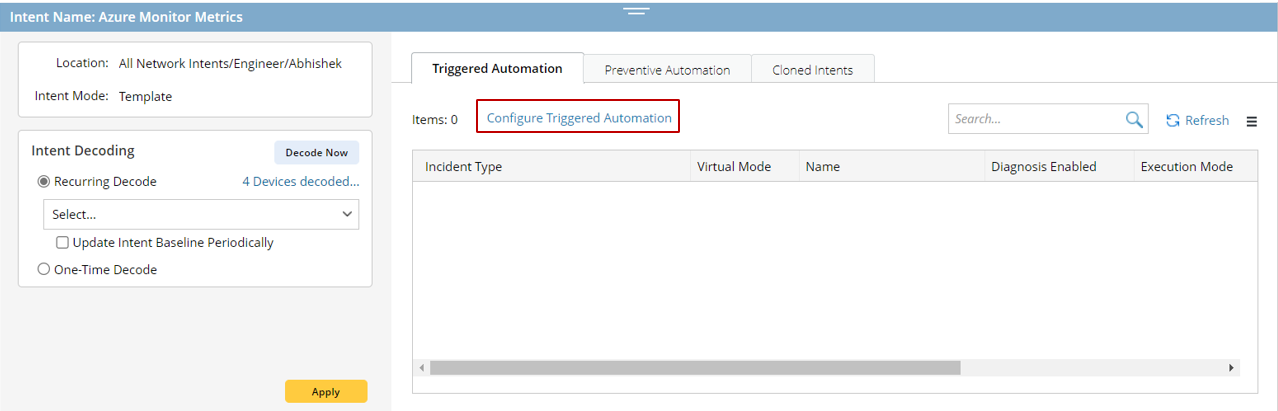
- In the Install Intent for Diagnosis window, define the following components:
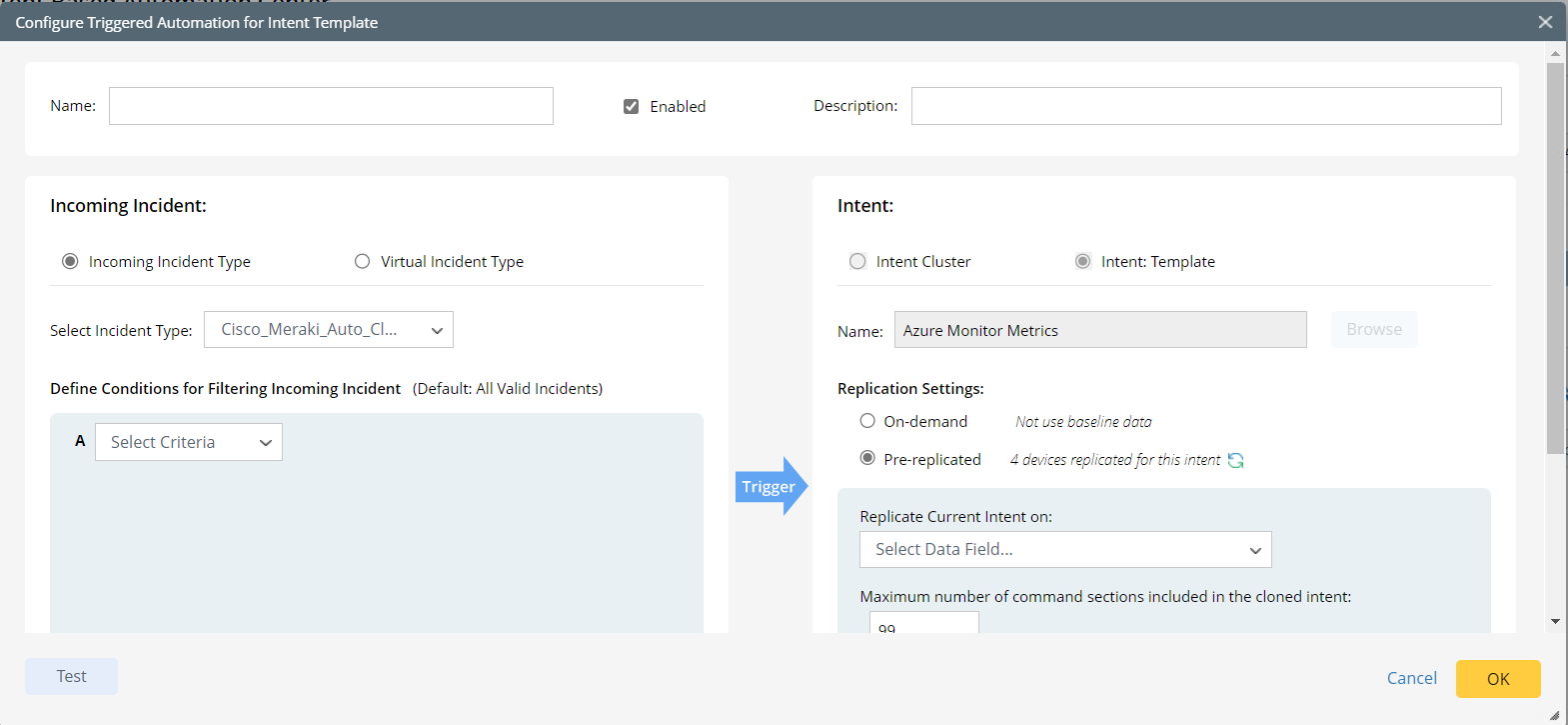
- Define the basic setting.
- Define the triggered condition.
- Depending on whether installing an NIT with macro variables or without macro variables, select either to:
- Define the Execution Setting
- Test and save the triggered diagnosis.